

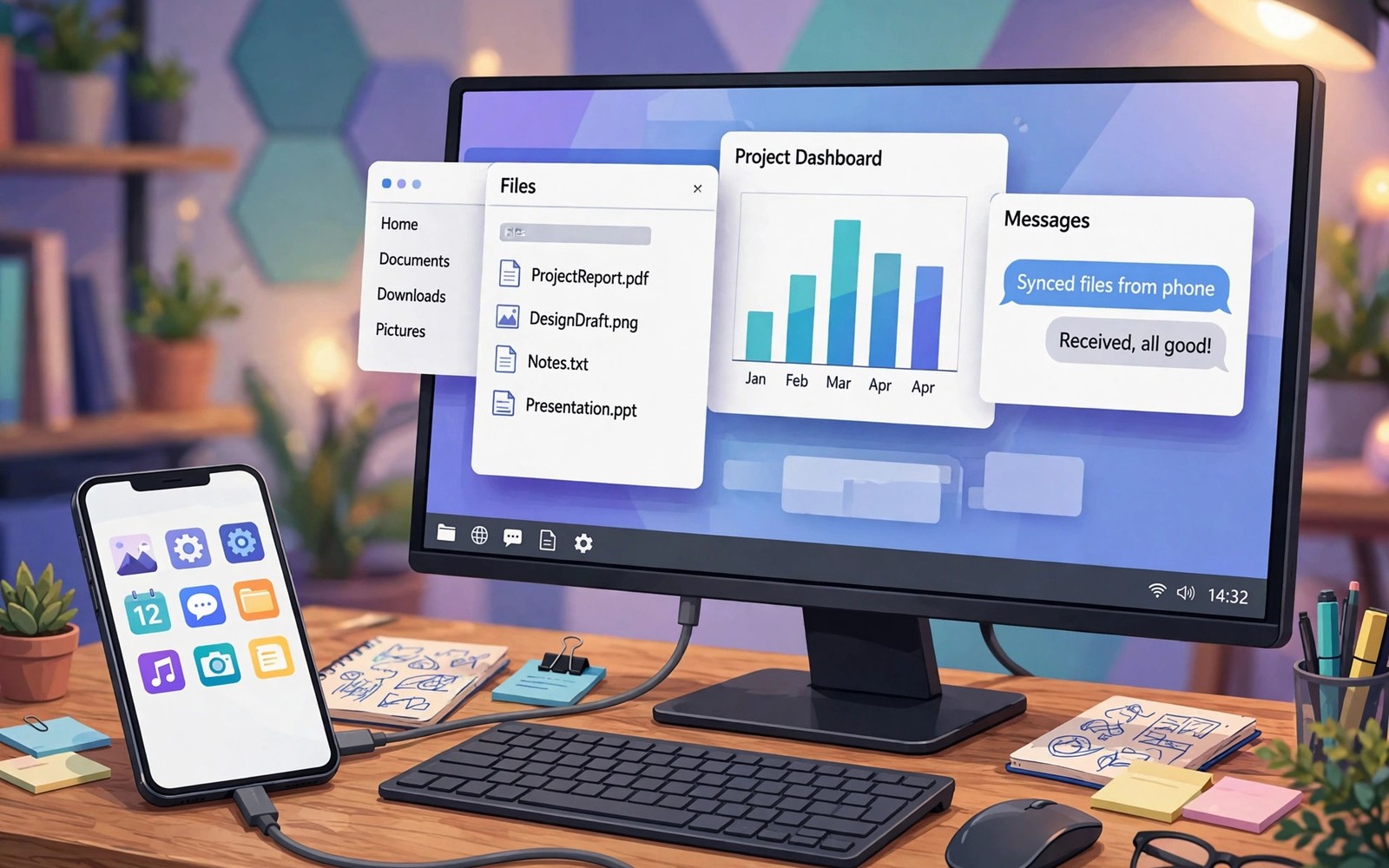
A modern phone holds more power than many old laptops. DeX unlocks that power with a desktop layout. Windows float and resize like on a PC. A taskbar keeps your open apps in view.
You can connect to a monitor or a TV. You can also run DeX on a laptop screen. Add a keyboard and a mouse for full control. Suddenly your phone becomes a travel workstation. Readers who want a wider view can also explore second display options for a related setup.
What DeX Changes on Screen
DeX replaces the phone home screen with a desktop. Apps open in resizable windows. You can snap windows side by side. This layout suits writing and research tasks well.
Many apps adapt to the larger layout automatically. Browsers show desktop style pages. Office apps show wider toolbars. Some games still prefer portrait phone mode.
Hardware You Need to Start
You need a compatible phone and a display. A USB-C hub can add HDMI and USB ports. A Bluetooth keyboard and mouse keep the desk tidy. A charger keeps the phone powered during work.
Wireless DeX works with some smart TVs. It needs no cable but adds slight delay. Wired DeX feels sharper for video work. Choose wired when you edit or present.
Setting Up DeX Step by Step
Connect the phone to the display with a hub or cable. DeX should launch on its own. If not then open it from quick settings. Pick the display resolution that looks sharp.
Pair a keyboard and mouse if you use Bluetooth. Test window dragging and right click menus. Open your key apps and arrange them. Save this layout habit for faster starts later.
dex() {
  echo 'Connect USB-C hub with HDMI'
  echo 'Launch DeX from quick settings'
  echo 'Pair keyboard and mouse'
}
# run dex to print the setup checklist
The snippet above follows standard operating system documentation and widely shared setup guides. It shows a typical pattern rather than a vendor specific promise. Results can vary by device model and system version. Always test a small change before you rely on it daily.
Apps That Shine in DeX
Browsers and office apps benefit most from DeX. You can research in one window and write in another. File managers also feel better with a mouse. Drag and drop between windows works smoothly. A related workflow is covered in Android apps on Windows for readers who want more depth.
Video apps make a good second screen experience. You can watch a tutorial while you take notes. Keep heavy games for phone mode instead. Desktop mode rewards focus work more than play.
Files and Storage in Desktop Mode
DeX can read USB drives through a hub. You can move files with the file manager. Cloud folders also sync as usual. This makes DeX useful for field work and travel.
Save work often when you use external displays. A loose cable can end a session fast. Cloud autosave protects open documents. Local files need a manual save habit.
Limits You Should Know
Not every app supports window resizing well. Some apps force a fixed phone shape. Others may restart when you switch modes. Test your key apps before an important trip.
Long DeX sessions can heat the phone. Use a hub with good airflow. Keep the phone out of direct sun. A cool phone holds performance longer.
Who Benefits Most from DeX
Travelers gain a PC without carrying a laptop. Students gain a cheap desktop for writing. Office workers gain a backup workstation. If you only browse then phone mode may be enough.
DeX on a TV Versus a Monitor
TVs offer huge DeX screens for cheap in living rooms. Text can look soft on large low density TVs. Monitors offer sharper text for office work. A 27 inch monitor suits DeX better than a TV. TVs suit media and casual browsing more. Match the display to the task at hand.
TV overscan can cut off DeX edges on some models. Disable overscan in TV picture settings. Use just scan or PC mode when available. These modes show the full desktop cleanly. Test edge visibility with the taskbar first. A cropped taskbar signals overscan trouble.
Wireless DeX Setup in Detail
Wireless DeX connects to smart TVs over Wi-Fi. Both devices must share the same network. Open DeX from quick settings on the phone. Pick the TV from the device list. Accept the connection prompt on the TV screen. The desktop appears within seconds on good networks.
Wireless DeX adds delay compared with wired mode. Typing feels fine for documents and email. Video editing feels sluggish over wireless links. Use wired DeX for timing sensitive work. Wireless suits presentations and media best. Know the limit before you plan around it.
Keyboards Mice and Trackpads for DeX
Bluetooth keyboards pair quickly with DeX phones. Compact keyboards suit travel bags well. Full size keyboards suit desk work better. A mouse adds precision for window management. Trackpads offer gestures for scrolling and switching. Choose input gear by bag space and task type.
Some keyboards include a built in trackpad combo. Combo devices reduce bag clutter nicely. They may lack precision for design work. A separate mouse wins for long editing sessions. Test input gear before an important trip. Familiar gear prevents fumbling during work.
DeX for Students on a Budget
Students can build a desktop from a phone and a cheap monitor. Used monitors cost little at thrift stores. A basic keyboard and mouse complete the kit. Total cost stays far below a new laptop. Writing and research work well in DeX. Coding also works for many beginner courses.
Printing from DeX needs a network printer setup. Most campus printers support mobile printing. Check printer app support before deadlines. Save final papers as PDF files early. PDF files print consistently across systems. Early saves prevent deadline panic.
DeX Multitasking and Window Management
DeX windows snap to halves and quarters easily. Drag a window to a screen edge to snap it. Use the taskbar to switch between open apps. Alt tab on a keyboard also switches apps fast. Learn three window shortcuts and use them daily. Good window habits double DeX productivity.
Too many open windows slow older phones down. Close apps you finished using promptly. Check running apps in the taskbar regularly. A lean desktop stays responsive longer. Restart DeX weekly to clear stale states. Fresh sessions feel noticeably faster.
DeX Limits for Power Users
Heavy video editing strains phone processors in DeX. Long renders heat the phone and throttle speed. Large spreadsheets also tax phone memory. DeX suits light to medium workloads best. Power users still need a real PC for heavy jobs. Treat DeX as a portable complement and not a replacement.
Some desktop websites demand desktop browser extensions. Phone browsers may lack those extensions. Check extension needs before relying on DeX. Banking portals sometimes block mobile browsers too. Test critical sites in DeX early. Early tests reveal deal breakers before travel.
DeX and External Monitors on the Go
Portable monitors pair beautifully with DeX phones. A fifteen inch portable monitor fits laptop bags. It connects through USB-C with one cable. Power and video travel through that cable. This kit creates a full desk anywhere. Hotel rooms become offices in minutes. Portable monitors cost less than cheap laptops now.
Portable monitor brightness varies widely by model. Bright models work outdoors and near windows. Dim models suit dark rooms only. Check brightness ratings before buying one. A dim monitor frustrates daytime work badly. Brightness matters more than resolution for travel.
DeX Gaming and Entertainment
DeX turns phones into living room consoles cheaply. Connect to a TV and pair a controller. Many mobile games fill the TV screen nicely. Cloud gaming apps also run in DeX windows. Big screen gaming from a phone impresses guests. It cannot match dedicated consoles for heavy titles. Casual gaming shines brightest in DeX mode.
Media apps in DeX offer desktop style browsing. Video libraries show more titles per screen. Search with a keyboard beats remote typing. Family movie nights benefit from DeX browsing. Pick a film together on the big screen. DeX media use feels surprisingly polished daily.
DeX for Field Workers
Field workers carry phones into warehouses and sites. DeX adds desktop power at site offices. Connect to a site monitor for reports. Fill forms with a full keyboard quickly. Photos from site inspections transfer instantly. Reports finish on site instead of back at office. Faster reports improve client satisfaction measurably.
Rugged cases protect phones during field DeX use. Cases must allow USB-C hub connections easily. Test case and hub fit before field days. A blocked port wastes time on site. Carry a spare hub for critical field work. Redundancy prevents small failures becoming big delays.
DeX Security for Business Use
Business DeX use needs device management policies. Managed phones can enforce encryption and passwords. IT can wipe lost phones remotely too. DeX sessions should lock quickly when idle. Short lock timeouts protect office data. Employees must understand lock policies clearly. Training prevents accidental data exposure incidents.
Public monitors pose risks for DeX sessions. Strangers could view sensitive documents. Use privacy screens on portable monitors. Avoid DeX for sensitive work in public. Hotel lobbies are not secure offices. Location awareness is part of security hygiene.
DeX Versus Cheap Laptops
Cheap laptops offer larger storage than phones. DeX phones offer better cameras and connectivity. Laptops run desktop software phones cannot. Phones offer cellular data without hotspots. Each option wins different categories clearly. Choose by software needs first and foremost. Software compatibility decides the winner usually.
Total cost favors DeX for existing phone owners. A monitor and hub cost little together. A new laptop costs several hundred dollars. Students with good phones save money with DeX. Workers needing desktop apps still need laptops. Budget and software together guide decisions.
DeX and Cloud Gaming
Cloud gaming streams games to DeX windows smoothly. The phone handles streaming while DeX displays. Controllers pair through Bluetooth easily. Big screen cloud gaming feels console like. Network quality determines gaming smoothness entirely. Wired connections beat Wi-Fi for gaming. Stable networks make cloud gaming enjoyable truly.
Cloud gaming subscriptions add monthly costs though. Compare subscription value against owned games. Casual gamers may prefer free mobile titles. Dedicated gamers benefit from cloud libraries. Trial periods reveal personal value clearly. Cancel subscriptions that go unused monthly. Subscription audits prevent wasted spending.
DeX Accessibility Features
DeX supports Android accessibility features broadly. Large text settings scale desktop interface text. High contrast modes aid low vision users. Screen magnification helps detailed work tasks. Voice access controls DeX hands free partially. Accessibility in DeX improves yearly steadily. Test features with actual user needs present.
Hearing accessibility benefits from DeX visual alerts. Flash notifications replace audio alerts visually. Captions in DeX video apps aid comprehension. Visual alerts suit quiet offices too. Accessibility features help broader audiences often. Universal design benefits everyone eventually. Enable helpful features regardless of need labels.
Start with one small change today and build from there. A steady setup beats a rushed overhaul every time. You can also read trackpad remote control to round out your plan. Once the basics feel natural you can add more advanced options at your own pace.

