

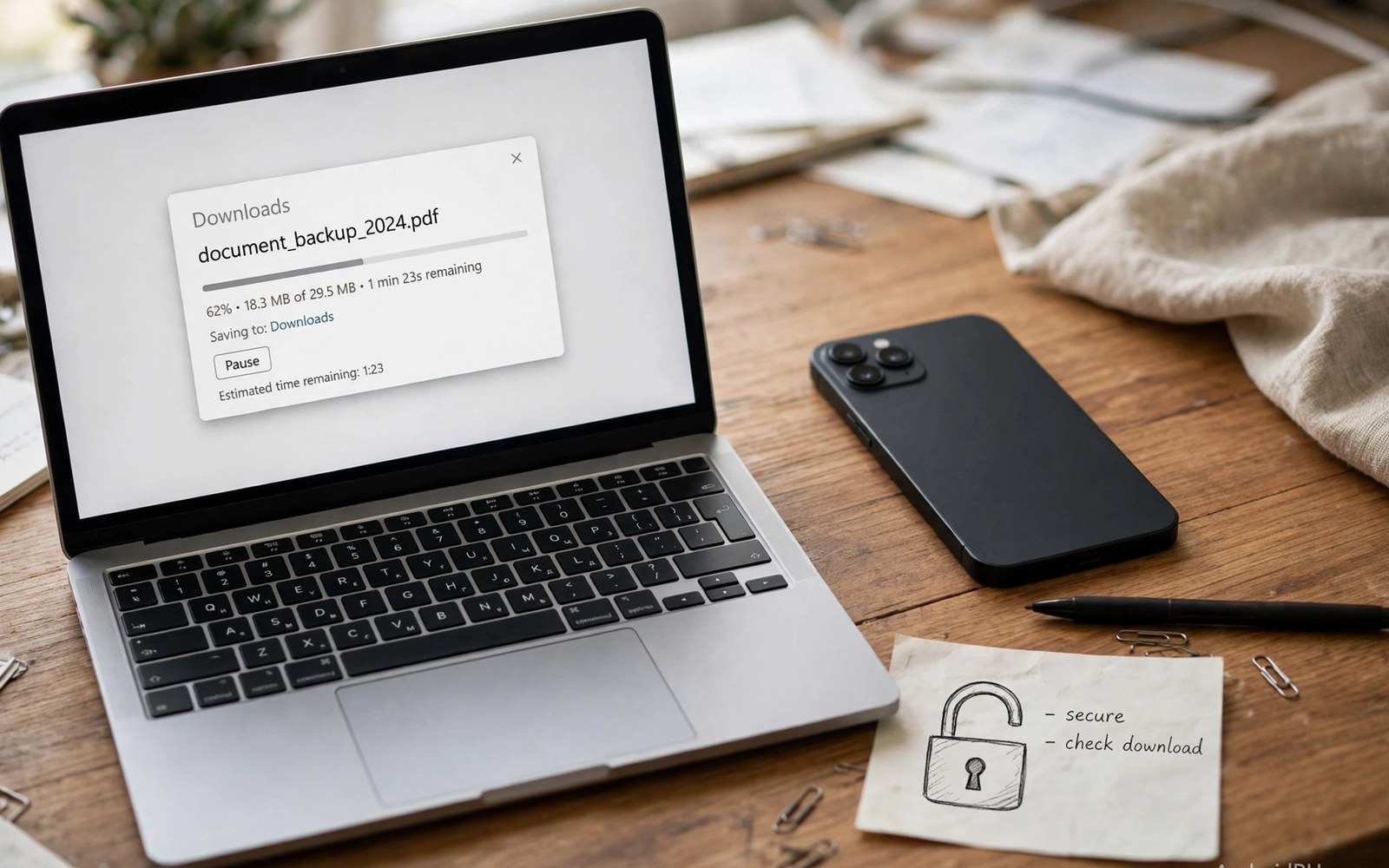
Sideloading means installing an app outside the main store. Android allows it with a warning. iOS blocks it in most regions. This one difference sparks fierce debate. Fans call it freedom. Critics call it risk. Both views hold truth.
This article explains sideloading in plain terms. It covers how installs work. It covers real risks and real benefits. It covers safe habits for curious users. It also covers the walled garden case. By the end you can decide with facts, not slogans.
How Sideloading Works on Android
An APK is an app package file. Download it from a maker site or a store mirror. Tap it and the system warns you. Grant install rights for that source only. The app installs like any store app. You can update it by hand later.
Scoped install rights limit the risk. Grant rights to one browser or one file app. Do not grant rights to every app. Revoke rights after the install ends. This narrow grant keeps control in your hands.
Why People Sideload at All
Some apps never reach the main store. Beta apps live on maker sites first. Regional apps may skip your store region. Old app versions may suit old phones. Open tools may shun store rules. Sideloading fills those gaps.
Developers use sideloading for testing too. They install a build on a real phone. They test it before store review. They share it with testers by link. This fast loop speeds up good apps. It is a core dev tool.
Real Risks You Must Respect
Fake APK sites are the main danger. They clone popular apps with added malware. They rank high in search results. They lure users with free premium claims. One bad install can steal data or lock a phone. The risk is real and common.
Check the source before you tap install. Use the official maker site when possible. Check the app signature if you know how. Scan the file with a trusted scanner. If a deal looks too good then it is a trap. For store safety basics, see the store security checks.
The Walled Garden Case
The walled garden blocks outside installs. Every app passes store review first. Malware rates stay low. Users rarely face fake install traps. The model suits casual users well. It also suits kids and elders.
The cost is control. You cannot install a beta outside review. You cannot use a store rival freely. You cannot keep an old version you love. Developers face review delays and fees. Freedom loses to safety by design.
Safe Sideloading Habits
Follow a short rule set for safety. Install only from sources you trust deeply. Verify the maker name and site address. Keep system scanning turned on. Check app permissions after install. Remove apps you no longer test.
safe_install = [
  "trusted source",
  "scan file",
  "narrow rights",
  "check permissions"
]
for step in safe_install:
    print("Do: " + step)
The snippet above is a simplified illustration of a safe install routine. It shows the idea in plain form. Follow it in order each time you install outside the store.
Updates and Long Term Care
Sideloaded apps do not auto update from the store. You must fetch updates by hand. Check the maker site on a schedule. Old versions carry known security holes. Update promptly or remove the app.
Back up data from sideloaded apps separately. Store backups may skip them. Export settings when the app allows it. Note the install source for each app. A clear list speeds up a new phone setup.
Beta Testing Without the Store
Beta testing outside the store suits small teams. Developers share a build by link. Testers install it by hand. Feedback arrives the same day. The loop beats store review delays. Testers must trust the developer deeply. A direct build skips store checks. Only join betas from known makers. Check the build signature when you can. Note bugs with steps and screenshots. Good notes speed fixes a lot. Leave the beta when it breaks daily work. Remove the build and restore the store version. Data may not carry across versions. Back up beta data before you join. A beta that wipes work teaches caution.
Test devices protect main phones from beta risk. Use an old phone for wild betas. Keep banking off the test phone. Keep key chats off it too. A test phone can crash without harm. It can also run many builds at once. Compare builds side by side there. The main phone stays stable for life. Testers who skip this step risk daily chaos. A spare phone costs little against lost work. Beta freedom rewards a separate device.
Enterprise and School Installs
Schools and firms install apps outside stores too. They use managed install tools. Admins push apps to many devices at once. Workers receive work apps without store hunts. Students receive class apps the same way. Managed installs carry rules with them. Admins can limit device features. They can wipe work data on exit. Workers should know these rules early. A managed phone is partly a work tool. Keep personal data on a personal device when you can. Mixing work and personal data complicates exits. Ask IT what they can see and wipe. Clear answers build trust both ways.
Parents should check school install rules too. A school app may ask broad permissions. Ask the school why each permission matters. A class app rarely needs contacts. A map app for field trips needs location only on trips. Time limited grants suit school use. Review school apps each term. Remove apps from past classes. A tidy school device learns better. Managed installs serve learning when rules stay clear.
Removing Sideloaded Apps Fully
Removing a sideloaded app needs more than a tap. Uninstall the app from settings. Check for leftover files in storage. Delete its folder if it remains. Check for accounts tied to the app. Revoke tokens on the maker site. Check device admin rights too. Some apps request admin rights for features. Revoke admin rights before uninstall. The system may block uninstall until you do. Check accessibility services tied to the app. Turn them off after removal. A full removal leaves no hooks behind. Skipped hooks can drain battery or leak data.
After removal, watch the phone for a day. Check battery use for odd drains. Check data use for odd uploads. A clean phone settles fast. Odd activity signals a leftover piece. Scan the phone with a trusted tool. Ask for help if activity persists. Full removal is a skill worth learning. It keeps sideload freedom safe over time. Freedom plus cleanup beats freedom plus clutter.
App Stores Beyond the Main Store
Other stores exist beyond the main store. Maker stores ship on some phones. Open stores list free apps only. Game stores focus on play titles. These stores widen choice further. They also widen risk further. A small store may review loosely. Loose review lets malware slip through. Check a small store reputation before use. Search for security reports about it. A store with past malware waves deserves avoidance. A store with clean years earns cautious trust. Install from one extra store at most. Many stores multiply risk fast. Keep the main store as home base. Extra stores suit specific needs only. A niche app may live in one extra store. That app alone justifies the extra store. Remove the store when the need ends.
Updates from extra stores need tracking. Extra store apps may not auto update. Check for updates manually each month. Old versions carry known holes. A stale app from a small store risks more. Note install sources for every app. A source list speeds new phone setup. It also speeds risk audits. Review the list quarterly and prune. Pruning extra stores reduces attack surface. Attack surface shrinks with each removal. Choice plus pruning beats choice plus clutter. Small stores serve needs. They should not become permanent homes.
Version Downgrades Done Right
Updates sometimes break beloved features. A new version may remove a tool you love. A new version may slow an old phone. Downgrades tempt users in those cases. Downgrades carry real risks too. Old versions carry known security holes. Attackers target those holes actively. Downgrade only for a strong reason. A broken work feature counts as strong. A minor dislike does not count. Find the old version from the maker directly. Maker sites beat mirror sites for safety. Mirrors may bundle malware with old builds. Back up app data before downgrading. Downgrades can wipe app data silently. Test the old version for a week. If it still serves then keep it with care. If a fix arrives then upgrade again fast.
Auto updates can undo a downgrade overnight. Turn off auto updates for that app. Remember the manual update duty that follows. Check for a fixed version weekly. A fixed version ends the downgrade period. Downgrades are bridges, not homes. Live on a bridge too long and risk grows. Security patches stop for old versions first. Features stop working as services change. A downgrade that lasts a year is a liability. Set a calendar reminder to revisit downgrades monthly. Monthly reviews keep bridges short. Short bridges protect work without long risk.
Permissions Audit for Sideloads
Sideloaded apps deserve stricter permission audits. Store review never vetted them. You are the reviewer now. Open permissions for each sideloaded app. Deny anything beyond its core job. A flashlight app needs no contacts. A wallpaper app needs no location. A game needs no SMS access. Deny boldly and test the app after. A broken app reveals a true need. A working app proves the denial right. Review sideload permissions monthly. New updates may request new permissions. Updates can expand access quietly. A monthly audit catches quiet expansion. Remove apps that demand too much. Need never justifies broad spying. A narrow app serves better than a greedy one.
Network access deserves special audit attention. Some sideloaded apps phone home constantly. Check data use per app monthly. An app with huge background data deserves suspicion. A simple tool should use little data. Block background data for suspicious apps. Test the app after blocking. A tool that works offline proves the block right. A tool that breaks may need limited net. Grant net only while the app is open. Foreground only net limits silent leaks. Permission audits turn sideload freedom into safe freedom. Freedom without audits is just exposure.
Who Should Sideload and Who Should Not
Power users gain most from sideloading. They test betas and use niche tools. They accept the duty of care. They check sources with discipline. Sideloaded apps can also become defaults, so review the default app choices after install. For them, freedom is worth the work.
Casual users gain little and risk much. The store covers their needs well. Sideloading adds traps without clear benefit. Kids should never sideload alone. Elders should stick to the store too. For open system depth, see the open system architecture that makes sideloading possible.

