

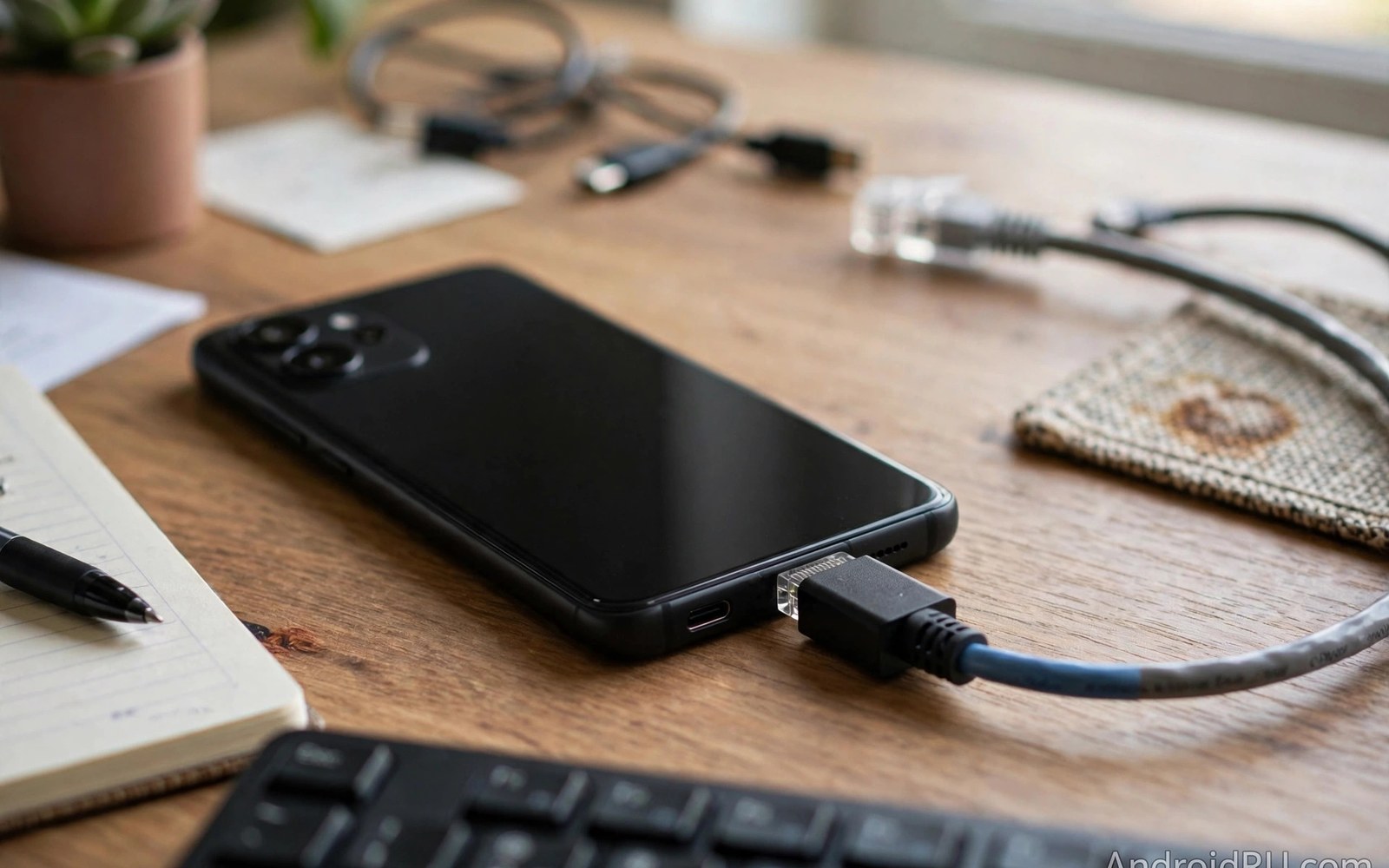
Wired internet beats wireless for stability. A cable link avoids wireless interference. It avoids signal drops through walls. It gives steady speeds for calls and streaming. A phone normally uses wireless only. An Ethernet adapter adds a wired option. The adapter plugs into the phone USB-C port. A network cable plugs into the adapter. The phone then uses the wired link. That link suits offices and hotels. It suits conference rooms with weak wireless. It suits gamers who need low delay. This guide explains the setup in plain terms. It covers speeds and power needs. It also covers common problems.
Wireless networks vary with distance and congestion. A crowded room slows wireless for everyone. A wired link gives a private lane to the network. The lane stays steady even when wireless crowds grow. Video calls benefit most from that steadiness. A call over wireless may freeze during congestion. A call over wired stays smooth. Large downloads benefit too. A download over wired holds its speed. A download over wireless may rise and fall. The difference matters for work. It matters for streaming. It matters for gaming where delay ruins play. A small adapter delivers that steadiness to a phone.
How an Ethernet Adapter Works
The adapter contains a network chip. The chip translates network signals to USB signals. The phone sends USB data to the chip. The chip sends network data to the cable. The reverse path works the same way. The phone needs a driver for the chip. Android includes drivers for common chips. A common chip works at once. A rare chip may lack a driver. The adapter then fails silently. Buy an adapter with a common chip. Reviews from Android users confirm compatibility. A chip that works on many phones is a safe choice. A chip with only computer support may fail on a phone.
Speed ratings describe the adapter network port. A fast Ethernet port reaches 100 megabits per second. A gigabit port reaches 1000 megabits per second. The phone USB port also limits speed. A slow USB port caps the result. The network itself caps the result too. The slowest part decides the final speed. A gigabit adapter on a slow network gives slow network speed. A gigabit adapter on a fast network gives fast speed when the phone port allows it. Check all three parts before expecting gigabit results. A realistic expectation prevents disappointment. A stable 100 megabit link still beats a flaky wireless link for many tasks.
Power for the adapter comes from the phone. The network chip draws a small amount of power. The draw is modest for browsing and calls. It grows slightly during large downloads. The phone battery drains a little faster on wired use. That drain is acceptable for short sessions. Long sessions benefit from a powered adapter or hub. A hub with charging input powers the phone and the adapter. That setup suits a desk for a full day. A simple adapter suits a short hotel session. Choose the form that fits the session length. A powered hub costs more. It pays for itself in long desk use.
Setting Up a Wired Connection
Plug the network cable into the adapter first. Plug the adapter into the phone next. Wait a few seconds for detection. A network icon may appear in the status bar. The icon may look like a wired link symbol. Open the settings network section to confirm. The Ethernet section should show a connected state. It should show an IP address. An IP address confirms the network accepted the phone. Open a browser and load a page to test. A page that loads quickly confirms the link. A page that fails points to a network or adapter issue. Work through the troubleshooting section if the test fails.
Some networks need a login page. Hotels and offices often use such pages. The phone browser should open the login page automatically. If it does not open then load a plain web page manually. The network may redirect to the login page. Complete the login steps. The wired link then gains full internet access. Some networks limit wired access to registered devices. Ask the network admin for access if login fails. A registered device list may block unknown phones. The admin can add the phone by its hardware address. That address appears in the network settings. Copy it carefully for the admin.
Android may prefer wireless over wired in some versions. Check the active connection after plugging in. Disable wireless temporarily to force wired use for testing. The phone should then use the wired link alone. Re-enable wireless after the test if desired. The phone may switch back to wireless later. A wired link with a stronger route usually stays active. A wireless link with a better route may take over. That switching is normal. It reflects network routing rules. For a guaranteed wired session keep wireless off. That choice removes ambiguity. It also saves battery by disabling wireless radio.
Speed and Latency Benefits in Practice
Latency measures delay between a request and a response. Wired links give lower latency than wireless. Lower latency helps video calls. Voices sync better with lips. Gamers feel lower latency as faster response. A wireless link adds variable delay. A wired link keeps delay steady. That steadiness matters more than headline speed for calls and games. A 100 megabit wired link can beat a faster wireless link for calls. The wireless link may spike in delay. The wired link stays smooth. Test latency with a call rather than a speed test alone. A smooth call proves the benefit.
Download speed on wired stays steady across a large file. Wireless speed may dip when others join the network. A wired download holds near the network limit. That steadiness shortens large downloads. It also makes download time predictable. A predictable download helps planning. A user can start a large update and know when it finishes. Wireless unpredictability makes planning harder. The difference grows in crowded places. A conference hall wireless may crawl. A wired link in the same hall stays fast. That contrast justifies carrying a small adapter.
Upload speed benefits similarly. Video uploads over wired hold steady. Live streaming over wired drops fewer frames. A wireless stream may stutter when the signal weakens. A wired stream stays smooth. Creators who stream from a phone benefit greatly. They can stream from a venue with wired access. They need a stable link for audience trust. A dropped stream loses viewers. A stable stream keeps them. A small adapter thus becomes a creator tool. It costs little and weighs little. It fits in a pocket beside the phone.
Choosing the Right Adapter
Choose a gigabit adapter for future proofing when the price is fair. A gigabit adapter costs only slightly more than a slower one. It serves fast networks well. It also serves slow networks at their limit. A slower adapter caps fast networks needlessly. The price gap is small. The benefit lasts for years. Choose a compact adapter for travel. A compact adapter fits in a pocket. A hub adapter suits a desk. A hub adds USB ports and charging. It also adds bulk. Travel users prefer compact form. Desk users prefer hub form. Match the form to the use case.
Check chip compatibility before buying. Search for the adapter model and Android compatibility. Owner reports reveal driver success. A model with many Android success reports is safe. A model with only computer reports is risky. Check the cable type as well. The adapter needs a network cable. A short cable suits a desk. A long cable suits a room with a distant wall port. Carry a short cable for travel. A hotel wall port may sit near the desk. A short cable keeps the setup tidy. A long cable tangles in a bag. Pack the cable with the adapter as a set.
Power input matters for long sessions. A simple adapter cannot charge the phone while wired. The phone battery falls during use. A hub with charging input solves that. It charges the phone while the network runs. That setup suits a full workday. It suits a long streaming session. It suits a hotel desk where the phone charges overnight. A simple adapter suits a short session. A one hour call needs no charging input. A full day needs it. For desk expansion see multi-port hubs that connect keyboards and power to phones for combined port options.
Power and Heat Considerations
An adapter running at gigabit speed generates some heat. Warmth is normal during large transfers. Excess heat signals a poor chip or poor airflow. Place the adapter on a hard surface. Avoid covering it with papers. Let air move around the case. A metal case spreads heat better than plastic. A hot adapter may throttle speed to protect itself. Throttling shows as a sudden speed drop. Cooling restores speed. If throttling repeats then the adapter design is weak. Replace it with a better model. A good adapter holds speed without excess heat.
Battery drain during wired use deserves planning. The network chip draws power continuously. The screen also draws power during use. Together they drain the battery faster than idle. Start a long wired session with a good charge. Use a powered hub for sessions over an hour. A powered hub keeps the battery level steady. It also keeps the adapter powered. A phone that dies mid download loses progress. A powered setup prevents that loss. It also protects the battery from deep discharge. Deep discharge shortens battery life over time. Good power habits protect the phone.
Some phones limit wired speed to save power. A power saving mode may cap USB speed. Disable power saving for a speed test. The test then shows the true adapter speed. Re-enable power saving after the test if desired. A capped speed during power saving is normal. It is not an adapter fault. Check the phone power settings when speeds seem low. A simple setting change may restore full speed. That check saves a needless adapter return. It also explains speed differences between phones. Two phones on the same network may show different speeds for this reason.
- Plug the network cable into the adapter before the phone.
- Confirm an IP address in the network settings.
- Disable wireless temporarily to force a wired test.
- Use a powered hub for wired sessions over an hour.
- Carry a short network cable with the adapter for travel.
Ethernet setup checklist:
1. Adapter chip: common Android compatible
2. Network cable: plugged into adapter
3. Phone link: adapter plugged into phone
4. Settings: Ethernet shows connected
5. IP address: present in settings
6. Test: browser page loads quickly
7. Power: powered hub for long sessions
Troubleshooting Wired Failures
No connection often means a driver or cable issue. Try another network cable first. A damaged cable is a common cause. Try another wall port next. A dead wall port is another common cause. Try the adapter on a laptop if possible. A laptop test proves the adapter and cable. If the laptop works but the phone fails then the phone driver is likely missing. Try another adapter model with a common chip. That swap often fixes driver issues. Check the phone system version too. An update may add driver support. A phone on an old version may lack it.
Slow speed often comes from a network limit rather than the adapter. Test the same wall port with a laptop. A laptop speed test shows the network limit. If the laptop is also slow then the network is the limit. If the laptop is fast but the phone is slow then the phone port or setting is the limit. Check power saving settings on the phone. Check the adapter speed rating. A slower adapter caps the result. A gigabit adapter should match a fast laptop speed closely. A large gap points to a phone port limit. That limit is a hardware fact. No adapter can exceed it.
Frequent disconnects point to a loose plug or heat. Push the adapter plug fully into the phone port. Clean lint from the port if seating feels shallow. Cool the adapter if it feels hot. Reduce transfer load for a test. A disconnect that follows heat points to throttling. A disconnect that follows movement points to a loose plug. Replace a loose adapter. A firm plug prevents random drops. A stable link matters for calls. A call dropped by a loose plug frustrates everyone. A firm setup prevents that embarrassment. For storage over wired links see OTG adapters for connecting flash drives directly to phones for a related accessory.
Final Thoughts on Wired Phone Internet
Wired internet gives a phone a steady reliable link. It avoids wireless congestion and signal drops. It lowers latency for calls and games. It holds download speed steady. A small adapter unlocks those benefits. A powered hub extends them for long sessions. The setup needs a compatible chip and a good cable. It needs a live wall port. A quick settings check confirms the link. The result feels like a desktop network on a phone.
Readers may also find docking stations for turning Android phones into full desktop workstations useful for a related setup.
Start with a compact gigabit adapter with a common chip. Pack a short network cable with it. Test the setup at home before travel. Note the speed and the stability. Keep wireless off for guaranteed wired use. The steps above follow the approach described in the official developer documentation for wired networking and accessory support. That approach stresses verifying the link in settings before judging speed. Follow it and your phone will enjoy wired stability wherever a wall port exists.

