

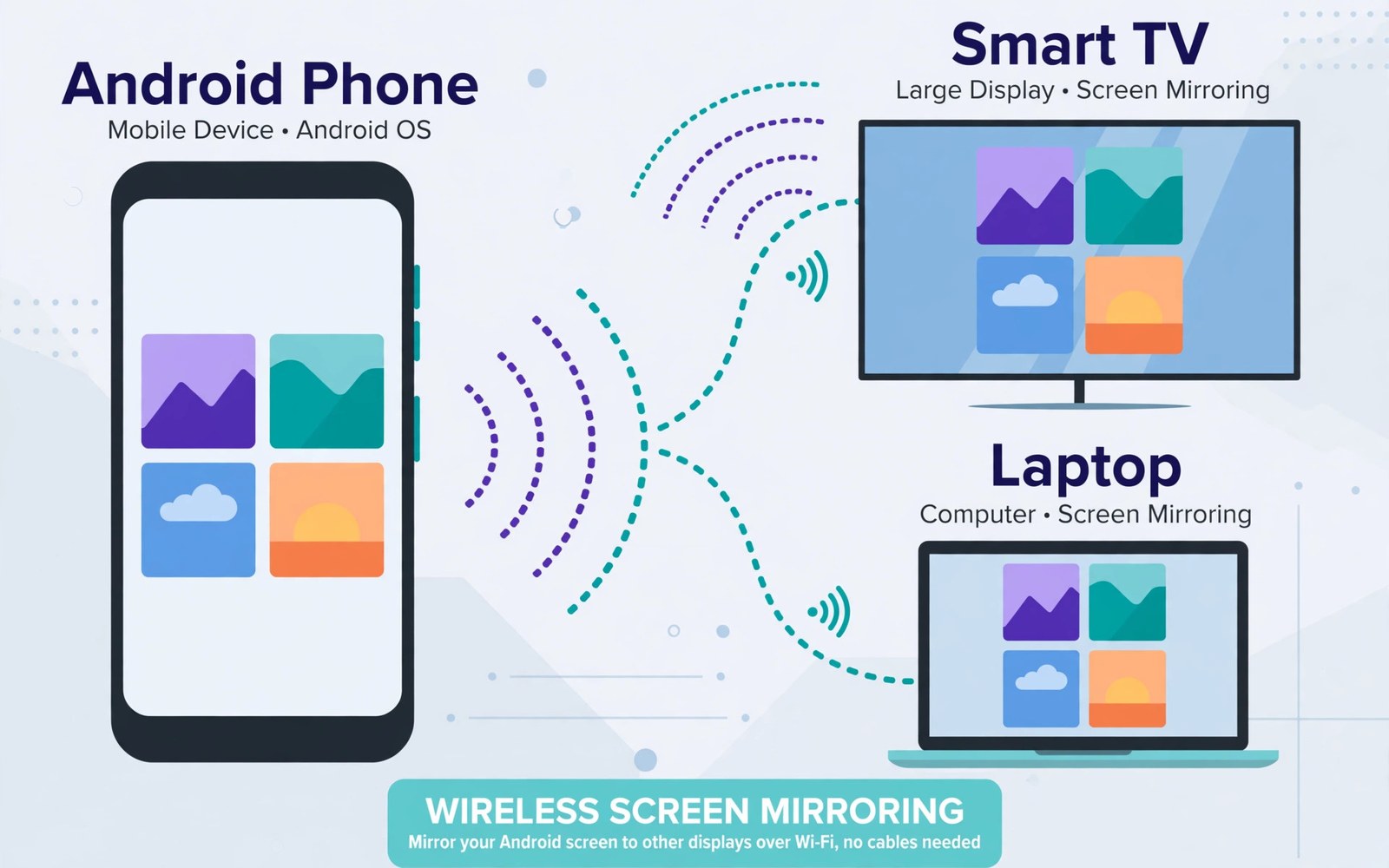
Mirroring shows your phone screen on a larger display. It helps for photos and videos with family. It also helps for presentations and mobile games. The phone stays in control while the TV shows the same image. This guide covers wireless casting and wired options.
Most smart TVs support casting from Android phones directly. Windows computers can receive a cast with a built-in feature. Older TVs need a streaming stick or a cable adapter. The best method depends on your TV and your network. This guide helps you pick the right path.
Lag is the main enemy of good mirroring. Video and games suffer when the image trails behind your touch. A strong Wi-Fi signal reduces lag a lot. Closing background apps also helps. This guide includes fixes for choppy or delayed mirroring.
Check What Your TV Supports
Open the TV input or casting menu to see supported options. Many smart TVs show a cast receiver or screen mirroring entry. The exact name differs by TV brand. Some TVs call it Smart View or Screen Share. Others list it under network settings.
If the TV shows no casting option then check its manual or support page. A streaming stick can add casting to an older TV. A cable adapter works when Wi-Fi is weak. Knowing the TV capability first saves wasted setup time. It also stops you buying the wrong accessory.
Cast Wirelessly From Quick Settings
Pull down quick settings on your phone twice. Look for a tile called Cast or Smart View. Tap it and wait for nearby devices to appear. Tap your TV name when it shows up. The TV may ask you to allow the connection.
Once connected the TV mirrors your phone screen in real time. Rotate the phone for a full screen landscape view. Keep the phone awake during the session. Locking the phone can end the cast on some devices. Tap the Cast tile again and choose Disconnect to stop.
adb shell settings put global wifi_display_on 1
# then open Cast in quick settings
Mirror to a Windows Computer
Windows computers can act as a wireless display receiver. Open the wireless display feature in Windows settings. Set it to accept projections from your phone. The computer name then appears in the phone Cast list. Accept the connection on the computer when prompted.
This method suits presentations and app demos. It also helps when no smart TV is nearby. Keep both devices on the same Wi-Fi network. A wired computer connection can still work if the network allows discovery. Test the setup before an important meeting.
Use a Cable for Stable Mirroring
A USB-C to HDMI adapter gives the most stable mirror. Plug the adapter into the phone and connect an HDMI cable to the TV. Switch the TV to the correct HDMI input. The phone screen appears without Wi-Fi lag. This method suits games and long video sessions.
Check that your phone supports video output over USB-C. Not every phone offers this feature. Budget phones may lack the needed hardware. The adapter packaging usually lists compatible models. A powered adapter also charges the phone during long sessions.
Fix Lag and Choppy Video
Lag often comes from a crowded Wi-Fi network. Move the phone closer to the router and the TV. Disconnect other devices that stream video at the same time. A 5 GHz Wi-Fi band usually gives smoother mirroring than 2.4 GHz. Switch bands in the router settings if needed.
Close heavy apps on the phone before casting. Games and video editors compete for processing power. Lower the phone screen brightness slightly to reduce heat. Heat can throttle performance during long sessions. Restart both devices if lag appears suddenly after working well.
Mirror Sound and Subtitles
Sound usually follows the video to the TV automatically. If sound stays on the phone then check media output settings. Some phones let you choose where audio plays during a cast. Select the TV as the audio output. Raise TV volume after switching the output.
Subtitles depend on the app you mirror. Video apps render subtitles inside the mirrored image. That means subtitles appear on the TV as part of the picture. If subtitles look small then increase font size in the app. Test subtitle size before a movie night with guests.
Stop Mirroring and Protect Privacy
End the cast when you finish to protect your privacy. A forgotten cast can show notifications on the TV. Turn on Do Not Disturb before mirroring in a shared room. Hide sensitive notifications on the lock screen as well. These steps stop private messages from appearing mid-presentation.
Remove old devices from the cast list when you no longer use them. A neighbour TV should not stay in your trusted list. Check the TV settings for paired devices. Delete entries you do not recognise. A short cleanup keeps future sessions private and tidy.
Choose the Best Method for Each Use
Wireless casting suits casual photo sharing and short videos. It needs no cable and starts in seconds. Wired mirroring suits games and long movies where stability matters. A streaming stick suits older TVs that lack built-in casting. Each method has a clear strength.
Think about who watches and where they sit. A TV suits a family room audience. A computer suits a work presentation. A cable suits a hotel room with weak Wi-Fi. Matching the method to the situation gives the smoothest result with the least fuss.
How Casting Technology Works
Casting sends video data over Wi-Fi to a receiver. The phone encodes the screen image continuously. The receiver decodes it and displays it. Small delays occur during encoding and network travel. Strong Wi-Fi keeps delay under a fraction of a second.
Direct Wi-Fi links can reduce delay further. Some casting methods create a direct device link. Direct links avoid router congestion. They suit games where delay matters most. Router based casting suits casual video sharing well.
Casting for Work Presentations
Presentations benefit from a large screen and a phone remote. Slides appear big while speaker notes stay on the phone. Some presentation apps support a presenter view during casting. Check presenter view before an important talk. A rehearsal reveals layout surprises early.
Keep the phone charged during a long presentation. Casting plus screen on drains battery fast. Plug into power before starting. Bring a backup cable for the venue. Preparation prevents a dead phone mid-talk.
Casting Games to a TV
Games on a TV feel immersive with a large display. Controller support improves the experience further. Connect a Bluetooth controller to the phone for precise control. Touch controls on a mirrored screen feel awkward at distance. A controller restores proper gameplay.
Choose games with simple visuals for casting. Complex 3D games show lag more clearly. Turn based games tolerate delay gracefully. Fast action games demand low lag setups. Match game choice to network quality for best results.
Casting Photos for Family Viewing
Photo casting turns a phone gallery into a family slideshow. Swipe through photos while everyone watches the TV. Pause on favourites and tell stories behind them. A big screen reveals details small screens hide. Family viewing becomes a shared event.
Hide personal albums before a family slideshow. A stray swipe can reveal private photos. Create a dedicated album for the event first. Cast only that album during viewing. Preparation protects privacy while sharing memories.
Audio Sync Problems and Fixes
Audio may drift out of sync during long casts. Restarting the cast usually restores sync. Close other streaming apps on the network first. Network congestion causes most drift. A router restart helps persistent drift cases.
If drift persists then try a wired connection. Cables eliminate most network timing issues. Lower video quality can also help. Lower quality reduces encoding load. Sync matters more than sharpness for dialogue heavy content.
Casting in Hotels and Guest Networks
Hotel networks often block device discovery. Casting may fail even when Wi-Fi works. A travel router creates a private network for phone and TV. The router bridges the hotel connection privately. Casting then works inside that private bubble.
Carry an HDMI adapter as a hotel backup. Adapters bypass network restrictions entirely. They work wherever a TV has an HDMI port. A small adapter weighs little in luggage. Backup options turn hotel casting from gamble to certainty.
Casting While Using a VPN
A VPN can interfere with local device discovery. Casting relies on local network visibility. VPN apps may route local traffic through a remote tunnel. That routing hides the TV from the phone. Split tunnelling can exempt local traffic when offered.
Test casting with the VPN off first. If casting works without VPN then the VPN causes the issue. Enable split tunnelling for local devices in VPN settings. Some VPN apps lack that option entirely. Disconnecting VPN during casting remains a simple fallback.
Using Your Phone as a Remote
Some phones include infrared blasters for TV remote use. Infrared allows control without Wi-Fi casting. Check whether your phone model includes that hardware. Many modern phones omit infrared entirely. Wi-Fi remote apps fill the gap on phones without it.
TV brand apps offer remote controls over Wi-Fi. Install the brand app and pair it with the TV. The app provides volume and channel controls. It also offers keyboard input for searches. A phone remote saves hunting for a physical remote.
Mirroring Quick Checklist
Run through this list before an important session.
- Confirm the TV or computer supports casting.
- Connect both devices to the same network.
- Charge the phone or keep it plugged in.
- Turn on Do Not Disturb for privacy.
- Test sound and subtitles before guests arrive.
- Disconnect the cast when you finish.
This checklist prevents most mirroring failures. It also protects private notifications on a shared screen. Keep it handy for presentations and movie nights.
Mirroring pairs well with moving files to the big screen device. Learn how to transfer files between Android and PC wirelessly for a cable free workflow.
You may also like how to record your screen with crisp internal audio and how to share large files instantly using Quick Share.
The steps above follow the approach described in the official developer documentation for Android devices. The documentation covers wireless display behaviour and media routing in general terms. TV and computer receivers add their own menus on top of that shared system.
Mirroring turns a small phone into a shared big screen experience. Wireless casting wins for speed and convenience. A cable wins for stability during games and movies. Test sound before guests arrive and disconnect when you finish. With those habits mirroring feels effortless.

