

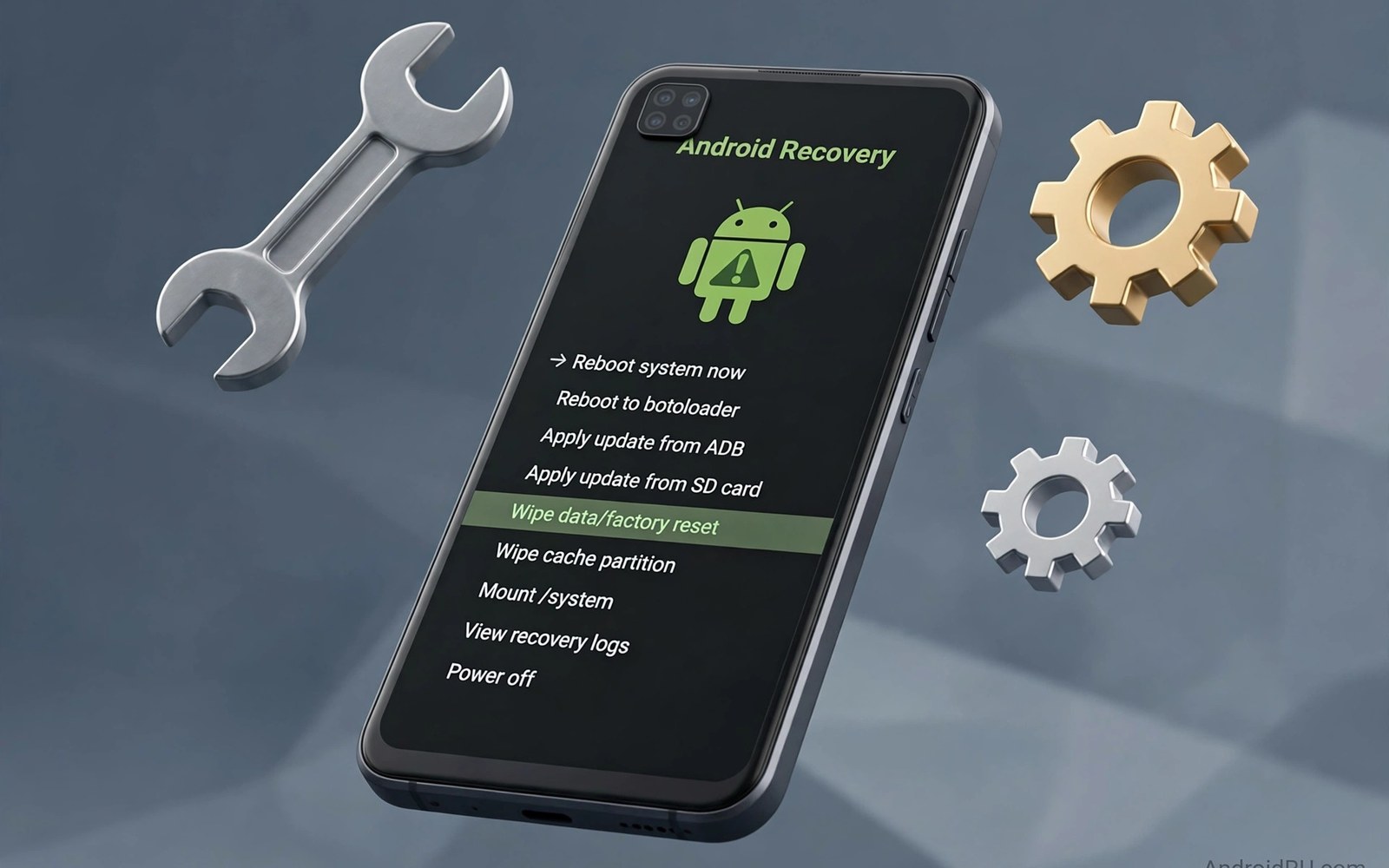
A frozen system after a module change is frightening but usually fixable. The phone may loop at the boot animation. The interface may restart every few seconds. The screen may freeze on the lock screen. These symptoms often point to a single faulty module. Recovery mode gives you a way to reach the module files without booting normally. From recovery you can disable or remove the offending module. The phone can then boot cleanly again. This guide explains the calm path through that process. Preparation before trouble matters as much as the steps during trouble.
Recovery is a separate boot environment on the device. It runs before the main Android system starts. It offers tools for wiping and updating and file access. Custom recoveries add a file manager and a terminal. Stock recoveries offer fewer tools but still allow some fixes. The exact recovery on your device depends on your setup. Learn which recovery you have before you need it. Practice entering recovery during a calm moment. Note the button combination for your model. That practice turns an emergency into a familiar routine. Panic fades when the steps feel known.
Module files live in a directory that the root layer manages. Disabling a module usually means renaming or removing its folder. Some setups use a special disable file inside the folder. Others use a safe mode trigger during boot. The method depends on your root solution and recovery type. Do not delete files blindly from recovery. A wrong deletion can remove a needed system component. Work from a known module list rather than guessing. Your module notes become critical at this moment. They tell you which module was added most recently. That module is the prime suspect in most freeze cases.
First Response When The System Freezes
Stay calm and give the phone a short time to recover on its own. A single interface restart may resolve without action. A loop that repeats for several minutes needs intervention. Force a reboot with the power button held down. Watch the boot sequence carefully for clues. A freeze at the logo points to a deeper layer than a freeze at the lock screen. A freeze after unlock points to an app or interface module. Note where the freeze happens before acting. That observation guides which layer to suspect first. A clear note helps if you later ask for community help.
Try a normal reboot once before entering recovery. Some freezes come from a one time race during startup. A second boot may succeed where the first failed. If the second boot freezes at the same point then treat it as a module problem. Do not reboot ten times hoping for a different result. Repeated loops waste battery and add stress. Two consistent failures are enough evidence to move to recovery. Enter recovery with a plan rather than with hope. The plan starts with disabling the most recent module.
Users who have not yet prepared should read what LSPosed framework is after recovery succeeds. That overview explains scope and module risk clearly. It helps prevent a repeat freeze from the same mistake. Recovery fixes the immediate problem. Understanding prevents the next one. Both steps matter for a stable setup.
Entering Recovery And Finding Module Files
Entering recovery usually involves a button combination during boot. Common combinations use power plus volume down. Some devices use power plus volume up. Samsung and Pixel and other brands differ in details. Check your device documentation for the exact combination. Power off the phone fully first if possible. Hold the combination until the recovery screen appears. Release the buttons once the menu shows. Navigating recovery uses volume keys and the power button on many devices. Touch may work on custom recoveries with touch support. Learn your recovery navigation before an emergency.
Custom recovery file managers make module removal straightforward. Open the file manager and navigate to the module directory for your root layer. The path varies by root solution and by Android version. Common locations sit under a data directory for modules. List the folders there and match names to your module notes. The most recently added module folder is the first candidate. Rename it by adding a suffix that marks it disabled. Renaming preserves the module for later inspection. Deleting removes it permanently. Prefer renaming during an emergency. You can delete later once the phone boots and you confirm the diagnosis.
Some root layers support a disable file trick inside each module folder. Placing an empty file with a specific name disables that module on next boot. That method is gentler than renaming the whole folder. It leaves the module installed but inactive. Check your root documentation for the exact disable file name. Recovery terminals can create such a file with a simple command. File managers can also create empty files in some recoveries. Use whichever tool your recovery offers. The goal is the same in both cases. The suspect module must stay inactive during the next boot.
Safe Mode Tricks During Boot
Some root setups offer a safe mode triggered by a key press during boot. Pressing a volume key at the right moment disables all modules for that boot. The phone then starts with root but without module interference. That clean boot lets you open the manager normally. You can then disable the suspect module through the usual interface. Safe mode is the gentlest recovery path when it exists. It avoids file manipulation in recovery entirely. Learn whether your setup supports it and which key triggers it. Practice the timing during a calm boot so you can use it under stress.
Android safe mode is a different feature from root safe mode. Android safe mode disables third party apps but may not disable root modules. Users often confuse the two and waste time in the wrong mode. Root safe mode targets modules at the root layer. Android safe mode targets apps at the system layer. A freeze caused by an LSPosed module may persist in Android safe mode. It should clear in root safe mode when that feature exists. Know which mode your device offers before trouble strikes. That knowledge saves a frustrating detour during recovery.
When safe mode is unavailable the file method remains reliable. Rename the suspect folder and reboot normally. If the phone boots cleanly then the diagnosis is confirmed. If it still freezes then rename the next most recent module. Work backward through recent additions one at a time. Each test needs a reboot to take effect. Do not rename five folders at once. Bulk changes hide which module caused the freeze. Single changes produce a clear answer and a clean record. Patience during this loop pays off with certainty.
Recovery Steps In Order
Follow a fixed order during recovery to avoid mistakes. First identify the most recent module change from your notes. Second enter recovery and locate the module directory. Third disable that single module by renaming or by a disable file. Fourth reboot normally and observe the result. Fifth repeat with the next recent module if the freeze persists. Sixth once the phone boots open the manager and remove the faulty module properly. Seventh reboot again to confirm stability without it. This order keeps each step verifiable. It also creates a record of what you changed and why.
Keep a written log during recovery even if it feels slow. Note each folder renamed and each reboot result. A log prevents repeating a failed step under stress. It also helps community helpers if you need to ask for advice. Helpers can read the log and spot a missed step quickly. A log without guesses is far more useful than a vague description. Write times and outcomes in short lines. The log does not need to be elegant. It needs to be accurate and complete for the session.
- Note where the freeze happens during boot before acting.
- Try one normal reboot before entering recovery mode.
- Disable only the most recently added module first.
- Prefer renaming over deleting during an emergency fix.
- Reboot after each single change to test the result.
- Work backward through recent modules one at a time.
- Remove the faulty module properly once the phone boots.
- Keep a written log of every recovery step and outcome.
When Recovery Tools Are Limited
Stock recovery offers limited file access compared with custom recovery. It may not include a file manager at all. In that case an ADB connection from a computer may help. ADB can list and rename module folders when the device connects in recovery or in a boot loop state. Setting up ADB requires a computer and a cable and drivers. Prepare that setup before an emergency if you use stock recovery. Test an ADB connection during normal use first. A tested ADB setup is a lifeline when recovery tools are thin. An untested setup adds frustration during a crisis.
Some devices allow flashing a custom recovery temporarily for repairs. That path carries its own risks and should not be a first experiment during a freeze. Flashing the wrong recovery image can worsen the situation. Only use a recovery image built for your exact model. Verify its checksum before flashing. If you are unsure then seek help from a community for your device. A careful helper can guide the flash step safely. Rushing a flash under panic is a common cause of deeper problems. Slow down and verify every file before flashing anything.
Recovery session log template
Freeze point: boot logo / lock screen / after unlock
Last module added: name and date
Action 1: renamed folder X, result after reboot
Action 2: renamed folder Y, result after reboot
Boot result: clean boot confirmed
Cleanup: faulty module removed in manager
Final check: reboot again, system stable
After Recovery Prevention Habits
After a successful recovery review what caused the freeze. Was the module outdated for your Android version. Was its scope too broad for its purpose. Was it added together with several other modules at once. Answering these questions prevents a repeat. Remove the faulty module entirely rather than leaving it disabled forever. A disabled module still invites accidental reactivation later. Clean removal closes the incident properly. Note the failure in your module record for future reference. That note warns you against reinstalling the same module blindly.
Rebuild your module set slowly after a freeze. Start with the modules that proved stable before the incident. Add one module per day and test thoroughly. Resist the urge to restore everything at once. A fast restore can reintroduce the same conflict. A slow rebuild confirms each module still works. It also reveals whether a system update changed compatibility. Stability after a freeze is fragile for a short while. Treat the first week as a probation period for the whole setup. Extra caution during that week pays off.
The steps above follow the approach described in the official developer documentation for the framework and its module system. That material explains scope and process loading in general terms. It also describes how modules attach to app processes at startup. Readers who want deeper detail can consult the same documentation directly. The guidance here adds recovery order and logging habits. It does not replace device specific recovery instructions. Always follow your device documentation for button combinations and paths.
Preparation Checklist For Every Modder
Preparation turns recovery from a crisis into a routine. Keep a current backup of data and boot image. Keep module notes with names and dates and scopes. Learn your recovery entry combination by practice. Learn whether your root layer offers a safe mode key. Test ADB connectivity from your computer in advance. Store a copy of your module list off the phone. These steps take an afternoon to complete. They save hours during the first real freeze. Every experienced modder learns this lesson eventually. Learning it before trouble is far cheaper.
Share your recovery experience with the community after you stabilize. A short report helps other users with the same device. Include the freeze point and the faulty module and the fix that worked. Omit personal data and account details from the report. Community knowledge grows from such reports over time. Your incident becomes a guidepost for the next user. That sharing culture is one of the strengths of the modding community. Contribute to it when you can do so safely.
For related stability topics explore scope selection inside the LSPosed app and LSPosed performance overhead. Those topics help prevent freezes before they happen. Scope discipline reduces the chance of a system interface loop. Performance awareness reduces the chance of overload freezes. Prevention and recovery together form a complete safety net. A user who masters both can mod with confidence.

