

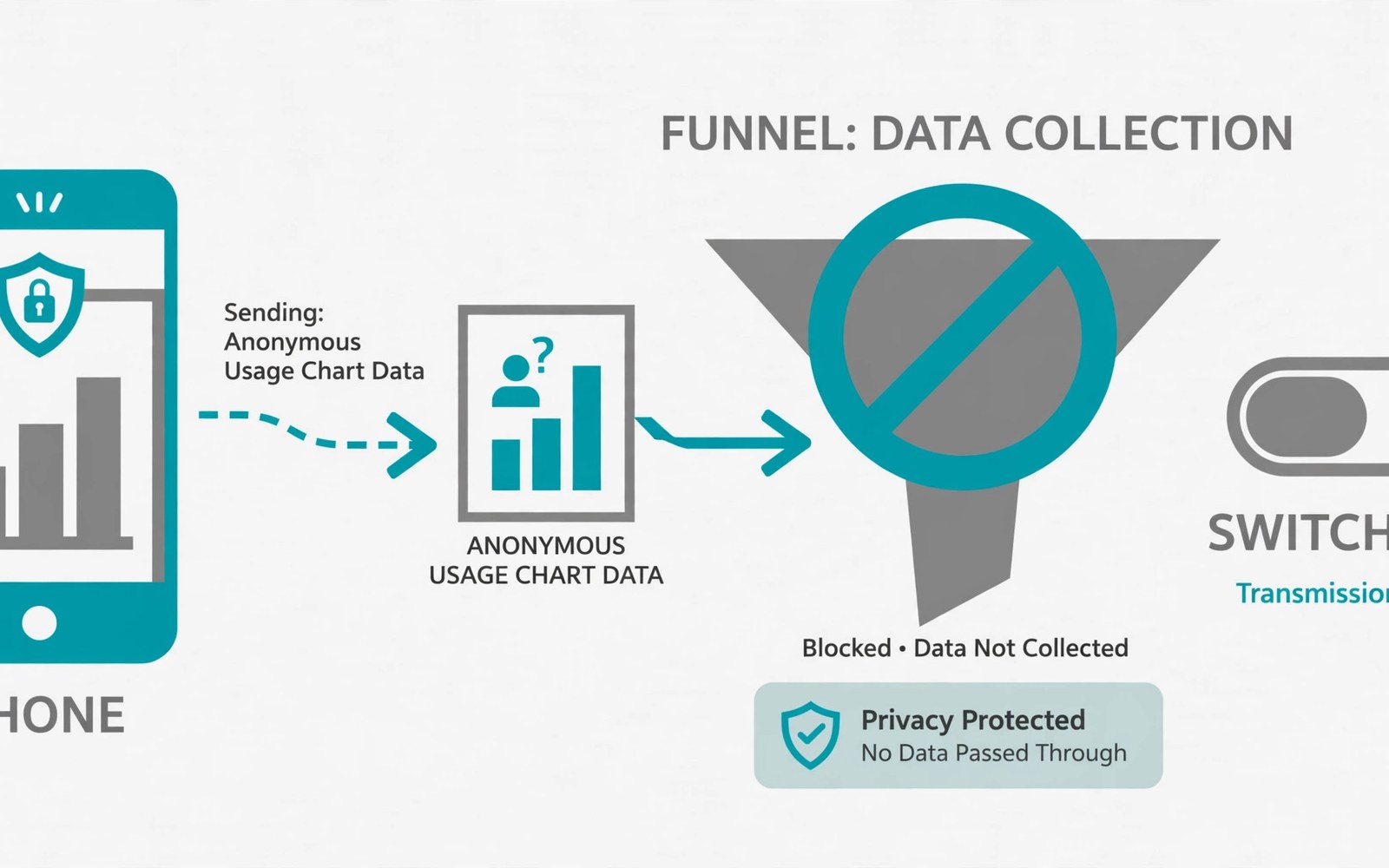
Diagnostic data helps developers fix crashes. Usage data helps them learn which features people use. Both sound harmless in isolation. Together they can reveal habits and device details. Many phones send them by default without a clear prompt.
You can limit this collection without breaking your phone. Crash reports are useful but not mandatory. Usage stats help product teams but not your daily tasks. Turning them off keeps your device working normally. It simply stops the extra reporting.
What Diagnostic Data Contains
Crash reports include the app name and the error type. They may include device model and system version. They may include memory state at the crash moment. They should not include your messages or photos. Poorly written reports can still leak nearby text.
Usage data covers feature counts and session lengths. It covers settings choices in aggregate form. It covers battery and performance metrics. Alone each metric looks boring. Combined across apps it sketches your routine. That sketch is why limits matter.
Finding the Diagnostic Switches
System diagnostic settings live under privacy or system menus. The path varies by phone brand. Look for usage and diagnostics or send diagnostic data. Turn that switch off for the system level. Then check individual apps for their own toggles.
Some apps hide diagnostics inside advanced settings. Messaging and browser apps often include them. Games and social apps often include them too. Open each heavy app and search its settings for diagnostics. A few minutes of hunting covers most cases.
Crash Reports and Beta Programs
Beta programs rely on crash reports to find bugs early. Joining a beta means accepting heavier reporting. That trade can be fair for testers. It is a poor trade for everyday users who want quiet phones. Leave beta programs when testing ends.
If you keep a beta app then review its reporting level. Some betas offer a reduced diagnostics mode. Use it when available. Report crashes by hand only when a bug truly blocks you. Manual reports give you control over what you send.
Disable system diagnostics
Settings > Privacy > Usage & diagnostics
Toggle off:
Send usage and diagnostic data
Carrier and Maker Reporting Layers
Your phone maker may collect diagnostics separately from the system. Your carrier may collect network diagnostics as well. Those layers sit outside app settings. Look for device experience or improvement program entries. Opt out of each layer you find.
Maker programs often promise better devices in return. The benefit is vague and distant. The data cost is immediate and personal. Opting out costs you nothing in daily use. Updates and security patches continue as normal.
Verifying That Reporting Stopped
Check data usage after you disable diagnostics. A drop in background data can confirm the change. Check battery stats for fewer background wakes. Those signals are indirect but useful. No single screen proves silence with certainty.
Revisit the toggles after major system updates. Updates can restore defaults without notice. Add diagnostics to your monthly review list. A quick check keeps the setting honest. Privacy settings deserve the same routine as app permissions.
Diagnostic Switches to Review
Diagnostics in Individual Apps
System diagnostics are only one layer of reporting. Individual apps run their own crash reporting tools. A social app may send crash logs to its developer. A game may send performance metrics to its publisher. Those app level reports bypass system toggles. You must disable them inside each app settings screen. Search settings for crash or analytics or diagnostics terms. Some apps group them under privacy headings. Others hide them under advanced headings. A systematic pass through heavy apps covers most reporting. Start with apps you use daily for the largest gain.
Some apps offer no diagnostics toggle at all. They report crashes as a condition of use. You cannot disable reporting without leaving the app. In that case judge the app by its overall value. A vital work tool may earn its reporting cost. A casual game rarely earns that cost. Replace non-toggle apps with alternatives when possible. Open source alternatives often report far less. The replacement effort pays off in quieter data flows. Choice of app is itself a privacy control.
Usage Statistics and Feature Decisions
Usage statistics shape which features developers keep or cut. A rarely used feature may disappear in a future update. A popular feature may gain more investment. That feedback loop helps products improve over time. It also means your habits influence product direction. Some users value that influence. Others prefer to stay out of the dataset entirely. Both views are legitimate. Opting out simply removes your habits from the sample. The product still works fully without your data point. Your absence costs you nothing in daily use.
Aggregated statistics still carry small risks in rare cases. A tiny user group can become identifiable through unique patterns. A rare device model plus a rare language narrows identity. A niche feature used at odd hours narrows it further. Aggregation protects large groups well. It protects tiny groups less reliably. Users in small groups should weigh opting out more heavily. Journalists and activists fall in that sensitive group. Ordinary users face lower but still real exposure. Opt-out remains the safest default for sensitive roles.
Carrier Diagnostics and Network Data
Carriers collect network diagnostics to manage their service. They log signal strength and tower changes. They log call drops and data stalls. That data helps them fix coverage gaps. It also reveals movement through tower patterns. Tower logs can place you near a tower area. Combined logs over time sketch travel routes. Carrier opt-out options vary by provider and region. Check your carrier account portal for privacy toggles. Call support when no toggle appears online. Ask clearly for diagnostic opt-out in writing. A written request creates a record you can reference.
Phone makers add another diagnostics layer on top of carriers. Maker programs promise better future devices. They collect usage patterns across the whole phone. That breadth exceeds any single app report. Opt out of maker improvement programs during setup. Revisit the choice after major updates restore defaults. Maker data flows are easy to forget because they lack an app icon. They still leave the phone regularly. A setup time opt-out plus a monthly check covers them well.
Diagnostics After Repairs and Resets
Repairs and factory resets can restore diagnostic defaults. A repaired phone may return with fresh settings. A reset phone starts from factory defaults again. Diagnostic toggles often default to on in both cases. Recheck diagnostics after any repair visit. Recheck them after any factory reset. Add diagnostics to your post-reset checklist beside permissions. Permissions get attention after resets already. Diagnostics deserve the same slot on that list. A five minute recheck prevents months of silent reporting.
Selling a phone needs a diagnostics check too. A factory reset should wipe personal data before sale. Diagnostic histories may persist in maker systems. Remove the device from your maker account before selling. Remove it from carrier improvement programs as well. Those removals cut future association with the device. The buyer starts with a clean device record. You keep your usage history out of the next owner story. Clean handover protects both parties in the sale.
Diagnostics and Battery Optimisation Data
Battery optimisation systems collect usage patterns to save power. They learn which apps you open and when. They learn which apps drain power in background. That learning data can reveal routines like other usage stats. Battery systems usually keep learning on device. Some systems upload aggregated patterns for improvement. Check battery settings for cloud learning toggles. Disable cloud learning when on-device learning suffices. On-device learning saves battery without exporting routines. The performance gain from cloud learning is marginal for most users. Keep learning local for a quieter phone.
Performance monitoring tools add another diagnostics channel. They log frame rates and load times per app. They log crash rates and error counts. Developers use those logs to prioritise fixes. Users gain smoother apps from that feedback loop. The logs rarely contain personal content directly. Combined logs can still reveal app usage patterns. Review performance tool toggles inside heavy apps. Disable performance reporting for apps you use casually. Keep it for work tools where stability matters most. Selective reporting balances smooth apps with quiet data flows.
Diagnostics Opt-Out After App Reinstalls
Reinstalling an app resets its diagnostics toggles to defaults. Defaults usually favour collection over privacy. Users who reinstall for troubleshooting may forget to re-disable reporting. Add diagnostics to your post-reinstall checklist. Open settings for the reinstalled app immediately. Turn off crash and analytics reporting again. That habit prevents a quiet return to collection. Reinstalls happen during bug fixes and device moves. Each reinstall is a fresh chance for defaults to win. Checklist discipline keeps defaults from winning silently.
Device transfers also reset diagnostics across many apps at once. A new phone restores apps with default settings. Users focus on logins and photos during transfers. Diagnostics toggles get ignored in the rush. Schedule a diagnostics review for the week after any transfer. Walk through heavy apps one by one. Restore your previous opt-out choices deliberately. A transfer week review prevents months of unintended reporting. New device excitement should not override privacy settings. Patience during setup pays off for the life of the device.
- Turn off system usage and diagnostics in privacy settings.
- Disable diagnostics inside heavy apps one by one.
- Leave beta programs when active testing ends.
- Opt out of maker and carrier improvement programs.
- Recheck diagnostics after every major system update.
Diagnostics sit beside ad tracking controls and the Permission Manager overview. Add them to your monthly audit of installed app permissions for lasting control.
The steps above follow the approach described in the official developer documentation for modern Android privacy controls. That documentation explains each permission group in plain terms. It also describes how the system limits background access. Use it as a general reference when a menu name differs on your phone.

