

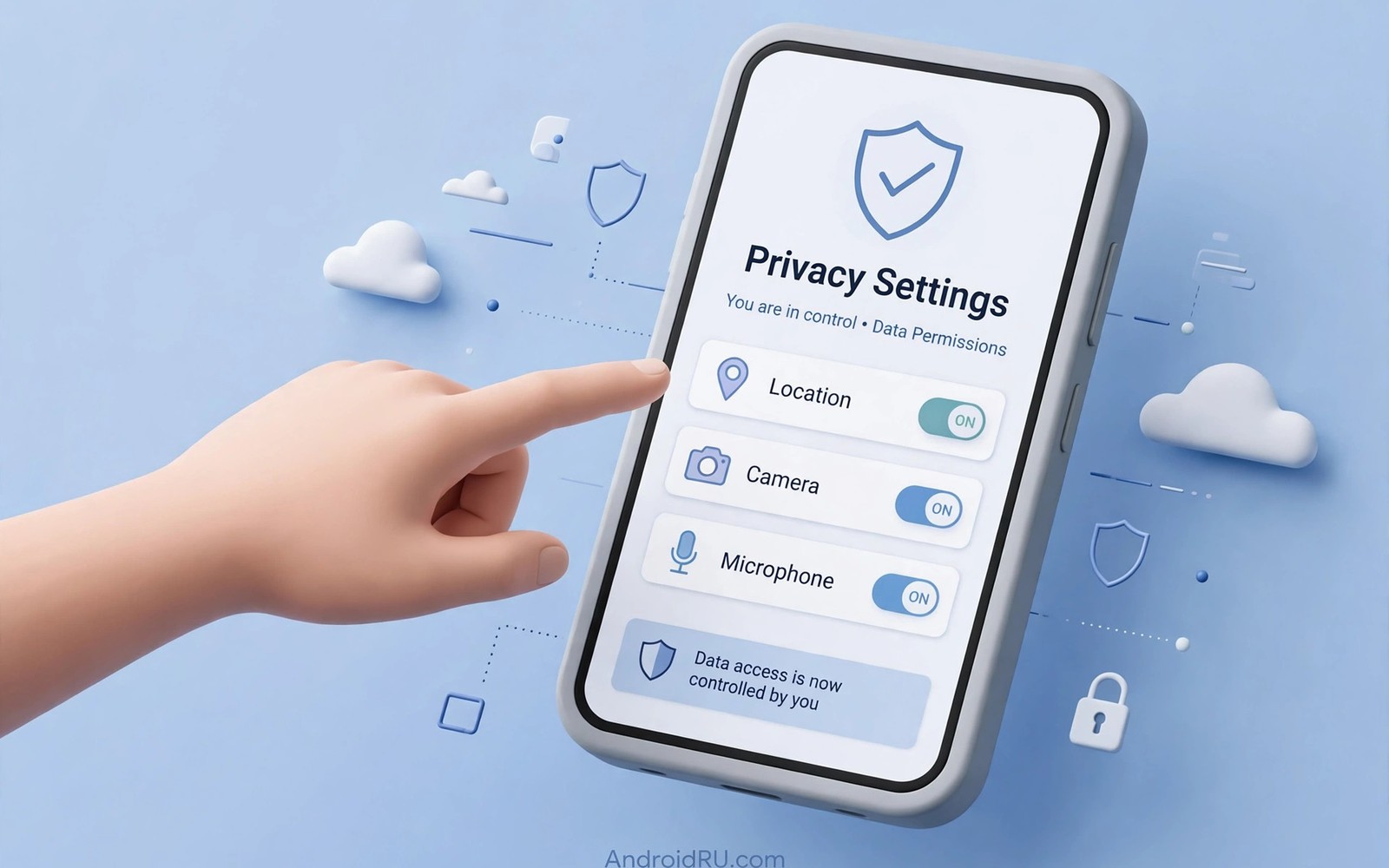
Most Android users never open the Permission Manager. They grant access during setup and then forget about it. That habit leaves location and microphone access open for months. A quick review can close those gaps in minutes. The manager puts every permission group in one clear view.
The Permission Manager is not a hidden expert tool. It lives inside the privacy settings on most phones. It lists which apps can use your camera and your contacts. It also shows which apps used a permission recently. That history makes decisions easier because you see real behaviour rather than guesses.
What the Manager Shows First
The main screen groups permissions by type rather than by app. You can tap Location to see every app with location access. You can tap Camera to see every app with camera access. This view answers one question fast. It shows which apps hold the most sensitive access on your phone.
Each group uses simple labels for the access level. Some apps hold access all the time. Some hold access only while you use them. Some hold no access at all. Those labels matter because always-on access carries the highest risk. A map app may need location while open. A game rarely needs it at all.
How to Review One App at a Time
Start with the apps you use least. Open the app entry and read each permission line. Ask whether the feature needs that data to work. A photo editor needs photo access. It does not need your contact list. A weather app needs rough location. It does not need precise tracking all day.
Change one permission at a time and then test the app. If a feature breaks then you can restore access with one tap. This slow method avoids confusion. It also teaches you which permissions truly matter. Over time you build a setup that fits how you actually use your phone.
The Difference Between Allow Levels
Modern Android offers three main choices for sensitive permissions. Allow all the time suits navigation and safety tools. Allow only while using the app suits cameras and messaging tools. Ask every time suits apps you rarely trust. Deny suits apps that should never reach that data.
The safest default is the narrowest option that still works. You can widen access later if a feature fails. Narrow access also limits harm if an app misbehaves. A leaked database matters less when the app never held your data. Treat each upgrade as a fresh decision rather than a habit.
Settings path
Settings > Privacy > Permission manager

Check one group
1. Open Location
2. Sort by access level
3. Revoke always-on access
4. Test the app again
Background Access Deserves Extra Attention
Background access lets an app collect data when you are not using it. That power suits a fitness tracker on a run. It does not suit a flashlight or a wallpaper app. Check the background label for location and microphone first. Those two sensors reveal where you go and what surrounds you.
Some apps request background access for convenience rather than need. Push alerts and sync can often work without it. If an app insists on background access then read its purpose screen with care. A vague reason is a warning sign. You can deny background access and keep foreground access instead.
Building a Weekly Review Habit
A weekly review takes about five minutes once you know the path. Open the manager and scan the most recent access list. Look for apps you do not recognise. Look for access at odd hours. Revoke anything that surprises you and note the app name for later.
Pair the review with app cleanup. Uninstall apps you no longer use. Unused apps still hold permissions until you remove them. A smaller app set means a smaller attack surface. It also means fewer prompts and less clutter on your home screen.
A Simple Checklist for Your First Review
Dangerous Permissions Versus Normal Permissions
Android divides permissions into groups with different risk levels. Normal permissions cover low risk actions such as vibration and network state. Apps receive normal permissions at install time without a prompt. Dangerous permissions cover sensitive data such as location and contacts. Those permissions always require a clear user decision before use. This split helps users focus attention where it matters most. A long list of normal permissions is rarely a concern. A single dangerous permission deserves a careful thought. The Permission Manager highlights dangerous groups first for that reason. Learn the difference once and every future prompt becomes easier to judge.
Dangerous groups include camera and microphone and location and contacts and files and sensors. Each group maps to a real part of your private life. Camera access can capture your surroundings in an instant. Microphone access can capture conversations near the phone. Location access can reveal your home and your daily route. Contacts access can expose your whole social circle. Files access can reach documents and photos you stored. Sensor access can reveal movement and health signals. Treat every dangerous prompt as a small contract. Grant it only when the benefit clearly outweighs the exposure.
Reading Permission History Over Time
Recent access history shows more than a static permission list. A static list shows what an app could do in theory. History shows what an app actually did in practice. An app with camera permission but no recent use may be harmless. An app with nightly microphone use deserves a closer look. Compare history against your own activity each week. If you slept through a session then something ran without you. If you used the feature then the session makes sense. History turns vague worry into concrete evidence. It also helps you defend a good app against unfair suspicion.
History also reveals the effect of app updates over time. An update can add a new background feature without a loud announcement. The feature may start using a permission you granted long ago. Your old grant suddenly powers a new behaviour. A weekly history check catches that shift early. Revoke the permission and test the app again after such a change. If the new feature matters then grant access with fresh knowledge. If it does not matter then keep the revocation in place. Old grants should never serve new purposes silently. History gives you the power to enforce that rule.
What Happens When Apps Update
App updates can change permission behaviour in subtle ways. Developers add features that need new data types. They also add libraries that request data for their own purposes. The store page may list the new permission in small print. Most users tap update without reading that list. The Permission Manager shows the result after the update lands. Check it after major updates to your most used apps. A messaging app update may add location sharing as an option. A photo app update may add contacts for sharing suggestions. Neither change is evil by itself. Both deserve a fresh decision from you.
Automatic updates make this check even more important. Your phone may update dozens of apps overnight. Each update can shift the privacy balance slightly. A monthly review catches the cumulative drift. A weekly review catches it faster. Turn off automatic updates for apps you distrust. Manual updates let you read the permission list first. That pause costs seconds and saves surprises. Treat updates as new install decisions rather than routine maintenance. Your data deserves that level of attention.
Permission Control on Shared Devices
Shared tablets and family phones need extra permission discipline. Children tap allow without reading prompts. Guests may grant access to try a feature once. Those grants persist long after the person leaves. A shared device therefore needs a regular sweep. Check permissions after every guest session. Check them after a child tries a new game. Remove grants that no longer serve a purpose. The sweep takes minutes and protects everyone who uses the device.
Consider separate user profiles for shared devices when available. A child profile limits which apps can run at all. A guest profile starts clean and wipes after use. Profiles keep permission decisions separate per person. One person cannot accidentally grant access for another. Pair profiles with a monthly manager review for best results. The combination of profiles and reviews covers most shared device risks. It also teaches younger users that permissions are real choices. That lesson lasts longer than any single setting.
Prompt Fatigue and Careless Taps
Frequent permission prompts wear down careful users over time. Each new app asks for several permissions at once. Each update can add fresh prompts on top. Users eventually tap allow without reading to reach the feature. That fatigue is a design problem rather than a user failure. Developers should request permissions only at the moment of need. A camera prompt during photo capture makes sense instantly. A camera prompt at first launch feels suspicious and confusing. Contextual prompts earn careful decisions because timing explains purpose. Support apps that ask at the right moment and question apps that ask everything upfront.
You can fight fatigue by slowing down for sensitive prompts only. Treat location and camera and microphone prompts as stop signs. Read those three prompts fully every time. Treat normal prompts with less scrutiny to save attention. That triage preserves mental energy for high risk choices. It also prevents blanket allow behaviour across all prompts. Share the triage rule with family members who feel overwhelmed. A simple rule beats a long lecture for daily decisions. Fatigue management is a real privacy skill. It keeps careful choices sustainable over years of phone use.
Permissions and App Store Listings
Store listings show permission details before you install an app. Many users skip that section entirely and tap install. A quick scan of the list can prevent later regret. Look for dangerous permissions that mismatch the app purpose. A wallpaper app with contacts access deserves a pause. A game with microphone access deserves a question. Compare permission lists between similar apps before choosing. The app with the shorter list often serves you better. Store details also show data safety information for many apps. Read that section alongside permissions for a fuller picture of developer behaviour.
Reviews can reveal permission behaviour that listings hide. Users often report surprise prompts in review text. Search reviews for words such as permission and tracking and ads. A pattern of complaints outweighs a polished store description. Developers sometimes respond to those complaints with fixes. A fixed app may deserve a second chance after an update. Recheck its permission list after the fix lands. Trust should follow evidence rather than promises. Store listings plus reviews plus manager checks form a solid vetting trio. Use all three before installing unfamiliar tools.
- Open privacy settings and find the Permission Manager entry.
- Review location access and remove always-on access for non-essential apps.
- Review camera and microphone access for apps you rarely open.
- Review contacts and files access for social and shopping apps.
- Uninstall apps you have not opened in the past month.
- Repeat the review each week until the list feels familiar.
For a wider routine, read why a monthly audit of installed apps keeps permissions honest and pair it with how the Privacy Dashboard shows recent data access. If a single app surprises you, the guide on why a calculator app might ask for location explains the common reasons behind odd requests.
The steps above follow the approach described in the official developer documentation for modern Android privacy controls. That documentation explains each permission group in plain terms. It also describes how the system limits background access. Use it as a general reference when a menu name differs on your phone.

