

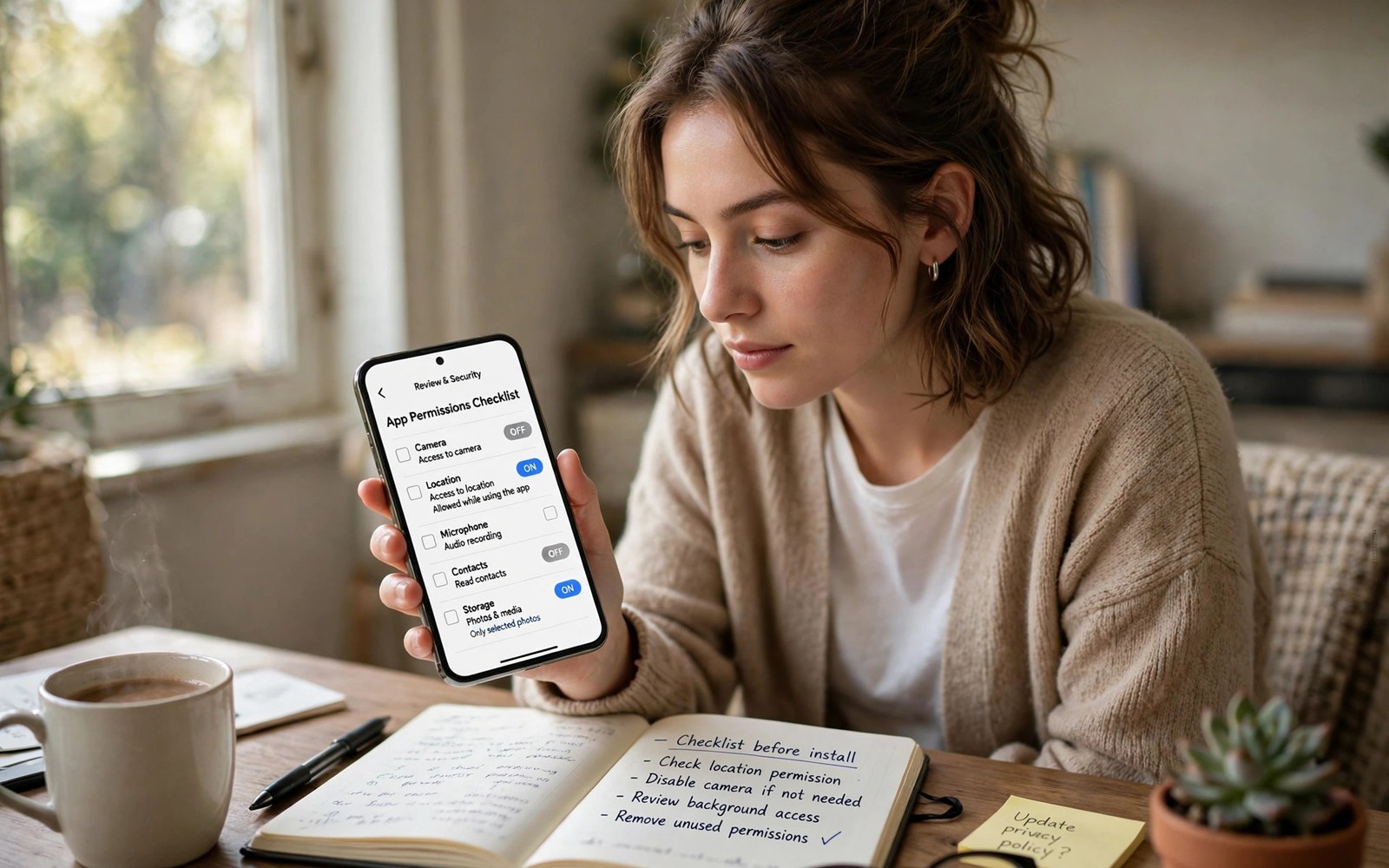
Permissions drift over time without any warning. You grant access for a single feature. An update adds a new request later. A trial app sits forgotten for months. A monthly audit catches all three patterns. It turns privacy into a routine rather than a rescue.
The audit does not need to take long. Ten minutes covers most phones. You scan the sensitive groups first. You fix the worst entries at once. You uninstall the apps you no longer need. That small effort compounds into lasting control.
Why Monthly Beats Yearly
A yearly audit leaves eleven months of exposure. A rogue app can collect data all year. A monthly audit limits exposure to weeks. Shorter windows mean smaller histories. Smaller histories mean less harm from any leak.
Monthly audits also match how phones change. You install new apps every month. Updates arrive every month. Travel and projects shift your needs monthly. A monthly rhythm fits that pace. A yearly rhythm falls behind quickly.
The Five Groups to Check First
Start with location because it reveals movement. Then check camera and microphone because they capture live moments. Then check contacts because they expose other people. Then check files because they hold documents. Then check sensors because they reveal health.
That order covers the most sensitive data first. If time runs short then stop after those five. Less sensitive groups can wait until next month. Sensitive groups should never wait. A short audit beats a skipped audit.
Deciding Keep Change or Remove
Every app falls into one of three buckets. Keep means the permission matches a feature you use. Change means the permission is too wide for the feature. Remove means the app no longer earns a place on your phone.
Change usually means narrowing to foreground only. It can also mean switching to one-time grants. Remove usually means uninstalling the app entirely. Do not keep an app out of guilt. An unused app provides no value and only risk.
Run the monthly audit
Settings > Privacy > Permission manager
Review in order:
Location, Camera, Microphone, Contacts, Files
Recording Your Decisions
Keep a short note of each change you make. Note the app name and the permission changed. Note the reason in a few words. That note helps next month. You will remember why a feature broke or why an app left.
Notes also help family members who share a device. They can see what changed and why. They can avoid restoring a risky grant by accident. A shared note turns one audit into household knowledge. Privacy becomes a team habit rather than a solo chore.
Turning the Audit into a Habit
Pick a fixed day such as the first Sunday. Set a repeating reminder for that day. Pair the audit with another monthly task. Bill paying or backup day works well. Anchoring the audit to an existing habit makes it stick.
Celebrate a clean audit when you find nothing wrong. A clean result means your habits work. It does not mean you can skip next month. New apps and updates will arrive soon. Consistency matters more than any single perfect audit.
Monthly Audit in Ten Minutes
Auditing After Travel and Big Life Changes
Travel changes your app set faster than normal life. You install transit apps and translation apps. You install hotel apps and local guides. Those apps linger after you return home. A post-travel audit removes them before they collect more data. Check permissions for every travel app within a week of return. Uninstall apps tied to a single trip entirely. Keep only apps you will use on future trips. A post-travel sweep prevents a slow accumulation of tourist apps. Each trip adds a few apps without a sweep. Years of trips add dozens of forgotten trackers.
Big life changes also shift app needs sharply. A new job brings new work tools. A new home brings new smart home apps. A new hobby brings new tracking apps. Old tools from the previous phase lose their purpose. Audit permissions after each major change. Remove tools from the old phase promptly. Narrow permissions for tools that survive the change. Life transitions are natural audit triggers. Use them instead of waiting for a calendar date.
Auditing System Apps Versus Installed Apps
System apps come preinstalled and often lack an uninstall option. They still hold permissions worth reviewing. A preinstalled social app may hold contacts access. A preinstalled shop app may hold location access. Disable system apps you never use. Disabling stops them from running and collecting. It also removes them from daily prompts. Check system app permissions before disabling them. Some system apps support core features like calls. Disabling a core app can break basic functions. Disable only non-core apps you recognise as unnecessary.
Carrier apps deserve the same scrutiny as system apps. Carriers preload account and support tools. Those tools may hold broad permissions by default. Review them during your monthly audit. Disable carrier tools you never open. Keep only the carrier app you use for billing. Billing apps need account access but rarely need sensors. Narrow their permissions to account functions only. Preinstalled does not mean trusted by default. Trust must be earned through need and behaviour.
Using Audit Results to Choose Better Apps
Audit results reveal which developers respect privacy. An app with narrow requests earns continued use. An app with broad requests earns replacement research. Compare alternatives by permission list before switching. A replacement with fewer requests is a clear win. A replacement with equal requests offers no gain. Permission lists make comparison objective. They cut through marketing claims about privacy. A short list beats a long promise every time. Let audits guide future installs as well as current cleanup.
Keep a personal allowlist of trusted apps over time. An allowlist records apps that passed repeated audits. New apps must earn their way onto that list. That discipline prevents impulse installs from eroding privacy. It also speeds future audits because trusted apps need less scrutiny. Update the allowlist when a trusted app changes behaviour. Trust is conditional rather than permanent. An allowlist with expiry dates stays honest. Review allowlist entries every quarter for drift. Conditional trust is the strongest kind.
Auditing with Family and Household Devices
Household audits cover every device under one roof. A family tablet may hold apps nobody audits. A child phone may hold games with broad access. An old phone in a drawer may still hold live permissions. Audit each household device monthly. Assign one person per device for accountability. Share findings at a family check-in. That routine turns privacy into a household habit. It also catches devices that individuals forget. A forgotten device is a forgotten risk.
Guests add temporary risk to household devices. A guest may install an app during a visit. That app may linger after departure. Check household devices after guests leave. Remove guest apps and guest grants promptly. Reset guest profiles when available. Those steps keep hospitality from becoming exposure. Guests rarely intend harm through installs. Their apps still collect data regardless of intent. A post-guest check protects everyone without blame.
Audit Tools and Automation Helpers
Permission manager tools already automate much of the audit. They group apps by permission type automatically. They highlight recent access without manual digging. Use those built-in groupings as your audit starting point. Third party audit apps can add summaries and scores. Treat third party scores with scepticism. A score algorithm may weight factors differently from your values. Use third party tools for discovery rather than decisions. Make final keep or revoke choices yourself. Automation should inform judgement rather than replace it.
Automation can also schedule audit reminders reliably. A monthly calendar reminder beats memory alone. A checklist app can store your audit steps. A notes app can store your decision log. Those simple tools support consistency without new permissions. Avoid audit tools that demand broad access themselves. An audit tool with full contacts access is ironic and risky. Choose helpers that need minimal permissions. Minimal helpers prove their privacy awareness by design. The best audit helper asks for almost nothing.
When an Audit Finds a Serious Problem
A serious audit finding needs prompt action beyond revocation. An app with unexplained night microphone use deserves uninstallation. An app with massive background location logs deserves reporting. Revoke access first to stop further collection. Uninstall second to remove the code entirely. Report third through the store with timeline evidence. Check other devices for the same app afterwards. A bad app may sit on a tablet too. Household devices need the same removal step. Serious findings deserve household wide response rather than single device fixes.
Data already collected cannot be recalled by uninstallation alone. Request deletion through the app account settings when possible. Contact developer support when no deletion option appears. Keep records of deletion requests and responses. Warn contacts when the app held their data too. A contact harvesting app affects friends as well as you. Honest warnings preserve trust after a bad install. Serious findings are learning moments for future installs. Update your personal allowlist after each incident. A stronger allowlist prevents repeat mistakes.
- Open the Permission Manager and scan location first.
- Review camera and microphone for apps you rarely use.
- Review contacts and files for social and shopping apps.
- Narrow wide grants to foreground or one-time access.
- Uninstall apps you have not opened in the past month.
The audit builds on the Permission Manager overview and the Privacy Dashboard timeline. For single-session safety, use one-time app permissions between audits.
The steps above follow the approach described in the official developer documentation for modern Android privacy controls. That documentation explains each permission group in plain terms. It also describes how the system limits background access. Use it as a general reference when a menu name differs on your phone.

