

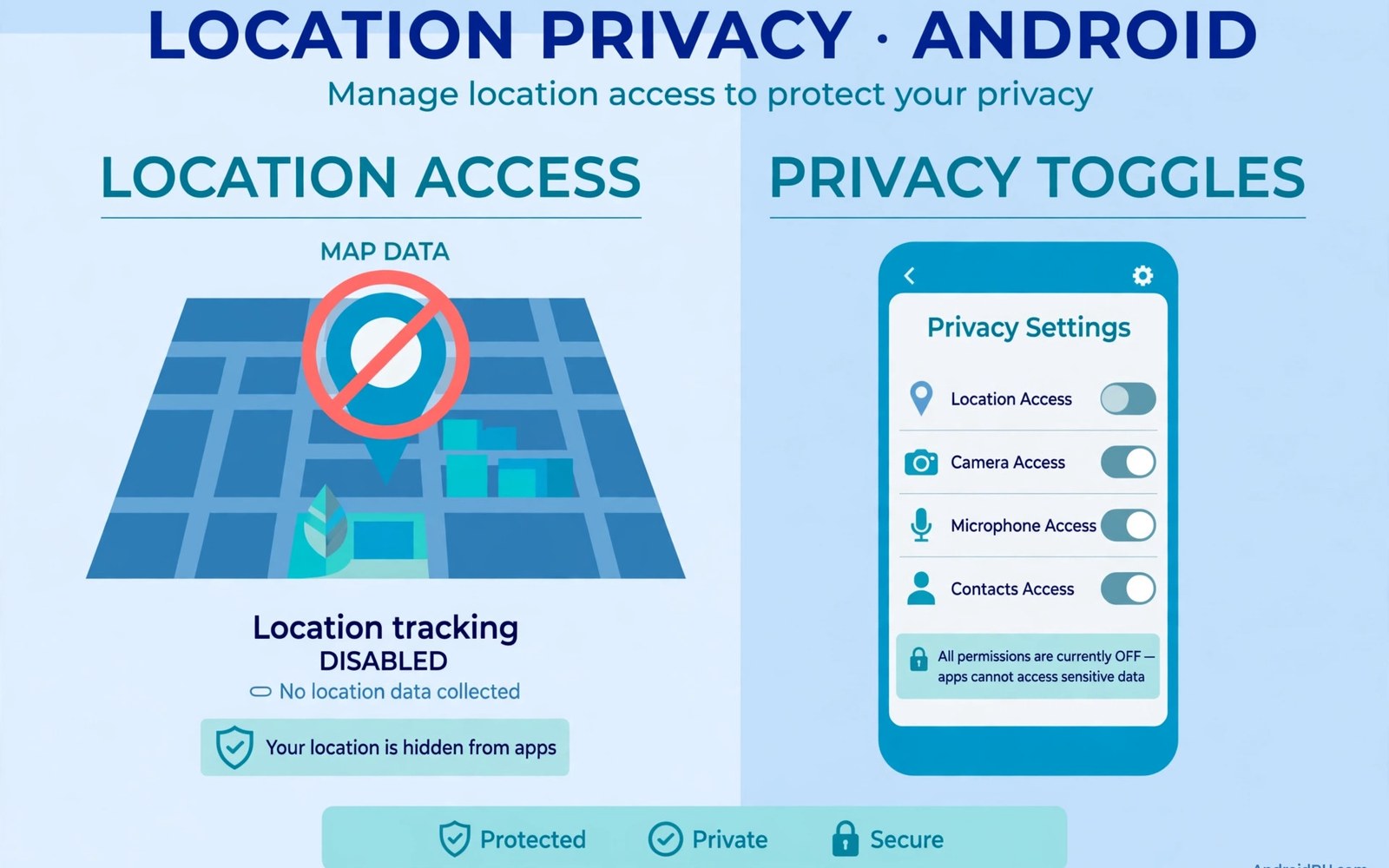
Background location tracking is the quietest form of data collection. An app can log your movement while you sleep. It can log your commute while you work. It can build a full timeline without ever opening on screen. Most users never realise how much history that creates.
Not every app needs this power. Navigation needs location while you drive. A ride app needs location while you wait for a car. A weather app needs only your rough area. A game or a shopping app needs no background location at all. The gap between need and access is where privacy is lost.
How Background Location Differs from Foreground Location
Foreground location works only while the app is open. You see the app on screen and you know it is active. Background location works after you switch away. It works after you lock the phone. It can keep working for hours without any visible sign.
That difference matters for battery life too. Constant location checks drain power and data. A phone with many background trackers feels slower. It also warms up more during the day. Cutting background access often improves battery life at once.
Finding Apps with Always-On Location
Open the Permission Manager and tap Location. Look for the group labelled allow all the time. That group is your priority list. Each app in that group can track you around the clock. Review each name with a critical eye.
Ask whether the app provides a live service when closed. A family safety app may qualify. A fitness tracker may qualify during a workout. A news app never qualifies. A coupon app never qualifies. Move every doubtful app to a narrower level.
Choosing the Right Level for Each App
Allow only while using the app is the best default for most tools. It gives maps full power during a trip. It stops tracking the moment you close the app. It keeps delivery tracking alive while you watch an order. It blocks silent logging the rest of the day.
Deny is the right level for apps with no location feature. Deny also suits apps that only need a city name. You can type a city by hand in most cases. Rough location is a middle path when typing feels tedious. It reveals your area without your exact street.
Restrict background location
Settings > Privacy > Permission manager > Location
Set non-essential apps to:
Allow only while using the app
What Happens After You Restrict Access
Some apps will show a warning after you restrict them. The warning may claim a feature will break. Test the feature yourself before you believe it. Many warnings are generic and overstate the impact. Core features often work fine with foreground access.
If a feature truly breaks then you can restore access in seconds. Grant access while using the app and test again. Only restore always-on access when a live feature needs it. A jogging tracker is a fair example. A wallpaper app is never a fair example.
Keeping Background Access Under Control
Repeat the location review after system updates. Updates can reset prompts or add new apps. Repeat it after installing new apps too. New apps often request the widest level first. A quick check at install time saves later cleanup.
Turn off location history at the account level as well. Device permission and account history are separate controls. Blocking one does not block the other. Both matter for a full picture. Check both screens during your monthly review.
Apps That Should Never Hold Background Location
Precise Location Versus Rough Location
Android offers two accuracy levels for location access. Precise location can place you within a few metres. Rough location covers a wide area such as a city district. Many apps work fine with rough location alone. Weather apps need only your general area. News apps need only your city. Shopping apps can use a typed postcode instead. Grant precise location only to navigation and safety tools. Grant rough location to everything else that claims a location need. That split cuts exposure while keeping features working.
Check the accuracy toggle inside the location permission screen. Some phones show it as a switch beside the grant. Turn precise location off for apps that only need an area. Test the app after changing the toggle. A weather app should still show local forecasts. A news app should still show nearby stories. If a feature fails then restore precise access for that app alone. Keep the narrow setting for all other apps. Accuracy control is one of the most underused privacy tools. It deserves a place in every location review.
Geofencing and Silent Location Checks
Geofencing lets apps act when you enter or leave an area. A store app may send an offer when you pass a shop. A reminder app may alert you when you reach home. A smart home app may adjust lights when you arrive. Those features need background location checks. The checks run even when the app stays closed. Each check adds a point to your movement history. Many users enable geofencing without realising the cost. Review which apps hold geofence triggers in settings. Disable triggers for offers and marketing first. Keep triggers only for home automation you truly use.
Geofence data can reveal sensitive places over time. A clinic visit can trigger a health related offer. A place of worship visit can reveal beliefs. A school visit can reveal family routines. Those inferences come from area entries alone. Precise coordinates are not needed for such profiling. Denying background location blocks most geofence tracking. Foreground-only access stops silent area checks. Use manual reminders instead of location reminders when possible. A time based reminder needs no location at all.
Location Data Hidden Inside Photos
Photos often carry location tags from the camera. A travel photo can reveal exactly where it was taken. A home photo can reveal your address to viewers. Sharing that photo shares the location tag with it. Many users forget the tag exists at all. Check your camera settings for location tagging. Turn it off when you share photos widely. Keep it on only for personal travel albums. Gallery apps can strip tags before sharing. Use that strip option for every public post.
Location tags also accumulate in cloud backups. A backup of years of photos holds years of places. That archive is valuable to anyone who gains access. Review backup settings for photo location data. Consider stripping tags from old photos in bulk. Some gallery tools offer bulk tag removal. A stripped archive keeps memories without the map. Memories matter more than coordinates for most people. Protect the map and keep the memory.
Battery and Data Costs of Constant Tracking
Constant location tracking drains battery faster than most features. GPS checks wake the processor many times per hour. Network location checks add data usage as well. A phone with many trackers may lose hours of standby time. Users often blame the battery itself for the drain. The real cause may sit in background permissions. Cutting background location often restores noticeable battery life. It also reduces mobile data use on limited plans. Privacy and performance improve together in this case.
Measure the gain after you restrict tracking. Note battery life for a few days before the change. Note it again for a few days after the change. Compare screen time and standby time fairly. A clear gain confirms trackers were active. No gain still means less data left the phone. Either outcome supports keeping the restriction. Performance proof helps convince sceptical family members too. Show them the battery gain and they may audit their own phones.
Location Permission for Emergency Features
Emergency features need location access for genuine safety reasons. Emergency calling can share your position with responders. Safety apps can alert contacts when you trigger an alarm. Those features deserve always-on or foreground location grants. Denying them could delay help in a crisis. Review emergency apps separately from ordinary apps. Keep their location grants generous and intentional. Test emergency features after changing any grant. A safety feature that fails silently is worse than no feature. Safety grants are the exception that proves the narrow rule.
Family safety apps sit near the emergency category. Parents may track children for genuine safety. Partners may share location during travel. Those uses involve consent and trust between people. Discuss location sharing openly before enabling it. Agree on when sharing starts and stops. Review the agreement regularly as circumstances change. Consent based sharing differs sharply from silent app tracking. One serves people directly. The other serves advertisers quietly. Keep that distinction clear in every location decision.
Location Access in Photo and Social Apps
Photo apps often request location to tag images automatically. Social apps request location to suggest nearby friends. Those features feel convenient but cost a movement record. You can tag photos manually for important trips. You can find friends through usernames instead of proximity. Manual methods take seconds and avoid continuous tracking. Disable location for photo apps that only tag casually. Keep it for navigation apps that truly guide you. The convenience gap is small and the privacy gain is large. Choose manual tagging as the default habit.
Social check-ins deserve the same scrutiny as background tracking. A check-in publishes your position to a wide audience. That publication persists beyond the moment. Friends and strangers can reconstruct your routine from check-ins. A single check-in reveals a place and time. Many check-ins reveal a full lifestyle pattern. Share check-ins sparingly and with a delay. Delayed sharing breaks real-time tracking while keeping memories. A delayed post still celebrates the place visited. It simply stops telling the world where you are right now.
- Games with no map or local feature.
- Wallpaper and theme apps.
- Flashlight and simple utility tools.
- Shopping apps that work with a typed postcode.
- News apps that can use a manually chosen city.
Start from the Permission Manager location group and then review how to stop account-level location history saving. A steady routine is covered in the monthly audit of installed app permissions.
The steps above follow the approach described in the official developer documentation for modern Android privacy controls. That documentation explains each permission group in plain terms. It also describes how the system limits background access. Use it as a general reference when a menu name differs on your phone.

