

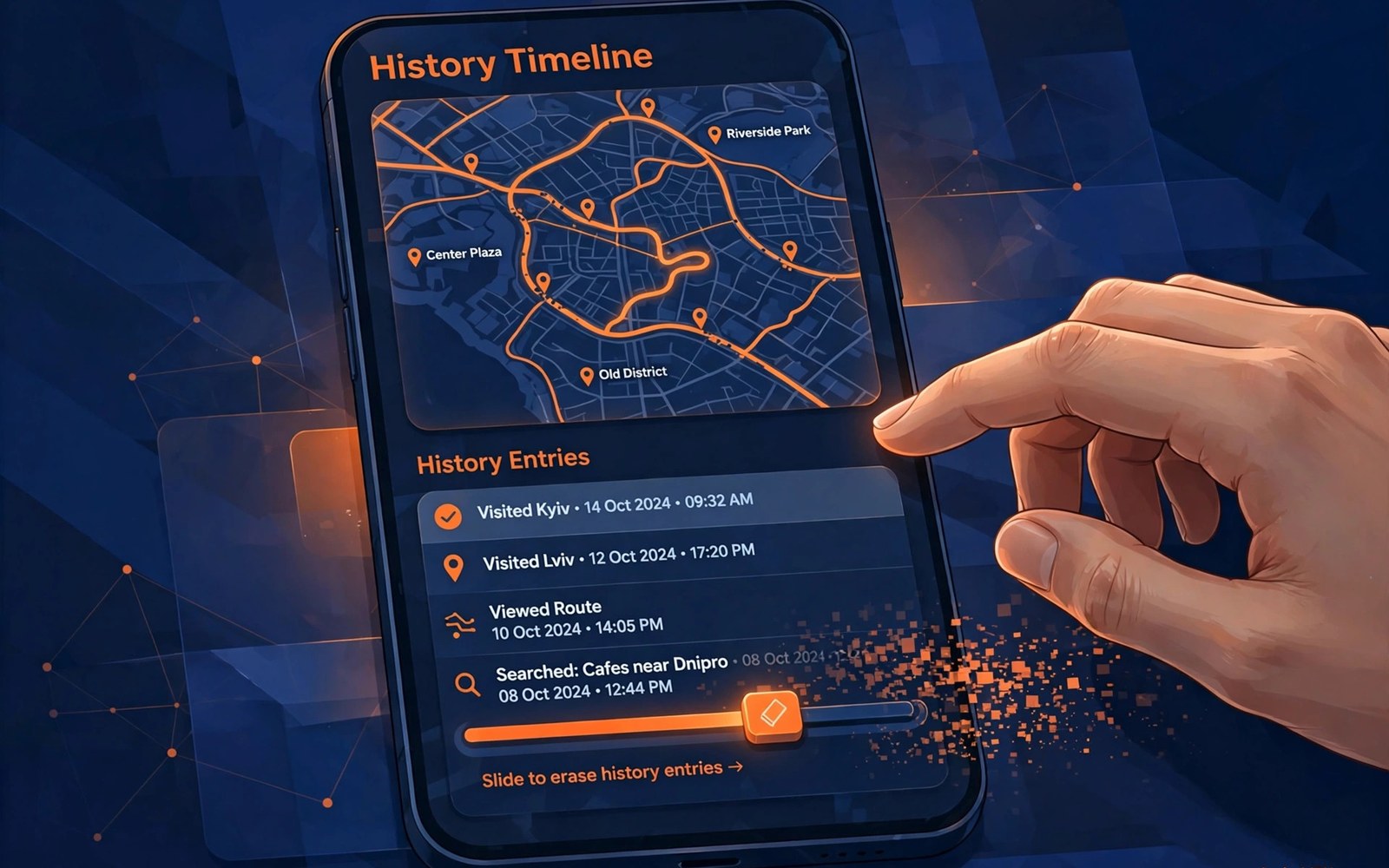
How to Prevent Google from Saving Your Location and Search History
Google remembers a lot about where you go and what you search for, and it does so quietly in the background. Every place you visit with location on, every search you type, and every video you watch can be written into your Google account history. That record powers useful features, such as traffic alerts and personalised recommendations, but it also builds a detailed diary of your life that you may not want to keep.
I started paying attention to this after checking my own timeline and seeing months of trips I had forgotten about, mapped out street by street. The data was accurate, which was the unsettling part. Nothing had gone wrong, and no one had done anything malicious. The account was simply doing what it was set up to do, and I had never changed the defaults.
This guide shows you how to stop Google from saving that record going forward. It covers Location History, Web and App Activity, and YouTube history, the menu path that controls them all, the auto-delete option that clears old entries on a schedule, what pausing does not stop, and how to handle accounts shared with family. Follow the steps once, and the saving stops.
What Google saves about your location and search
Google saves location in two main places. Location History is a timeline in your Google account that records where your signed-in devices have been, and it feeds the Timeline view in Google Maps. The second place is Web and App Activity, which saves your searches, the places you looked up, and activity inside Google apps, including Maps searches and directions. Both can be on at the same time, so switching off only one of them leaves the other still recording.
Search history is wider than the searches you type into the search box. Web and App Activity also saves voice searches, image searches, and activity in apps such as Maps, the Play app source, and the Google app itself. YouTube history is kept separately, and it covers videos you watch and searches you run inside YouTube. That separation is why three different switches exist, and why a guide that only covers one of them leaves gaps.
The record is tied to your Google account rather than to a single phone. If you search on your laptop, the entry appears in the same history as a search from your phone, because both devices are signed in to the same account. Changing a setting on your phone changes it for the account, which is helpful, because one change covers every device you own.
How to see what Google already holds about you
Before you change anything, look at the current record so you know what you are dealing with. Open your Google account, go to Data and privacy, then History settings, and open each of the three sections. Each one shows whether it is on or off, and offers a link to view the saved entries. The Maps timeline will show past trips on a map, and the activity page will show past searches in a list with dates.
That first look can be surprising, and that is normal. Many accounts have years of history because the defaults were on when the account was created. Seeing the scale of it helps you decide whether to delete the old record as well as pausing future saving, which the sections below cover in order.
Why the defaults are on in the first place
Google turns these features on because they make its services feel helpful. Location History powers commute alerts and your Timeline. Web and App Activity powers faster searches and recommendations based on what you looked up before. YouTube history powers the recommendations on your home page. Those are real benefits, and switching the features off means giving them up. That trade is the heart of this guide: you gain privacy, and you lose a little convenience.
One account, many devices, one history
Because the history is stored per account, a change on one device applies everywhere that account is signed in. That is useful when you want a single fix, but it also means a family member who signs in to your account on their phone can add entries to your history. The shared account section later in this guide explains how to handle that situation without an argument.
Location History: pause it, delete it, and check the timeline
Location History is the setting most people mean when they say Google tracks where they go. Open your Google account and follow Account, then Data and privacy, then History settings, then Location History. That menu path, Account > Data and privacy > History settings, is the control centre for all three history types, so learn it once and you can return to it for every change in this guide.
On the Location History page, tap Turn off. Google will show a warning about the features you will lose, such as personalised maps and Timeline, and ask you to confirm. Confirm the pause, and the setting changes to off. New location entries stop being added to your timeline from that moment, on every device signed in to that account.
Pausing does not delete the past. The timeline entries already saved stay there until you delete them. On the same page, use the delete option to remove entries by date range, or delete the whole timeline if you want a clean start. Deleting the whole record is the stronger choice if your aim is to stop the diary effect entirely rather than only stopping new entries.
Check the Maps timeline after you pause
Open Google Maps, tap your profile picture, then Your Timeline, and check that no new places appear after the day you paused the setting. Give it a day or two, because entries can arrive with a small delay while the phone syncs. If new places still appear, check whether a second Google account on the phone has Location History switched on, because each account has its own switch.
Location History on a second account
Many phones hold more than one Google account, such as a work account and a personal account. Each account keeps its own history settings, and pausing one does not pause the other. Open the account switcher at the top of the Google account page, switch to each account in turn, and repeat the pause and delete steps. A work account managed by an employer may have some settings locked, in which case ask the administrator what is recorded.
What to do when the switch will not stay off
If Location History turns itself back on, look for a device setup or a new phone that restored the old setting, or a family member who switched it back. Check the setting on the web rather than only in the app, because the web page shows the account-level value. Also check that you are looking at the right account, because a personal account and a work account can look similar at a glance.
Web and App Activity: the switch behind your search history
Web and App Activity is the broadest of the three switches. It saves searches, browsing activity in Chrome while signed in, voice searches, and activity in Google apps. Follow the same menu path, Account, then Data and privacy, then History settings, then Web and App Activity, and tap Turn off. Google will again warn you about lost personalisation, and ask you to confirm.
Two checkboxes appear on that page, and they matter. One covers Chrome history and activity from sites and apps that use Google services. The other covers voice and audio activity, which saves recordings of voice searches and commands. Switch off both if you want the saving to stop fully. Leaving voice activity on while switching off the rest still leaves a record of what you said to the assistant.
As with Location History, pausing stops new entries but keeps the old ones. Use the delete option on the same page to clear past activity, either by date range or in full. A full delete is the cleanest start, and you can do it in the same session as the pause, so the old record and the new saving stop together.
Chrome history is a separate record from Google history
Turning off Web and App Activity does not clear the history stored inside the Chrome browser on your phone or computer. Chrome keeps its own list of visited pages, and that list stays until you clear it in Chrome settings. Open Chrome, go to History, and clear browsing data if you want that local record gone as well. The two records are separate, and both need attention.
Searches inside other apps still leave traces
Some apps save their own recent searches inside the app, even when Google history is paused. Maps keeps recent places, YouTube keeps its own history, and shopping apps keep recent searches. Check the recent or history section inside each app you use often, and clear those lists by hand. The Google switch controls the Google account record, not the private list inside every app.
YouTube history: watch history and search history
YouTube keeps two lists of its own: watch history and search history. Both live under the same History settings page, in the YouTube History section. Open Account, then Data and privacy, then History settings, then YouTube History, and tap Turn off. You can pause watch history and search history together, or pause one and keep the other, depending on how much you value recommendations.
Pausing watch history changes the YouTube home page quickly. Recommendations become more generic, because YouTube no longer knows what you watched last. Some people miss that personal touch, and that is a fair trade to weigh. Search history has a smaller effect, because it mainly powers search suggestions inside YouTube, so pausing it costs less in daily use.
Delete the old YouTube record on the same page if you want a clean start. You can delete by date range, or delete everything. After a full delete, the home page will look plain for a while, and it will slowly adapt to the videos you watch without saving them, which is a different and slower kind of personalisation.
Incognito mode inside YouTube
YouTube has an incognito option that pauses history while it is active, without changing your account setting. Tap your profile picture in YouTube, then Turn on Incognito. While incognito is on, watches and searches are not saved. Turn it off to return to normal. That option suits a shared phone or a single session you want to keep private, while the full pause suits a permanent change.
History on a television or a shared screen
A television signed in to your YouTube account adds its own watch history to the same record, and a family member watching on the television can fill your recommendations with their taste. Check the YouTube History page for entries from the television, and consider signing the television out of your account or creating a separate profile for the living room. The television is easy to forget, and it is often the source of strange recommendations.
Auto-delete: clear old entries on a schedule
Auto-delete is the middle ground between keeping everything and deleting everything by hand. On each of the three History settings pages, you can choose to delete activity older than 3 months, 18 months, or 36 months, automatically. The oldest entries disappear on a rolling schedule, while recent entries stay to power recommendations.
For most people, the 3-month option is the strongest privacy choice that still keeps some usefulness. Your recent searches still help with suggestions, but nothing older than a season survives. The 18-month option is the default on many accounts, and the 36-month option keeps the most history. Choose the shortest period you can live with, and confirm the choice on each of the three pages, because each one has its own auto-delete setting.
Auto-delete works even when the history switch is still on, which makes it a good first step if you are not ready to pause everything. It also works after you pause, as a safety net for entries that slipped in before the pause. Set it once, and you never need to remember to delete by hand again.
Auto-delete and legal or work records
Think before you turn on a short auto-delete period if your history serves as a record for work, such as a list of places visited for expenses. An entry deleted by auto-delete cannot be brought back. Export anything you need for work with Google Takeout before you switch on the shortest period, and keep that export in a safe place.
What pausing does not stop
Pausing the three history switches stops Google from saving that history to your account, but it does not stop everything. Google still needs your location in real time to give directions, show nearby results, or find a place on a map. That real-time use is not the same as saving a timeline, but the request still reaches Google while you use the service. Turning off history is not the same as turning off location entirely.
Your phone carrier, your internet provider, and the apps you install can still record location and activity through their own systems. A weather app that asks for your location, a ride app that tracks a trip, or a social app that tags a place all keep their own records. The Google switches control Google, not every company on your phone, and that distinction is easy to miss.
Google also keeps some activity for security and for running its services, such as sign-in records and abuse prevention logs. Those records are not shown in your history pages, and the pause switches do not remove them. They exist to keep the account safe, and they are kept for a shorter period than the history you see. That is a normal part of running an account, and no history setting removes it entirely.
Real-time location versus saved location
When you ask Maps for directions, the app must know where you are right now. That position is used for the route and then, with history paused, it is not added to your timeline. The difference is between using a location once and keeping it forever. Understanding that difference stops the common disappointment of pausing history and then seeing Maps still know where you are during a journey.
Advertisements and personalisation after a pause
Pausing history reduces the personal data that feeds ad personalisation, but it does not remove advertisements. You will still see ads, and they will be based on less personal information, such as your general location or the page you are viewing. To change ad settings further, open your Google account, go to Data and privacy, then Ad settings, and switch off ad personalisation there as well.
Location still works for emergencies and calls
Emergency services can still receive your location when you call for help, and your carrier can still locate your phone for network purposes. Those systems operate outside Google history settings, and pausing history does not interfere with them. That is a safety feature, not a gap in the steps above.
Shared accounts and family: stopping history without a row
History problems often start with a shared account rather than a setting. When two people use the same Google account on different phones, both phones write into the same history, and both people can see each other’s searches and trips. The fix is to give each person their own account, and to share only the specific things that need sharing, such as a family calendar or a shared photo album.
Google Family Link and family groups let you share purchases, a calendar, and some services without sharing a whole account. Set up a family group from your Google account, invite the other person, and let each person keep their own history settings. That separation ends the mixed timeline, and it also protects each person if one phone is lost or sold.
For children, use a supervised account rather than sharing your own. A supervised account gives the child their own history and their own settings, while the parent keeps oversight through Family Link. Sharing your own account with a child mixes their searches into your record and gives them access to your email and payment methods, which is a risk that a separate account removes entirely.
Guest mode and a second profile on a shared phone
If several people use one phone, set up a second user profile or use guest mode rather than handing over a phone signed in to your account. A guest profile keeps the main account signed out, so the guest cannot add to your history or read your email. That option suits a phone lent to a visitor, a child, or a colleague for a short time.
Check who is signed in to your account
Open your Google account security page and look at the list of devices signed in to your account. Remove any device you do not recognise, and any old phone you no longer own. Each device on that list can add to your history, so a forgotten tablet at a relative house can quietly keep writing entries long after you stopped using it.
Device controls that work alongside Google settings
Google history switches control the account record, but your phone has its own location controls that decide which apps can see your position at all. Open Settings, then Location, and look at the list of apps that requested location. Many apps ask for location they do not need, and switching those apps to While using the app, or to Deny, cuts off the data at the source rather than only stopping Google from saving it.
The guide to device-level background location limits explains how to stop apps from reading your position in the background, which is the most common way location leaks without you noticing. A maps app needs location while you navigate, but a shopping app or a game rarely does, and background access for those apps can be switched off without losing anything useful.
Android also offers approximate location, which gives an app a rough area rather than your exact street. Use that option for apps that need a general location, such as a weather app, and keep precise location only for navigation and ride apps. That single choice reduces how much detail any one app can collect about where you stand.
Permission Manager: the full picture in one place
Open Settings, then Privacy, then Permission Manager, and you will see every permission on the phone, with the apps that hold each one. Location, microphone, camera, and contacts are the ones to review first. the Permission Manager overview walks through that screen in detail, and it is worth reading once so you know what each permission really allows an app to do.
Look for apps that hold location permission but have not been opened in months. Those are the easiest to revoke, because you lose nothing by doing so. If an app later needs the permission again, it will ask, and you can decide at that moment rather than granting it in advance.
Turn off location for the whole phone when you need a break
The quick settings tile for Location switches off location for the whole device in one tap. Use it when you want a complete pause, such as on a day trip, and switch it back on when you need navigation. That tile is a blunt tool, and it will stop Maps from working properly while it is off, so treat it as a temporary break rather than a permanent setting.
A monthly routine that keeps history switched off
Settings can change back after a phone reset, a new device setup, or an app update that restores old defaults. A monthly check takes five minutes and catches those reversals before months of history build up again. Put a reminder in your calendar for the first Sunday of each month, and use it to open the three History settings pages and confirm each one is still off and auto-delete is still set.
During the same check, look at the activity page to confirm that no new entries appeared in the last month. If you find new entries, look at the dates and work out which device or account added them. A new tablet, a television, or a second account is usually the cause, and fixing that source stops the entries at their root.
Make a monthly audit of installed app permissions part of the same routine, because history settings and app permissions drift together. An app update can request a new permission, and a new app can ask for location on first run. Reviewing permissions monthly keeps the device controls in step with the Google account controls, and the two together give a far stronger result than either one alone.
What to check in the five-minute routine
Open History settings and confirm Location History, Web and App Activity, and YouTube History are all off. Open the activity page and confirm no new entries appeared. Open Permission Manager and revoke location from any app you have not used. Open the device list in your Google account and remove any device you no longer own. Four checks, five minutes, once a month, and the record stays empty.
Keep a note of the settings you chose
Write down the three switches and the auto-delete period you picked, and keep that note with your other account details. When you set up a new phone, that note tells you exactly what to change before the new handset starts writing history. A new phone is the most common moment for settings to revert, because setup screens often restore the old defaults without asking.
Frequently asked questions about stopping Google history
Does pausing Location History stop Google Maps from working?
No, Maps still works for directions, search, and navigation, because it uses your current position in real time. What stops is the saving of that position into your Timeline. You lose the Timeline view and personalised commute alerts, but you keep turn-by-turn directions and live traffic, which are the features most people use every day.
Will pausing Web and App Activity delete my saved passwords?
No, saved passwords live in a separate part of your Google account, under Password Manager, and the history pause does not touch them. Your saved passwords, payment methods, and addresses stay where they are. The pause only stops new search and activity entries from being added to the history record.
Can Google still see my location after I pause history?
Google can still use your location in real time while you use Maps or Search, and your carrier and other apps can still record location through their own systems. Pausing history stops Google from keeping a saved timeline of where you have been, which is a different thing from hiding your position while a service is running.
How do I delete everything Google already saved about me?
Open each History settings page in turn, use the delete option, and choose All time. Do that for Location History, Web and App Activity, and YouTube History. Then clear Chrome history on each device, and check the history inside Maps and YouTube as well. A full delete takes a few minutes, and the record is gone once all three pages show no entries.
Does auto-delete work if I keep history switched on?
Yes, auto-delete works independently of the pause switch. You can keep history on for recommendations and still have entries older than 3, 18, or 36 months removed automatically. That middle ground suits people who want recent personalisation without keeping a diary that stretches back for years.
Stopping Google from saving your location and search history is a one-time job with a monthly check to keep it honest. Pause the three switches through Account, then Data and privacy, then History settings, delete the old record, set auto-delete to the shortest period you can live with, and tighten the location permissions on the phone itself. Do that today, and the next time you look at your Timeline it will be empty, not because something broke, but because you chose what Google keeps about you.

