

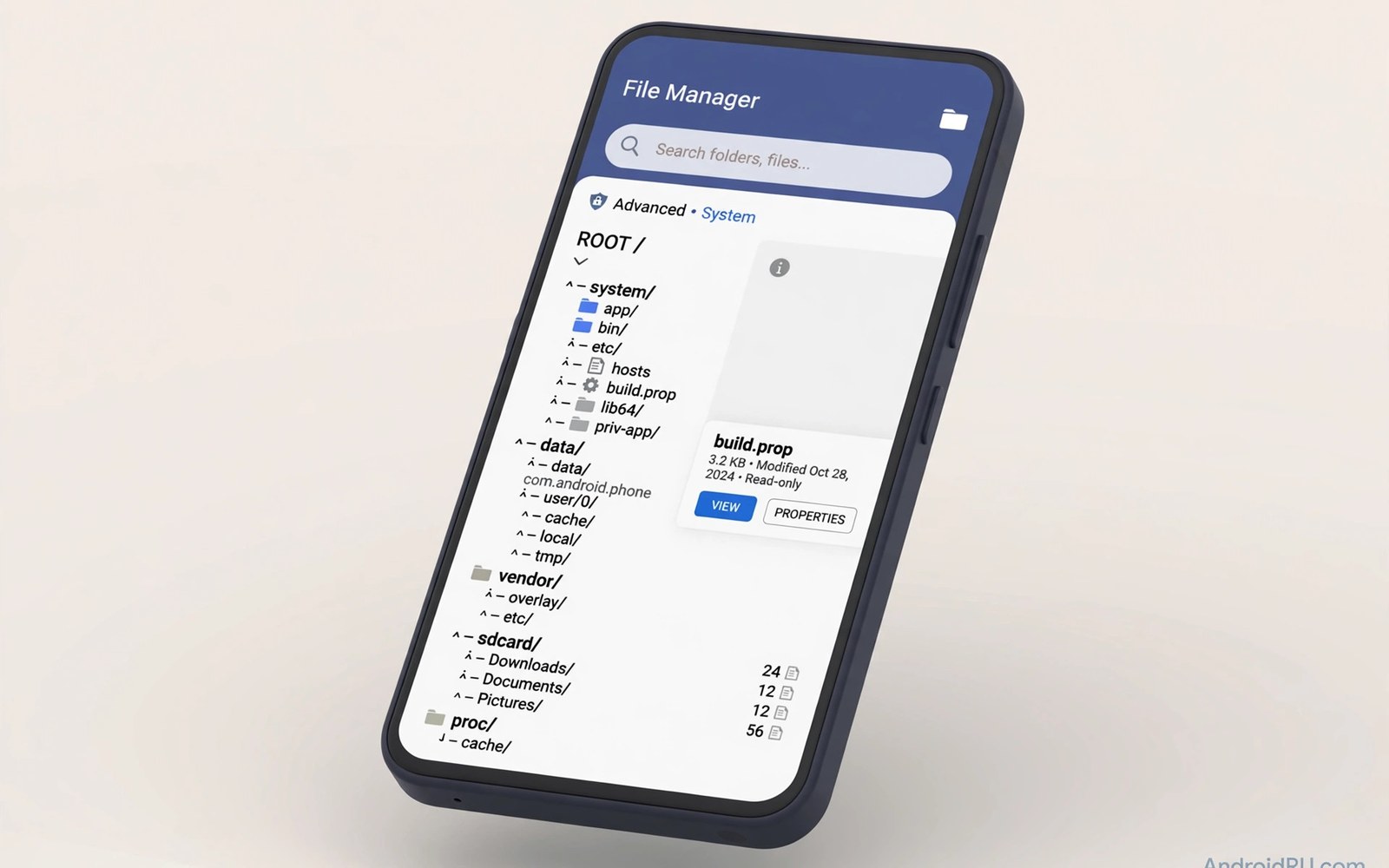
Android file managers decide how much of your phone you can actually see. A basic browser shows photos and downloads. A strong manager opens hidden folders and system paths and lets you work with them safely. This guide explains what advanced access means and which features matter most.
You do not need root to get useful power. Modern Android gives scoped access through the Storage Access Framework. A good manager uses that framework well and stays honest about its limits. If you want to find hidden clutter before you delete anything then start with a clear map of your storage first and only then open system folders.
What advanced directory access really means
Advanced access means reaching folders that a simple gallery app never shows. These folders include app data folders and the Android folder and system caches. Some paths need a permission grant for each folder. Others need a device that is rooted. A manager should explain which path needs which permission before you tap anything.
The Android folder changed a lot in recent releases. Apps can no longer browse each other’s data freely. A manager that promises full access without any grant is selling a fantasy. The honest ones ask you to grant a folder through the system picker and then remember that grant. That grant is the key to real advanced browsing on a modern phone.
Root access versus Storage Access Framework
Root access opens nearly every folder on the device. It also removes safety nets that protect system files. One wrong deletion with root can break boot or break an app you rely on. Root browsing belongs to users who back up first and who know exactly which file they want to change.
The Storage Access Framework is the safer path for most people. It grants access folder by folder through a system dialog. No hidden tricks are involved. The grant can be revoked at any time from settings. For daily work like moving large video folders or cleaning old backups this framework is enough and it keeps the system stable.
Features that matter in a serious file manager
Dual panes save time when you move files between folders. A built-in text editor helps you read config files without opening another app. Archive support lets you open zip files and inspect them before you extract. A storage bar that shows folder sizes at a glance helps you spot the folders that eat space.
Search matters more than most people expect. A manager should search by name and by size and by date. It should also search inside the folder you granted and not pretend to search the whole device. SMB and FTP support is a bonus for people who move files to a computer or a home server. Cloud support is useful only if it uses official sign in and never stores your password in plain text.
Sorting and batch tools for large folders
Large folders become useless without good sorting. Sort by size to find the biggest files first. Sort by date to find old downloads you forgot. Batch select lets you move or delete dozens of files in one action. A good manager shows a clear summary before it deletes anything in bulk.
Thumbnails help you judge media folders fast. A list view helps you judge document folders fast. The best managers let you switch views per folder and remember your choice. Hidden files should stay hidden until you turn them on with a clear toggle. That single toggle prevents many accidents with dot files and cache folders.
Safety rules for system folders
Never delete files from a folder you do not understand. System folders hold files that apps and services expect to find. Deleting a small cache file is usually safe. Deleting a database from a system app can erase settings or break sync. When in doubt copy the file to a backup folder first and test for a day.
Turn on a recycle bin if the manager offers one. A recycle bin turns a disaster into a small delay. Back up your phone before you explore with root access. Keep a note of every change you make in a system folder. That note is what saves you when something stops working a week later.
Using dual panes and tabs for big moves
Dual panes change file work from tedious to fast. The left pane holds the source folder and the right pane holds the destination. You select files once and move them with one action. Tabs add another layer since you can keep several folders open at once. Switch tabs instead of navigating back through deep paths again and again. That workflow matters when you reorganize a whole media library or merge folders from several apps into one archive.
Bookmarks turn repeated paths into one tap jumps. Bookmark the folders you visit weekly and ignore the rest. A good manager syncs bookmarks across its own views but never uploads them. Keep bookmarks local for privacy. When a move involves thousands of files then run it on Wi-Fi free storage with the phone plugged in. Large moves drain battery and a shutdown mid move can leave partial copies in both folders.
Archive and cloud handling inside a manager
Archive support lets you preview zip contents before extraction. That preview stops a bad archive from scattering files across a folder. Check the file list inside the archive first. Extract only the files you need instead of the whole package. Partial extraction saves space and keeps folders clean. Some managers also create archives with password protection for sensitive backups.
Cloud folders inside a manager act like local folders. You browse Drive or Dropbox files next to local files. Moves between cloud and local happen with a familiar copy action. Watch data use since cloud moves run over the internet. Use Wi-Fi for large cloud transfers. Verify the transfer finished by checking file size on both sides before you delete the original.
Auditing permissions of a file manager
A file manager holds broad power over your files. Audit its permissions every few months. Open app settings and review storage and media access. Revoke all files access if you only browse photos now. A manager that loses a permission should explain what breaks and offer a narrower grant instead of demanding full access again.
Check background behavior too. A manager has no reason to run constantly in the background. Restrict background activity if the app drains battery while idle. Review the privacy policy for cloud features. A manager that uploads file names to a server deserves skepticism. Local first tools respect your files far better than cloud first tools.
Backing up before system folder edits
Every system folder edit deserves a backup first. Copy the target folder to external storage or a computer. Note the original path and the date of the copy. That note turns a restore into a simple copy back. Without it you may restore files to the wrong folder and create new problems.
Test the backup by opening a copied file before you edit the original. A backup you never tested is a guess. Keep two copies for critical system files. One copy on the phone and one copy off the phone protects against both mistakes and device failure. Delete old backups only after a week of stable behavior.
Choosing between free and paid managers
Free managers often show ads or limit features like cloud access or dual panes. Ads inside a file tool slow work and clutter the view. Paid versions usually remove ads and unlock advanced features. Judge the price against how often you manage files. Daily users benefit from paid tools quickly.
Open source managers offer another path. Their code is public and their behavior is auditable. They may lack polish but they rarely harvest data. Try a free version for a week before paying. Check recent reviews for complaints about lost features after updates. A manager you trust with every file deserves a careful trial.
Sorting by metadata for photo and video libraries
Metadata sorting goes beyond name and date and size. Photos carry camera model and location and resolution in their metadata. A manager that reads metadata can sort a chaotic camera folder into sensible groups. Group by year and then by month for a library that stays browsable for years. Group by location for travel photos that you want to find by place rather than by date. Metadata sorting turns a flat pile of files into a structured archive without moving anything by hand.
Video metadata adds duration and resolution to the mix. Sort long 4K clips away from short clips to plan storage moves. A manager that shows duration in list view helps you judge which clips deserve backup first. Long clips eat storage fastest and deserve priority in any cleanup. Combine metadata sorting with size sorting to find the exact files that free the most space with the fewest deletions. That combination is the most efficient cleanup strategy for media heavy phones.
Hidden folders and dot files explained
Dot files start with a dot in their name and stay hidden by default. Apps use dot folders for caches and settings and temporary data. Showing hidden files reveals a second layer of storage that normal browsing never displays. That layer includes thumbnail caches that can grow surprisingly large over time. It also includes config files that apps rewrite constantly and that you should never edit by hand.
Turn hidden files on only when you have a specific reason. A cleanup hunt for thumbnail caches is a good reason. Casual browsing with hidden files on invites accidental deletion of app internals. When you finish the task turn hidden files off again. That toggle discipline keeps the power available and the risk low. Treat dot folders as a workshop that you enter with a purpose and leave when done.
Working with large files over slow connections
Large file moves over slow connections fail more often than small moves. Split huge transfers into smaller batches to reduce failure cost. A failed batch of ten files loses little time. A failed single transfer of one huge file loses everything. Verify each batch by comparing file sizes at source and destination before you delete originals.
Compression helps when the connection is the bottleneck. Zipping a folder of documents shrinks it sharply and transfers faster. Media files compress poorly since they already use efficient formats. Do not waste time zipping videos for transfer. Move videos as they are and reserve compression for documents and text heavy folders where it truly pays.
File manager widgets and shortcuts
Widgets put favorite folders on the home screen for one tap access. A downloads widget suits people who save files constantly. A camera widget suits photographers who review shots often. Widgets save navigation time but they also expose folder contents on the home screen. Keep sensitive folders out of widgets and use them only for everyday folders.
Shortcuts inside the manager serve a similar purpose. A shortcut to a deep project folder beats five taps of navigation every time. Organize shortcuts by current projects and delete stale ones monthly. A shortcut list that mirrors old projects slows you down instead of speeding you up. Prune shortcuts with the same discipline you prune files.
adb shell ls -la /sdcard/Android/data | head -n 50The command above follows the standard syntax for the Android developer bridge and lists files in an app data folder so you can inspect contents before you change anything on the device.
Common mistakes
The most common mistake is granting root access to a manager you installed five minutes ago. Root is powerful and it trusts the app completely. Install the manager first and use it for a week without root. Grant root only when a specific task truly needs it.
Another mistake is deleting cache folders to free space every day. Caches rebuild themselves and constant deletion wastes battery and slows apps. Delete caches only when an app misbehaves or when storage is truly full. A detailed hardware and storage report tells you whether the cache is really the problem or just a small part of it.
People also confuse free space with usable space. Android reserves space for updates and for system work. A manager may show less free space than you expect. That gap is normal and deleting system files will not close it. Focus on your own large files instead.
Frequently asked questions
Do I need root to browse the Android folder?
No. You can grant folder access through the system picker on modern Android. Root only adds paths that the system picker cannot grant. Most daily tasks work fine without root access on the phone.
Why does my file manager show empty app data folders?
Scoped storage hides other apps’ data from normal apps. The folder looks empty even when it holds files. Granting the folder through the picker or using root is the only way to see the real contents.
Is it safe to delete files in the Download folder?
Yes for files you downloaded yourself. Check the file name and date before you delete. Some apps store exports in Download so look inside before you clear the whole folder in one tap.
Conclusion
Pick a manager that explains its permissions clearly and that offers a recycle bin and dual panes. Grant folders one at a time and keep a backup before you touch system paths. That habit gives you real control without real risk.
Your next step is concrete. Install one manager from this guide and grant it one folder today. Explore that folder and note what you find. If you later need bulk removal tools for unused apps then handle apps separately from files so each cleanup stays easy to undo.

