

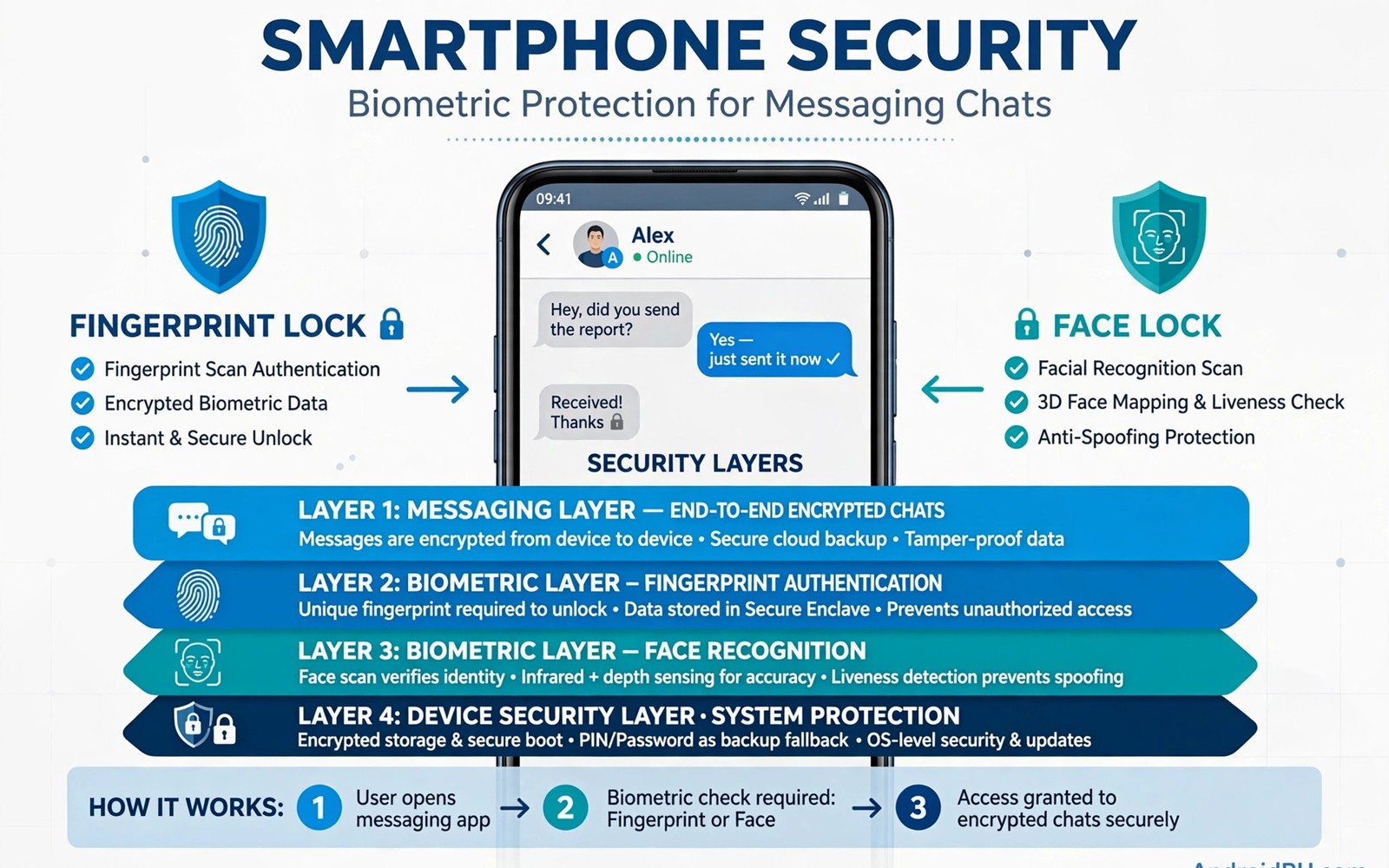
A phone lock alone does not protect chats on a shared phone. Friends and family may use your unlocked phone for a quick task. Securing messaging apps biometric locks adds a second barrier for sensitive apps. This guide covers built in locks and system locks and fallback risks. You will learn a setup that stays convenient for daily use.
Start by strengthening your main phone lock first. A weak PIN undermines every app lock on top of it. Also check managing permissions for camera and microphone in social apps for broader app safety. Set a strong PIN or password as the fallback. Biometrics are convenient but fallback strength decides real security.
Built in app locks inside messengers
WhatsApp and Telegram and Signal offer built in locks in privacy settings. WhatsApp chat lock and app lock use fingerprint or face unlock. Telegram passcode lock adds a PIN layer inside the app. Signal screen lock uses device biometrics to open the app. Built in locks are the safest choice because they come from the app maker.
Enable the lock and set the auto lock timeout to immediate. A long timeout leaves chats open after you switch apps. Test the lock by closing and reopening the app. Confirm that message previews hide when locked where offered. A lock that still shows previews leaks content.
System app locks from phone makers
Samsung and Xiaomi and other makers offer system app lock features. System locks can protect any app including messengers without built in locks. They use fingerprint or PIN depending on maker. System locks are convenient for covering many apps at once.
System locks vary in strength by maker. Some locks can be bypassed by uninstall tricks or safe mode on older systems. Keep system software updated to close those gaps. Test your system lock after each major update. A lock that worked last year may behave differently after an update.
Third party app lockers and risks
Third party lockers promise locks for any app on any phone. Some work well but they need broad permissions to function. Accessibility access lets a locker observe app launches. That access is powerful and should go only to trusted developers. Check update history and reviews before you install any locker.
Avoid lockers with heavy ads and vague privacy policies. A locker that tracks usage defeats its own purpose. Also read top privacy settings for Instagram and TikTok for account level protection. Device locks plus account locks together give layered defence. Remove any locker you stop using promptly.
Biometric limits you must understand
Face unlock on some phones uses a simple photo match. That method can be fooled by a photo or a sibling in rare cases. Fingerprint unlock is generally stronger on modern phones. Check whether your phone uses secure 3D face data or a basic camera match. Use fingerprint as primary where both options exist.
Biometrics can be compelled or used while you sleep in extreme cases. A strong PIN fallback protects against that edge case. Some phones offer lockdown mode to disable biometrics temporarily. Learn how to trigger lockdown on your phone. Use it when crossing borders or in sensitive situations.
Notifications and previews with locks
App locks protect the app screen but notifications can leak chats. Hide sensitive notification content on the lock screen. Disable message previews for locked messengers in system settings. That setting matters more than many users realise. A locked app with full previews still reveals messages.
Wearables and smart displays can also leak previews. Check notification mirroring settings for watches and speakers. Turn off mirroring for sensitive messengers. Test by sending yourself a test message and checking every screen that lights up.
Recovery when biometrics fail
Biometrics fail with wet fingers and face changes and injuries. Always keep a strong fallback PIN you can recall. Store that PIN in a password manager and not on paper near the phone. Test fallback login monthly so you do not forget it.
Some app locks offer no recovery beyond reinstalling the app. Reinstalling can lose local chat history without a backup. Also check backing up WhatsApp chats without losing media before you rely on any lock. A verified backup makes lock failures annoying rather than disastrous.
adb shell settings get secure biometric_enrollment
adb shell dumpsys package org.thoughtcrime.securesms | grep -i versionName
These commands follow the standard Android developer reference pattern for reading biometric and package settings. They only read data and they change nothing on the phone.
Setting up locks on a shared family phone
Start by creating separate user profiles if the phone supports them. Each family member gets their own profile with their own locks. That separation is stronger than app locks alone. If profiles are unavailable then rely on app locks per person. Lock messaging apps for every user of the shared phone. Set immediate auto lock timeout for all locked apps. Test each lock by switching users or by handing the phone to another family member. A lock that only works for one user leaves other accounts exposed.
Teach family members how fallback PINs work before they need them. Each person should know their own fallback PIN. Store fallback PINs in a family password manager with separate entries. Never share fallback PINs between family members casually. A shared PIN defeats individual locks entirely. Practice fallback login once together so nobody panics during a biometric failure. Wet fingers and face changes cause failures at inconvenient times. A practiced fallback turns failure into a minor delay.
Review shared phone locks monthly as a family routine. Check that no lock was disabled for convenience and forgotten. Check notification previews for each locked app. Previews often leak after system updates reset settings. Re-hide previews promptly when found. Discuss any lock bypass attempts openly rather than as punishment. Children may try to bypass locks out of curiosity. An open discussion teaches security thinking better than secrecy. Monthly reviews keep the shared phone safe without constant policing.
Locks plus encryption plus backups as a system
Understand that locks and encryption protect different threats. Locks block casual access to the app screen. Encryption blocks reading of message content in transit and at rest. A locked app on an unencrypted messenger still leaks content through backups or server access. Use messengers with strong default encryption alongside app locks. That combination covers screen access and content access together. Neither layer alone is sufficient for sensitive chats. Think in layers rather than single tools for real security.
Backups complete the system by protecting against lock failures. A forgotten fallback PIN can force app reinstall. Reinstall without a backup loses local chat history permanently. Verify backups before relying on any lock setup. Run a backup test by noting backup date and size. Confirm encrypted backup passwords work by recalling them from your password manager. That verification takes minutes and prevents disaster. A lock system without backups trades one risk for another. Backups turn lock failures into inconveniences.
Plan for device loss as the ultimate test of your system. A lost phone should reveal nothing to a finder. Strong device lock plus app locks plus hidden previews achieves that goal. Remote wipe capability adds a final layer for high risk cases. Enable find my device features before loss happens. Test remote lock from another device once. That test proves the feature works when panic sets in. After loss change passwords for key accounts promptly. A prepared system makes loss stressful but not catastrophic.
Your messaging lock setup checklist
Complete this checklist to lock messaging apps properly. First strengthen your device PIN or password as the fallback for all locks. Second enable built in app locks in WhatsApp and Telegram and Signal where available. Third set auto lock timeout to immediate for every locked messenger. Fourth test each lock by closing and reopening the app. Fifth hide message previews on the lock screen for locked messengers. Sixth disable notification mirroring to watches and displays for sensitive apps. Seventh prefer fingerprint unlock over basic face unlock where both exist. Eighth learn how to trigger lockdown mode on your phone. Ninth test fallback PIN login monthly so you never forget it. Tenth verify chat backups before relying on locks for daily use. Eleventh lock both copies separately if you use dual messenger clones. Twelfth review lock settings after every major system update. A setup that passes this checklist protects chats on shared and lost phones. Locks alone do not encrypt content but they block the most common access path. Casual snooping stops at the lock screen. Determined attackers face additional layers from encryption and device security. Combined layers create defence in depth. Defence in depth is the realistic goal for personal messaging security. No single toggle provides complete protection. Finish all twelve items today for your main messenger first. Extend the same checklist to other sensitive apps during the week.
Common mistakes
Using a weak PIN fallback defeats a strong biometric lock. Set a long random PIN as fallback. Leaving notification previews on leaks locked chats anyway. Hide previews for sensitive apps. Trusting a third party locker with accessibility access without vetting risks exposure. Check developer history first.
Setting a long auto lock timeout leaves chats open after switching apps. Use immediate lock for messengers. Forgetting fallback PIN recovery can force a reinstall. Test fallback monthly. Skipping backups before lock experiments risks local history loss.
Relying on basic face unlock on a weak phone overstates security. Use fingerprint where available. Learn lockdown mode for sensitive situations. A lock is only one layer in a wider security setup.
Frequently asked questions
Does an app lock encrypt my chats?
No an app lock only blocks screen access. Chat encryption comes from the messenger itself. App locks and encryption solve different problems. Use both together for real protection.
Can someone bypass an app lock by uninstalling?
Some system locks can be bypassed on older software by tricks. Built in messenger locks generally protect data better. Keep software updated and use built in locks first. Backups protect you if a bypass forces reinstall.
Should I lock every app or only messengers?
Lock only sensitive apps for daily convenience. Messengers and banking and photos deserve locks. Locking every app creates unlock fatigue. Fatigue leads users to disable locks entirely.
Conclusion
Biometric app locks add a valuable second barrier for chats. Built in locks beat third party lockers for most users. Strong fallback PINs decide real strength. Hide notification previews or locks leak anyway. Keep backups current so lock failures stay minor.
Your concrete next step is to enable the built in lock on your main messenger today with immediate timeout. Then hide its lock screen previews. Test both settings with a message from a friend. That test takes five minutes.

