

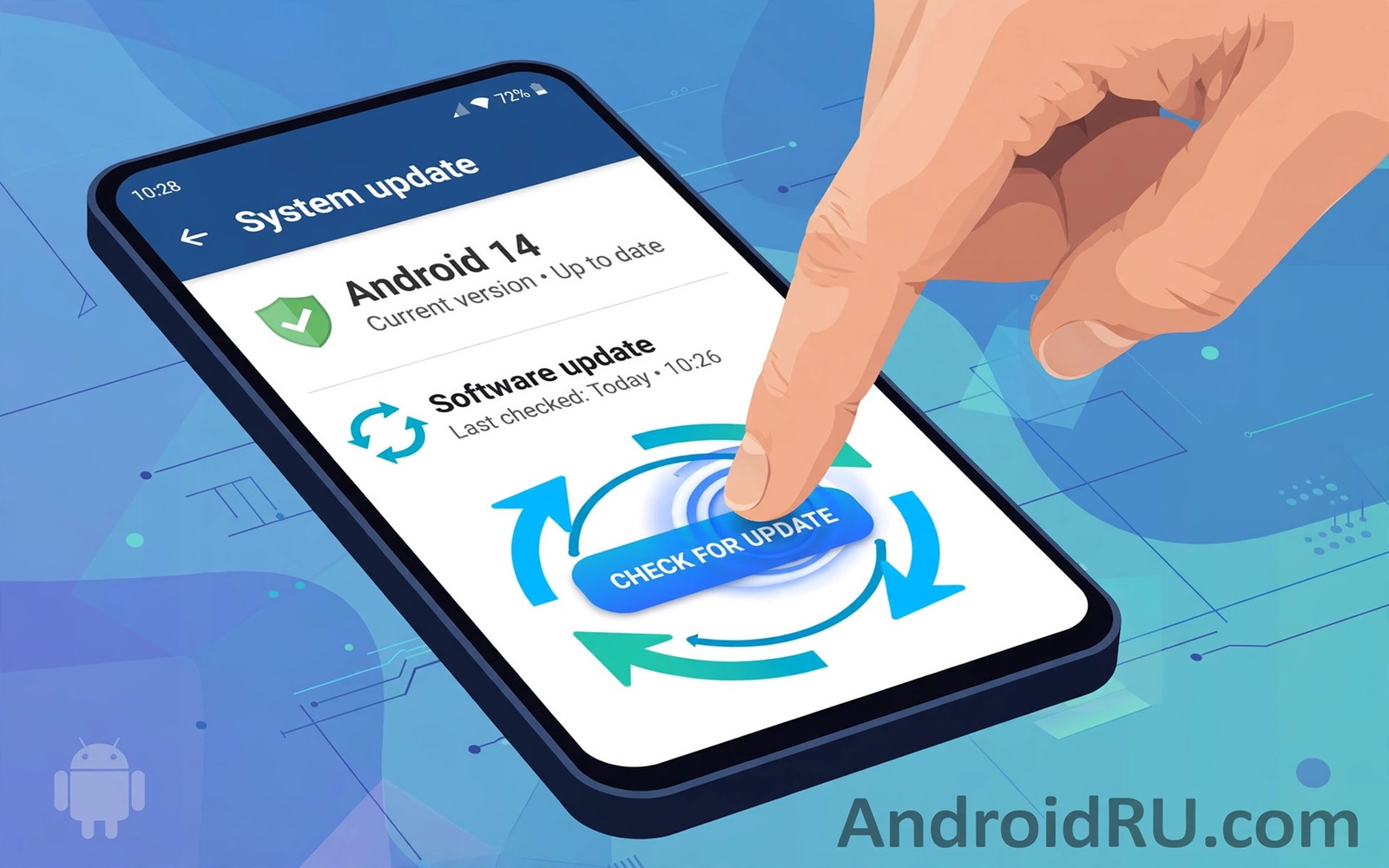
How to manually force a system update on Android devices is a common search when a friend already has the new version. Forcing an update does not mean hacking the phone. It means using official checks and fixes that help the phone find an update that already exists for its model. If no update exists for your model then no trick can create one safely.
Start with the official check in settings before trying anything deeper. Many so called force methods online are myths or risks. A manual check plus storage and connection fixes solves most real cases. If your phone sits in a staged rollout then understanding Android desktop mode will not speed it up but patience and a correct check will help you catch it early.
Run the official manual check first
Open Settings and go to System and then Software update on most phones. Tap Check for updates and wait for the result. On Samsung phones the path is Settings then Software update then Download and install. On Xiaomi phones go to Settings then About phone and tap the version card. The exact labels differ but the action is the same.
Run the check over Wi-Fi with the battery above half. A weak connection can cause a false no update result. If the check says no update then wait a day and try again. Rollout stages change over days rather than minutes so repeated taps within an hour rarely help.
Fix storage connection and time issues
Free storage if the phone reports low space. Delete large videos and unused apps until several gigabytes are free. A major update needs room to download and to install. A phone with almost no free space may hide the update entirely rather than showing a clear error.
Check that date and time are set to automatic in settings. A wrong date can confuse update servers. Restart the phone after fixing storage and time settings. A restart clears stuck update processes and gives the next check a clean start.
Clear the update service cache carefully
If a manual check still fails after a restart then clearing the cache of the system update service can help. Go to Settings then Apps and show system apps. Find the software update service for your brand and clear its cache only. Do not clear data unless a trusted guide for your exact model advises it because clearing data can reset update state.
adb shell settings get global auto_time
adb shell dumpsys package com.google.android.gms | grep -i version
adb reboot
These commands follow the approach described in the official Android developer documentation for checking automatic time settings and system services on a device.
After clearing cache run the manual check again over Wi-Fi. If the update appears then download it normally. If nothing appears then the update may not have reached your model variant or region yet. Deeper steps beyond cache clearing rarely help and they often add risk.
Carrier locked phones need extra steps
Carrier phones depend on carrier approval and a manual check cannot bypass that approval. Check the carrier update page for your model if one exists. A carrier may publish its own rollout schedule that differs from the brand schedule. Contacting carrier support can confirm whether your variant sits in a later stage.
Removing a carrier SIM does not reliably force an update and it may not change the model variant at all. The phone still identifies itself by its variant code. Reading about why update rollouts are phased by region explains why variant and region matter more than SIM tricks.
Methods to avoid
Avoid firmware files from unknown sites even if they promise an instant update. Those files may target a different variant and brick the phone. They may also contain malware. Avoid tools that claim to force updates by changing system files. Those tools can break future official updates permanently.
Avoid factory reset as a first step for a missing update. A reset rarely creates an update and it costs time and data. Use a reset only when a trusted diagnosis points to a software fault. Learning how carrier locked phones delay updates helps you recognise a normal carrier delay before taking drastic action.
Forcing updates on tablets and older phones
Tablets follow the same manual check logic as phones but their update menus may sit under different labels. A tablet may show Software update under About tablet rather than under System. Searching settings for update usually finds the correct screen quickly. Tablet owners should also check Wi-Fi stability because tablets often update over home Wi-Fi with weaker signals in some rooms. Moving closer to the router during a large download reduces failure risk.
Older phones with limited storage need special care during manual update attempts. Freeing space may require moving photos to a computer rather than to cloud storage alone. Large video files often hide in messaging app folders. Checking storage breakdown in settings reveals which app holds the most data. Targeted cleanup frees space faster than deleting apps at random.
Phones with a damaged USB port or a weak battery face extra risk during manual updates. A phone that cannot charge reliably should not start a major update. Repairing the charging problem first protects the install. A battery that shuts down at twenty percent may die during installation even when the screen shows sufficient charge. Owners should test battery behaviour before a major manual update attempt.
Dual SIM phones may receive updates on a schedule tied to one SIM region rather than the other. Removing one SIM rarely changes the update schedule because the firmware variant still controls timing. Owners should not expect SIM changes to force an update. Checking the firmware variant gives a clearer answer than SIM experiments.
Safe sideloading for advanced owners
Advanced owners sometimes sideload an official update file for their exact variant. That method can install an update before the over the air rollout reaches the phone. It requires the correct file for the exact model and region. A file for a different variant can brick the phone or break network features. Owners must verify the file checksum and the model match before proceeding. That verification step is essential rather than optional.
Sideloading also requires a recovery mode procedure that varies by brand. Owners should follow a trusted guide written for their exact model. Skipping steps or using a guide for a different model increases risk sharply. A failed sideload may require a factory reset to recover. Owners should back up fully before any sideload attempt and they should keep the original firmware ready.
Most owners should avoid sideloading entirely and wait for the over the air update. The over the air path includes integrity checks and staged safety that sideloading bypasses. Waiting a few weeks costs little compared with the risk of a bricked phone. Sideloading suits enthusiasts who understand recovery and who accept the risk knowingly. It does not suit owners who need a reliable daily phone.
After a successful sideload owners should verify the version and patch date in settings. They should also test core functions such as calls and Wi-Fi and camera. If any core function fails then seeking brand support promptly is wiser than trying another sideload. Repeated sideload attempts can compound a problem that a single support contact could resolve.
Manual update checks and account safety
Manual update checks should never require entering account passwords into third party tools. Official update checks happen inside Settings without extra login steps. A tool that asks for account credentials to force an update is suspicious. Owners should never provide passwords to such tools. Account safety matters more than an early update and a compromised account can cause far greater harm than a delayed update.
Owners should also be wary of websites that claim to offer a direct update download for their model. Those sites may host modified firmware that contains malware. Official brand sites and official update servers are the only safe sources for firmware. A download from an unknown site should be treated as unsafe even if other owners report success. One successful report does not prove safety for all users.
Keeping a record of update attempts helps owners discuss problems with support without repeating steps. Note the date and the result of each manual check. Note any error message exactly as shown. That record helps support identify patterns and it prevents owners from repeating failed steps endlessly. Good records turn a frustrating update chase into a structured troubleshooting process.
Owners who manage phones for family members should teach them the official manual check path rather than performing it for them every time. Teaching empowers family members to check independently. It also reduces dependence on one person for phone maintenance. A short demonstration with the family member following along works better than a written guide alone for many owners.
Common mistakes
The biggest mistake is downloading firmware from a random forum to force an update. That path can brick a phone or install malware. Another mistake is clearing data for system services without understanding the effect. Cache clearing is safe in most cases but data clearing can reset important update state.
- Downloading firmware from unknown forums risks bricking the phone or installing malware under an update disguise.
- Clearing data for system update services without a model specific guide can reset update state unexpectedly.
- Factory resetting the phone as a first step for a missing update wastes time and rarely creates an update.
Frequently asked questions
Can I really force an update that has not rolled out yet?
No official method can create an update that does not exist for your variant yet. Manual checks only help you find an update that already reached your stage. Patience remains part of staged rollouts.
Does changing region force an update?
Region tricks are unreliable and they can cause account and payment issues. The phone variant and carrier approval matter more than a region setting. Avoid region changes as an update shortcut.
Is sideloading an official update safe?
Sideloading an official file for your exact variant can be safe for advanced users. It still carries risk if the file targets a different variant. Most owners should wait for the over the air update instead.
Conclusion
Forcing a system update means running official checks well rather than hacking the phone. A manual check over Wi-Fi with free storage and correct time settings solves most cases. Carrier and region stages explain the rest and no safe trick bypasses them.
Your next step is to run the official manual check today after freeing storage and restarting the phone. If no update appears then check again in a few days. Back up your data so you are ready when the update arrives.

