

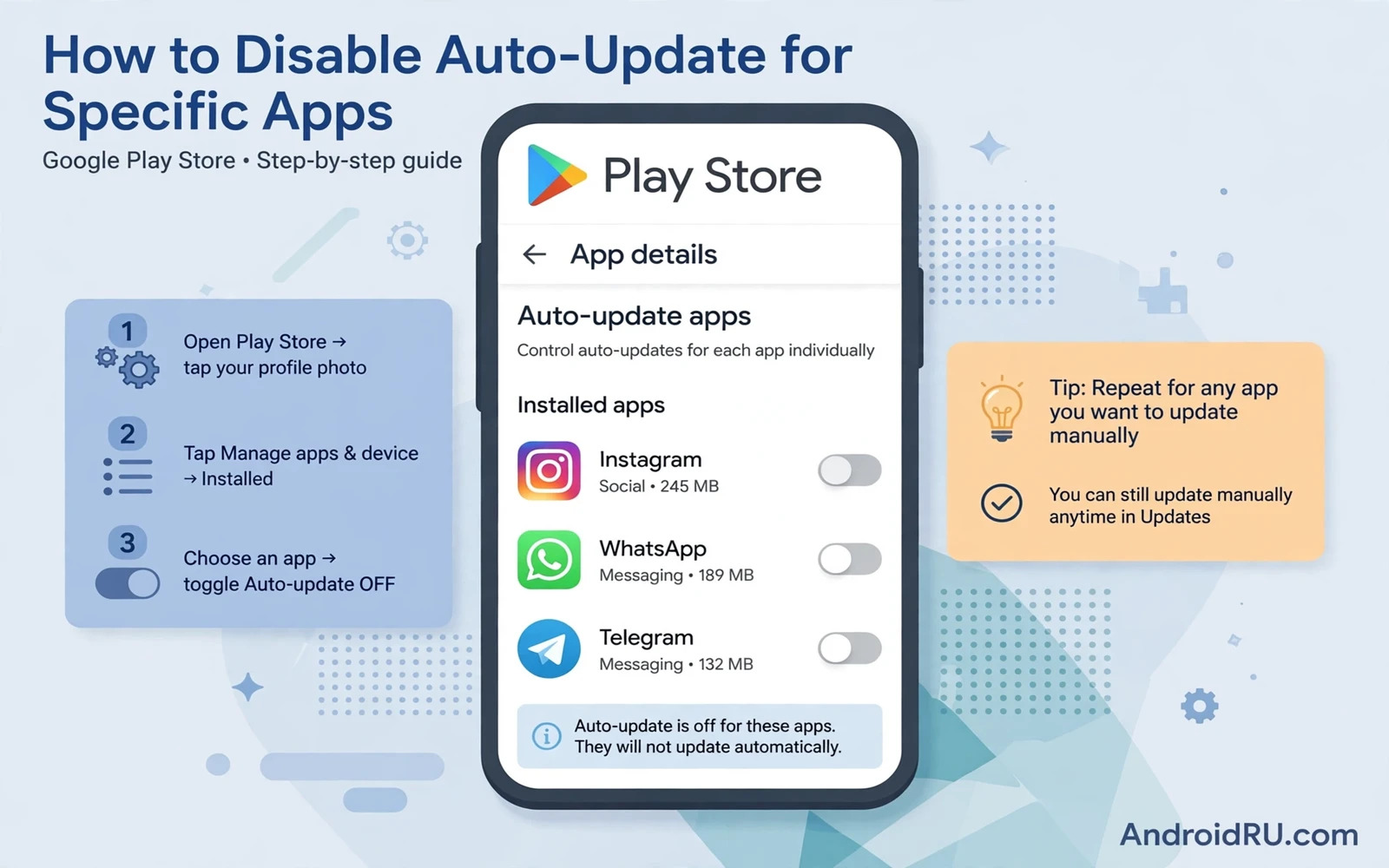
Why Disable Updates For One App
Auto-updates keep apps fresh and secure. They also change apps you rely on. A new version can move a feature or change a layout or break a workflow you depend on. A single app that works perfectly today may frustrate you tomorrow after an automatic update. Disabling auto-update for that one app lets you hold a known good version while other apps keep updating. That control is useful for work apps and for apps with a layout you have mastered.
Holding an app back has a cost. An old version may miss security fixes and new features. It may eventually stop working with a service that moves on. Use per-app control selectively. Hold back one or two critical apps. Let the rest update normally. That balance gives stability where it matters and security everywhere else.
Disable Auto-Update For One App
Open the Play Store and search for the app you want to hold. Open its store page. Tap the three-dot menu in the top corner of the store page. Look for an option named Enable auto update. If it is checked then tap it to uncheck it. That single toggle controls auto-update for that app only. Other apps keep their own setting. Confirm the toggle state by reopening the menu. An unchecked box means the app will not update on its own.
Note that this toggle works per app and per account. If you use several Google accounts on the phone then check the toggle while signed into the account that owns the app install. A toggle changed under the wrong account may not affect the installed copy. Open the Play Store with the correct account active and repeat the check. The store page shows the account in the profile icon.
Control Global Auto-Update Settings
Open the Play Store and tap the profile icon and then Settings and then Network preferences and then Auto-update apps. The global options usually include over any network and over Wi-Fi only and do not auto-update apps. The global setting is a default for new apps. A per-app toggle overrides the global default for that app. Set the global option to Wi-Fi only if you want to save mobile data while still receiving updates.
Do not set the global option to never update unless you plan to update apps manually on a schedule. A phone with all updates off drifts out of date quickly. Security fixes pile up uninstalled. A better pattern is global Wi-Fi only plus per-app holds for the few apps you want frozen. That pattern is both safe and controlled. Review the per-app holds every few months.
Update A Held App Manually When Ready
A held app can still be updated by hand whenever you choose. Open the Play Store and search for the app and tap Update when you are ready. Read the recent changes section first if the developer lists it. Recent changes often reveal whether a hated change was reverted or a new layout arrived. Update on Wi-Fi and test the app right after. If the new version disappoints then you cannot easily roll back through the Play Store. That irreversibility is why timing matters.
Test the updated app with your real workflow before you rely on it. Open the features you use daily and confirm they still work. If the update breaks a workflow then look for a setting inside the app that restores the old behaviour. Many apps keep a legacy option for a while after a redesign. If no such option exists then you must adapt or seek an alternative app. Manual updating gives you the choice of when to face that adaptation.
Stop Updates That Already Started
If an update starts before you disable it then act quickly. Open the Play Store and tap the profile icon and then Manage apps and device. Find the app in the updating list and tap the cancel icon if it appears. Cancelling mid-download stops the new version from installing. If the update already installed then the per-app toggle still prevents the next update but it cannot undo the installed one. Disable the toggle promptly to prevent further changes.
A Play Store stuck on downloading can also block your control. Readers in that situation can follow the guide to fixing the Play Store stuck on downloading because a stuck queue can delay both updates and toggle effects. Clear the queue first and then set the per-app toggle. Order matters when the store itself misbehaves.
Handle System Apps And Preinstalled Apps
Some preinstalled apps offer the same per-app toggle on their store page. Others update through system updates rather than the Play Store. A system app that lacks a store toggle cannot be held by this method. Disabling a system app entirely is a different step with wider effects. Do not disable system apps casually because other features may depend on them. Hold only user apps through the Play Store toggle.
Carrier and maker apps sometimes ignore Play Store toggles because they update through a maker store. Check the maker store settings if a held app still updates. The maker store may have its own auto-update toggle. Disable it there too for full control. Two stores mean two toggles. Check both when an app keeps updating against your wishes.
Review Holds Regularly
Open the Play Store and then Manage apps and device and review installed apps. A held app will show an Update button while other apps stay current. That button is your reminder that a hold exists. Review holds monthly. Ask whether the reason for the hold still applies. A layout you hated may have improved. A broken feature may have been fixed. Release a hold when its reason expires so the app regains security updates.
Keep a short note of why you held each app. A note prevents a mystery hold that no one remembers. When the reason is a single bug then check the app changelog for a fix. When the reason is a redesign then check whether the new design grew on other users. Time changes both bugs and opinions. A hold should be a decision with a review date not a permanent freeze.
Use Per-App Control Wisely
Per-app auto-update control is a small setting with real power. It protects a working setup from surprise changes. It also creates a duty to review and to update deliberately. Hold few apps and hold them for clear reasons and review them often. That discipline gives you the stability of a frozen app without the risk of a forgotten one.
For a related stability topic the guide to fixing apps that freeze and force close helps when a held app or an updated app starts crashing. Update control plus crash fixing together keep your app set both stable and healthy. A phone where apps change only when you choose feels calmer and more predictable every day.
App Versions And Security
Holding an app version back trades security for stability. Weigh that trade explicitly for each held app. A banking app held back for a layout preference risks missing a security fix. A game held back for a removed feature risks little. The risk depends on what the app does with sensitive data. Hold low-risk apps freely. Hold high-risk apps only briefly and for a strong reason.
Set a review date for every hold. A hold without a review date becomes a forgotten freeze. A monthly review asks whether the reason still applies and whether a security fix has arrived. Release the hold when the balance tips back toward updating. A reviewed hold is a decision. An unreviewed hold is neglect.
Data Saving With Update Control
Per-app update control also saves mobile data. A large app held back will not download a huge update over mobile data unexpectedly. Combined with a global Wi-Fi only setting it gives tight control over data use. Travellers benefit most because an update over roaming data can cost heavily. Hold large apps before travel and release them on home Wi-Fi after return.
Check update sizes before manual updates. A small patch is safe anywhere. A large rebuild deserves Wi-Fi. The Play Store shows update size on the app page in many cases. A size check plus a Wi-Fi preference prevents data surprises. Update control is partly a data tool and partly a stability tool. Both benefits come from the same toggle.
Family Devices And Update Holds
Update holds help on shared family devices too. A child tablet with a favourite game can hold that game version while other apps update. A parent phone with a work app can hold the work app through a critical project week. Holds protect routines that matter to other people. Explain holds to family members so no one releases a hold by accident.
Teach family members to update held apps deliberately rather than tapping every update button. A deliberate update after reading changes is safer than a reflexive tap. For store health the guide to fixing the Play Store stuck on downloading and the guide to fixing apps that freeze and force close pair with update control. Store plus stability plus control together keep an app set healthy.
A Practical Checklist For Update Holds
Manage update holds with a checklist that keeps them intentional. List each held app and write the reason for its hold. Set a review date for each hold and review monthly. Check the app changelog at review time for a fix or a reverted change. Release the hold when its reason expires. Keep holds to a small number of apps because a long hold list becomes unmanageable. A checklist turns holds from forgotten freezes into deliberate decisions with expiry dates. Deliberate holds protect stability without sacrificing security indefinitely.
Protect high-risk apps differently from low-risk apps. A banking app held for a layout preference deserves a short hold and a fast review because security fixes matter more than layout comfort. A game held for a removed feature deserves a longer hold because the risk is low. Match hold length to app sensitivity. A single policy for every app either overprotects games or underprotects banking. Sensitivity-based holds give each app the treatment its risk deserves.
Combine holds with manual update discipline. Update held apps on Wi-Fi after reading changes and test the new version with your real workflow immediately. Keep the previous version behaviour in mind during testing so a regression is spotted fast. If the new version disappoints then note the change for the next hold decision. Manual updates plus holds plus reviews together give control without chaos. A phone where apps change only by choice feels calmer than a phone where updates arrive as surprises.

