

Work calls now happen from cars and cafes and spare rooms. A good mobile app must handle weak Wi-Fi and small screens gracefully. These best video conferencing apps mobile work calls choices cover small teams and large meetings. This guide compares video quality and controls and ease of joining. You will learn which app fits your team size and your network.
Start by listing your meeting pattern. Small daily standups need different tools than large training sessions. Also check how VoIP apps function on low bandwidth networks for network basics. Test any candidate with a real call before you roll it out. A demo on office Wi-Fi hides mobile weaknesses.
What makes a mobile meeting app good
Joining must take seconds and not minutes. A good app opens a meeting from a calendar link without a maze of menus. It should remember your audio and video preferences. It should also warn you clearly when you join muted or with video off. Confusion at join time wastes the first minutes of every call.
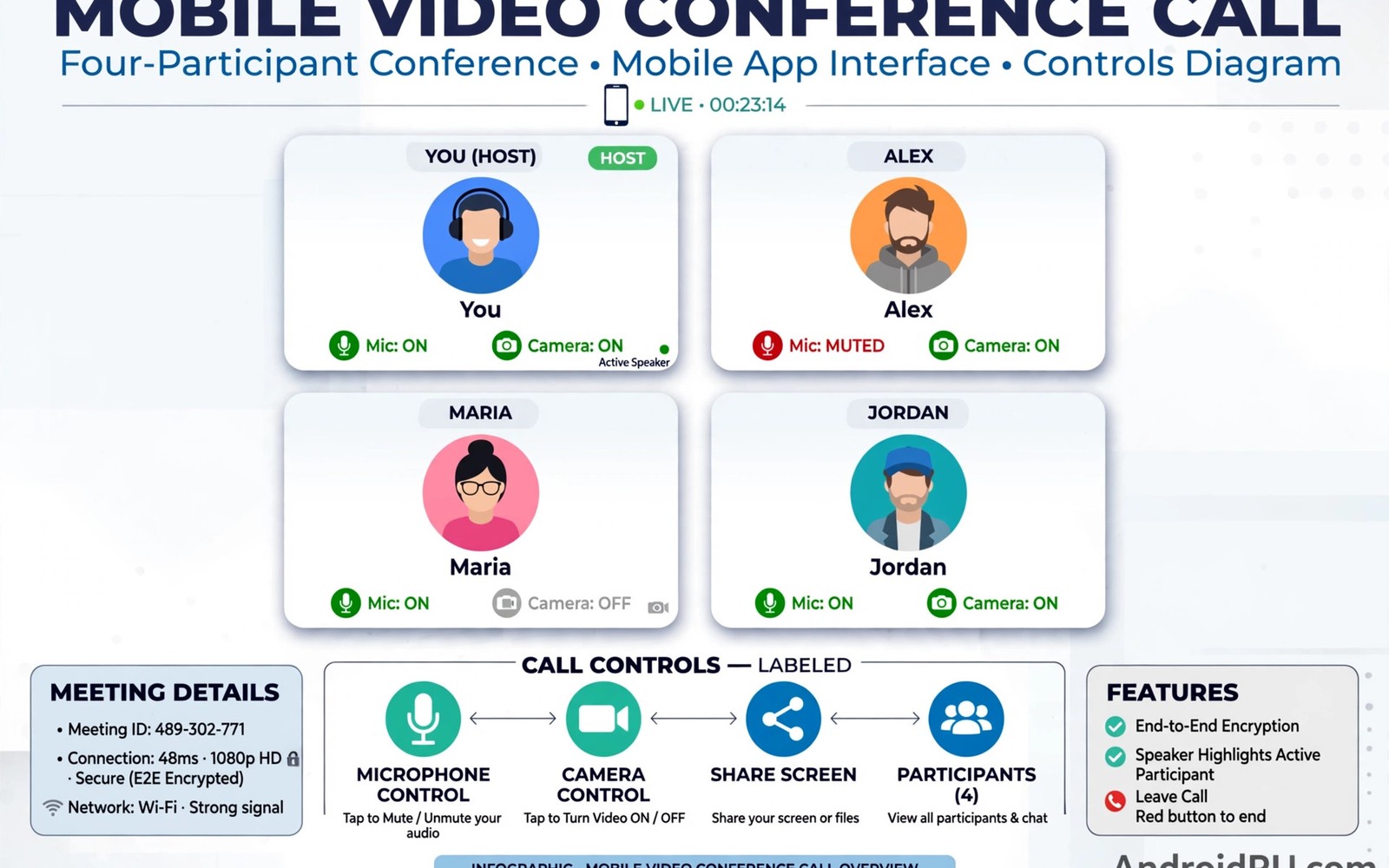
Controls must be reachable with one thumb. Mute and camera and chat should sit near the bottom of the screen. Screen sharing from a phone is a bonus and not a core need for most users. Background noise suppression matters more than fancy virtual backgrounds. Clear audio beats a pretty background every time.
Apps for small teams and quick calls
Small teams benefit from apps tied to tools they already use. Google Meet suits teams on Google Workspace. Microsoft Teams suits teams on Microsoft 365. Zoom suits mixed teams because guests join without an account in many cases. Pick the app that matches your documents and calendar system.
Quick calls need low friction above all. Test guest joining without an install where possible. Test joining from a calendar invite on a locked phone. Note how long each step takes. A thirty second saving per meeting adds up across a whole team every week.
Apps for large meetings and webinars
Large meetings need host controls and breakout rooms and polls. Zoom and Teams both offer strong host toolkits. Meet has improved large meeting support but check participant limits for your plan. Webinar features like registration and Q and A differ sharply by tier. Do not assume a free tier covers a five hundred person event.
Audience interaction needs planning. Polls and raised hands and chat moderation keep large calls orderly. Assign a co host to watch chat while the main host presents. Recordings need consent rules and storage planning. Tell participants when recording starts and where the file will live.
Video and audio quality on mobile networks
Mobile video quality depends on upload speed more than download speed. A phone on weak Wi-Fi may send blurry video while receiving clear video. Turn off your own video when you only need to listen. That frees bandwidth for audio and for other speakers. Use audio only mode during travel through weak coverage.
Noise suppression helps in cafes and streets. Test it with a real background noise source. Some apps cut quiet voices along with noise. Also read top apps for audio based social networking and podcasts for audio only alternatives. An audio call can beat a broken video call for focus and clarity.
Security and privacy for work calls
Work calls need waiting rooms and meeting passwords. Enable waiting rooms for any meeting with external guests. Lock the meeting once all expected guests arrive. Share links privately and never post them on public pages. A public link invites uninvited guests and disruption.
Recording and transcription raise consent questions. Inform participants before you record. Store recordings in approved work storage only. Avoid recording sensitive personnel discussions on personal accounts. Check your company policy before you enable automatic transcription.
Battery and data on long calls
Video calls drain battery fast because camera and radio and screen run together. Plug in for any call longer than thirty minutes. Lower screen brightness slightly during long calls. Turn off video when you are not speaking to save power and bandwidth.
Data use varies by video resolution and participant count. A one hour video call can use over a gigabyte on high quality settings. Use Wi-Fi for long meetings when possible. Also check how social media apps impact battery and data use for broader mobile data habits. Set a data warning in Android settings before travel weeks.
adb shell dumpsys battery | grep -i level
adb shell settings get global mobile_data_always_on
These commands follow the standard Android developer reference pattern for reading battery and network settings. They only read data and they change nothing on the phone.
Running a mobile meeting like a professional
Prepare the meeting space before the call starts. Find a quiet corner with stable Wi-Fi and good light on your face. Plug in the charger for any call over thirty minutes. Test microphone and camera five minutes early with a colleague. Close bandwidth heavy apps and pause cloud photo uploads. Those preparations prevent the common mobile failures that derail calls. A prepared mobile participant sounds as professional as a desktop participant. Preparation matters more than equipment for most meetings.
Manage your presence during the call actively. Keep yourself muted when you are not speaking. Unmute with a clear signal before you talk. Look at the camera rather than at your own video preview. That eye contact reads as engagement on the other end. Use chat for links and questions without interrupting the speaker. Raise your hand feature for large meetings instead of talking over others. Those habits make mobile participation smooth rather than chaotic. They also reduce background noise for everyone.
Close the meeting with clear next steps captured in chat. Summarise decisions and owners before anyone disconnects. Send notes within an hour while details stay fresh. Store recordings in approved work storage with a clear filename. Delete local copies from personal devices after upload where policy requires it. A clean close turns a call into action. Without notes and owners a meeting becomes a pleasant conversation with no outcome. Mobile users should own the notes habit because desktop users often assume someone else will do it.
Choosing tools for hybrid and remote teams
Map your team meeting types before choosing a tool. Daily standups need fast joining and low friction. Training sessions need breakout rooms and polls. Client calls need branded waiting rooms and recording. One tool rarely excels at all three types. Many teams use a primary tool plus a backup tool for guests. Document which tool serves each meeting type. That document prevents confusion when a guest asks for a link. It also speeds onboarding for new team members who join mid project.
Test accessibility features before you commit to a tool. Live captions help participants with hearing needs and noisy environments. Keyboard shortcuts help desktop users but mobile users need large touch targets. Check caption accuracy with accented speech during a test call. Check screen reader compatibility for blind participants where relevant. Accessibility is a core requirement and not a bonus feature. A tool that excludes part of your team fails regardless of video quality. Include accessibility in the first test and not as an afterthought.
Plan for failure with a backup communication channel. Agree on a chat group to use when video fails. Share dial in numbers for critical meetings in advance. Practice switching to audio only mode during a low stakes call. That practice makes real failures calm rather than panicked. Record the backup plan in the meeting invite itself. Guests appreciate a plan that respects their time. A team that handles failure gracefully looks more professional than a team with perfect technology and no fallback.
Your mobile meeting readiness checklist
Run this checklist before any important mobile call. First charge the phone fully or plug it in for the call duration. Second test Wi-Fi or mobile data speed at the exact call location. Third close bandwidth heavy apps and pause cloud uploads. Fourth test microphone and camera with a colleague five minutes early. Fifth confirm that the meeting link opens and that you join muted. Sixth confirm that waiting room or password protection is on for external guests. Seventh prepare notes and links in a separate app for quick sharing. Eighth set a distinct notification silence during the call to avoid interruptions. Ninth confirm that recording consent will be announced if recording is planned. Tenth prepare a backup audio only plan if video fails mid call. A meeting that passes this checklist starts on time and sounds professional. Participants notice preparation even on a small phone screen. Preparation signals respect for other people time. Unprepared mobile calls waste the first ten minutes on technical fixes. Those ten minutes multiplied across a team cost hours weekly. Adopt the checklist as a personal standard for every work call. That standard will set you apart as a reliable remote colleague.
Common mistakes
Choosing an app only because it is free is a common mistake. Free tiers often cap meeting length or participant count. Posting meeting links publicly invites disruption. Always use waiting rooms for external guests. Forgetting to test on mobile data hides quality problems. Office Wi-Fi results do not predict travel performance.
Recording without telling participants breaks trust and may break policy. Announce recording at the start. Leaving video on during a long call drains battery needlessly. Turn video off when listening. Ignoring host controls in large meetings creates chaos. Assign a co host for chat duty.
Using a personal account for sensitive work calls risks data control. Use a work account with approved storage. Skipping audio tests before an important call is equally risky. Test microphone and speaker five minutes early.
Frequently asked questions
Which app is best for a five person team?
Pick the app tied to your existing documents and calendar. Google Workspace teams suit Meet well. Microsoft 365 teams suit Teams well. Mixed teams often suit Zoom for easy guest joining. Test all three with a real standup before you decide.
Can I join work calls without installing an app?
Sometimes through a browser link depending on the service. Browser joining may lack some controls and quality features. Install the app for regular meetings. Use browser joining only as a fallback for guests.
How much data does a video call use?
It varies widely by resolution and length. Expect roughly half a gigabyte to over a gigabyte per hour on typical settings. Audio only calls use far less data. Use Wi-Fi for long calls and turn off video when listening.
Conclusion
The best meeting app is the one your team can join fast and hear clearly. Match the app to your documents and your meeting size. Use waiting rooms and host controls for safety. Manage battery and data with video off when listening. Test on real mobile networks before you commit.
Your concrete next step is to run a ten minute test call on mobile data with your top candidate today. Check join time and audio clarity and battery drop. That test tells you more than any feature list.

