

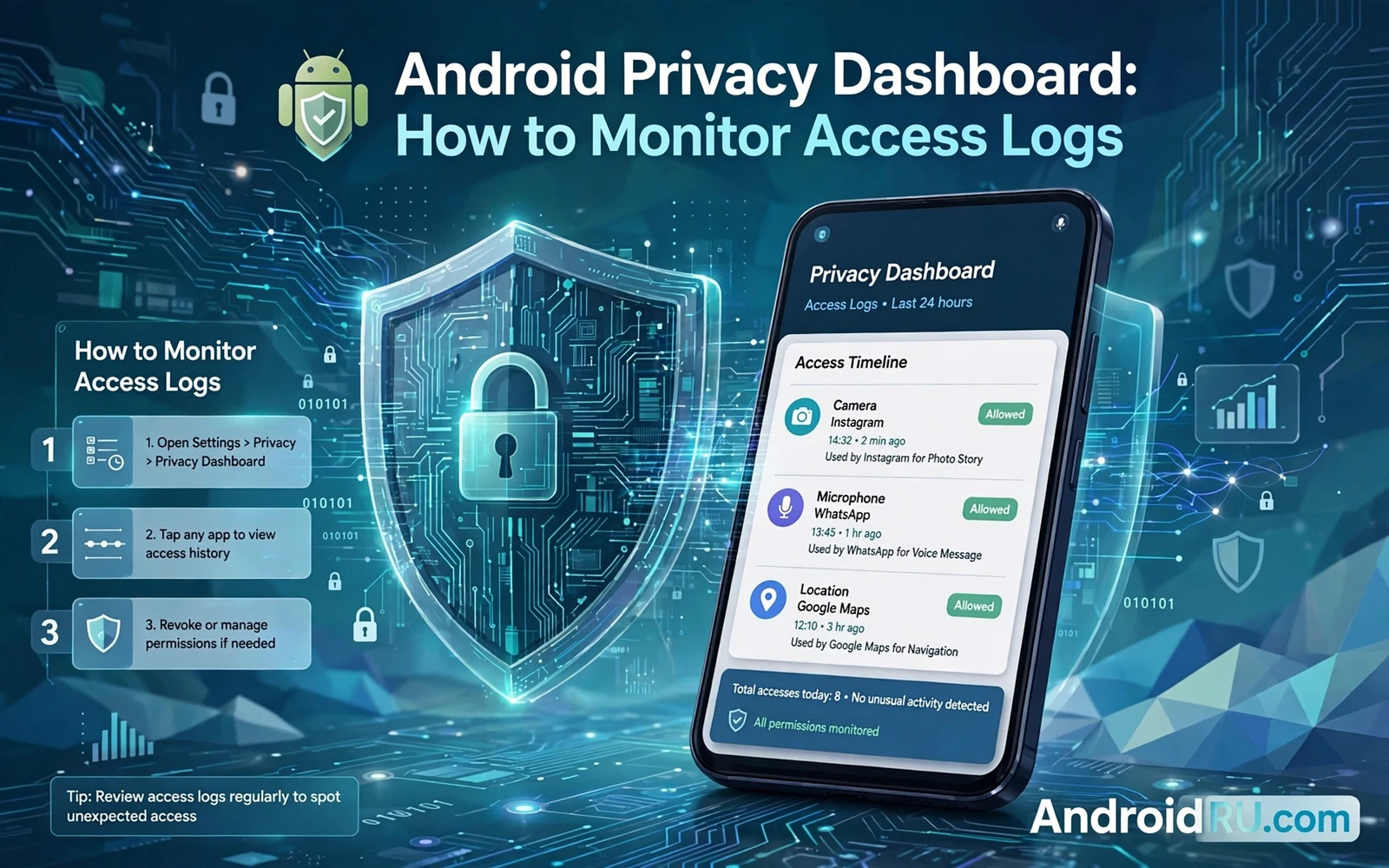
Android Privacy Dashboard: How to Monitor Access Logs
My phone once showed me something I had never noticed: a weather app had checked my location 41 times in a single day, most of them while I was asleep. I had opened that app twice. The gap between those two numbers is exactly why the Privacy Dashboard exists. It turns invisible permission use into a record you can read, question, and act on.
This guide shows you how to open the dashboard, read its timeline, and turn what you find into real decisions. You will learn which permissions it tracks, how to spot background access that makes no sense, and how to tighten a permission without breaking the app you actually like. The steps use real menu names from Pixel, Samsung, Xiaomi, Oppo, and Vivo phones, because the path is not the same on every handset.
You do not need a security background to use any of this. If you can read a calendar, you can read an access log. The dashboard groups everything by permission type and by day, so a ten-minute check once a week is enough to catch the worst behaviour early.
What Android Privacy Dashboard Records About Camera, Microphone and Location
The Privacy Dashboard arrived with Android 12 and it records access to the most sensitive permissions on your phone: camera, microphone, and location. Later versions added body sensors, and some phones also log nearby device access. Each entry notes which app asked, which permission it used, and the exact time it used it. That is the whole record. It does not store your photos, your recordings, or your coordinates. It stores the fact that access happened.
That distinction matters. A camera entry at 9:04 p.m. does not mean the app kept a photo. It means the app opened the camera sensor at 9:04 p.m. Whether that was your doing depends on what you were doing at 9:04 p.m. The dashboard gives you the time; your memory supplies the context. Put the two together and most entries explain themselves in seconds.
The three permission groups the dashboard tracks first
Camera entries are the easiest to judge. You know when you take a photo or join a video call. A camera entry that lines up with one of those moments is normal. A camera entry at 3 a.m., while the phone sat on a nightstand, is not normal and deserves a closer look at that app.
Microphone entries follow the same logic. Voice notes, calls, voice search, and dictation all use the microphone openly. A messaging app that records a voice note at lunchtime is doing its job. The same app touching the microphone twenty times overnight, with no call and no recording in progress, is a pattern worth acting on rather than debating.
Location entries need more patience because many apps ask for location in the background for honest reasons: a weather widget refreshing its forecast, a map app keeping your route ready, a ride app watching for a driver. The question is not whether an app asked, but how often, how precisely, and whether you were using it. Approximate location is often enough for a weather widget, and the dashboard is where you first notice that precise location was never needed.
How camera, microphone and location entries get timestamped
Every entry carries a timestamp from the system clock, so the times you see are the times the sensor was actually opened. If you open the dashboard right after taking a photo, you will see that photo app at the top of the camera list with a time a minute or two ago. That quick test is the fastest way to trust the log: do something deliberate, then check that the log shows it.
Entries are grouped by day, and inside a day they are grouped by permission, so you can flip between a camera view, a microphone view, and a location view without scrolling through a mixed list. Tapping one permission shows the apps that used it. Tapping one app shows the individual times. That drill-down is the core skill of this whole guide, and it takes about thirty seconds to learn.
Why body sensors and nearby devices appear differently
Body sensor access, used by step counters and health apps, shows up on phones that expose it in the dashboard, but it is recorded less often because fewer apps request it. Nearby device access, used by Bluetooth accessories and some smart home apps, can appear as a separate line on newer Android versions. If your phone does not show these lines, it does not mean the permissions are unguarded. It means your Android version or your maker skin groups them under a different screen, usually inside Settings, then Apps, then the individual app permission page.
How long Privacy Dashboard keeps access history
The dashboard keeps about seven days of history on most phones. Older entries roll off automatically, which is why a weekly check lines up so well with the tool: check every Sunday, or whatever day suits you, and you will always see a full week. If you check once a month, you will only see the most recent week, and anything strange from three weeks ago will already be gone.
Seven days is also enough to see a pattern instead of a single event. One location check on Tuesday means little. The same app checking location forty times every day for a week means something. The dashboard shows that frequency as a simple count beside each app, and that count is often the most useful number on the whole screen.
A short history has one more benefit: it forces you to act while the evidence is fresh. When you spot a strange entry, change the permission the same day. Waiting a month means the entry disappears and the app keeps doing whatever it was doing.
How to Open Privacy Dashboard on Pixel, Samsung, Xiaomi and More
The dashboard lives in Settings, under Privacy, on almost every phone that runs Android 12 or later. The exact wording changes by maker, and the steps below cover the four layouts I have actually used. Pick the one that matches your phone, and if the first path fails, use Settings search and type Privacy Dashboard, which finds the screen on nearly every skin.
Pixel and stock Android path to Privacy Dashboard
On a Pixel, and on phones close to stock Android, open Settings, then tap Privacy, then tap Privacy Dashboard. The screen opens on the current day with three permission groups at the top. Tap one group, such as Location, to see which apps used it today. Tap an app name to see the times it asked. From an app entry you can tap Manage permission to change that permission immediately, without leaving the dashboard.
On Android 14 and 15 the same screen also shows a short summary line for the day, such as how many apps used location. That summary is a good first glance, but the per-app list underneath is where real decisions get made. I check the summary, then I open the permission group with the longest list, because the longest list is usually where the surprise lives.
Samsung One UI path to Privacy Dashboard
On a Samsung phone, open Settings, then tap Security and privacy, then tap Privacy, then tap Permission manager, and look for the Privacy Dashboard entry. On newer One UI versions the dashboard sits directly under Security and privacy as Privacy Dashboard. Samsung also adds its own permission usage view, which shows the last 24 hours of access and lets you filter by permission type from the top of the screen.
Samsung phones also show a small green dot in the status bar when the camera or microphone is in use, which is a live companion to the dashboard log. If you see the dot and you are not using the camera or microphone, open the dashboard at once and check the most recent entry. That combination, a live indicator plus a written log, catches access while it is happening and after it happened.
Xiaomi, Oppo, Vivo and other maker paths
On Xiaomi phones running MIUI or HyperOS, open Settings, then tap Privacy protection, then tap Privacy Dashboard, or search for Privacy Dashboard in Settings search. Xiaomi also keeps a separate permission usage record under Privacy protection, then All permissions, where you can see which apps hold each permission. Check both screens, because the dashboard shows recent use and the permission list shows what each app is allowed to do next.
On Oppo and Vivo phones running ColorOS and Funtouch OS, open Settings, then tap Privacy, then tap Permission manager, then look for the usage history or dashboard entry. Some Oppo builds label it Privacy Dashboard and some label it Permission usage. Either label leads to the same kind of timeline. If neither label appears, open Settings search and type permission usage, which usually finds the screen even when the menu name is unfamiliar.
What to do when your phone has no Privacy Dashboard at all
Phones running Android 11 or older do not have this dashboard, and a few heavily customised skins hide it even on Android 12. In that case, open Settings, then Apps, then pick an app, then tap Permissions. That screen shows which permissions the app holds and when it last used them, one app at a time. It is slower, so start with the apps you installed most recently and the apps you rarely open.
A second fallback is the permission manager itself: Settings, then Privacy, then Permission manager, then pick a permission such as Location. That view lists every app that can use the permission and whether it can use it all the time, only while in use, or never. It shows permission, not history, but it still lets you cut the riskiest access in a few minutes.
How to Read the Privacy Dashboard Timeline Like a Log
Reading the timeline is a three-question test. Which permission was used? When was it used? Were you using the app at that time? If all three answers line up with something you remember doing, the entry is almost certainly fine. If the timing does not match anything you did, you have found a reason to dig deeper. That test keeps you calm about normal entries and sharp about strange ones.
Work through one permission at a time. Start with location, because it is the noisiest and the most revealing. Then check microphone, then camera. Doing all three in one sitting takes about ten minutes once you know the paths, and it is far more useful than a single long session once a year.
Foreground access versus background access in the timeline
Foreground access happens while you are actively using the app, with its window on screen. Background access happens while the app is closed, or while another app is in front. The dashboard separates the two, and that separation is the single most important thing it shows you. Foreground access is usually explained by the feature you were using. Background access needs an explanation of its own.
A navigation app using location in the foreground while you drive is doing exactly what you asked. The same app using precise location in the background at 2 a.m., hours after you arrived home, is a different story. It might be refreshing a route, or it might be collecting data it does not need. Either way, the right response is the same: change its location permission to only while in use, or to approximate, and see whether anything you value stops working.
Spotting repeated polling in a single day
Polling is when an app asks for the same permission again and again, dozens of times a day. The dashboard shows the count, and a high count is a flag even when each single access looks harmless. A weather app that checks location once an hour is keeping its forecast fresh. A weather app that checks location every few minutes is building a detailed record of where you go, and no forecast needs that level of detail.
Repeated polling also costs battery. Every sensor wake-up uses power, and an app that polls location forty times a day will show up in your battery usage as well as in the dashboard. Fixing the permission often improves battery life at the same time, which is a useful side effect to watch for after you make a change.
A worked example: a map app checking location at 2 a.m.
Picture this entry: a map app, location, 2:14 a.m., background, and the same entry repeated at 2:37 a.m. and 3:05 a.m. You were asleep. The phone was on a charger. No route was active. That is the shape of an entry that deserves action. Open the app permission page from the dashboard, change location to only while in use, and check the next morning whether the overnight entries have stopped. On my own phone, that one change ended a nightly pattern from a map app I had not opened in days.
Now picture a different entry: the same map app, location, 8:12 a.m., foreground, while you were driving to work with navigation running. That entry needs no action at all. Same app, same permission, completely different meaning. The time and the foreground label are what separate the two, and that is why the timeline beats a simple list of permissions every time.
How to Check Camera Access Logs and Catch Strange Use
Camera logs are short on most phones, which makes them easy to review. Open the dashboard, tap Camera, and look at the list. You should recognise every app on it: your camera app, your video call app, your banking app if it scans documents, and any app where you deliberately took a photo. An app you do not recognise, or an app with no camera feature at all, stands out at once.
Check the times as well as the names. A camera entry from a shopping app at the moment you scanned a barcode is fine. A camera entry from that same app at midnight is not. If you find one, open the app permission page and remove camera access entirely. The app will ask again the next time it genuinely needs the camera, and you can grant it then, in the moment, for that one task.
What a normal camera entry looks like day to day
A normal day shows a handful of camera entries, all in the foreground, all at times you remember using the camera. Video calls show up as longer sessions. Photo sessions show up as a cluster of entries within a few minutes. A barcode scan shows up as one short entry. None of this is alarming, and none of it needs a change.
What is alarming is a camera entry with no matching memory, especially a background entry. Camera access in the background is rare on modern Android, because the system shows a green indicator whenever the camera is active, and most apps cannot use the camera silently. If the dashboard shows one, treat it seriously: remove the permission, check the app for an update that might explain it, and watch whether it returns.
How to check microphone access logs the same way
Microphone logs follow the same pattern. Open the dashboard, tap Microphone, and look for apps and times you recognise: calls, voice notes, voice search, dictation, and video recordings. A voice assistant that listens for a wake word will show regular microphone entries, and that is expected behaviour for that kind of app, as long as you chose to use it.
The entries that deserve attention are the ones with no matching activity. A social app touching the microphone late at night, a game touching it while you were not playing, a shopping app touching it at all. For those, change the permission to ask every time, or remove it, and see whether the app still works for what you actually use it for. Most of the time it does, because the microphone was never part of the feature you valued.
If a pattern of quiet background access worries you, and it is paired with other odd behaviour such as battery drain or data use you cannot explain, learning the hidden spyware signs can help you judge whether you are looking at a careless app or something deliberately concealed. A dashboard entry on its own never proves that spyware is present, but a pattern of secret background access plus other warning signs should push you toward a deeper check.
How to Check Location Access Logs and Cut Precise Tracking
Location is the busiest permission in the dashboard, and it is also the one where a small change gives the biggest privacy gain. Open the dashboard, tap Location, and sort the list in your head by frequency. The apps at the top are the ones that know the most about where you go. Ask of each one: does this app need to know my exact street, or would a general area do?
For most apps, a general area is enough. Weather, news, local search, and shopping deals all work with approximate location. Only navigation, ride apps, and delivery tracking genuinely need precise location, and only while you are using them. Changing everything else to approximate location is the single highest-value edit you can make in the dashboard, and it takes less than a minute per app.
Precise location versus approximate location in practice
Precise location can place you within a few metres, which is what a map needs to guide a turn. Approximate location places you within a few kilometres, which is what a weather forecast needs to pick your city. The dashboard does not tell you which level an app used, but the permission page does: open the app from the dashboard, tap Location, and you will see the choice between Precise and Approximate. Switch the apps that do not need precision, and keep precise only for the two or three that do.
I tested this on my own phone with a weather app and a news app. Both worked exactly as before with approximate location. The weather was right, the local news was right, and the dashboard showed the same apps asking far less often. The trade-off was zero for those two apps, and the privacy gain was real, because a coarse location cannot reconstruct the street I walked down.
How to stop location access for specific apps step by step
From the dashboard, tap Location, tap the app, then tap Manage permission. Choose Only while using the app if you still want the feature, or Ask every time if you want to decide case by case, or Do not allow if the app has no business knowing where you are. Each choice is reversible, so you can restore a permission later if a feature stops working and you decide the trade is worth making.
For a fuller walkthrough of the same settings, including how to handle apps that keep asking after you change them, the guide to disabling location tracking for specific apps covers the per-app screens in more detail. Use it when an app resists the change or when you want to check location access for every app on the phone in one pass.
How to Turn a Suspicious Entry Into a Permission Decision
Every strange entry should end in one of four decisions. Keep the permission as it is when the access matches a feature you value and use often. Narrow it to only while in use when background access is the problem and foreground access is still useful. Switch location to approximate when a feature needs a general area rather than an exact address. Remove the permission entirely when the app offers no feature that justifies that kind of access.
Make the decision from the dashboard itself, because the app entry has a direct link to its permission page. Tap the app, tap Manage permission, make the change, and move on to the next entry. Do not collect a long list of changes to make later. Later rarely comes, and the app keeps collecting in the meantime.
| What you see in the log | What it usually means | What to do |
|---|---|---|
| Foreground access at a time you remember | Normal use of a feature | Keep the permission |
| Background access a few times a day | Refresh or sync work | Narrow to only while in use |
| Background access dozens of times a day | Aggressive polling | Switch to approximate or remove |
| Access at night while you sleep | No feature explains it | Remove and watch for a week |
| Access from an app you never open | Idle app with broad permission | Remove the permission |
Start with new apps and apps you rarely open
New apps are the most likely source of a surprise, because you have not yet seen how they behave. Review every app you installed in the last month first. Then review the apps you rarely open, because an app you never use should never need sensitive access in the background. An old game you have not played in a year has no reason to check your location every day, and the dashboard will show you if it does.
Work through one permission type at a time rather than trying to fix everything in one sitting. A short review once a week keeps the task small, and it also helps you notice changes quickly when an update changes how an app behaves. An app that was quiet for months and suddenly starts polling location after an update is telling you something about that update.
What to do when an app asks for the permission again
Some apps ask for a permission again the next time you open them, and that is normal. The app is requesting access for a feature, and you can decide in the moment whether to grant it. What is not normal is an app that re-enables background access on its own, or that nags you every few minutes until you give in. For those, check the permission page again, look for a separate background location setting, and if the app keeps pushing, consider whether the app is worth keeping at all.
A permission change that does not hold is also a clue. If you set location to only while in use and the dashboard still shows background entries the next day, the app may be using a different route, such as a background service tied to another permission. In that case, check the app battery setting and set it to Restricted, which limits background work, and watch the dashboard for another week.
How to Build a Weekly Privacy Dashboard Routine That Actually Sticks
The dashboard works best as a habit, not as a rescue tool. Pick a regular moment, such as Sunday evening, and spend ten minutes on it. Open the dashboard, scan each permission group, and note any app that appears in the background section. Ask whether you used that app recently and whether its features explain the access. Change any permission that fails that test, then watch next week timeline to confirm the change held.
Keep a short note on your phone, or in a notes app, with the date and the apps you changed. That note turns a vague feeling into a record. When an app starts polling again after an update, your note tells you when you last fixed it and what you changed. Without the note, you will fix the same app three times and wonder why it never stays fixed.
Pair the weekly check with two other habits. First, keep sensitive documents in a separate locked area on your phone, because the Android Private Space keeps sensitive documents away from ordinary apps, and a private area plus tight permissions is a stronger combination than either one alone. Second, review new app installs the day you install them, before they have a week to build a pattern.
A ten-minute weekly checklist for the dashboard
Open Privacy Dashboard and check the current day first, then the last seven days. Look at location first, microphone second, and camera third. For each app in the background list, ask the three questions: which permission, when, and were you using it. Change any permission that fails the test. Check battery usage for the same apps, because a permission change that also cuts battery drain is a change that will stick.
Finish by checking for system updates, because a dashboard bug or a missing permission control is sometimes fixed by an update. Then close the dashboard and get on with your week. Ten minutes, once a week, is enough to keep the log honest and to keep your permissions honest with it.
Frequently Asked Questions About Android Privacy Dashboard
Does Privacy Dashboard show access from before I opened it?
Yes, it shows the last seven days of access, even if you have never opened it before. The system records the log in the background, so your first visit already has a week of history to review. That first visit is often the most revealing one, because a week of unchecked access can contain surprises you never suspected.
Can an app hide its access from Privacy Dashboard?
A normal app cannot hide its access from the system log, because the log is kept by Android itself, not by the app. That said, the dashboard only covers the permissions it tracks, and an app can still collect data through other routes, such as an advertising identifier or data you type into it. The dashboard is a strong window into sensor access, not a complete record of everything an app knows about you.
Why does a weather app check my location so often?
Most weather apps refresh their forecast on a schedule, and some check location every time they refresh, even when you have not moved. Switching the app to approximate location usually keeps the forecast accurate while giving away far less detail. If the app still polls constantly after that change, try lengthening its refresh interval in its own settings, or replace it with a widget that updates only when you open it.
Should I remove a permission or just narrow it to while in use?
Narrow it first, because that keeps the feature working while cutting the background access that caused the problem. Remove it only when the app has no feature that needs the permission at all, or when narrowing it did not stop the background entries. Both choices are reversible, so you can always restore a permission if a feature you value stops working.
What to Do Today After Reading Your Privacy Dashboard
Open the dashboard now and check today location entries. Change one app to approximate location and one app to only while in use. Those two edits take three minutes, and they are the fastest privacy gain on the whole phone. Then set a weekly reminder to check the dashboard again next week, and note which apps you changed so you can see whether the changes held.
The dashboard will not make your phone private on its own. It will show you, week after week, which apps respect your attention and which ones take it for granted. That record, read regularly and acted on quickly, is the difference between hoping your phone behaves and knowing that it does. Start with location, because it is the noisiest permission and the easiest win. Check the log, make the change, and watch next week entries prove that it worked.

