

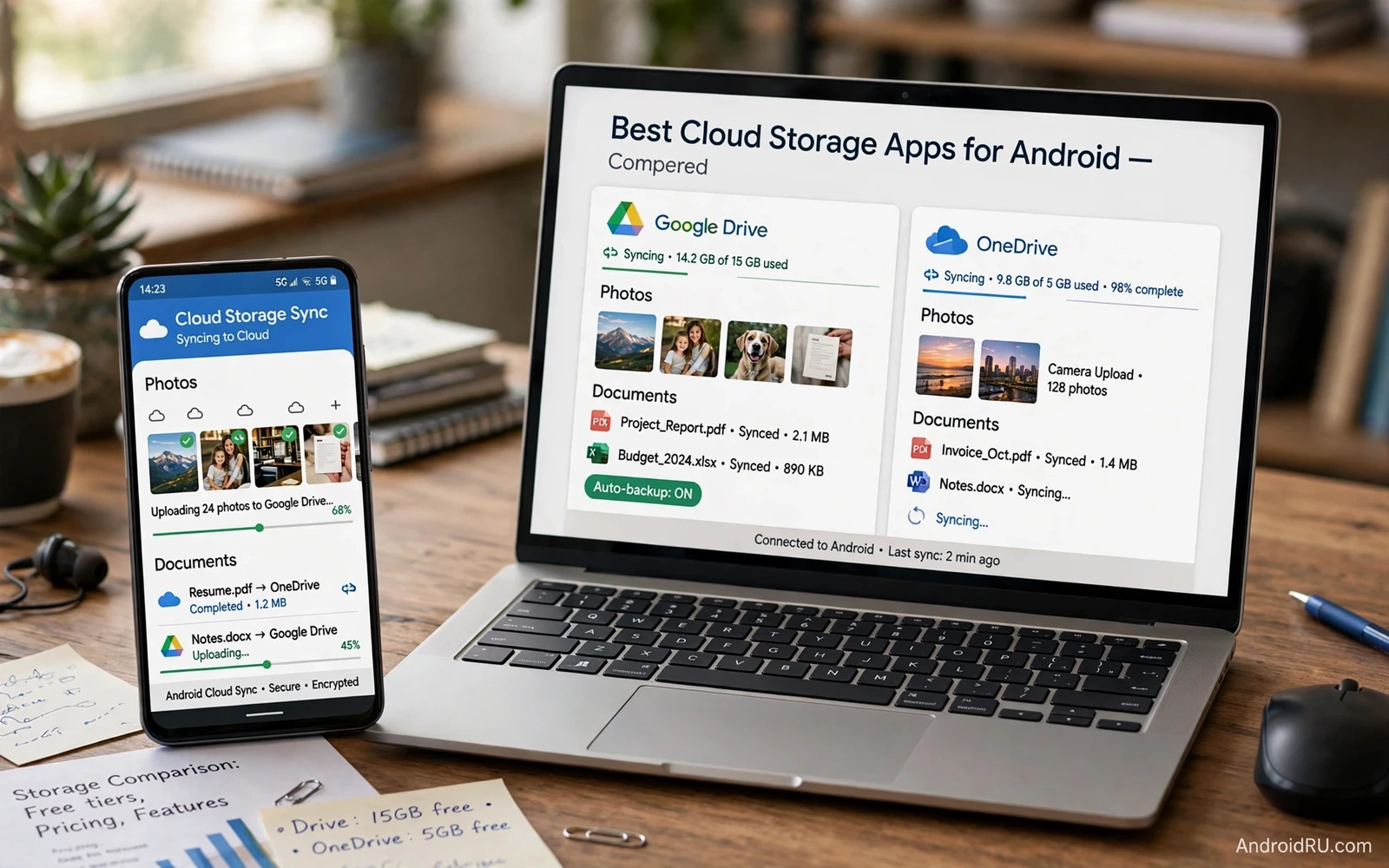
Cloud storage on Android is the safety net for photos and documents and device backups. Google Drive and OneDrive both store files online and sync them to the phone and to a computer. Both services offer a free tier and paid plans with more space. Both services support sharing and collaboration. The differences appear in ecosystem integration and in sharing controls and in backup behavior and in pricing for larger plans. Choosing well depends on which devices and apps you already use every day.
Start by measuring your real storage need instead of guessing from a marketing tier. Check current phone storage usage by photos and videos and documents. Check how many gigabytes of photos you add in a typical month. Add a buffer for a device backup and for shared folders from family or work. A plan that barely fits today will overflow after a holiday or a large project. A plan with generous headroom costs more but prevents the stressful moment when sync stops because storage is full.
Ecosystem fit often matters more than a small price difference. A user deep in Google apps may value tight integration with email and documents and photos. A user deep in Microsoft apps may value tight integration with office documents and desktop sync. A user with both ecosystems may need one primary service for backup and a secondary service for sharing. Avoid splitting a single project across two services because version confusion grows when the same file exists in two places with different edit histories.
Sync Backup And Version History
Sync and backup are different jobs even when one app offers both. Sync mirrors files across devices so an edit on the phone appears on the computer. Backup preserves a copy that survives deletion or ransomware or a broken phone. A sync service that mirrors deletions instantly can propagate an accidental deletion to every device. A backup with version history lets you restore an earlier version after a bad edit or an accidental deletion. Check whether deleted files stay recoverable and for how long before trusting a service with irreplaceable photos.
Photo backup deserves its own settings check. Automatic upload should run on Wi-Fi by default to protect mobile data. Original quality upload preserves detail for printing and cropping. Compressed upload saves space but loses detail that cannot be recovered later. Check whether the service uploads videos automatically or only photos. Check whether the service deduplicates uploads or creates multiple copies of the same image. A photo library with duplicates wastes storage and makes searching frustrating.
Version history protects documents during collaboration. A document edited by several people may need rollback to an earlier draft. A spreadsheet with a broken formula may need restore to a version from yesterday. Check how many versions the service keeps and for how long. Check whether restoring a version is simple from the phone or requires a desktop browser. Version history is invisible until needed and then it becomes the most valuable feature in the service.
Sharing Permissions And Link Safety
Sharing controls decide who can view and who can edit and who can download a file. Share with specific people when the file is sensitive. Share with a link only when broad access is truly needed. Set link access to view only for documents that should not change. Set an expiry date on links for temporary sharing such as event photos. Review shared folders quarterly and remove people who no longer need access. A shared folder forgotten after a project ends can leak new files added later by mistake.
Public links deserve extra caution because anyone with the link may access the file. Avoid public links for identity documents and financial records and private photos. Avoid public links for folders that receive new files automatically. Prefer named sharing for sensitive material even when a link feels faster. Turn off download permission when recipients only need to view a document. A small sharing discipline prevents most cloud privacy incidents without complex tools.
Account security underpins all cloud protection. Use a strong unique password for the cloud account. Turn on two step verification. Review active sessions and signed in devices regularly. Remove old devices that you no longer own. Store recovery codes in a password manager rather than in a cloud note inside the same account. An attacker who gains the cloud account gains photos and documents and backups together so account protection deserves the strongest settings available.
Local organization still decides how fast cloud files are found and best file managers for Android in free and pro versions help you move uploads into clear project folders instead of a single crowded cloud root. A file manager that shows cloud folders beside local folders prevents duplicate uploads. A consistent folder pattern also makes selective sync simpler because whole project folders can stay offline or online as a unit. Cloud storage works best when local folders are tidy first.
Pricing Storage Tiers And Family Plans
Free tiers suit light users with mostly documents and a modest photo library. Paid tiers suit photographers and families and workers with large video collections. Compare the price per gigabyte across tiers rather than comparing headline storage alone. Check whether a family plan shares storage fairly or lets one member consume the whole pool. Check whether a plan includes extra benefits such as office apps or photo tools that you would pay for separately. A bundle that replaces another subscription may cost less overall than a cheaper storage only plan.
Watch for costs beyond the monthly fee. Some services charge for extra features such as advanced sharing or extended version history. Some services limit upload speed on lower tiers. Some services count shared files against the owner quota in ways that surprise new users. Read the plan details for the tier you actually buy rather than the flagship tier advertised most loudly. A plan that fits a single user may strain under a family library that grows every month.
Migration between services needs a plan because moving terabytes over a home connection takes time. Download or transfer in batches by folder rather than attempting everything at once. Verify each batch after transfer by comparing file counts and total size. Keep the old service active until verification finishes. Update sharing links after migration because old links may point to the old service. A patient migration prevents the worst outcome where files exist nowhere reliably during the move.
Privacy choices also shape which service fits a household and top high-security encrypted messaging apps for Android illustrate the same principle that encryption scope matters more than a security label. A storage service may encrypt files in transit and at rest on its servers. A storage service may also offer client side encryption for selected folders. The distinction decides whether the provider itself can read stored files. Match the encryption model to the sensitivity of the files you store.
Offline Access And Device Changes
Offline files turn cloud storage into a reliable travel tool. Mark essential documents and tickets and maps for offline access before departure. Verify offline downloads while still on Wi-Fi. Keep offline copies of boarding passes and hotel confirmations separate from general documents. Remember that offline files consume phone storage and need periodic refresh when the cloud version changes. A stale offline copy can cause confusion at a checkpoint if the latest version differs.
Device changes test whether a cloud setup truly works. Sign in on a new phone and check that photos and documents appear without manual transfers. Check that app settings and backups restore correctly. Check that shared folders retain their permissions. A cloud service that restores cleanly saves hours during a phone upgrade. A cloud service that requires manual re-upload for large libraries wastes the benefit of paying for storage in the first place. Test restore before you need it under time pressure.
Workflows that depend on documents every day also need a clear task home and top must-have Android apps for maximum productivity keep deadlines visible while cloud folders hold the underlying files. A task can link to a document without duplicating it inside chat or email. That separation keeps the cloud folder as the single source of truth. When a document updates in the cloud the task still points to the current version rather than to an old attachment.
Google Drive and OneDrive both serve Android users well when matched to the right ecosystem and the right storage need. Compare sync behavior and version history and sharing controls before comparing price alone. Protect the account with strong authentication and review sharing regularly. Organize folders locally and mark travel files offline. Keep version history in mind for collaborative documents. The best cloud storage app is the one that restores cleanly and shares safely and stays within budget as the library grows.
- Measure real storage use before choosing a plan
- Separate sync mirroring from true backup
- Check version history length for documents
- Share with named people for sensitive files
- Set expiry dates on temporary sharing links
- Turn on two step verification for the account
- Mark travel documents for offline access
- Verify migrated batches before closing old service
A yearly storage audit keeps cloud costs aligned with real use. List every cloud service and its plan price and its used storage and its free space. Cancel a service that duplicates another service for the same files. Downgrade a plan that stays half empty for a full year. Upgrade only when a plan stays above eighty percent full for several months despite cleanup. A yearly audit takes less than an hour and prevents paying for storage that nobody needs while also catching a library that quietly outgrew its plan.
A shared folder audit every quarter prevents silent access creep in families and teams. Open the sharing panel for each major folder and confirm every name on the list. Remove former colleagues and old project partners promptly. Check whether any folder changed from named sharing to link sharing during a hurried share action. A quarterly audit takes minutes per folder and closes the most common cloud privacy gap which is forgotten access rather than a technical breach.

