

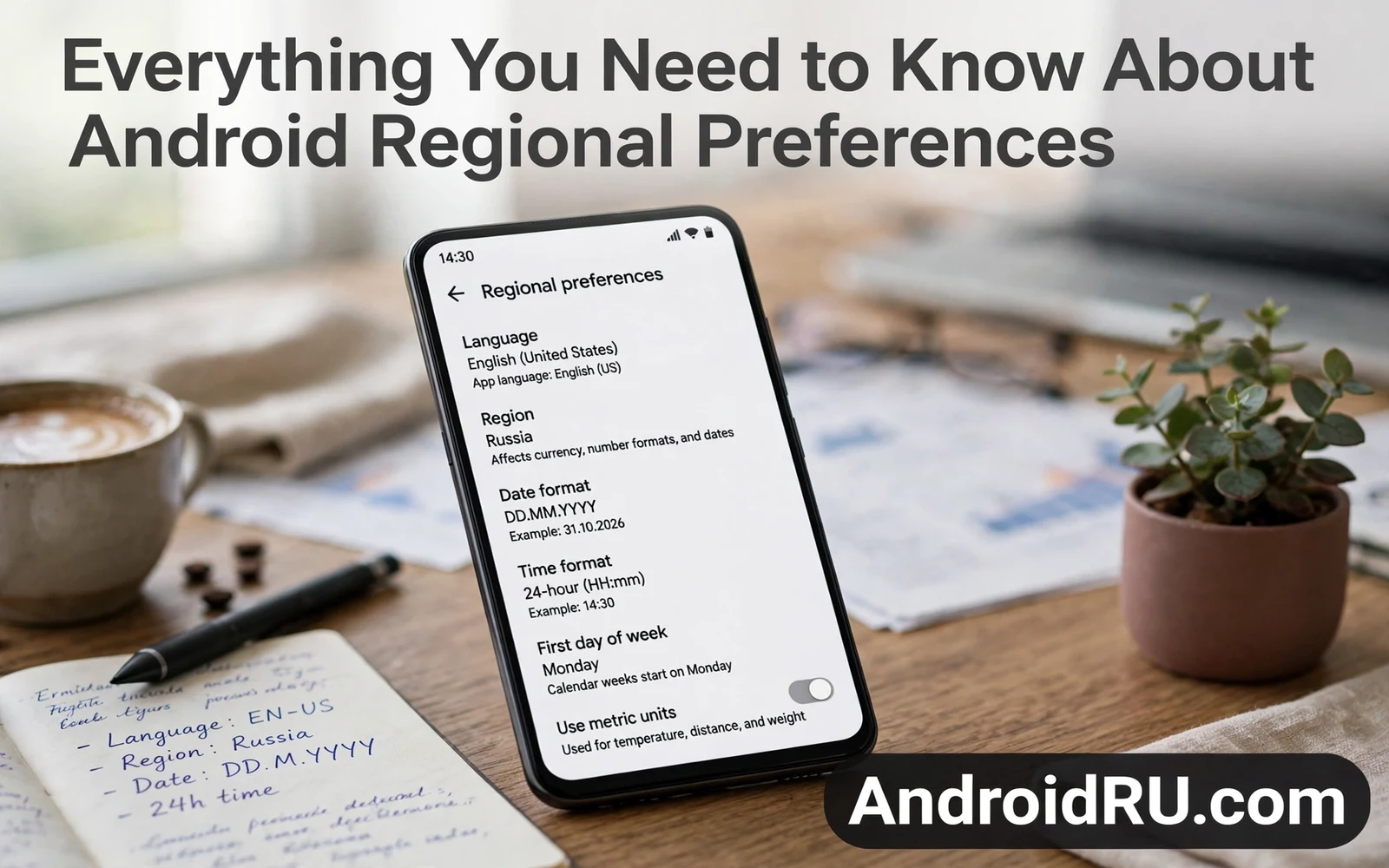
Everything You Need to Know About Android Regional Preferences
Your phone shows 05/06/2026 and you read it as 5 June. Your friend in the United States reads the same string as May 6. Neither of you changed a setting that day, and neither phone is broken. The difference sits in a quiet corner of Android called regional preferences, and it touches far more than dates. It decides whether your clock shows 14:30 or 2:30 PM, whether a price reads 1.234,56 or 1,234.56, whether your week starts on Sunday or Monday, and whether your maps app measures a trip in kilometres or miles.
I spent an afternoon untangling these settings on a Pixel and a Samsung phone side by side, and the first thing I learned is that Android splits this job into three separate layers for language, region and per-app language. Language picks the words. Region picks the formats. Per-app language picks the language for a single app. Change the wrong layer and the thing you wanted to fix stays exactly as it was, which is why so many people change a setting, see nothing happen, and decide the phone ignored them. This guide walks through each layer, gives you the exact menu paths to change them, and shows you what to check after every change so you can see the result in seconds.
This is for anyone who has moved country, shares a phone with family who speak another language, travels often, or simply wants dates and numbers to read the way they expect. You will get concrete steps for stock Android and Samsung, a clear explanation of why account region still limits some content, and fixes for the problems that show up most often when a setting refuses to stick.
What Android Regional Preferences Actually Control
Regional preferences are the group of settings that tell Android how to present language, dates, times, numbers, currency, measurements and the first day of the week. They do not change what your phone can do. They change how your phone expresses what it already knows. A calendar event at 3 PM stays at 3 PM; only the way the time is written changes. A price of forty-three euros stays forty-three euros; only the symbol position and the decimal mark change.
The list of things these settings control is longer than most people expect. Date order, twelve-hour versus twenty-four-hour time, decimal separators, thousands separators, currency symbols, temperature units, distance units, weight units, week start day, and the sort order of some lists all follow the region you pick. Your keyboard layout, your voice assistant accent, and the content suggestions in some apps follow it too. That is why one change can ripple across the whole phone in ways that feel surprising at first.
The Six Format Choices Your Region Makes for You
First, date order. Much of the world writes day, month, year. The United States writes month, day, year. Japan often writes year, month, day. Second, time format. The United States leans on twelve-hour clocks with AM and PM. Much of Europe uses twenty-four-hour clocks. Third, decimal and grouping marks. Germany writes 1.234,56 where the United States writes 1,234.56, and the comma and the point swap jobs. Fourth, currency. The symbol, its position, and the spacing around it all follow regional habit. Fifth, measurements. Kilometres and Celsius in most countries, miles and Fahrenheit in the United States. Sixth, first day of the week. Sunday in the United States, Monday across most of Europe, Saturday in parts of the Middle East.
Here is the catch: Android does not always expose every one of these as a separate switch. On many phones the region picks a bundle of defaults, and you then adjust individual items such as time format or first day of week inside the apps that use them. Knowing which layer controls which detail saves you from hunting through Settings for a switch that lives inside Google Calendar or inside your clock app instead.
How to See Your Current Region in Ten Seconds
Open Settings, then open System, then open Languages. Look at the top entry: that is your system language, and the region attached to it is shown beside it, for example English (United States) or English (United Kingdom). On Samsung, open Settings, then General management, then Language, and the same pair appears at the top. Write down what you see before you change anything. That note is your way back if a change makes things worse, and it tells you exactly which layer you are about to touch.
Language, Region and Locale: Three Separate Layers
A locale is the technical name for a language plus a region bundled together, such as en-GB for English as used in the United Kingdom, or es-MX for Spanish as used in Mexico. Apps read the locale and then pick date patterns, number patterns and currency symbols that match it. A messaging app may show times in twelve-hour format for en-US and twenty-four-hour format for de-DE. A shopping app may show pound signs for en-GB and euro signs for de-DE. A calendar app may start weeks on Sunday for en-US and on Monday for fr-FR. Those small shifts add up to a phone that feels local rather than foreign.
The split matters because language and region can be mixed freely on Android. Your phone can show English words while using German date order. It can show Spanish words while using United States number formats. The words come from the language part. The formats come from the region part. When a single change does not fix every display detail, the usual reason is that you changed the language when the problem lived in the region, or the other way round.
System Language Sets the Words on Menus and in System Apps
System language controls the words on menus, in Settings, and in system apps such as Phone, Messages and Calendar, plus the default language for any app that has no language of its own. Change it and the whole interface changes at once. If you pick a language your phone does not fully support, some menus may stay in English while the rest changes, which is normal and not a fault.
Region Sets Formats, Conventions and Local Defaults
Region controls formats and local conventions for dates, numbers, measurements, currency and week start. It also nudges some apps toward local defaults: a maps app may default to kilometres, a weather app to Celsius, a keyboard to a local layout. Region does not change the words on your menus. That separation is the single most useful fact in this whole guide, because it explains almost every “I changed the setting and nothing happened” story.
Per-App Language Adds a Third Layer for Multilingual Owners
Per-app language lets you set a different language for one app while the rest of the phone keeps the system language. A bilingual owner might run WhatsApp in Spanish, a banking app in English, and a news app in French, all on a phone whose menus stay in English. Readers who manage apps this way can study how to adjust app languages individually in Android and then set system language separately from app language. System language sets the default for menus and for apps without their own choice. Per-app language overrides that default for chosen apps only. That layered setup suits bilingual owners far better than a single global language, and it survives region changes untouched: change your region and your per-app languages stay exactly as you set them.
Why Some Apps Ignore Your Phone Region Entirely
Some apps ignore system locale and apply their own region logic based on account country. A streaming app may gate content by account region rather than by phone locale. A payment app may require a billing country that matches the account rather than the phone setting. Owners who change phone region to reach content often meet those account checks, and no phone setting overrides them. When content availability stays unchanged after a phone region change, check the account settings inside that app or service next, not the phone settings again.
How to Change Regional Preferences on Stock Android and Samsung
The steps below work on recent stock Android phones such as Pixel, and the Samsung path is given beside each step where it differs. Before you start, note your current settings using the ten-second check above, and change one thing at a time so you can see what each change actually does.
- Open Settings, then tap System, then tap Languages. On Samsung, open Settings, then General management, then Language. Check the language at the top of the list and confirm it is the one you want as your main language.
- Tap Add a language if your preferred language is missing, pick it from the list, then drag it to the top of the list so it becomes the primary language. Check that the menus change language at once; if only some menus change, the language pack is still loading and a few seconds of waiting finishes the job.
- Look for a Region entry on the same screen. On many stock Android phones the region is part of the language entry itself, shown in brackets, for example English (United Kingdom). Tap the entry and pick the variant that matches the country whose formats you want. On Samsung, tap Region under the same General management screen and pick your country from the list.
- If your phone shows no Region entry, open Settings and use the search bar at the top. Type “region” and tap the result that appears. A settings search usually surfaces the right menu faster than manual browsing, and on maker skins that hide region deeper, search is often the only fast route to it.
- Restart the apps you care about most, such as Calendar, Clock and your banking app, so the new formats apply cleanly. Check the Calendar app first: open it and look at the date order and the first day of the week. Then check the Clock app and confirm the time format. Then open a finance or calculator app and check that a number such as 1,234.56 reads the way you expect.
- Check your home screen widgets next. A clock widget that still shows the old date order will confuse you every time you glance at it. Remove the widget and add it again if it keeps the old format, because widgets sometimes cache the format from when they were first placed.
Home screen styling shifts subtly with regional choices because calendars, clocks and widgets follow locale formats. Readers who tune visual style can pair regional changes with how to customize Android lock screen shortcuts so that lock screen clocks match the new format. A clock widget that shows the new date order reinforces the change at every glance. A mismatched widget can confuse owners who just changed formats, so checking widgets after a region change keeps the whole phone consistent.
What to Check After Each Change
After changing language, check Settings itself: every menu label should read in the new language. After changing region, check Calendar for date order and week start, Clock for time format, and a calculator for decimal marks. After changing per-app language, open that one app and check its menus while the rest of the phone stays unchanged. If a check fails, you changed the wrong layer, and the section above tells you which one to try next.
How to Change Date, Time and Number Formats Step by Step
Date order causes the most visible confusion across regions. Day, month, year dominates in much of the world, while month, day, year dominates in the United States. A date such as the fifth of June can look identical in both orders yet mean different days in edge cases, and a date such as 06/07/2026 is genuinely ambiguous: 6 July in London, June 7 in New York. Owners who share screenshots across regions should write month names in full for critical dates, because full month names remove ambiguity without any settings change.
- Open Settings, then tap System, then tap Date and time. On Samsung, open Settings, then General management, then Date and time. Check whether “Use 24-hour format” is on or off, and set it to match your preference. Check the change at once in the status bar clock at the top of the screen.
- Open Google Calendar, tap the menu, tap Settings, then tap General. Find “Start of the week” and pick Sunday, Monday or Saturday to match local habit. Check the change by opening the month view: the first column should now be the day you picked.
- In the same Calendar settings screen, check the date format entry if your phone shows one, and pick the order you want. Open a calendar event and confirm the date reads the way you expect, for example “Sat, 7 Nov 2026” rather than “11/07/2026”.
- Open your calculator app and type 1234.56. Check the display: a United States region shows 1,234.56, a German region shows 1.234,56, and a French region may show 1 234,56 with a space as the grouping mark. If the display still uses the old marks, force-stop the calculator app and open it again so it reads the new locale.
- Open a finance or banking app and check a balance or a transaction amount. A misread number changes meaning in finance apps, so verify with a known value before you trust the new format for real money decisions.
Number formats differ in decimal marks and in digit grouping marks across regions. Some regions use a comma as a decimal mark while others use a point. Some regions group digits by thousands with spaces while others use points. Those differences matter in finance apps and in health apps where a misread number changes meaning. A quick test with a known value confirms that the new format reads correctly, and it takes less than a minute.
Time Format: Twelve-Hour Clocks, Twenty-Four-Hour Clocks and the Status Bar
The twelve-hour versus twenty-four-hour choice is the easiest regional setting to verify, because the status bar clock changes the moment you flip it. The trade-off is simple: twelve-hour clocks match how people speak in the United States, while twenty-four-hour clocks remove all AM and PM ambiguity for schedules, alarms and travel. Alarms follow the same setting, so check an existing alarm after you change it: an alarm set for 7:00 PM should still read 19:00 after a switch to twenty-four-hour time, not 7:00 in the morning.
First Day of the Week and Why Calendars Disagree
Calendar apps follow locale for week start, and this is the setting that most often survives a region change looking wrong. The reason is that many calendar apps keep their own week-start setting, which overrides the locale. If your calendar still starts on Sunday after you picked a Monday-start region, open the calendar settings and change “Start of the week” by hand. That app-level switch is the real control for that app, and the region only sets its default.
Regional Preferences for Measurements, Currency and First Day of Week
Measurement units follow region conventions for distance, temperature and weight in many apps. A maps app may switch between kilometres and miles based on region. A weather app may switch between Celsius and Fahrenheit based on region. Many apps offer their own unit toggles that override region defaults, so owners who travel should check unit settings inside maps and weather apps separately, because region alone may not change every unit display.
- Open Google Maps, tap your profile picture, tap Settings, then check Distance units and confirm kilometres or miles. Plan a short route and check the distance label before you drive anywhere.
- Open your weather app, open its settings, and check the temperature unit. Confirm it shows Celsius or Fahrenheit as you expect, then check a wind speed reading, which may have its own unit setting beside temperature.
- Open a health or fitness app and check weight and height units. A region change that flips kilograms to pounds without warning can make a logged weight look alarming, so verify the unit before you log anything new.
- Open a shopping app and check a price. The currency symbol should match the region, and the decimal mark should match the number format you verified earlier. If prices still show your old currency, the app is using account country, not phone region, and the section on accounts below explains why.
Currency displays in shopping apps may shift to local currency symbols after a region change, and that shift is cosmetic: it changes the symbol, not the amount you will be charged. The amount charged follows the billing country on your payment method, which is a separate setting in your account, not on your phone. Keep that distinction in mind before you assume a trip has made everything cheaper.
How Region Affects Apps, Content and Payment Rules
App availability depends on account country and on developer distribution choices rather than on phone locale alone. Changing phone region does not add apps that a developer never released in a country. Payment methods also tie to billing country rules that phone settings cannot bypass. Owners who move countries should update account country through official account flows, and those flows often require a payment method from the new country. Rushing region changes without account updates creates confusing partial results, where dates change but prices and catalogues stay exactly as they were.
Default app choices can interact with regional services because local apps may handle maps or payments better in a region. Readers who review defaults can use how to change default apps in Android step by step to align handlers with local services after a move. A local maps app may serve transit data better than a global app in some cities. A local payment app may support regional methods that global apps lack. Default choices deserve a review after any major region change, and the review takes five minutes: open Settings, then Apps, then Default apps, and check Browser, Phone, SMS, Maps and payment handler one by one.
Why Changing Phone Region Does Not Change What You Can Watch or Buy
Streaming catalogues, app availability and pricing follow the country on your account, and that country is usually set when you add a payment method or verify an address. A phone region change sends no signal to those systems. If you moved permanently, update the account country in the account settings of the service itself, add a local payment method, and expect the change to take time: some services allow a country change only once a year, and some require you to cancel subscriptions first.
App Pricing and Subscriptions Follow Account Region, Not Phone Locale
Pricing follows account region rules that phone locale alone cannot change. A traveller who changes phone region may still see prices in home currency, which confuses owners who expect local pricing after a region change. Pricing ties to billing country and to developer pricing choices. Owners who move permanently should update account country through official flows, while temporary visitors should accept home pricing during short trips. Subscription billing also follows account region rather than phone locale: a subscription started in one country may bill in that currency after a move, and some subscriptions need cancellation and resubscription under the new region, which can lose grandfathered pricing in rare cases. Check subscription terms before changing account country, because careful review protects both access and pricing.
Troubleshooting Regional Preference Problems That Won’t Stick
A common problem is a calendar that keeps an old first day of week after a region change. Restarting the calendar app usually applies the new locale cleanly, and if that fails, the app-level week-start setting described above is the real control. A second problem is a keyboard that keeps an old layout after a language change. Keyboard language settings live inside keyboard settings rather than inside system language alone, so owners should check keyboard languages separately when typing layouts stay wrong.
A third problem is an app that caches locale at first launch and ignores later changes. Clearing that app cache or reinstalling it often forces a fresh locale read. To clear cache, open Settings, then Apps, then the app name, then Storage, then Clear cache. Check the app again after clearing: dates and numbers should now follow the new region. Do not tap Clear storage by mistake, because that wipes the app’s data and signs you out.
Keyboard Layout Stuck on the Old Language
Open Settings, then System, then Languages, then On-screen keyboard, then Gboard, then Languages, and check which layouts are enabled. Add the layout for your new language and remove the old one if you no longer need it. Then open any text field, long-press the space bar, and confirm the layout switcher offers the right keyboard. Typing a few words in the new layout proves the change worked, and the space-bar switcher is the fastest way to move between layouts later.
An App That Keeps the Old Date or Number Format
Force-stop the app from Settings, then Apps, then the app name, then Force stop, and open it again. If the format still looks old, clear its cache as described above. If it still looks old after that, the app has its own format setting or it caches locale at install time, and reinstalling it is the last resort. Before reinstalling, check the app’s own settings screen for a language, region or format entry, because many large apps keep one there and it overrides the phone entirely.
Regional Preferences When Travelling
Travellers meet regional preference questions immediately upon landing in a new country. Date formats and time formats may already match local conventions through region settings. Currency displays in shopping apps may shift to local currency symbols. Maps and weather apps may switch units to local standards. Owners who preset region before travel reduce confusion at arrival, and a short settings review before departure prevents a stream of small surprises abroad.
- Before departure, set the region to your destination country and check Calendar, Clock, Maps and Weather using the checks above. Note anything that did not change, so you know which apps need their own unit setting.
- Add the keyboard layout for the destination language before you travel, so typing local place names works on arrival without a settings hunt in an airport.
- Check your calendar time zone behaviour: open Calendar settings and confirm whether it follows the device time zone. Create a test event for a meeting time at your destination and watch how it shifts when the phone changes time zone on landing.
- On arrival, confirm the phone picked up the local time zone automatically under Settings, then System, then Date and time, with “Set time zone automatically” switched on. If the time looks wrong, toggle that switch off and on once.
Time zone handling interacts with regional preferences because calendar events need correct zone conversion. A calendar app that follows device time zone updates event times automatically during travel. A calendar app with a fixed time zone may show events at confusing hours. A quick test event before travel reveals how the app handles zones, and that test prevents missed meetings across time zones.
Roaming, Keyboards and Time Zones on Arrival
Roaming travellers should check keyboard layouts because typing in a new language needs the right layout, and adding that layout before travel saves setup time on arrival. Removing unused layouts after travel keeps typing clean. Keyboard settings live separately from system language, so travellers must check both, and that double check prevents typing frustration in a new city. Voice assistants add another regional layer, because assistant language and accent recognition vary by locale: an assistant tuned to one locale may misunderstand speakers from another locale, so test assistant recognition for each regular speaker after a move and retrain the voice profile if the assistant keeps mishearing you.
Regional Preferences for Multilingual Households
Multilingual households often share one tablet among speakers of different languages. Per-app language settings let each person use favourite apps in a preferred language, while system language must still pick one default for menus and shared apps. Households should choose the system language that most users read comfortably, and individual apps can then diverge for personal use. That layered approach respects both shared use and personal preference, and it avoids the daily churn of changing the whole system language every time someone else picks up the tablet.
Children in multilingual households benefit from app language choices that match school language. A learning app in school language reinforces classroom vocabulary, while an entertainment app in home language preserves cultural connection. Parents can set those languages per app without changing system language constantly, and that stability helps children navigate apps confidently. Language settings become an educational tool rather than a technical chore when they are set once and left alone.
Voice assistants add another regional layer in shared homes, because assistant language and accent recognition vary by locale. Households should test assistant recognition for each regular speaker, since a mismatch may need a different assistant language or a retraining step. Regional preferences therefore extend beyond written formats into spoken interaction, and owners who test voice interaction avoid daily frustration for everyone in the house.
Frequently Asked Questions About Android Regional Preferences
What is the difference between language and region on Android?
Language controls the words on menus and in apps, while region controls formats and local conventions such as date order, time format, decimal marks, currency symbols, measurement units and first day of the week. You can mix them freely: English words with German date order, or Spanish words with United States number formats. The two settings sit near each other in Settings, which is why they get confused, but they do different jobs and changing one never changes the other.
How do I change the date format on my Android phone?
Change the region under Settings, then System, then Languages, or on Samsung under General management, then Language, then Region. Then check Google Calendar settings for date order and first day of the week, because Calendar keeps its own switches that override the region default. Write month names in full for critical dates you share across regions, since 06/07/2026 means different days in London and New York.
Why did my calendar still start the week on Sunday after I changed region?
Your calendar app keeps its own week-start setting that overrides the region default. Open the calendar app, open its settings, find “Start of the week”, and pick the day you want. Restarting the app also helps when it cached the old locale at launch. The same pattern applies to time format and units: the app-level switch is the real control, and region only sets the default the app starts with.
Can changing my phone region change app prices or available apps?
No. Prices, availability and catalogues follow the country on your account and the payment method attached to it, not the phone region. A phone region change alters how dates, numbers and currency symbols are displayed, and it may nudge some apps toward local units, but it does not add apps a developer never released in a country and it does not change the currency you are charged in. Update account country through the service’s official flow if you moved permanently.
Regional preferences seem minor until they shape every date and every number on a phone. Language sets the words while region sets the formats and local conventions. Per-app language adds flexibility for multilingual owners. Account region still governs content and payment rules beyond phone settings. Owners who understand those layers can tune a phone that feels local anywhere, and a few careful changes turn a generic phone into a device that reads dates and numbers the way its owner expects.
Do the ten-second check today: open Settings, then System, then Languages, and confirm the language and region match where you live and how you read dates. Then open Calendar and check the week start, open Clock and check the time format, and open Maps and check the distance unit. Those four checks take two minutes, and they catch almost every mismatch before it causes a missed meeting or a misread price.

