

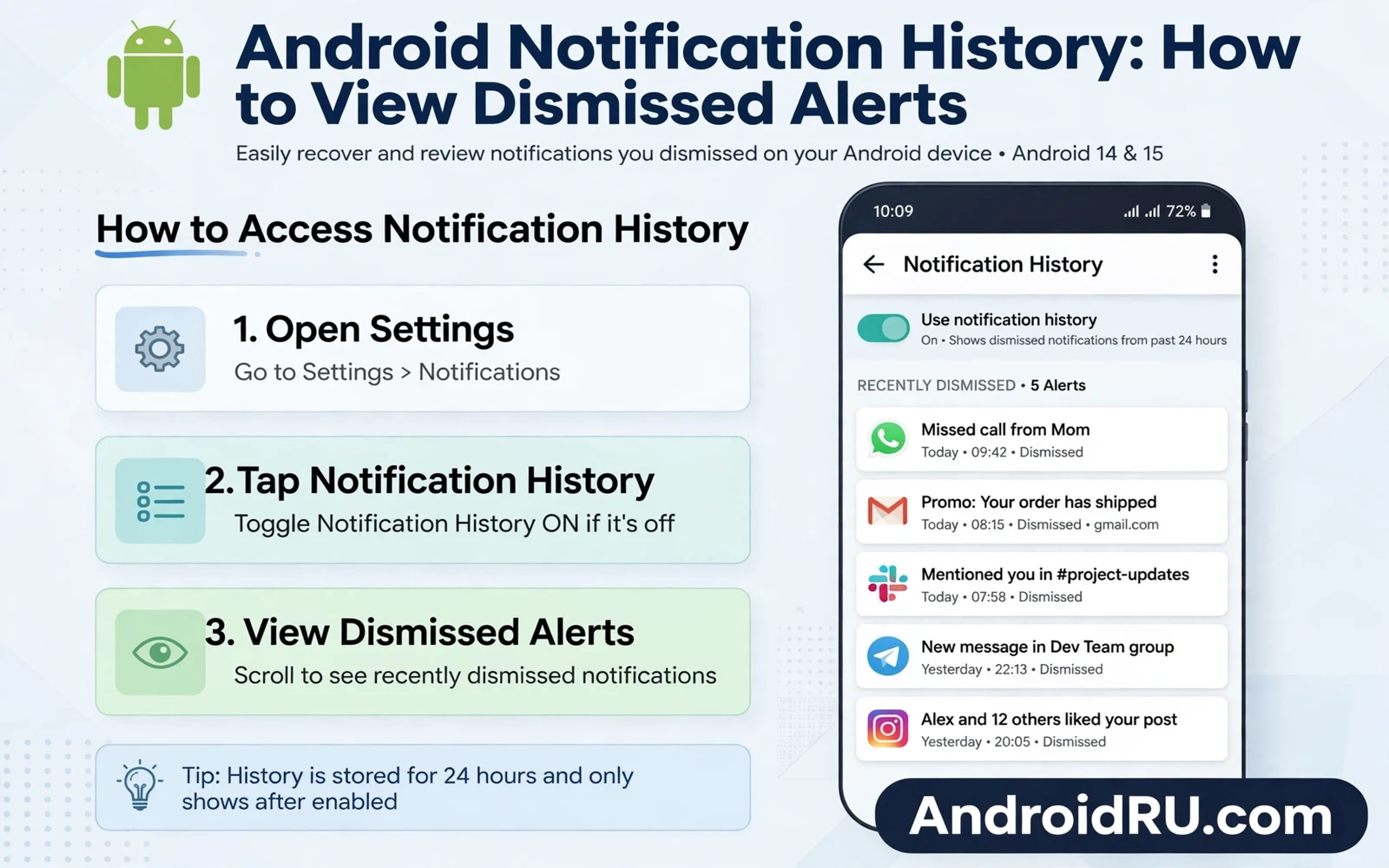
Android Notification History: How to View Dismissed Alerts
A notification vanishes with one swipe. A message preview disappears before you read it fully. A delivery update disappears while you drive. A security alert disappears while you juggle bags. Later you wonder what it said. The app shows no trace of it. The home screen shows no badge for it. Notification history exists for exactly that moment. It keeps a record of alerts that you dismissed, and it lets you read what you missed.
I turned this feature on after losing a one-time code for a bank login. The code arrived, I swiped the banner away while carrying groceries, and by the time I sat down the app had no record of it. I had to request a new code and wait again. That small loss taught me the one rule that matters most here: history only records alerts after you turn it on. It cannot recover alerts from before activation. Turn it on today even when you feel no need for it now. Future you will thank present you when a vital alert slips away.
This guide shows you how to switch the feature on, how to test it so you know it works, how to find a lost alert in under a minute, how long entries survive, and how to fix it when the list stays empty. You will also learn how it pairs with Do Not Disturb, what it does and does not save, and how to keep it private on a phone other people sometimes hold.
What Android Notification History Is and What It Records
Notification history is a built-in Android log of the alerts your phone has shown you. Every time an app posts a notification, the system can write a copy into this log: the app name, the time it arrived, the title, and the preview text the app supplied. Open the log and you can scroll back through the day and read alerts you swiped away, ignored, or never saw because the screen was off.
History stores alert text and the sending app and the time of arrival. It does not store the full content of every app message. Some apps send only a short preview to the notification system, and history can only show what the app shared in that preview. A banking alert may show a short status rather than a full balance. A chat preview may show a snippet rather than a full thread. History recovers the alert rather than the whole conversation inside the app, and that distinction sets honest expectations: the log points you to the right app, and the app itself holds the full story.
Which Alerts Get Saved and Which Ones Never Appear
Alerts that arrive as normal notifications get saved: messages, mail, delivery updates, calendar reminders, security warnings, and app promos. Alerts that never reach the notification shade do not get saved, because there was nothing for the system to log. A message that arrives only inside an app, with no banner at all, leaves no trace in history. Silent notifications that an app posts and withdraws in seconds may also vanish before the log keeps them. If an alert mattered, check history the same day rather than assuming it will wait.
Notification History Versus the Notification Shade
The notification shade shows what is waiting right now. History shows what already passed. Swiping a banner clears it from the shade, and that is the moment most people think the alert is gone for good. History is the second chance: the swipe removes the live banner, not the log entry. Tapping an entry in history opens the sending app when the entry supports it, and when it does not, the saved text alone usually tells you enough to act.
How to Tell at a Glance Whether History Is On
Open Settings, then Notifications, then Notification history. If the switch at the top is on, the feature is recording. If the screen shows an empty list with no switch at the top, your phone may place the switch under Advanced settings instead, or your maker skin may call it by a slightly different name. The quickest proof is a live test, which the next section walks through step by step.
How to Turn On Notification History on Pixel and Samsung
The switch takes less than a minute to find on most phones, and the test after it takes another minute. Do both now, because an untested switch is only a guess. The steps below cover stock Android first, with the Samsung path beside each step where it differs.
- Open Settings and tap the search bar at the top. Type “notification history” and tap the result that takes you to the Notification history screen. Check that the screen shows a single switch at the top: that switch is the whole feature.
- Turn the switch on. The phone may ask you to grant notification access to the history service. Grant that access when the prompt appears, because without that access the history list stays empty forever. Check the switch again after granting: it should stay on and the screen should now show a “Recently dismissed” section, empty for now.
- If settings search finds nothing, open Settings, then tap Notifications, then look for a History entry inside that section. On Samsung, open Settings, then Notifications, then Advanced settings, then Notification history. The switch looks the same wherever it sits: a clear on state and a permission grant mean the feature now records alerts.
- Send yourself a test alert. Ask a friend to send you a message, or send yourself an email from another account. Wait for the notification to arrive and check that the banner appears on your screen.
- Swipe the test notification away without opening it. Then open Settings, then Notifications, then Notification history, and look for the test entry. Check that it shows the right app name, the right time, and the preview text you expected.
- If the test entry is there, the setup works and you are done. If it is missing, the permission grant failed: go back to the history screen, check the switch is still on, repeat the permission step, restart the phone, and test again before you rely on the feature.
When settings search finds nothing, opening notifications settings directly is the fallback. Open Settings and open the Notifications section, then look for a history option inside that section. Some phones place it under advanced settings and some place it under a manage section, but the switch looks the same wherever it sits. A clear on state and a permission grant mean the feature now records alerts, and the test in step 4 proves it instead of leaving you to guess.
What the Permission Prompt Really Grants
The permission you grant is notification access for the system history service. It lets that service read the text of incoming notifications so it can write them into the log. It does not send your notifications anywhere, and it does not give any app new access to your alerts. If you ever turn history off, the service stops reading new alerts, and the entries already saved stay on the device until they age out.
How to View Dismissed Alerts and Find a Lost Notification
Open notification history from Settings whenever an alert goes missing. The list groups alerts by day with the newest first. Scroll to the time when the alert arrived, and tap an entry to open the sending app when the entry supports it. Some entries open the app directly and some only show the saved text, but either outcome gives you the app name, the alert time, and the preview text.
- Open Settings, then Notifications, then Notification history. Check the date headings first and scroll to the day the alert arrived, since the newest entries sit at the top and older days sit below.
- Scan the app names in that day’s group. The app name is usually the fastest clue, because you often remember which app sent the alert even when you forget the exact words.
- Tap the entry. If the app opens to the right screen, follow up inside the app at once. If the entry only shows saved text, read the preview and note the time, then open the app by hand.
- Use the app name as your next clue when the preview feels thin. Open that app and check its own inbox or activity feed. A chat app holds the full message inside its thread. A mail app holds the full message inside its mailbox. A delivery app holds the full order inside its tracking page.
- Act on what you find the same day. A delivery alert deserves a check of the tracking page and the expected window. A security alert deserves a check of recent account activity. A message deserves a reply while the thread is still fresh.
The Two-Step Search That Recovers Most Lost Alerts
History points you to the right app and the app itself holds the full story, and that two-step search recovers most lost alerts fast. Step one is the log: app name, time, preview. Step two is the app: inbox, thread, tracking page, or activity feed. I use this pattern every time a banner slips past me, and it has recovered delivery updates, boarding reminders, and one password-reset code that I would otherwise have requested twice.
Using History to Spot Noisy Apps and Tame Them
History also helps you spot patterns in noisy apps. An app that floods you with promos will dominate the list. An app that sends night alerts will show a clear time pattern. Use that evidence to tune notification settings for that app: turn off promo categories while keeping order updates, and turn off night alerts while keeping security alerts. History turns vague annoyance into a precise settings fix. To do it, open Settings, then Notifications, then App notifications, pick the noisy app, and switch off the categories you do not need while leaving the useful ones on. Check the history list the next day to confirm the flood has thinned.
What to Do When the Preview Is Too Short to Act On
Some apps send only a fragment, such as “You have a new message” with no content at all. When the preview gives you nothing to act on, the time stamp is your best clue: open the app and look at whatever arrived nearest that time. If the app itself shows nothing new, the alert may have been a promo that the app already withdrew, and the log entry is the only trace it ever left.
How Long Android Keeps Notification History
History keeps alerts for a limited window rather than forever. Recent alerts stay for a day in most cases. Older alerts fade from the list as new ones arrive, and the exact window varies by phone maker and by system version. Treat history as a short-term safety net rather than as an archive. Check it the same day when an alert matters, and do not wait a week and expect the entry to survive.
A restart does not erase history in most cases. A system update may clear it in rare cases. A factory reset erases it fully along with everything else. A work profile may restrict history for managed apps, so work alerts sometimes never appear in the personal log at all. Those limits rarely matter for daily use. The main limit remains the short window, so build a habit of checking history each evening when you manage many alerts.
The 24-Hour Rule and Why Same-Day Checks Matter
In practice, most phones keep roughly the last day of alerts. That makes the evening check the habit that matters: one minute before bed, open the history list, scan the day, and follow up on anything that needs action. A delivery that arrived at noon is still there at night. The same delivery is often gone by the next morning, replaced by the overnight flood of promos and social updates. Same-day checks are the difference between a safety net and an empty list.
What a Restart, an Update or a Reset Does to Your Log
A normal restart leaves the log alone on most phones, because the entries live in system storage that survives a reboot. A major system update sometimes clears it, so check history before you install a big update if an alert is still unresolved. A factory reset wipes it completely, along with everything else on the phone, so never rely on history as your only copy of anything important: if an alert holds a code, an address, or a time you need, copy it into a note or a calendar event at once.
How to Fix Notification History That Records Nothing
An empty history list after activation usually means a missing permission. Open Settings and check notification access for the history service. Grant access again when the toggle looks off. Restart the phone after the grant. Send a test notification and dismiss it. Check history again for the test entry. That sequence solves most empty-list cases, and it is worth doing in order rather than guessing at other causes first.
- Open Settings, then Notifications, then Notification history, and confirm the switch is on. If it is off, turn it on and grant the permission when asked.
- Open Settings, then search for “notification access” and open the Special app access screen. Find the history service in the list and confirm its access is allowed. If it shows as denied, tap it and allow it.
- Restart the phone. A restart clears the stuck state that sometimes follows a permission change, and it costs two minutes.
- Send a test notification, dismiss it without opening it, then open history and look for the entry. Check the app name, time and preview. If the entry appears, the fix worked.
- If the list is still empty, check battery settings. A battery optimisation rule can starve the history service: open battery settings for the system history service when the list shows it, and set it to Unrestricted when other steps fail. Some phones hide system services from the battery list by default, so tap the menu and choose Show system apps to find it.
- If nothing above works, check whether a work profile or a device admin policy restricts the feature. On a work-managed phone, history for managed apps may be blocked by policy, and no settings change on your side can override that. Ask your IT admin whether notification logging is allowed on the work profile.
A stuck WebView update can hide alerts from other system parts, and the repair steps in How to Fix “Android System WebView Not Updating” Error restore the shared viewer that many app pages depend on. The shared viewer itself is explained in Android System WebView Explained: Why It Matters, and that explanation shows why one component affects pages across many apps. Per-app language settings can also change how alert text reads, and the steps in How to Adjust App Languages Individually in Android help you set a comfortable language for each app. Together these guides cover alerts from arrival to recovery, and they are worth reading in order when a system component, rather than a single setting, is the thing that broke.
Battery Optimisation: The Silent Cause of Empty History
Battery optimisation is the cause people check last and should check second. Android puts idle services to sleep to save power, and a history service that sleeps through the night records nothing while you sleep. Setting it to Unrestricted lets the service record alerts even during deep sleep. The cost is tiny, because the service only wakes briefly to write a log entry, and the benefit is a list that actually has entries in the morning.
How to Check the History Service in Battery Settings
Open Settings, then Battery, then Battery usage, then tap the menu and choose Show system apps if the option appears. Look for the system history or notification service in the list, tap it, and set battery usage to Unrestricted. Send a test notification after the change and confirm it lands in history, because a setting you cannot verify is only a hope.
How to Use Notification History With Do Not Disturb and Focus Mode
Do Not Disturb quiets alerts without deleting them, and history still records alerts that arrive during quiet hours. That pairing gives you silence plus a safety net. Turn on Do Not Disturb at night and check history in the morning. Important alerts wait in the list and unimportant alerts wait there too, and you choose what deserves action after rest rather than during rest.
- Open Settings, then Sound and vibration, then Do Not Disturb, and set a schedule with a start time and an end time that match your sleep. Check that the schedule is switched on, not only created.
- Tap People under Do Not Disturb and allow calls from starred contacts to break through when safety demands it. Turn on Repeat callers so a second call within fifteen minutes breaks through as well.
- Turn on Do Not Disturb for the night, sleep, and open Notification history in the morning. Scan the overnight entries from newest to oldest and act on anything that needed you.
- For work hours, open Settings, then Digital Wellbeing, then Focus mode, pick the distracting apps, and set a schedule. Check that work apps stay loud while social apps go quiet, then check history during a break to catch what the silenced apps sent.
Scheduled quiet hours suit users with regular sleep times. Set a start time and an end time for Do Not Disturb, let calls from starred contacts break through when safety demands it, and let repeat callers break through after a second attempt. History catches everything else for morning review, and that design protects sleep without hiding emergencies.
Focus Mode During Work Hours
Focus mode during work hours works the same way. Silence social apps while keeping work alerts loud. Let history record the silenced social alerts for later. Check the list during a break rather than during deep work. That rhythm protects attention while keeping a record, and no message vanishes simply because you chose to focus. The check takes less than a minute, and it ends the low-level worry that something urgent arrived while you were concentrating.
Driving Mode and the Morning Review Habit
Driving mode pairs well with history for road safety. Silence banners while driving and let history keep them. Review the list after you park. A message that waited ten minutes rarely loses value, while a glance at speed can cost far more. History makes safe driving compatible with staying informed, because the record waits patiently until you can read safely. Set driving mode to start automatically when your phone connects to car Bluetooth, so the habit runs without you remembering to switch it on.
Notification History Privacy: What It Stores and Who Can Read It
Privacy matters because history stores alert text on the device. Anyone who gets past your lock screen can open history and read recent previews. A chat preview in history may reveal a private snippet. A banking preview may reveal a transaction hint. Keep a strong lock on the phone when history stays on, and turn history off when you share the phone with others often. Privacy and recovery pull in opposite directions here, and your lock strength decides the balance.
History entries live on the device, not in a cloud account, and they are not sent to Google or to the app that sent the alert. That local-only design is good news for privacy, but it also means a lost phone carries a readable log of your recent alerts until the entries age out. A strong screen lock, a short auto-lock delay, and a habit of checking history before handing the phone to someone else are the three controls that matter.
When to Turn History Off
Turn history off before you hand your phone to a repair shop, a friend, or a child who will tap through Settings. The switch is in the same place you turned it on: Settings, then Notifications, then Notification history. Turning it off stops new recording at once. Entries already saved stay until they age out, so if you need a clean slate, turn the feature off, wait a day, and the old entries will have faded. For a shared family tablet, weigh the trade-off openly: history saves lost alerts for everyone, and it also lets anyone who picks up the tablet read them.
How to Make Notification History Part of Daily Phone Care
Check history once each evening during a busy week. Look for alerts that you dismissed in haste. Follow up on any order or security entry that needs action. Clear the mental load of wondering what you missed. That evening check takes less than a minute, and it prevents a missed delivery or a missed reply from turning into a larger problem.
Pair history with focused notification settings for the best result. Silence promo categories across shopping apps. Keep security and delivery categories loud. Let history catch the rest. A quiet phone plus a reliable history list beats a loud phone with no record. You control the noise and history controls the safety net, and that balance keeps attention for what matters.
Teach the feature to family members who often lose alerts. Turn it on for a parent who swipes fast. Turn it on for a teen who clears banners in bulk. Show them the settings path once. Show them a test dismissal once. That small lesson saves many future searches. Notification history works best as a shared habit rather than as a secret setting, and the test dismissal is the part that makes it stick: people remember a feature they have seen work, not one they only heard about.
A Lost Delivery Alert, Handled the Same Day
A lost alert about a delivery deserves a follow-up inside the delivery app the same day. Open the app and check the order tracking page for the latest status. Confirm the delivery address and the expected window shown there. Contact support inside the app when tracking stalls without explanation. Save a screenshot of the tracking page for reference during a dispute. History points you to the alert and the app holds the proof, and that two-step habit turns a swiped banner into a resolved delivery without stress or delay.
A Security Alert in History Deserves Immediate Action
A security alert in history deserves immediate action even when the preview looks routine. Open the sending app and check for a login warning or a password change notice. Change the password at once when the alert mentions an unknown sign-in. Review recent account activity for sessions you do not recognise. Sign out unknown sessions from the account security screen. A fast response turns a dismissed alert into a protected account, and the history entry gives you the exact time the warning arrived, which helps when you report it.
Frequently Asked Questions About Android Notification History
Can notification history recover alerts from before I turned it on?
No. History starts recording only from the moment you switch it on and grant notification access. Alerts that arrived before activation were never written to the log, and no setting, app, or reset can bring them back. That is why the first step in this guide is to turn the feature on today, even before you need it, and to test it with a dismissed message so you know it works.
How long does Android keep notification history?
Most phones keep about a day of alerts, with the exact window varying by maker and system version. Older entries fade as new ones arrive, and a major system update may clear the list. Treat history as a same-day safety net: check it the evening an alert matters, copy any code or address you need into a note, and do not expect an entry to survive a week.
Why is my notification history empty even though the switch is on?
The usual cause is a missing notification access grant for the history service. Open the history screen, confirm the switch is on, then check notification access under Special app access and allow it. Restart the phone, send a test notification, dismiss it, and check again. If the list is still empty, check battery optimisation for the history service and set it to Unrestricted, since a sleeping service records nothing.
Is notification history private, and can other apps read it?
History entries live on your device and are not sent to a cloud account or shared with other apps. The risk is physical: anyone who gets past your lock screen can open Settings and read recent previews. Keep a strong lock, use a short auto-lock delay, and turn history off when you hand the phone to someone else often. That keeps the safety net for you without leaving your recent alerts open to anyone who holds the phone.
Notification History: Switch It On Today
A swiped banner should never be a lost message, a missed delivery, or a security warning you never saw. Notification history is a small switch with an outsized payoff, and it costs you two minutes to set up and one minute a day to use. The catch is timing: it only helps if it was on before the alert you need arrived, so the best moment to switch it on is now, not after the next loss.
Open Settings, then Notifications, then Notification history, turn the switch on, grant the access, and send yourself a test message. Swipe it away, find it in the log, and you will have proved the safety net works before you ever need it for real. That one test is the whole habit in miniature, and it is the step that turns a hidden setting into something you actually trust.

