

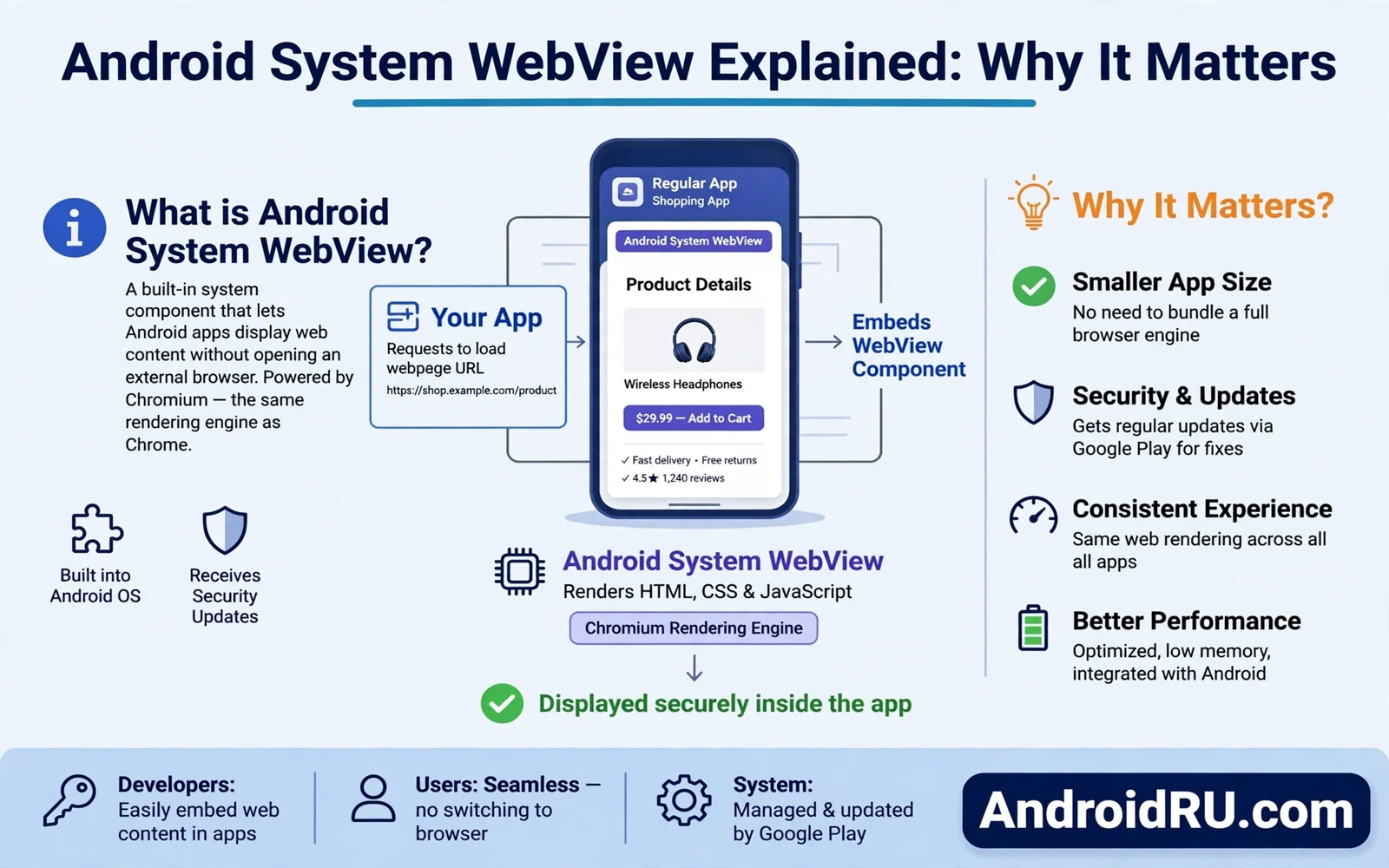
Many Android apps show web pages without opening a browser. A news app may show an article inside its own window. A shopping app may show a help page inside its own window. A banking app may show a secure form inside its own window. That embedded page does not come from nowhere. It comes from a system part called Android System WebView. This part gives apps a ready made way to show web content. Apps do not need to build their own page viewer from scratch. They borrow the system viewer and they focus on their own features instead.
WebView matters because it sits between an app and the web. It reads page code and it draws text and images on screen. It runs small scripts that make buttons respond to taps. It stores small pieces of page data so a return visit loads faster. It handles links inside the embedded page so you stay inside the app. When WebView works well you may never notice it at all. Pages open fast and buttons respond at once. When WebView grows stale pages may load slowly or buttons may stop responding. That is why this quiet part deserves attention even though it has no home screen icon of its own.
Think of WebView as a shared engine for many apps at once. One update to the engine can improve pages in dozens of apps. One fault in the engine can break pages in dozens of apps. That shared design saves storage because each app does not carry its own full page engine. It also saves effort for developers because they can rely on one tested viewer. The trade off is clear. A single shared part becomes a single point of care. Keep it current and many apps benefit together. Ignore it and many apps suffer together.
What WebView Actually Does Inside An App
An app that shows web content hands the page to WebView and asks it to draw the result. WebView reads the markup that describes the page layout. It reads style rules that set colours and spacing and text size. It runs scripts that update parts of the page without a full reload. It loads images and fonts from the network or from a local cache. It then paints the final page inside a rectangle that the app controls. The app can place its own toolbar above that rectangle. The app can place its own navigation below that rectangle. The page itself still comes from WebView.
WebView also manages the small jobs that make a page feel alive. It keeps a history stack so a back tap returns to the prior page inside the app. It handles form fields so you can type text and pick options. It supports scrolling and zooming so long pages stay readable on a small screen. It can play media that a page embeds when the page asks for playback. It can ask for permission when a page wants location or camera access. The app decides how much of that power to expose. WebView supplies the machinery and the app supplies the rules.
Security checks run inside WebView as well. It blocks pages that try to load unsafe mixed content in ways that could leak data. It isolates page scripts so one page cannot read data from another page without permission. It applies the same web safety rules that a standalone browser applies to ordinary pages. Those rules matter because embedded pages often handle sign in forms and payment steps. A strong WebView gives those steps a safer frame. A weak WebView leaves those steps exposed to tricks that modern pages should block.
Why One Shared Viewer Beats Many Separate Viewers
Before a shared viewer existed each app faced a hard choice. It could build its own page viewer and carry all that extra code. It could skip web pages and force you to jump to a browser for every link. Both paths hurt the user in a different way. A built in viewer bloated the app and aged fast. A forced jump broke the flow of a task and lost your place in the app. A shared viewer solves both problems at once. Apps stay smaller and pages stay inside the task you were doing.
Updates also become simpler with a shared viewer. The system can update WebView once and every app that uses it gains the fix. Developers do not need to ship a new version of every app just to patch page rendering. Users do not need to wait for each app maker to act. That speed matters most for safety fixes. A flaw in page handling can affect many apps at once. A single update closes the flaw across all of them in one move. Readers who hit a failed update can work through the repair path in How to Fix “Android System WebView Not Updating” Error and that path restores the shared viewer without touching app data.
Consistency is another gain from sharing one viewer. Pages look and behave the same way across different apps. Buttons respond the same way. Text scaling follows the same rules. Form controls follow the same touch behaviour. That sameness helps users because they do not need to relearn page habits in each app. It helps developers because they can test a page once and trust it across many apps. It helps support teams because a page fault can be traced to one shared part rather than to dozens of separate viewers.
How WebView Updates Reach Your Phone
WebView updates arrive through the app store as a separate system component. Your phone may update it in the background while you use other apps. You may see it listed among installed system apps in settings. You may never open it directly because it has no launcher icon. That invisibility confuses some users. They wonder why a part they never opened needs an update at all. The answer is simple. Apps open it for you every time they show a web page. The update protects those silent opens.
Automatic updates work best when storage and network allow them. A phone that runs low on storage may pause an update until space frees up. A phone on a slow connection may delay a large update until a faster network appears. A phone with update controls set to manual may wait for your approval. Check the store entry for the component when pages start to misbehave. A pending update there often explains a sudden page fault. A completed update often restores normal behaviour without any change to the app itself.
Some phones ship WebView as part of a larger browser package. On those phones the browser and WebView share code and update together. On other phones WebView stands alone as its own component. Either design still gives apps the same embedded page power. The difference only matters when you troubleshoot. If your phone ties the two together then a browser update also refreshes the embedded viewer. If your phone keeps them apart then you must update each part on its own. Knowing which design your phone uses saves time when a page fault appears.
Signs That WebView Needs Attention
Pages that used to load may start to show blank white screens. Buttons inside an app page may stop responding to taps. Text may overlap or images may fail to appear. A sign in form may refuse to submit even with correct details. A payment page may freeze halfway through a step. Any of these faults can point to other causes as well. A weak network can cause similar symptoms. A faulty app update can cause similar symptoms. WebView deserves a check early in your search because one check covers many apps at once.
A useful test is to open the same kind of page in two different apps. If both apps show the same fault then a shared part is a likely suspect. If only one app fails then that app itself is a likely suspect. Try a page in a standalone browser as well. If the browser page works while app pages fail then WebView stands out even more. That simple comparison narrows the fault fast. It stops you from clearing data in every app one by one. It points you toward the shared viewer first.
A dismissed alert can hide a WebView prompt so the recovery steps in Android Notification History: How to View Dismissed Alerts help you find a message that you swiped away before you read it fully. Storage pressure can also block a WebView update so free space matters for this component too. Restart the phone after an update when pages still misbehave. A restart clears stale page processes that may hold old code in memory. If the fault survives a restart and a fresh update then the app itself may need its own fix. Report the fault to the app maker with the steps that reproduce it.
WebView And The Wider Android Platform
WebView connects to the wider shift toward shared system parts that update on their own. Project Mainline moved several system parts into store updatable modules. That move lets safety fixes reach phones without a full system update. WebView fits that pattern well because page safety changes fast. New web tricks appear often. New page features appear often. A viewer that waits for a yearly system update would fall behind quickly. A viewer that updates through the store keeps pace with the web itself.
The shift toward newer app formats also touches WebView. The move to newer app formats is described in Understanding Android 64-Bit Only Apps Shift and that move changes how apps package native code for modern phones. WebView itself stays a shared system part through that shift. Apps still call it the same way. Pages still render through the same engine. The benefit for users is steady behaviour while the platform modernises underneath. Developers gain a stable page target while they rebuild other parts of their apps.
Looking ahead WebView will keep mattering as apps blend native screens with web content. Hybrid screens let teams ship a feature once for the web and reuse it inside an app. That reuse saves time and keeps features consistent across platforms. It only works when the embedded viewer stays fast and safe. Treat WebView as part of your phone health routine. Keep it updated and keep enough free storage for its updates. Check it early when app pages misbehave. A small habit here protects a large share of daily app use.
WebView And App Permissions
WebView permission prompts deserve a calm reading before you tap allow. A page may ask for location to show nearby stores. A page may ask for camera access to scan a code. A page may ask for microphone access for a voice search. Each request should match the task on screen. A help page has no need for camera access. A store locator has a clear need for location. Deny a request that feels out of place and the page usually still works for reading.
Permission grants for embedded pages follow the host app in most cases. Granting location to an app may let its embedded pages use location too. Revoking location from the app removes it from embedded pages as well. Check app permissions in settings when a page asks too often. A single permission screen controls many embedded pages at once. That shared control mirrors the shared viewer design. One careful choice protects many pages together.
Cookies and site data inside WebView follow their own storage rules. An app may clear its own data without clearing WebView data. A page login may survive an app cache clear for that reason. Sign out inside the page itself when you want a clean break. Clear WebView storage in settings when a login refuses to end. That extra step ends sessions that a simple app restart leaves behind.
Test a permission change with a real page after you make it. Open the app page that needed the permission. Confirm that the feature works with the new grant. Confirm that other features still work after a denial. A permission change should feel invisible except for the feature it controls. When a page breaks after a denial then the page truly needed that access. Grant it again with full knowledge of the trade.

