

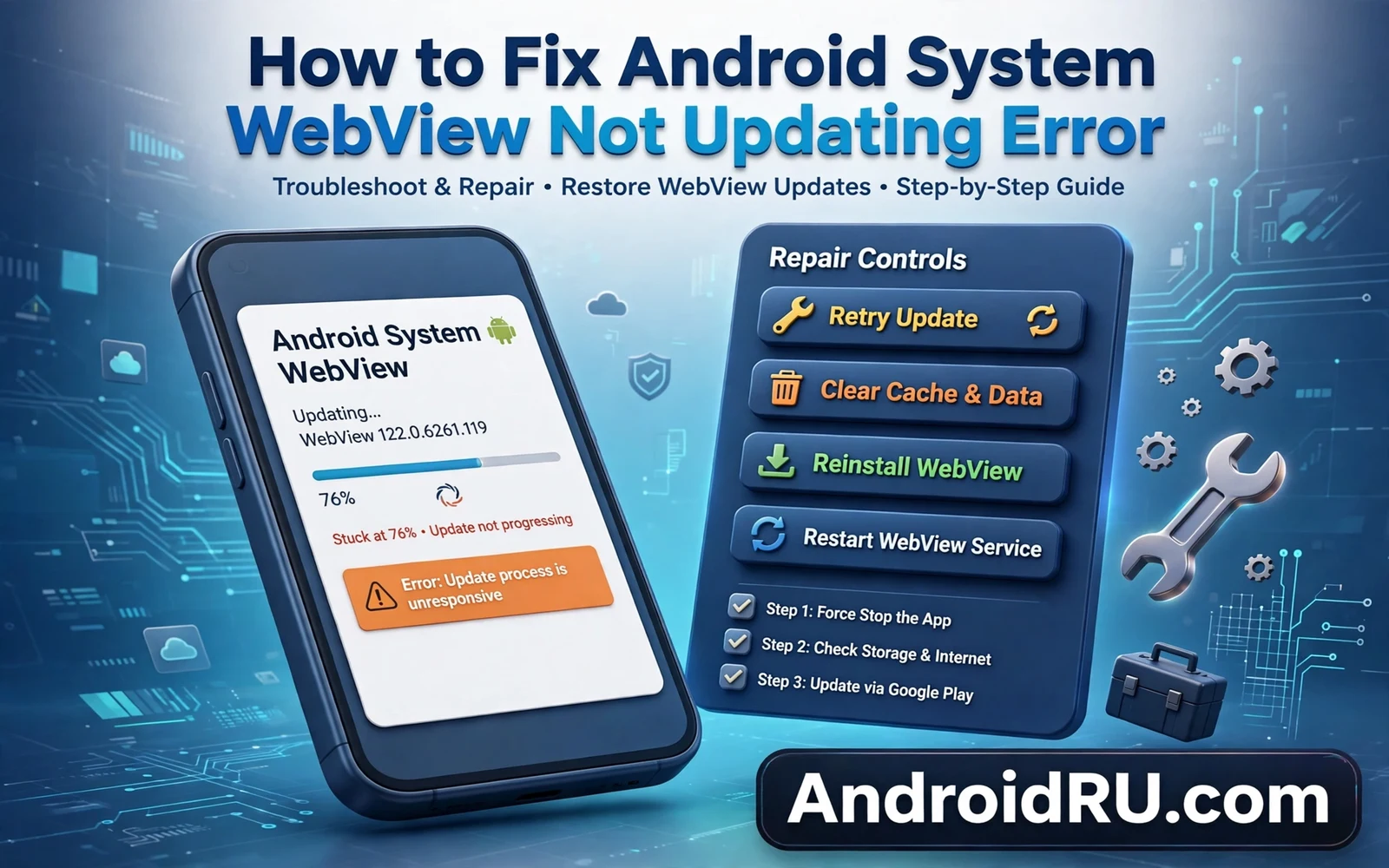
A stuck WebView update feels small until app pages start to fail. You open an app and a page shows blank. You tap a link inside an app and nothing happens. You check the store and the update sits at the same progress for a long time. You try again later and the same stall returns. That loop frustrates because the component has no icon to open. You cannot tap it and force it to behave. You must work through store and system settings instead. This guide walks that path step by step.
Start by naming the fault precisely. A download that never starts differs from a download that starts and then fails. A download that finishes but never installs differs from both. An update button that stays grey differs from an error message with a code. Each pattern points to a different cause. A grey button may point to a store account problem. A failed install may point to low storage. A stalled download may point to a network problem. Write down what you see before you change settings. That note keeps your search focused.
Resist the urge to clear everything at once. Clearing app data in a hurry can sign you out of apps and erase saved settings. Clearing store data without a plan can remove download history that helps diagnosis. Work from the gentlest fix to the strongest fix. Check storage first. Check network second. Check account third. Clear cache only for the store and for WebView when gentler steps fail. That order protects your data while it narrows the fault.
First Checks That Cost Nothing
Open settings and check free storage on your phone. WebView updates need room to download and room to install. A phone with almost no free space may start a download and then fail near the end. Free space by removing large videos you already backed up. Remove old downloads that you no longer need. Uninstall an app that you have not opened in months. Even a modest gain can unblock an update that kept failing at the same point.
Check your network with a simple test. Open a web page in your browser and watch it load fully. Try a different network when the page loads slowly or stalls. Switch from mobile data to a stable wireless network when you can. Pause a large download that competes for the same connection. A store update shares bandwidth with every other download on the phone. A quiet network gives the update a fair chance to finish.
Confirm that the store account on the phone is the account you expect. Open the store and check the signed in account at the top of the screen. An account that lost sign in can block updates for system components. Sign in again when the account shows an error. Check that no family or work control blocks store updates on this device. A work profile can restrict updates on a managed phone. That restriction needs an admin change rather than a user fix.
Clear Cache In The Right Order
Cache holds temporary files that help apps load faster. A damaged cache file can block an update even when storage and network look fine. Clear the store cache first because the store manages the download. Open settings and open the apps list. Find the store app and open its storage screen. Tap the cache option and confirm the clear. Do not tap the data option at this stage. Cache clearing keeps your account and your settings intact.
Restart the phone after you clear the store cache. A restart ends stuck download processes that may hold a lock on the update. Open the store again after the restart. Search for the WebView component by name. Tap update and watch the first minute of progress. A healthy update should move past the starting stage quickly. If it stalls again then move to the WebView cache as the next step. The same gentle rule applies there. Clear cache first and keep data intact.
Clear the WebView cache only when the store cache step fails. Open settings and open the apps list. Show system apps when the list hides them by default. Find the WebView component and open its storage screen. Clear its cache and restart the phone again. Test an app page after the restart to see if behaviour improves. A page that loads cleanly suggests the cache fault is gone. A page that still fails suggests a deeper cause that cache clearing cannot fix.
When The Update Button Stays Grey Or Vanishes
A grey update button can mean the component already matches the newest version for your phone. Store listings sometimes show an older cached state after an update finishes. Pull the store page down to refresh it. Close the store fully and open it again. Check the installed version in settings and compare it with the store page after a refresh. A match means the phone already has the update and the button state was stale.
A missing component entry can mean your phone ties WebView to a browser package. On such phones the browser update carries the WebView code. Update the browser instead and test app pages again. A missing entry can also mean a restricted profile hides system apps from the store view. Check the full apps list in settings with system apps shown. The component may sit there with its own version and update controls even when the store view hides it.
An error code on the store page gives a sharper clue. Note the exact code and search the store help pages for that code. Some codes point to account problems. Some codes point to storage problems. Some codes point to a paused download queue. Clear the download queue when a code points to a queue fault. Cancel other pending updates and let WebView go first. A single update with a clear queue often succeeds where a crowded queue kept failing.
Deeper Fixes Without Losing Data
Remove and re-add the store account only as a later step. That step can sign you out of other services tied to the same account. Back up anything that depends on that account first. Check that photos and contacts already sync before you proceed. Remove the account in settings and restart the phone. Add the account again and open the store. Try the WebView update before you restore other downloads. That isolation shows whether the account was the true cause.
Check date and time settings when updates fail with vague errors. A phone clock that drifts far from real time can break secure connections to the store. Set date and time to automatic in settings. Restart the phone after the change. Try the update again on a stable network. This fix sounds trivial and it solves a surprising number of store faults. Secure downloads depend on correct time for certificate checks. A wrong clock can make a valid download look invalid.
A full system update can also unblock a stuck component update. Open settings and check for a system update. Install it when one waits for you. System updates refresh shared parts that the store update may depend on. Restart after the system update and try WebView again. If no system update waits then do not chase one. The fault lies elsewhere and a system update would only add noise. Move to the last checks in this guide instead.
What The Shared Viewer Explains About This Fault
A stuck WebView update hurts many apps at once because the viewer is shared. That shared design is explained in Android System WebView Explained: Why It Matters and that shared design is why one failed update can break pages across different apps. The same sharing also helps the fix. One successful update repairs pages in every app that uses the viewer. You do not need to update each app one by one. You do not need to reinstall each app one by one. Fix the shared part and the apps recover together.
A dismissed store alert can hide the reason for a stall so the recovery method in Android Notification History: How to View Dismissed Alerts helps you find a notification that you cleared before you read it. A storage crunch can also stall the update so freeing space early in this guide matters more than it first seems. Keep a habit of checking the component after major system changes. A quick store check after a system update catches a stall before app pages start to fail. That habit turns a confusing fault into a routine check.
The wider platform shift toward newer app formats is covered in Understanding Android 64-Bit Only Apps Shift and that shift does not change the repair path in this guide. WebView still updates through the store on its own. Apps still call the same shared viewer. When every gentle fix fails then the fault may sit in the phone software itself. Contact the phone maker with your exact error code and the steps you already tried. A clear fault report speeds a real fix. It also stops you from repeating steps that already failed.
Prevent The Next Stall
A stall rarely arrives without warning signs on a busy phone. Downloads may slow across many apps at once. Store pages may refresh slowly. System updates may pause halfway. Those shared symptoms point to storage or network rather than to one component. Free space early when downloads slow down. Move to a stable network early when pages crawl. Early action prevents a small slowdown from becoming a stuck update.
Keep a small storage reserve at all times for system components. Delete a large video after you back it up. Remove an old game that you finished months ago. Archive an idle app instead of deleting its data. A reserve of free space lets WebView and other system parts update without a fight. Phones with no reserve stall at the worst moment. A reserve turns updates into background noise.
Review store settings once a month for silent blocks. Confirm that automatic updates stay on for system components. Confirm that updates may run on the network types you actually use. Confirm that no data saver rule blocks store downloads entirely. A data saver rule that helps mobile bills can starve a system update on mobile data. Adjust the rule so system parts can update on wireless at least. That balance protects both bills and safety.
Keep a short note of fixes that worked for your phone. Note whether cache clearing solved the last stall. Note whether a network switch solved it. Note whether storage freeing solved it. That note speeds the next repair because phones repeat their own patterns. A fault that needed storage last time will likely need storage next time. Your own history beats generic advice when a stall returns.

