

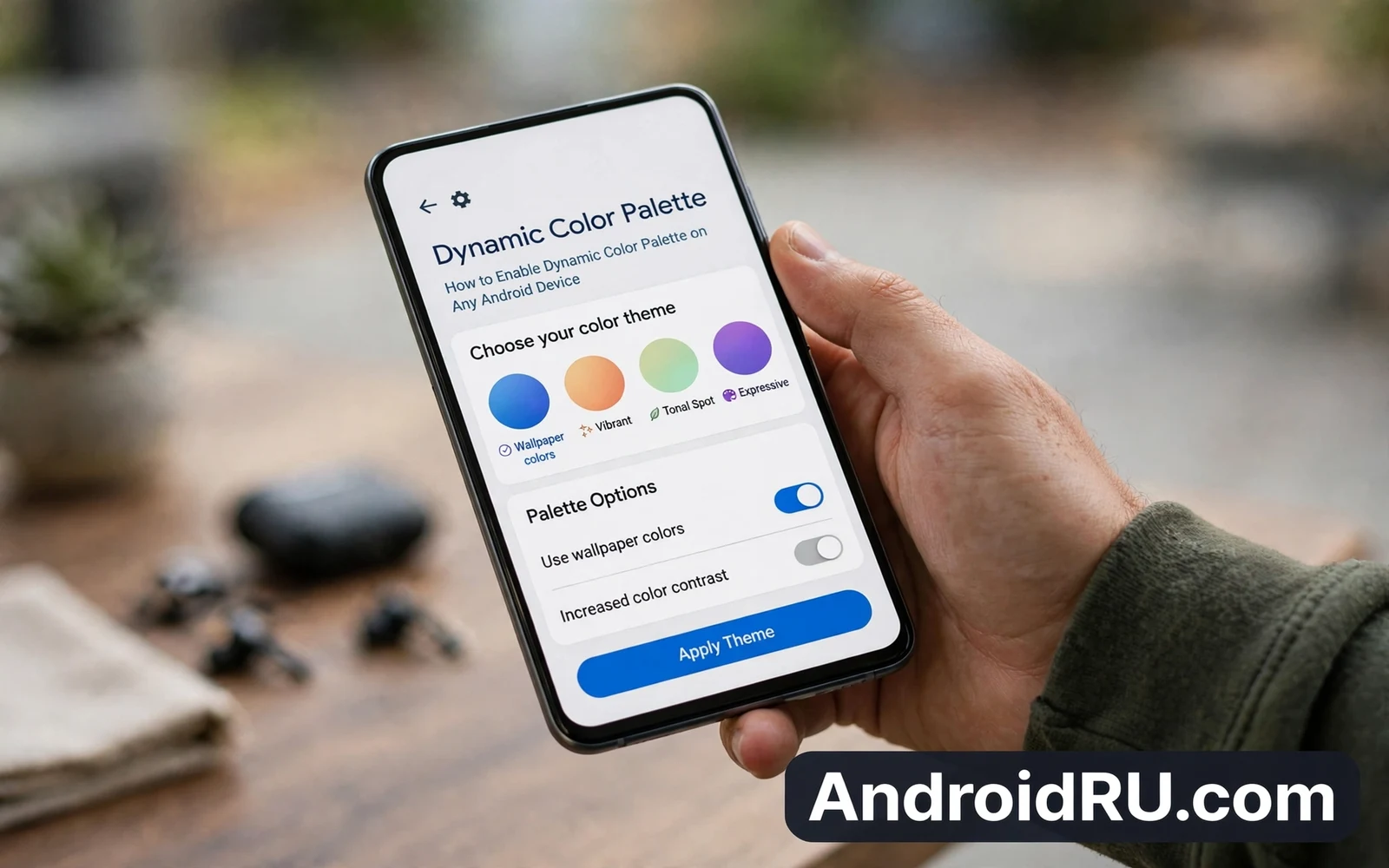
How to Enable Dynamic Color Palette on Any Android Device
Dynamic colour starts with your wallpaper. You pick an image that you love, the phone reads the main colours from that image, and it builds a palette of soft tones and strong accents. It applies those tones to buttons and menus and sliders, and it colours notification backgrounds and quick settings tiles. The whole phone starts to feel like it belongs to that wallpaper, and that feeling is the heart of dynamic colour on Android.
Not every phone shows the feature in the same place. Some phones offer it under wallpaper settings, some under display settings, and some only through a launcher or a theme app. The core idea stays the same across all of them: a wallpaper drives a palette and the palette drives the interface. This guide covers the built in path first, then the fallback paths for phones that hide the option.
Find the Built-In Colour Setting on Your Phone
Long press an empty spot on your home screen to open the wallpaper and style menu. A small menu should appear near the bottom of the screen, so tap the wallpaper option in that menu. Choose a wallpaper for the home screen or for both screens, and after you apply it look for a colour style option on the same screen. Some phones show colour dots right below the wallpaper preview, and tapping a dot set previews that palette across the interface.
When no colour dots appear, open the main settings app instead. Search settings for the word colour or theme, then open the wallpaper and style screen when it appears in results. That screen often holds both wallpaper choice and palette choice in one place. Pick a palette style and watch the preview update, then confirm your choice and return to the home screen. Buttons and tiles should already show the new tones.
Pick a Wallpaper With Clear Colours First
Before you start, pick a wallpaper with clear colours. A photo with one strong subject works better than a busy collage: a sunset with warm tones gives warm accents, an ocean photo gives cool blues and teals, and a portrait with a plain background gives clean neutral tones. Try two or three wallpapers and watch how the palette shifts, because that experiment teaches you more than any settings description can teach.
When the Colour Option Has a Different Name
Some phones name the feature differently. One maker may call it colour theme, another may call it wallpaper colours, and another may bury it under display and style. Search still finds it in most cases: type colour into settings search and open every result that mentions wallpaper or theme. The right screen usually shows a phone preview with coloured tiles, and that preview is your confirmation that you found the right place.
Use Wallpaper Colours on Phones That Hide the Option
A phone that lacks the built in option can still gain dynamic colour through other paths. A third party launcher can read wallpaper colours and theme its own interface, a theme app from the phone maker can offer palette packs that mimic the dynamic look, and a widget app can tint its widgets to match your wallpaper by hand. None of these paths changes every system menu, but each one still improves the parts of the phone that you see most often.
Start with the launcher when the system setting is missing. Install a launcher known for wallpaper based theming, apply your chosen wallpaper inside the launcher settings, and enable the launcher colour option that follows wallpaper tones. Check the app drawer and the home screen after you enable it. Icons may keep their own colours while backgrounds and folders follow the new palette, and that partial change still feels coherent when the wallpaper and the launcher agree.
Launcher Theming: The Best Fallback
Launchers such as Nova Launcher, Lawnchair, and Niagara Launcher offer wallpaper based theming in their settings. Enable the option, pick your wallpaper inside the launcher, and watch the app drawer and folders follow the palette. The system settings app will keep its own colours, but the home screen, which is where you spend most of your time, will feel themed.
Theme Apps and Widget Tinting
Theme apps offer a second fallback. Open the theme store that ships with your phone, search for themes that mention dynamic colour or wallpaper colour, and preview a theme fully before you apply it. A good theme changes system accents and quick settings tiles together, while a weak theme changes only icons and leaves menus untouched. Remove a theme quickly when it feels inconsistent, since your wallpaper stays in place while you try another theme.
Tune the Palette After You Enable It
Most dynamic palettes offer several style variants from one wallpaper. One variant may lean vivid and bold, another may lean soft and muted, and another may lean neutral with one accent. Try each variant for a full day before you judge it, because a palette that looks loud in a preview may feel calm in daily use, and a palette that looks dull in a preview may feel elegant across menus and apps.
Dark mode changes how a palette reads on screen. A warm palette can feel cosy in dark mode and bright in light mode, while a cool palette can feel crisp in light mode and deep in dark mode. Test your palette in both modes before you settle, switch modes in display settings or from quick settings, and watch notification cards and settings lists in each mode. Pick the combination that stays readable in sunlight and at night.
Style Variants: Vivid, Muted, and Neutral
Most phones offer four to six style variants per wallpaper. The vivid variant uses the strongest colours from the image, the muted variant softens them, and the neutral variant keeps one accent against grey tones. Try the muted variant first for daily work, since it stays readable in every app, and save the vivid variant for weekends when you want a fresh feel.
Themed Icons: Unity Versus Recognition
App icons deserve a separate check after you change the palette. Some launchers can tint icons to match the palette, and that themed icon option gives the home screen a unified look. It can also make some icons harder to recognise at a glance, so turn themed icons on for a day and watch whether you still find apps fast. Turn them off when recognition matters more than unity, because a palette should help you use the phone faster rather than slow you down.
Fix a Palette That Will Not Change
A palette that ignores a new wallpaper often needs a fresh apply of that wallpaper. Set the wallpaper again for the home screen and the lock screen together, restart the phone after you reapply it, and check the colour screen again after the restart. A restart clears a stuck theme process that may hold the old palette in memory, and the new palette should appear as fresh dots or as a fresh preview.
A launcher conflict can also block a palette change. A third party launcher may override system colours with its own theme, so switch back to the stock launcher briefly and test the palette there. When the palette works on the stock launcher then the third party launcher is the cause, so check that launcher for its own colour settings and disable its override or accept its palette as the one you will use.
When an Update or a Stuck Cache Blocks the Change
Storage and update faults rarely block colour changes, but they can delay them. A pending system update may hold a theme component at an old version, so check for a system update and install it when one waits. Clear the cache of the theme or wallpaper app only when other steps fail, since cache clearing keeps your wallpaper and your settings intact while removing temporary files that may hold a stale palette preview.
The Reapply and Restart Routine
Set the wallpaper again, restart the phone, and check the colour screen. That three-step routine fixes most stuck palettes in under two minutes. If it fails twice, the cause is almost always a launcher override or a pending update, so check those two next.
Match the Palette to Your Wallpaper Type
Photo wallpapers give the richest palettes because real scenes hold many tones. A forest photo yields greens and browns and soft light tones, a city photo at dusk yields blues and warm window tones, and a beach photo yields sand tones and sea tones. Let the photo lead and pick the variant that echoes its mood, because a palette that fights the photo feels restless while a palette that echoes the photo feels calm.
Illustrated wallpapers give cleaner palettes because art uses fewer colours. A flat illustration with three colours yields a crisp set of accents, and a gradient wallpaper yields smooth tones that shift gently across screens. Those clean palettes suit users who prefer a tidy interface, and they also suit users who find photo palettes too busy. Try an illustrated wallpaper when photo palettes feel loud.
Dark Wallpapers, Bright Wallpapers, and Seasonal Rotation
Dark wallpapers pair well with muted variants in dark mode, while bright wallpapers pair well with vivid variants in light mode. A mismatch can still work when you love contrast: a bright photo with a muted palette feels sophisticated, and a dark photo with a vivid palette feels dramatic. There is no single correct pairing, and the correct pairing is the one that stays pleasant after a week of daily use.
Change wallpapers with the seasons for a fresh feel without new apps. A spring photo brings fresh greens to menus, a summer photo brings warm light to tiles, an autumn photo brings deep tones to settings, and a winter photo brings cool calm to notifications. Seasonal rotation keeps the phone feeling alive, it costs nothing, and it takes less than a minute each time. A wallpaper change deserves a palette review the same day, so open the colour screen after you apply a new wallpaper and compare the fresh palette with the old one in settings lists and notifications.
Build a Look That Lasts Beyond One Wallpaper
A lasting look starts with a wallpaper that you will not tire of quickly. Pick an image with colours that calm you rather than colours that shout at you, pair it with a muted palette variant for daily work, and save a bolder variant for weekends when you want a fresh feel. Changing the palette takes seconds once you know the screen, and that ease lets you refresh the phone without rebuilding your whole setup. Lock screen shortcuts shape the same daily feel, and the customisation steps in How to Customize Your Android Lock Screen Shortcuts show how to place the tools you reach for most within one tap of waking the phone.
Build a Personal Home Screen Around Dynamic Colour
Dynamic colour works best as a habit rather than as a one time setup. Let the wallpaper lead and let the palette follow, and your phone will keep feeling new. Review your palette each time you change wallpapers, because a new photo deserves a fresh palette check, a seasonal photo deserves a seasonal palette, and a work focused wallpaper deserves a calmer palette. That small review keeps the phone feeling intentional rather than accidental.
Language settings shape the same personal feel in a different way, and the steps in How to Adjust App Languages Individually in Android show how to give each app its own language without changing the whole phone. The wider personalisation walkthrough in Material You Customization Guide: Transform Your Android UI ties wallpaper and palette and widgets into one coherent home screen plan. Together these guides turn a stock phone into a phone that feels made for you.
Widgets and Lock Screen Shortcuts That Match the Palette
Pick widgets whose colours follow the palette, and place the two shortcuts you use most on the lock screen. A widget that clashes with the palette breaks the feeling that the whole phone belongs together, while a matching widget makes the home screen feel designed. Keep the home screen to one page of essentials and one page of widgets, because a tidy home screen shows the palette at its best.
A Weekly Palette Review Takes Thirty Seconds
Once a week, glance at the palette in settings and in notifications and ask whether it still feels calm. If it feels loud, switch to the muted variant. If it feels dull, try the vivid variant for a day. That thirty-second review keeps dynamic colour feeling intentional rather than random, and it costs nothing.
Frequently Asked Questions About Dynamic Colour on Android
Why does my phone not have the dynamic colour option?
Dynamic colour needs Android 12 or newer, and some makers hide it under a different name or remove it from budget models. Check your Android version in Settings, then search settings for colour or theme. If the option is truly missing, a third party launcher with wallpaper theming gives you most of the same feeling on the home screen.
How do I change the palette without changing my wallpaper?
Open the wallpaper and style screen and pick a different style variant from the same wallpaper. Most phones offer four to six variants per image, so you can change the mood of the phone without changing the photo. The variant list appears as colour dots below the wallpaper preview.
Can dynamic colour drain my battery or slow my phone?
No. Dynamic colour is a one-time calculation when you apply a wallpaper, and it costs no battery or performance during daily use. The palette is stored as a set of colour values, and the system applies those values when it draws the interface. It is one of the cheapest personalisation features on the phone.
Why did my palette change back after an update?
System updates can reset theme settings, and a launcher update can re-enable its own colour override. Check the wallpaper and style screen after every major update, reapply your palette, and check the launcher settings if the palette still looks wrong. A quarterly review catches these resets before they annoy you.
Dynamic colour works best as a habit rather than as a one time setup. Pick a wallpaper with clear colours, find the colour screen on your phone, try each palette variant for a full day, and review the palette whenever you change wallpapers. Your concrete next step is simple: long press your home screen, open the wallpaper and style screen, and try the muted variant of your current wallpaper for one day. If the phone feels calmer by evening, keep it. If it feels dull, try the vivid variant tomorrow. That small experiment costs a minute and it makes the phone feel like yours.

