

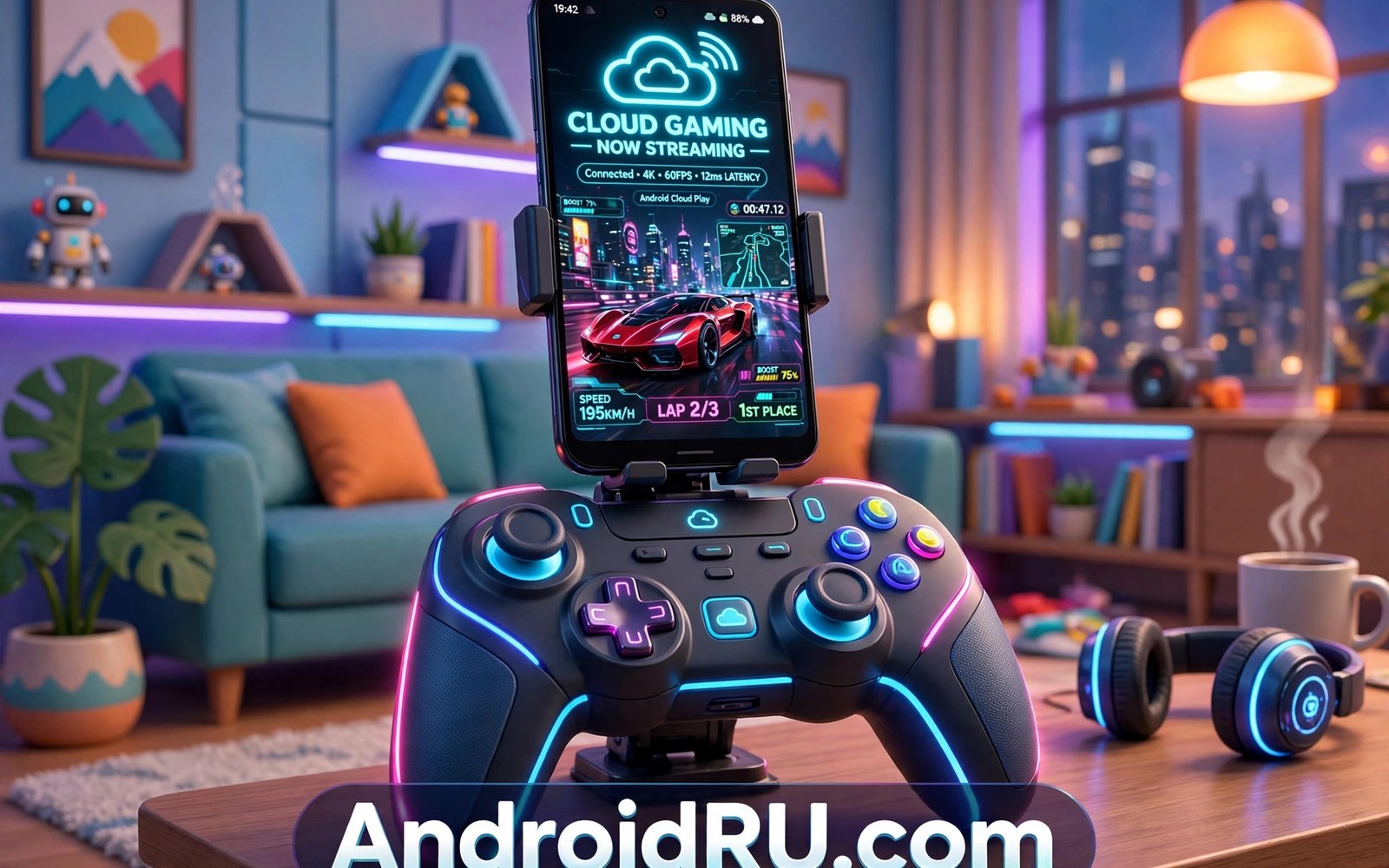
Xbox Cloud Gaming on Android turns your phone into a console that fits in your pocket. You do not download huge game files. You stream the game from a remote server and your taps and button presses travel back over the internet. The result feels close to local play when your connection is solid. It feels rough when your connection is weak. This review walks through setup and real performance so you know what to expect before you pay for a subscription.
Start with the basics. You need an Xbox Game Pass Ultimate subscription and the Xbox Game Pass app from the Play Store. You also need a phone that runs a recent Android version and a stable internet link. A controller helps a lot. Touch controls work for some titles but most console games were built for buttons and sticks. Pair a Bluetooth controller before your first session. That one step changes the whole experience.
How to set up Xbox Cloud Gaming on Android
Install the Xbox Game Pass app and sign in with your Microsoft account. Open the Cloud tab inside the app. You will see a library of games marked as cloud playable. Pick a game and tap Play. The stream starts in a few seconds on a good connection. Your saves sync through the cloud so you can stop on your phone and continue later on a console or a PC.
Pair your controller through Android Bluetooth settings first. Open Settings and then Connected devices. Put the controller in pairing mode and tap its name when it appears. Return to the Game Pass app and launch a game. Test the sticks and triggers in a menu before you start a match. A quick test saves you from a broken setup in the middle of a race or a fight.
Check your network before you judge the service. Run a speed test from the same spot where you plan to play. You want low latency more than raw speed. A 20 Mbps link with low jitter often beats a fast link that stutters. Sit closer to your router if you play on Wi-Fi. Close background downloads and video streams on other devices in your home.
Performance in real daily play
On a strong home Wi-Fi link the stream looks sharp and responsive. Menus feel instant. Single player adventures play well. Turn based games feel perfect because a few extra milliseconds never matter there. Fast shooters and fighting games demand more. You will notice input delay in those genres first. Competitive players should treat cloud play as a fun option rather than a replacement for local hardware.
Visual quality shifts with your connection. The stream drops resolution or adds compression when bandwidth falls. You may see soft textures or blocky patches during busy scenes. This is normal behavior for a video stream. It recovers when the link improves. A wired style setup is not possible on most phones but a 5GHz Wi-Fi band gets you closer to that stability than a crowded 2.4GHz band.
Battery use is lower than native gaming in many cases. Your phone decodes video instead of rendering a full 3D world. The screen and the radio still drain power though. Expect a warm phone after a long session. Lower screen brightness a little and you gain real extra minutes. A short charging cable nearby removes all worry on long trips.
Controllers and touch controls
A good controller is the best upgrade you can buy for cloud gaming. Clip style mounts hold your phone above the controller and keep the setup compact. Many Xbox controllers pair directly over Bluetooth. Third party pads built for phones often add better grips and lower latency modes. Try the controller you already own first. Buy a dedicated mobile pad only if your current one feels awkward.
Touch controls deserve a fair test too. Some games include custom touch layouts with virtual sticks and buttons. These layouts work for slower games and for short sessions. They struggle in fast action because your thumbs cover the screen. They also lack the fine control of a stick. If you play without a controller then pick games designed for touch or games with simple inputs.
For players who want a deeper comparison of pads and mounts, the notes on best gamepads for cloud streaming cover comfort and latency in plain terms. The right pad makes long sessions far more comfortable than a bare phone grip ever will.
Network tips that actually help
Use the 5GHz band on your router when you can. It offers more speed and less interference in most homes. Stay in the same room as the router for the best result. Walls and floors weaken the signal and raise latency. If your router supports it then turn on a gaming or low latency mode. These modes do little magic but they can reduce buffer delays.
Mobile data can work well on a strong 5G signal. Watch your data plan though. Cloud streams use several gigabytes per hour at high quality. A capped plan will run dry fast. Use Wi-Fi for long sessions and save mobile data for short bursts. Test one full session on mobile data before you rely on it for a trip.
Restart your router if streams suddenly degrade. Routers run for weeks and their performance can sag. A fresh restart clears stale states. Also restart your phone from time to time. A clean phone runs fewer background tasks and gives the stream a clearer path.
Code you can run to check your connection
The small script below checks latency to a public test host and prints a simple verdict. Run it on a computer on the same network to get a rough sense of your link quality before a session.
import subprocess
import statistics

host = "8.8.8.8"
result = subprocess.run(
    ["ping", "-c", "20", host],
    capture_output=True, text=True
)
times = []
for line in result.stdout.splitlines():
    if "time=" in line:
        ms = line.split("time=")[1].split(" ")[0]
        times.append(float(ms))
if times:
    print("Samples:", len(times))
    print("Average ms:", round(statistics.mean(times), 1))
    print("Worst ms:", round(max(times), 1))
    if statistics.mean(times) < 30 and max(times) < 80:
        print("Verdict: good for cloud gaming")
    else:
        print("Verdict: expect noticeable delay")
else:
    print("Ping failed. Check your network first.")
This snippet is an original adaptation of a common network check pattern. It is included here so you can measure your own link before you blame the game or the service for lag.
Common mistakes
Many players judge the service on a weak hotel Wi-Fi link and quit too early. Public networks often throttle video and add delay. Test at home first where you control the router. Another common mistake is playing with a low phone battery and power saving mode on. Power saving throttles the processor and the radio. That adds stutter that looks like stream lag.
Some players forget to update the Game Pass app. Old app versions can carry bugs that hurt stream quality. Update the app and your phone software before a long session. Others pair a controller but leave an old Bluetooth device connected. That old device can fight for the link and cause input drops. Disconnect gadgets you are not using.
A final mistake is picking the wrong game for a first test. A fast shooter on a shaky link feels terrible. Start with a slower adventure or a racing game with forgiving controls. You will learn the real feel of the service without frustration. Then move to faster titles once your setup proves itself.
Advanced Xbox Cloud settings worth trying
Stream quality settings inside the Game Pass app deserve a closer look once basic setup works. The app may choose quality automatically based on your link. Manual control helps when automatic choice jumps around. Set a fixed quality level that matches your usual link. A stable medium stream beats a jumping high stream for most players. Test each level for a full session before you settle. Short tests hide problems that appear after twenty minutes of play.
Controller vibration settings also shape feel more than players expect. Strong vibration drains controller battery and can mask small input cues. Medium vibration gives feedback without fatigue. Turn vibration off for puzzle and story games where it adds little. Keep it on for racing and action games where impacts carry information. Small tweaks like this add up across a long evening of play.
Clarity boost and similar enhancement options may appear on supported devices. These options sharpen stream edges using device processing. They can improve text readability in menus and HUD elements. They can also add slight processing delay on weaker phones. Try the option on and off with the same game scene. Keep it only if the sharper picture clearly outweighs any added softness in response.
Playing Xbox Cloud on the go
Travel sessions need different habits than home sessions. Pack a phone clip and a charged controller before you leave. Download nothing large over mobile data before play. Close maps and social apps that wake the radio often. A clean phone holds a stream better on a moving train. Sit near a window when possible because signals penetrate vehicles unevenly.
Choose games for travel that tolerate brief freezes. Story adventures and turn based titles survive a tunnel without stress. Competitive matches do not. A freeze during a ranked match costs progress and mood. Save ranked play for home Wi-Fi. Travel play should stay relaxed and forgiving. That mindset turns dead time into fun time.
Plan charging for travel days with care. A controller and a phone drain together on long trips. A compact power bank with two outputs covers both. A short cable keeps the bag tidy. Charge everything the night before travel. A dead controller at a station leaves you with touch controls only. That fallback works for slow games but not for action titles.
FAQ
Do I need an Xbox console to use Xbox Cloud Gaming on Android?
No console is required. A Game Pass Ultimate subscription and the app are enough. Your saves live in the cloud. You can play on your phone alone and never touch a console.
How much data does an hour of cloud gaming use?
Expect roughly 3 to 7 gigabytes per hour at high quality settings. Lower quality streams use less. Wi-Fi is the safe choice for long sessions. Mobile data works for short play only unless your plan is generous.
Can I play with touch controls only?
Yes for supported games. The app shows touch friendly titles clearly. Touch works best for slow games and short sessions. A controller remains the better choice for action games and long play.
Players who want smoother sessions should also weigh controller comfort and link quality together. The notes on best gamepads for cloud streaming cover pads that reduce hand strain during long play. The breakdown of bandwidth needs for lag free cloud gaming explains what your connection must hold steady. The study of input latency across cloud platforms shows why total delay differs from service to service.
Conclusion
Xbox Cloud Gaming on Android is a strong option for players who want console games without console hardware. Setup takes minutes. Performance depends mostly on your network and your controller. Test your link at home first. Pair a controller you trust. Start with a slower game and learn the feel of the stream. Your next step is simple. Open the Game Pass app tonight and run one full session on your best Wi-Fi link before you decide if the service earns a place in your daily routine.

