

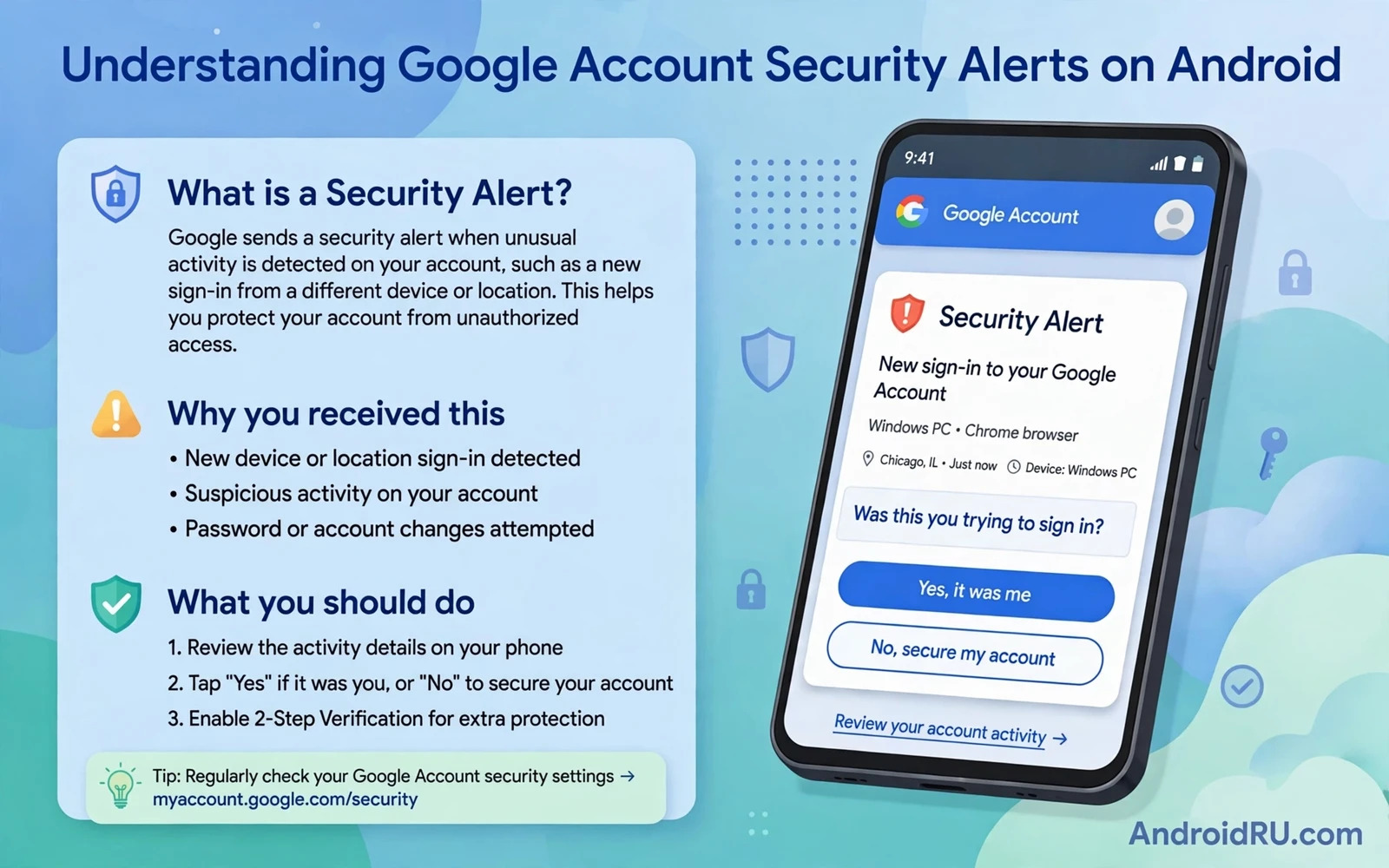
A Google account security alert is a warning that something unusual happened with your account or that a security setting changed or that a new device signed in. Alerts arrive by email and by notification and inside your Google account security pages. Their purpose is to give you a fast chance to confirm legitimate activity or to block illegitimate activity before damage spreads. Treating every alert with calm and methodical checking beats both panic and ignoring the warning entirely.
Most alerts fall into a small set of categories that you can learn to recognise. New sign in alerts report a device and a location and a time. Security setting change alerts report a password change or a recovery option change or a two factor change. Suspicious activity alerts report sign in attempts that Google blocked or patterns that look unlike your normal behaviour. Critical security alerts report activity that Google considers high risk and that needs immediate review. Learning those categories lets you judge urgency correctly instead of treating a routine travel sign in like a full compromise.
This guide explains what each alert type means and how to verify an alert without clicking a dangerous link and how to respond when activity is genuinely yours and when it is not. You will also learn why some legitimate actions trigger alerts and how to reduce false alarms without weakening protection. The central rule is simple. Never act on an alert through a link inside the alert message itself. Always verify through your account security pages opened independently.
New Sign In Alerts And Travel False Alarms
A new sign in alert appears when a device signs into your Google account for the first time or after a long gap or from a new location. The alert lists the device type and the approximate location and the time of sign in. Compare those details with your own activity before reacting. A sign in from a hotel city during your holiday is expected. A sign in from a distant country while you sit at home is not expected. A sign in on a device model that you have never owned is a strong warning even when the location looks familiar.
Travel and VPN use cause many false alarms because they change the apparent location of a legitimate sign in. A VPN exit node in another country can make your own phone appear to sign in from abroad. A new phone signed in during setup can trigger an alert even though you performed the setup yourself. Mark legitimate activity as recognised inside your account security pages when Google offers that option. That feedback helps future alerts reflect your real patterns more accurately without disabling the alert system.
Security Setting Change Alerts
A security setting change alert reports a change to your password or recovery email or recovery phone or two factor method. Those changes matter because an attacker who gains brief access often changes recovery options first to lock you out later. Treat any recovery change that you did not make as an emergency even when no other suspicious activity appears. Open your account recovery settings independently and restore your own recovery email and phone immediately and change your password from a trusted device.
Legitimate setting changes also trigger alerts and they deserve the same independent verification habit. Changing your own password on a new phone should produce an alert and that alert confirms that monitoring works. The difference between a legitimate change and an attack lies in whether you initiated it and whether the new recovery details belong to you. Check the actual recovery values rather than merely reading the alert summary. An alert summary can confirm that a change happened while hiding that the new recovery email belongs to a stranger.
Suspicious Activity And Blocked Sign In Alerts
Google blocks some sign in attempts automatically when the attempt looks clearly illegitimate. A blocked attempt alert tells you that protection worked but it also tells you that someone tried your credentials or tried to bypass verification. Change your password when you receive a blocked attempt alert for an account that holds email or banking or cloud data. A blocked attempt proves that your password or your username attracted attention and a stronger password plus stronger verification reduces the chance that a later attempt succeeds.
Repeated blocked attempts deserve extra attention because they may signal a targeted attack or a credential leak. Check whether your password appeared in a known breach by using a reputable breach checking service and change the password on every service where you reused the same password. Reuse turns one leaked password into many compromised accounts. A unique password for your Google account is especially important because that account can reset passwords for many other services.
How To Verify An Alert Without Clicking Links
Phishing messages imitate security alerts precisely because fear makes people click quickly. A fake alert email may carry Google branding and urgent language and a button that leads to a credential harvesting page. Never click a security link inside an email or a text message even when the message looks genuine. Open a browser yourself and type the account address manually or open the Google app and open account security settings from inside the app. Compare the alert inside your account with the message that you received. A real alert appears in both places. A fake alert appears only in the message.
Check the sender address and the message details carefully but do not rely on appearance alone because attackers can spoof display names. A genuine Google security notification will also appear in your account security activity timeline. If the timeline shows no matching event then treat the message as suspicious and report it as phishing inside your email app. Forwarding or clicking a suspicious alert can expose you further so containment matters as much as verification.
Responding When Activity Is Not Yours
When you confirm activity that is not yours act in a clear order that locks the attacker out before you investigate further. Change your password from a trusted device that you know is clean. Sign out of all other sessions from your account security pages so that existing attacker sessions end. Review and restore recovery email and recovery phone values. Review connected devices and remove unknown devices. Review third party app access and revoke access for apps that you do not recognise. Each step removes a persistence path that an attacker might use to return.
After lockout review account activity for damage such as sent emails or changed settings or new filters or forwarding rules that an attacker may have created. Email filters that forward mail to a stranger are a classic persistence trick because they survive a password change. Check Gmail filters and check Drive sharing and check connected app permissions thoroughly. Report the compromise through Google account recovery help if you lost access at any point. Keep a note of the alert times and device details because that timeline helps support and helps you recognise repeat attempts.
Alert response continues into full recovery so study enabling two-factor authentication across apps before an incident and keep signs your Android phone is hacked and how to fix it beside this guide while locating and remotely wiping a lost Android phone covers device loss that often triggers account alerts.
- Verify every alert inside your account security pages rather than through message links
- Treat any recovery option change you did not make as an emergency
- Change your password after a blocked sign in attempt on a high value account
- Mark legitimate travel and VPN sign ins as recognised to reduce false alarms
- Check email filters and third party access after any confirmed compromise
Reducing False Alarms Without Weakening Alerts
False alarms frustrate users into ignoring real warnings so reducing them matters for security itself. Mark legitimate travel sign ins as recognised inside your account security pages whenever Google offers that option. Review trusted devices regularly and remove old devices that you no longer own because stale trusted devices create confusing alert patterns. Keep your recovery information current so that legitimate recovery actions do not trigger additional suspicious activity flags.
Separate everyday browsing from high value account activity where practical. Use a dedicated browser profile or a dedicated device for banking and for Google account security changes. That separation reduces the chance that a casual sign in from an unusual network triggers an alert for your most important account. It also makes genuine alerts easier to recognise because high value activity follows a narrower and more predictable pattern than general browsing.
Create a personal alert response card that you can follow without thinking during stress. List the steps of independent verification and password change and session revocation and recovery check in plain order. Store that card outside the phone itself so that you can follow it even when the phone is lost or compromised. A written plan prevents the two most common alert mistakes which are clicking a message link in panic and ignoring a real warning because it resembles a previous false alarm.
Security Alerts And Account Recovery Codes
Account recovery codes deserve storage planning alongside alert response because a compromised account may need recovery when password change alone fails. Generate recovery codes inside account security settings during a calm period and store them in a password manager and on paper in a safe place. Recovery codes bypass two factor authentication by design so guard them as carefully as passwords themselves. Never store recovery codes inside the same mailbox that they protect because an attacker inside that mailbox would find them immediately.
Test recovery code use in a safe way by confirming that codes exist and that you can locate them quickly without searching through clutter. Do not consume a code unnecessarily during testing because each code typically works once. A quick location test proves accessibility without wasting a code. Update recovery codes after a compromise because an attacker may have copied them during the incident window. Fresh codes after an incident restore a clean recovery path.
Google account security alerts work only when you read them calmly and verify them independently and act in the right order. Learn the alert categories and recognise travel false alarms and never trust a link inside an alert message. That discipline turns alerts from a source of anxiety into an early warning system that catches real attacks while they are still reversible.

