

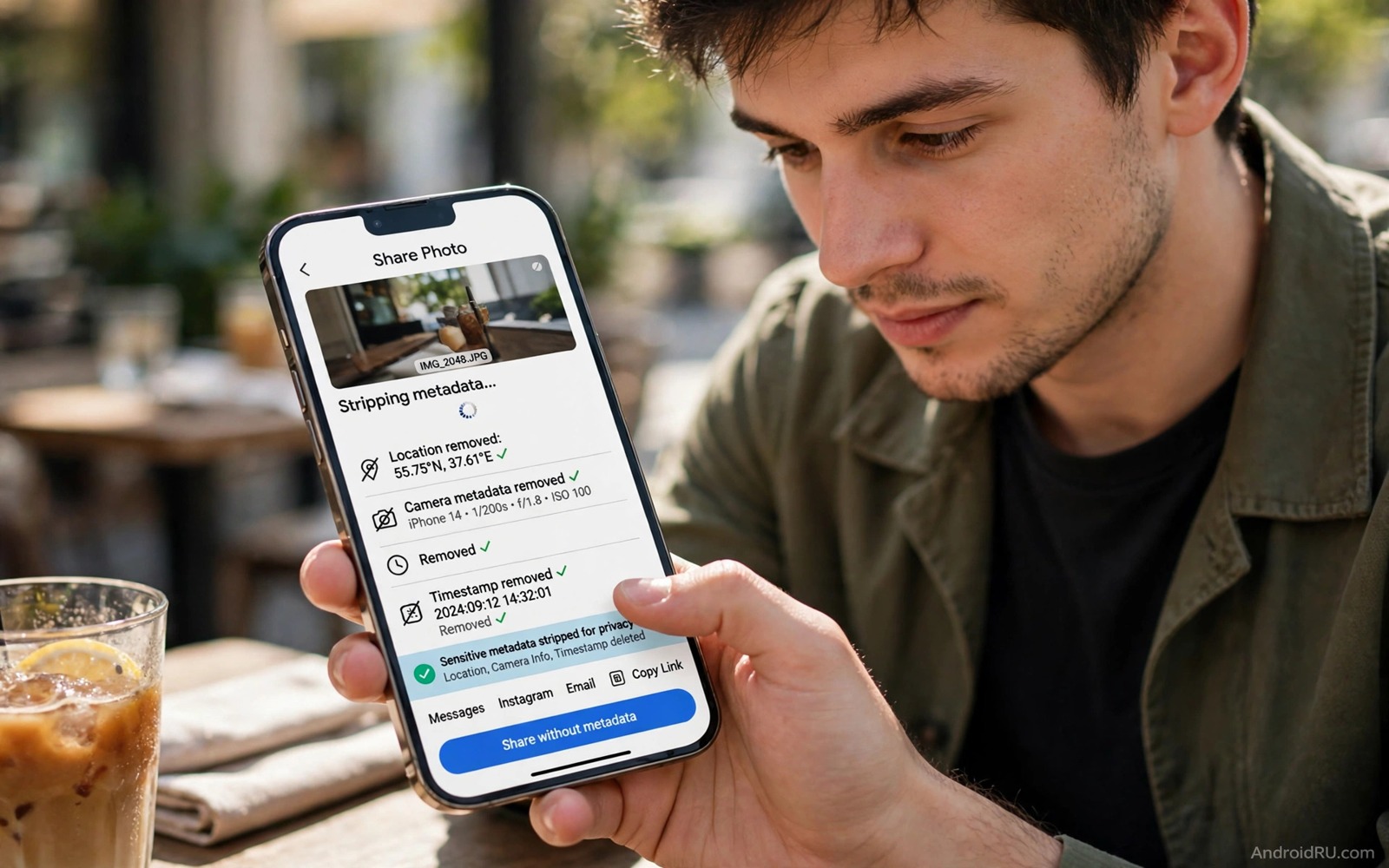
Every photo you share carries more than the image you see. Hidden metadata called EXIF can include the exact location where the photo was taken and the time and the camera model and sometimes the device serial details. A stranger who downloads your photo can read that data in seconds with a free tool. A single holiday photo can therefore reveal your home address or your travel pattern without you saying a word.
Most people share photos without checking this hidden layer because phones add the data silently. The camera writes location data when location permission is on and it writes timestamps by default. Social apps sometimes strip this data on upload but many messaging apps and email attachments keep it intact. You cannot rely on the receiving app to protect you.
This guide shows how to remove EXIF data before you share a photo and how to stop your camera from recording location in the first place. The steps work on most Android phones and they take less than a minute once you build the habit. You will keep the photo itself unchanged while the hidden details stay private.
Understand what EXIF actually reveals
EXIF is a small block of information stored inside the image file alongside the pixels. It can hold GPS coordinates with enough precision to identify a single house. It can hold the date and time down to the second. It can also hold the phone model and the lens details and the software version used to process the photo.
That combination is powerful in the wrong hands. A series of photos over weeks can map your daily routine and your workplace and your favourite places. A photo of a child at school can reveal the school location if GPS data remains attached. Even a photo of a meal at home can reveal where you live when the coordinates point to your kitchen table.
Check a photo yourself to see how much it holds. Open the photo details in your gallery app and look for location and device information. The same caution applies to sensors in general and you can start that wider check with stopping apps from getting camera permission and securing sensors before you share anything sensitive. If you see a map pin or coordinates then that data will travel with the file when you share it through many channels. Seeing the data once makes the risk concrete and it motivates a regular cleaning habit.
Turn off location tagging in the camera
Open your camera app and go to its settings and look for location tags or save location or geotagging. Turn that option off so that new photos do not record GPS coordinates at all. This change does not affect photos you already took. It only protects future photos from carrying location data from the start.
Also check the system location permission for the camera app. Set it to allow only while using the app if you need location for another camera feature. Better still deny location to the camera entirely unless you actively use a map feature that depends on it. A camera does not need to know where you are in order to take a good photo.
Remember that other apps can add location in different ways. A social app that tags your post location is not the same as EXIF data but it reveals the same fact. Keep post location off by default and add it manually only when you truly want people to know where you are. That separation between photo data and post data keeps you in control of both.
Strip EXIF before you share
Use a metadata removal tool or a trusted photo editor that offers a strip metadata option before you send a photo outside a private circle. Open the photo in the tool and choose the remove metadata or clean file option and then save a new copy. Share the cleaned copy and keep the original with its metadata in your private gallery if you want the location record for yourself.
Test the cleaned copy before you trust the tool. Send it to yourself through the same channel you plan to use and then check its details on the receiving device. If location still appears then try a different tool or a different export method. A screenshot of the photo is a last resort because it creates a new image without the original metadata but it also lowers quality and crops the frame.
Be extra careful with photos shared by email or by direct file transfer because those channels usually preserve the original file. Social feeds often strip metadata during upload but you should not depend on that behaviour. Clean the file yourself so that the protection travels with the photo no matter which app delivers it. That habit also protects you when a friend forwards your photo to someone else without asking.
Clean old photos in batches
Old photos in your gallery may still carry location data from trips and events and family gatherings. You do not need to clean every photo at once. Start with photos that you plan to share publicly or that show children or homes or workplaces. A batch cleaning tool can process a whole album in a few minutes while you keep the originals in a separate private folder.
Label the cleaned folder clearly so that you do not mix cleaned and uncleaned copies later. A simple name such as share ready helps you pick the right file quickly. Delete uncleaned copies from shared albums and cloud folders that other people can access. A cleaned copy in a private folder is useless if an uncleaned copy still sits in a public album.
exiftool -all= -overwrite_original photo.jpg
# Remove all metadata from a copy of the photo
# Verify the result before sharing the file
# Keep the original only in private storage
The commands above are an original example written for this guide to show a desktop style metadata removal workflow. They remove all metadata fields from the named file and overwrite that copy in place. Always run such a command on a copy rather than on your only original and verify the cleaned file before you share it anywhere.
Seasonal sharing creates a second risk because holiday albums often group many location tagged photos together in one post. A single album can reveal a whole trip route from airport to hotel to home again. Review an album as a set rather than photo by photo and clean every image in the set before you publish it. That set level review takes only a few extra minutes and it stops a route from emerging out of individually harmless photos.
Common mistakes
One common mistake is assuming that cropping a photo removes its location data. Cropping changes the pixels but it leaves the metadata block untouched in most editors. Another mistake is trusting a social app to strip data and then sending the same photo by email where the data survives. A third mistake is cleaning the photo but posting the location in the caption anyway which defeats the whole effort.
People also forget that screenshots of maps and receipts and tickets can reveal location and identity through visible text rather than through metadata. Check the visible content of a photo as carefully as its hidden data. Blur house numbers and plates and tickets before you share. Visible details can be just as revealing as GPS coordinates and they cannot be removed by a metadata tool.
Another error is leaving location permission on for the gallery or for a backup app that syncs originals to a shared account. A backup that preserves originals is useful for your own archive but it becomes a risk when that account is shared with family or with a work profile. Review backup settings alongside camera settings and keep originals in an account that only you control. That review fits naturally with securing cloud backups saved on Google Drive storage for the long term.
FAQ
Does removing EXIF lower photo quality?
Removing metadata alone does not change the pixels and it does not lower resolution or colour quality. The image should look identical after cleaning because only the hidden information block changes. Quality drops only when you use a method that recompresses the image such as taking a screenshot or exporting at a lower size. Choose a tool that strips metadata without recompressing when quality matters.
If a tool does recompress then compare the cleaned file size with the original before you share. A large drop in size often signals recompression. For casual sharing that drop may not matter. For printing or for archiving choose a lossless metadata removal method instead.
Can someone recover EXIF after I remove it?
No one can recover metadata from a properly cleaned file because the information is no longer stored inside it. Recovery becomes possible only when an uncleaned copy still exists somewhere else such as in a cloud backup or in a message thread. That is why cleaning the file you share is not enough on its own. You must also control where uncleaned copies live.
Check old message threads and shared albums for uncleaned versions of sensitive photos. Replace them with cleaned copies when the platform allows editing. When replacement is impossible consider deleting the old message or album entirely. Prevention works best when you clean photos before the first share rather than chasing copies afterwards.
Should I strip metadata from every photo?
Strip metadata from any photo that leaves your private circle or that shows a sensitive location or a child. Keep metadata on photos that stay in your private archive because location and time can help you organise memories later. The key is to separate a private original from a share ready copy. That separation gives you both organisation and privacy without extra work.
Photos of public landmarks and events carry less risk but cleaning them still costs almost nothing once you know the steps. Make cleaning a default step for public posts and a selective step for private shares with trusted people. A consistent habit beats a perfect rule that you forget to follow and it works well alongside passcode protecting any Android photo album for photos that stay on the device.
Conclusion
EXIF data turns a simple photo into a location record and a timeline. Most people never see that record because it hides inside the file. Once you know it exists you can remove it in seconds and stop your camera from adding it in the first place. That small habit protects your home and your family and your daily routine.
Your concrete next step is to turn off location tagging in your camera app tonight and clean the next three photos you plan to share before you send them. Save the cleaned copies in a share ready folder and use only those copies for public posts. That routine will become automatic within a week.

