

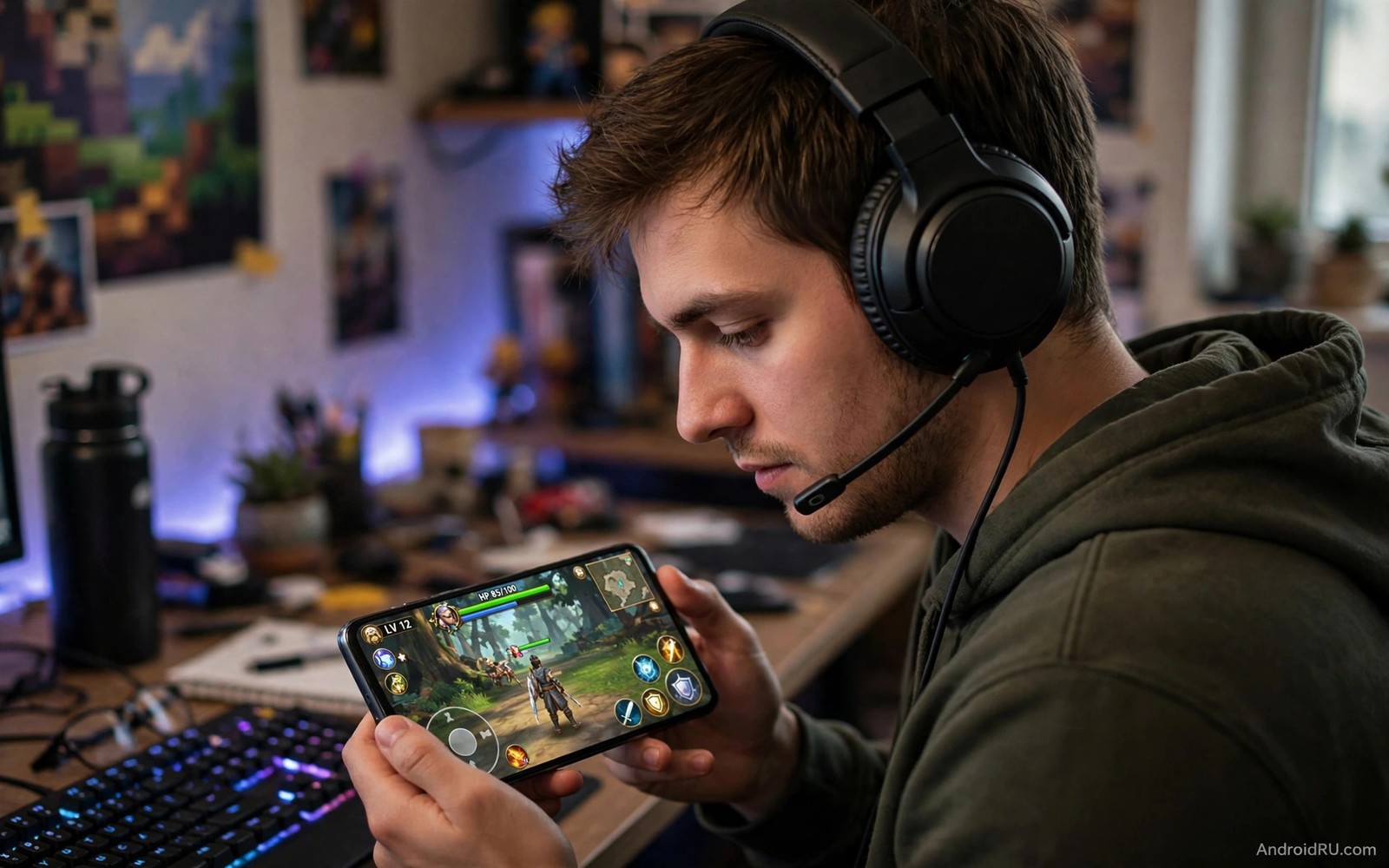
Audio lag ruins gaming reactions. A gunshot that sounds a fraction late breaks immersion. A footstep that arrives after the enemy appears gives no warning. Latency is the delay between a game event and the sound that reaches your ears. Lower latency means faster and fairer gameplay.
Bluetooth is the largest source of lag for most players. Wireless audio must encode and transmit and decode sound before you hear it. That chain adds delay that wired audio avoids. The codec choice can change the delay greatly. A low latency codec can feel responsive while a high quality codec can feel sluggish.
This guide covers the settings that matter most. You will learn how game mode helps. You will learn which codec to choose. You will learn when wired audio is the honest answer. Each step is tested with a real game rather than a menu label.
Measure lag before you change settings
Play a game with a clear visual and sound pair. A jump or a shot with an instant visual flash works well. Watch the flash and listen for the sound. Note whether the sound feels tied to the action or slightly behind it. That feeling is your baseline.
Test with the phone speaker first. The speaker has the lowest latency because it avoids wireless encoding entirely. If the speaker feels in sync then the game itself is fine. The lag you feel on headphones comes from the wireless chain rather than the game.
Test each headphone and codec change with the same game scene. A fixed scene makes small latency changes easier to notice. Changing games between tests hides the effect because each game has its own audio timing.
Turn on game mode and performance settings
Game mode on many phones prioritises the game process and reduces background work. That priority can reduce audio stutter and timing drift. Open game settings or the game dashboard and confirm that performance mode is active for your game.
Close background apps that use audio or network heavily. A music app running in the background can compete for audio resources. A large download can also cause timing jitter. A clean game session gives the audio chain the best chance to stay in sync.
Disable battery saver during gaming tests. Battery saver can throttle the processor and delay audio processing. Test with the charger connected and battery saver off. If lag disappears then power management was part of the problem.
Choose a low latency Bluetooth codec
Open developer options while the headphones are connected. Look for the Bluetooth audio codec entry and note the current choice. Some codecs prioritise quality over speed. Others prioritise speed over detail. Gaming needs speed first.
Select a low latency codec if your headphones support one. Test a full match or level after the change. Listen for footsteps and shots rather than music quality. A codec that sounds slightly less rich yet stays in sync is the better gaming choice.
Keep the phone close to the headphones during play. Distance weakens the link and can increase delay and dropouts. A phone on the desk beside you gives a stronger link than a phone in a bag across the room. A secret setting for low Bluetooth headphone volume also affects how the phone and headphone negotiate their link.
Use wired audio for competitive play
Wired headphones or a USB audio adapter give the lowest latency available on a phone. The signal travels directly without wireless encoding. Competitive players should treat wired audio as the default rather than a fallback. The difference is easy to feel in fast games.
Choose a simple wired headset with a short cable for mobile play. A long cable tangles and a complex adapter can add its own delay. Test the wired setup with the same game scene used for Bluetooth. The improvement should be obvious at once.
For capture and streaming the audio path matters even more. Internal game audio must stay in sync with video for a watchable recording. A guide to capturing clean internal game audio without mic noise explains how to keep that recording path clean.
Reduce in game audio processing
Some games offer audio quality and surround options. A high quality surround mode can add processing delay on a phone. Choose a stereo mode for competitive play and reserve surround for casual story games. Stereo gives clearer direction cues with less processing.
Lower the number of simultaneous sound channels if the game allows it. A simpler mix reaches your ears faster. Turn off extra reverb or echo effects that the game adds for atmosphere. Those effects sound rich yet they can blur timing.
Game mode: performance mode on
Background apps: closed before play
Codec choice: low latency codec if supported
Competitive setup: wired headphones
In game audio: stereo mode for fast games
The checklist above is an original illustration created for this guide. It uses only general gaming audio practice and standard Android setting names. It orders the fixes from simple software changes to the wired solution that gives the lowest latency.
Optimise the phone for gaming sessions
A gaming session needs a cool phone and a stable network as well as low latency audio. Heat can throttle the processor and cause audio timing drift during long play. Remove a thick case during competitive sessions if the phone runs hot. A cooler phone keeps audio and video in sync longer.
Charge the phone before a ranked session rather than during it when possible. Charging adds heat and a cable can tug the phone during play. A full battery gives a stable session without cable interference. If charging is unavoidable use a short cable and a stable surface.
Turn off automatic updates during gaming. An update download can spike network use and cause stutter. Schedule updates for after the session. That simple habit protects both network timing and audio timing during play.
Choose headphones for gaming comfort
Gaming headphones must stay comfortable for an hour or more. A tight headband or a hot ear pad distracts from the game. Comfort affects performance because discomfort pulls attention away from sound cues. Test headphones for a full session before a tournament.
Sound isolation also matters for gaming. A good seal blocks room noise and lets you hear quiet footsteps at lower volume. Isolation protects hearing while improving cue detection. That combination is more valuable than a louder maximum volume.
For clean recordings of gameplay read about capturing clean internal game audio without mic noise. That guide keeps recorded game sound pure. It pairs with the live latency work in this article.
Test latency with different games
Latency varies by game because each audio engine buffers sound differently. A simple puzzle game may feel instant while a complex shooter may lag more. Test your headphone setup across two games before judging it. A setup that fails in one game may work well in another.
Use the same game scene for each headphone test. A fixed scene with a clear shot sound gives a reliable sync point. Changing scenes between tests hides small latency changes. A fixed scene makes the comparison honest and repeatable.
Check game updates for audio timing changes. An update can alter buffering and change latency overnight. If lag appears suddenly after an update then check the game patch notes. A known audio issue may already have a fix in progress.
Keep a note of the best codec and connection for each main game. A competitive shooter may need wired audio while a casual game works fine on Bluetooth. Per game notes prevent repeated testing each time you switch games. That record saves time over a long gaming season.
For voice clarity during team play read about five hacks that improve microphone sound quality on calls. Clear team voice matters as much as low latency game sound. Both habits together improve competitive performance.
Keep audio drivers and game apps updated
Game audio timing can improve with app and system updates that fix buffering bugs. Check for game updates before a competitive session. An outdated game may carry a known audio lag issue that a patch already fixes. Updating first is a simple performance step.
System updates can also change Bluetooth codec handling. Test latency again after a major system update. A codec reset can reintroduce lag that you previously fixed. A quick recheck after updates keeps gaming audio at its best.
Common mistakes
The most common mistake is buying expensive headphones to fix lag. A premium headphone with a high quality codec can lag more than a cheap wired pair. Price does not guarantee low latency. Codec and connection type matter more than brand or cost.
Another mistake is testing lag with music only. Music has no precise visual sync point so lag is hard to judge. Test with a game action that has an instant flash and sound. That test reveals delay that music hides.
People also forget to retest after a phone update. An update can reset the codec or disable game mode. Check those settings after a major update if lag returns suddenly. A quick recheck often restores the previous performance.
Frequently asked questions
Can Bluetooth ever match wired latency?
Modern low latency codecs come close for casual play. They rarely match wired audio for competitive timing. A wired connection remains the reference for the lowest delay. Use Bluetooth for casual sessions and wired audio for ranked play.
Why does lag change between games?
Each game has its own audio engine and buffering. A game with heavy audio processing will lag more than a simple game. The headphone codec adds delay on top of the game delay. Test settings per game rather than assuming one profile fits all.
Does game mode really reduce audio lag?
Game mode helps mainly by reducing stutter and background competition. It does not remove Bluetooth encoding delay on its own. Combine game mode with a low latency codec or wired audio for the best result. Game mode alone is only part of the fix.
Conclusion
Low latency gaming audio comes from a short clean chain. Use game mode and close background apps. Choose a low latency codec for casual play. Switch to wired audio for competitive play and keep in game audio simple.
Your concrete next step is to test one fast game scene today with the phone speaker and then with your current headphones. Note the difference in timing. If Bluetooth lag remains then try a wired headset for your next ranked session and read about capturing clean internal game audio without mic noise for recordings.

