

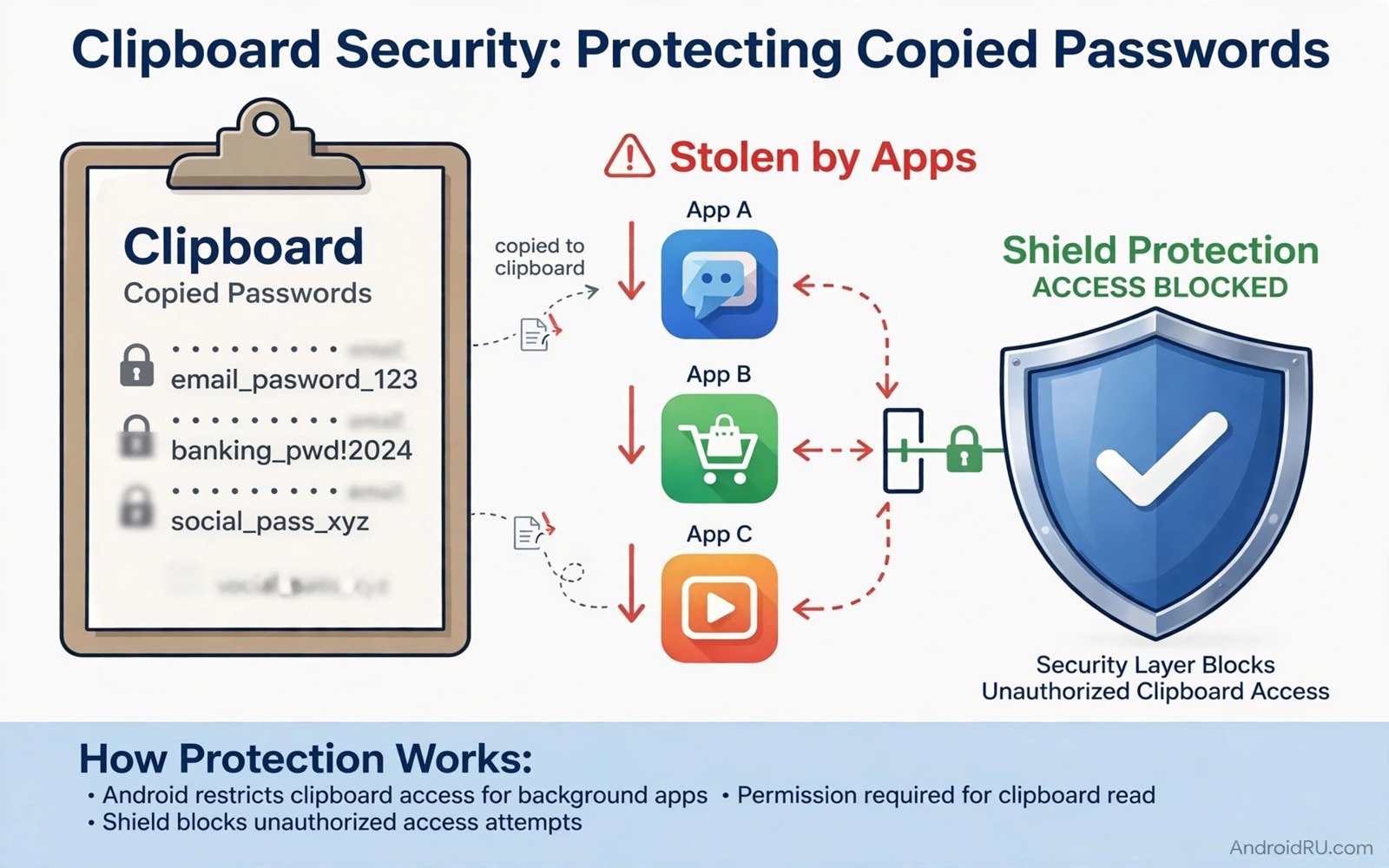
Your clipboard holds whatever you last copied including passwords and addresses and private messages. Android apps can read that clipboard in certain situations. An app that reads the clipboard at the wrong moment can steal a password that you copied from your manager. That risk is easy to overlook because copying feels like a private act.
Modern Android versions limit clipboard access for background apps but the risk has not vanished. An app in the foreground can still read clipboard content when you switch to it. A malicious app can also prompt you to paste into a fake field. Understanding those paths helps you protect copied secrets.
This guide shows how apps steal copied passwords through the clipboard and how to stop them. It covers clipboard settings and manager autofill and manual clearing habits. It also shows safer ways to move a password from a manager to an app without using the clipboard at all.
Understand how clipboard theft works
When you copy a password it sits in a system clipboard that apps can access under certain conditions. An app that you open immediately after copying may read the clipboard automatically. That read happens silently in many cases and you may never notice it. The app can then send the copied text to a server along with other collected data.
Some apps monitor the clipboard continuously while they run in the foreground. They wait for a pattern that looks like a password or a card number. A copied password that matches that pattern triggers an upload. That behaviour is difficult to spot because the app may otherwise look and act normally.
Clipboard theft does not require a sophisticated exploit. It exploits a legitimate feature that was designed for convenience. That convenience is why the clipboard exists and why it remains a risk. The defence therefore focuses on avoiding the clipboard for secrets rather than on blocking the feature entirely.
Use autofill instead of copy and paste
Password managers offer autofill that enters credentials directly into an app without using the clipboard and that habit supports enabling two factor authentication apps for maximum protection because both keep secrets out of places other apps can read. Enable autofill in your manager settings and set the manager as the system autofill service. When you reach a login screen the manager will offer the correct credential for that app. Tapping the offer fills the field without exposing the password to the clipboard.
Autofill also protects against phishing because a manager will not offer credentials for a fake app that does not match the saved entry. A copied password offers no such check. You can paste a real password into a fake login screen without any warning. Autofill therefore adds both privacy and phishing protection in one step.
Test autofill on your most used apps and confirm that it works smoothly before you rely on it daily. Some apps block autofill for security reasons or for outdated design. For those apps use the manager built in browser or a split screen method that keeps the password out of the clipboard. A workaround that still avoids copying is better than falling back to copy and paste.
Clear the clipboard after every copy
If you must copy a password then clear the clipboard immediately after you paste it. Open a clipboard manager or copy a harmless word such as hello to overwrite the secret. That overwrite replaces the password in the clipboard with harmless text. A later app that reads the clipboard will find only the harmless word.
Some password managers clear the clipboard automatically after a short timeout. Enable that feature and set the timeout to the shortest value that still lets you paste comfortably. Thirty seconds is a good balance for most users. A short timeout limits the window during which a malicious app can steal the copied secret.
Make clearing a habit even for non password copies that contain private details. An address or a phone number copied for one app can be read by the next app you open. Clearing after each sensitive copy protects all private text not just passwords. A simple overwrite habit covers many small leaks at once.
Review apps with clipboard and overlay access
Open Settings and review apps that can draw over other apps or that can access clipboard related features. Overlay permission lets an app show content on top of another app which can trick you into pasting into a fake field. Revoke overlay permission for apps that do not need it for a clear purpose such as a chat bubble feature you actively use.
Check notification access and accessibility access for apps that could read copied text indirectly. An accessibility service can read screen content including a password field in some cases. Keep accessibility services to tools that you deliberately installed for a real need. Remove services that belong to apps you no longer use.
Audit installed apps regularly for clipboard related behaviour by watching for apps that request broad permissions without a clear reason. An app that requests clipboard and overlay and accessibility together is highly suspicious. That combination suggests a tool designed to capture input rather than to serve a normal function. Remove such an app promptly and change any passwords it may have captured.
adb shell dumpsys clipboard
# Review clipboard service state on your own device
# Note whether a primary clip is currently stored
# Clear the clipboard after any sensitive copy
The commands above are an original example written for this guide to help you inspect clipboard state on your own phone. They display clipboard service information so that you can confirm whether a sensitive item remains stored. Use them only on a device that you own and overwrite the clipboard after every password copy.
Password manager keyboards offer another clipboard free path for apps that block autofill. A manager keyboard can type a credential character by character without placing it on the clipboard. That method feels slower than autofill but it keeps the secret out of shared clipboard storage. Enable it for banking and email apps where autofill support is limited.
Shared devices in a household create a clipboard risk because one user copied secret may be read by the next user session. Use separate user profiles on shared tablets so that clipboard content does not carry across profiles. Log out of a profile fully rather than simply switching away when you finish a sensitive task. That logout clears session data that a simple switch might leave behind.
Common mistakes
One common mistake is copying a password and then opening several apps before pasting it. Each opened app gets a chance to read the clipboard. Another mistake is copying a password from a notes app where it was stored in plain text. That habit exposes the password in two places at once. A third mistake is leaving auto clear disabled in the password manager because the default timeout felt short.
People also make the mistake of pasting a password into a browser address bar by accident and then searching for it. That accident can send the password to a search engine as a query. Always check the field focus before pasting a secret. A moment of attention prevents a leak that no clipboard setting can undo.
Another error is trusting a clipboard manager app that promises to store history conveniently. A clipboard history app keeps every copied secret in one place for any app to request. Avoid clipboard history tools for sensitive data entirely. That caution also aligns with avoiding password mistakes that put your Google account at risk because copied passwords are still passwords.
FAQ
Does Android block background clipboard access now?
Modern Android versions block background apps from reading the clipboard in most cases. That protection helps but it does not block a foreground app that you open after copying. A malicious app that you deliberately open can still read the clipboard at that moment. Autofill remains the safer path because it avoids the clipboard entirely.
Keep your system updated to benefit from the latest clipboard protections. Each Android version tightens clipboard rules further. An outdated phone may allow background reads that a newer phone blocks. Updates are therefore part of clipboard defence as well as general security.
Can I disable the clipboard completely?
Android does not offer a simple switch to disable the clipboard for all apps. You can reduce risk by using autofill and by clearing the clipboard after sensitive copies. Some enterprise devices offer clipboard restrictions through device management. For personal phones habit and autofill provide the practical defence.
Consider a password manager with a built in keyboard that types credentials without clipboard use. That keyboard method works in apps that block autofill. It requires extra setup but it removes the clipboard from the login path entirely. Choose that method for your most sensitive accounts when autofill is unavailable.
What should I do if I pasted a password into the wrong app?
Change that password immediately from a trusted device and review the wrong app permissions. Clear the clipboard by overwriting it with harmless text. Check the wrong app for data sharing settings and remove the app if you cannot trust it. A quick password change limits the damage even when the app already captured the old value.
Also check whether the wrong app sent the password to a server by reviewing its network permissions and data usage if available. That evidence is hard to obtain on a phone alone. Changing the password remains the decisive action regardless of what the evidence shows. That response also matches checking if your email passwords appeared in data breaches after any suspected exposure.
Conclusion
The clipboard is a convenience feature that can leak secrets to the next app you open. Copying a password exposes it to any foreground app that reads clipboard content. Autofill avoids that exposure and clipboard clearing limits it when copying is unavoidable. Together those habits protect passwords that a strong manager alone cannot protect.
Your concrete next step is to enable autofill in your password manager today and set its clipboard auto clear timeout to thirty seconds. Then stop copying passwords manually for your main accounts. That single change will close the most common clipboard theft path on your phone.

