

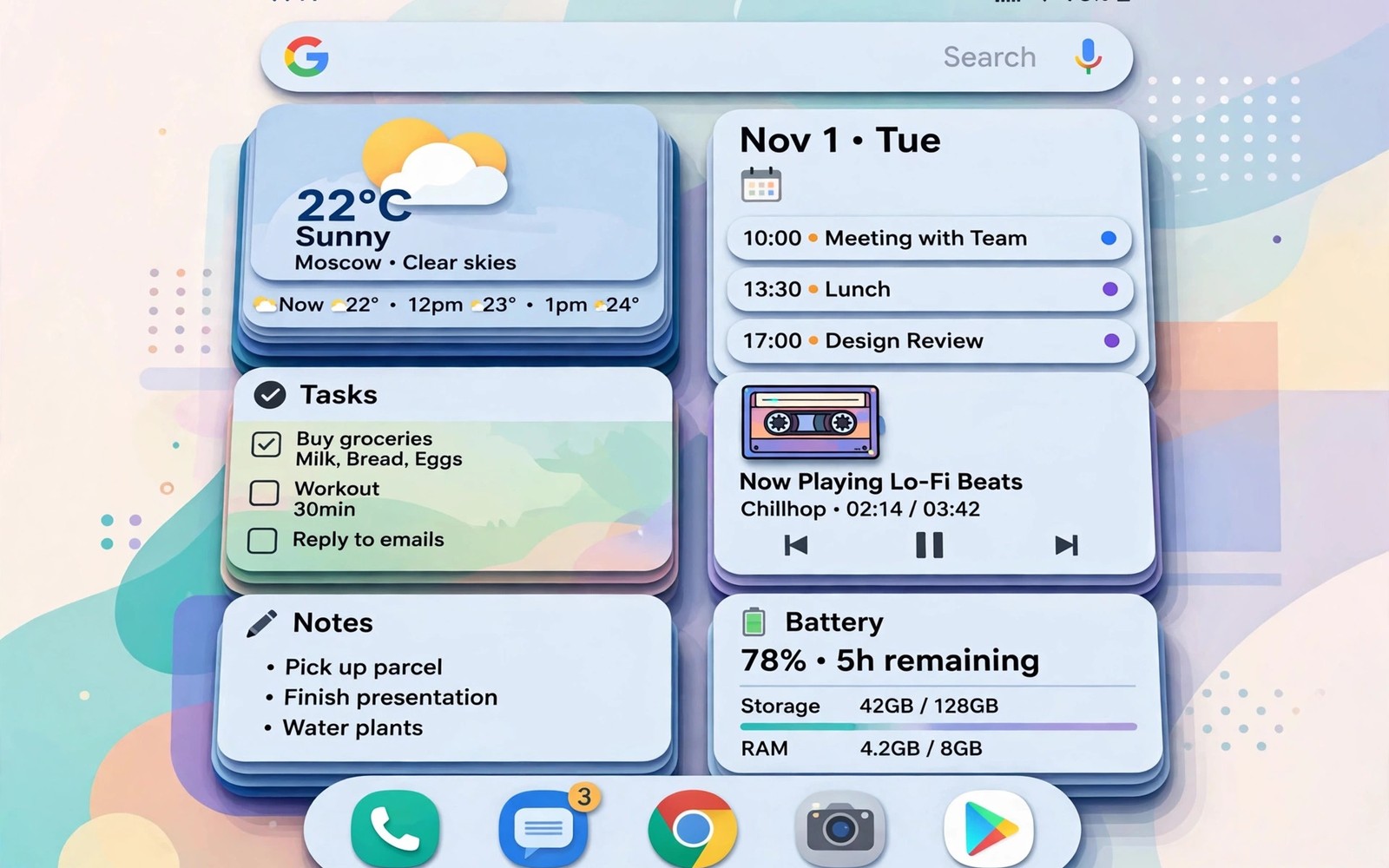
A home screen fills up fast when every widget takes its own block of space. A clock takes a row. A calendar takes a row. A weather widget takes another row. Soon the screen looks crowded and the apps you need get pushed to a second page. Widget stacking solves this by placing several widgets in the same space. You swipe through the stack to see each widget when you need it.
Stacking is not just a trick for tidy people. It changes how you use the phone because the most useful information stays on the first screen. A stack can hold a calendar and a weather widget and a music control in one block. You see one widget at a time and you swipe to the next in a second. That design keeps the home screen clean without hiding tools you use daily.
Some launchers support stacking directly while others need a widget tool to build a stack. The idea stays the same in both cases. You choose widgets that belong together and you place them in one shared frame. The guide below shows how to pick groups and how to manage stacks so they stay useful rather than becoming a hidden pile.
Pick Widget Groups That Belong Together
A good stack groups widgets by moment of use rather than by app name. A morning stack can hold weather and calendar and news headlines. A music stack can hold player controls and a playlist shortcut. A work stack can hold tasks and calendar and notes. Grouping by moment means the stack you open matches what you are doing right now.
Keep each stack to three or four widgets at most. A stack with eight widgets becomes a chore to swipe through. You will stop at the first widget and forget the rest. Building custom widgets helps here because a well built widget can show more in less space. A small stack with strong widgets beats a large stack with weak ones.
Build The Stack In Your Launcher
Open the home screen editor and drag one widget on top of another widget of the same size. Many launchers turn the pair into a stack at once. If your launcher lacks that gesture then look for a stack option in the widget menu. Some widget tools create a stack frame that you fill with widgets one by one. Use the method your launcher offers and test the swipe after each addition.
Set the stack size to match the largest widget in the group. A stack that is too small will cut off content. A stack that is too large will waste the space you wanted to save. Check each widget in the stack after you build it. Scroll or swipe inside a widget if it supports it and make sure nothing is clipped. A stack should feel like one clean block rather than a pile of cut off cards.
Widget stack setup
1. List widgets you use each morning
2. Group them by moment of use
3. Drag widgets of the same size into a stack
4. Set the stack size to the largest widget
5. Choose a useful top widget
6. Test swiping for one full day
The example above was written for this guide as a plain summary of the steps in the sections before it. It uses only the menus and options described above and it needs no extra tool to understand. Follow the steps in order so you can see which change helps most. If one step makes things worse then undo that step alone and keep the rest.
Use Swipe And Smart Rotation Well
Swiping is the core gesture for a stack. Swipe left or right to move through widgets in order. Learn the direction your launcher uses and stick to it. A consistent swipe direction makes the stack feel natural after a day. If your launcher supports smart rotation then it can show the most relevant widget at the right time. A calendar widget can appear in the morning and a music widget can appear during a commute.
Smart rotation helps only when the rules match your routine. Turn it on for one stack and watch it for a week. If it shows the wrong widget at the wrong time then turn it off for that stack. Manual swiping is better than a smart guess that keeps missing. Smart widget on any phone works on the same idea of showing the right info at the right time. A stack should reduce taps rather than add guessing.
Keep The Top Widget Useful At A Glance
The top widget in a stack is the one you see without swiping. Choose a top widget that gives useful info in one glance. A calendar agenda or a weather summary works well on top. A music player works well on top during a commute. Change the top widget when your routine changes rather than rebuilding the whole stack.
Some launchers let you pin a widget to the top while others rotate freely. Pinning helps when one widget matters more than the rest. A pinned calendar on top with weather below it gives a stable morning screen. Try pinning for a week and compare it with free rotation. The better choice is the one that shows the right info with fewer swipes.
Manage Stacks Over Time
Stacks need occasional cleanup because apps update and widgets change size. Check each stack once a month and remove widgets you no longer swipe to. A widget you never open is wasting a slot in the stack. Replace it with a widget you actually use or shrink the stack to a single widget again.
Home screen space saved by stacking can go to apps you open daily. Move two favourite apps into the freed space so the benefit feels real. Live system sensors on the home screen can join a stack too if you want system info beside calendar and weather. A stack that saves space and still shows live info is the best of both worlds. Review the layout after a major update because updates can reset widget sizes.
Stack Widgets For Travel And Work
A travel stack can hold a boarding pass widget and a weather widget and a currency widget in one block. Swiping through that stack at an airport gives every travel fact without opening three apps. A work stack can hold a task list and a calendar agenda and a notes widget. The work stack answers what to do next in one glance. Grouping by trip or by workday makes the stack feel like a tool rather than a decoration.
Build travel and work stacks on a second home screen page so they do not crowd the main page. The main page keeps the morning stack while the second page holds specialised stacks. Swipe to the second page only when that context starts. That separation keeps each page calm and each stack relevant. Delete a travel stack after the trip ends so it does not linger as clutter.
Troubleshoot Stack Swiping
A stack that refuses to swipe usually has a widget that captures swipes for itself. A music widget with its own swipe controls can block stack swiping. A map widget can also capture swipes. Replace a swipe capturing widget with a simpler version that uses taps only. Test stack swiping after each replacement so you find the culprit fast.
If a stack shows a blank widget then the app behind it may need a refresh or a permission. Open the app once and return to the home screen. A blank widget often fills after the app runs. If it stays blank then remove and re-add that widget to the stack. Re-adding fixes most widget data problems without rebuilding the whole stack.
Widget Stacks For Family Sharing
A family phone or a shared tablet can benefit from widget stacks that separate each person info. A stack for one family member can hold their calendar and their reminders. Another stack can hold shared family events and shopping lists. Swiping between stacks keeps personal info separate without needing separate user profiles. That separation is useful on a kitchen tablet that the whole family uses. Keep shared stacks on the main page and personal stacks on a second page so visitors see only shared info at first glance.
Children stacks need simpler widgets with larger text and fewer controls. A stack for a child can hold a clock and a weather widget and a simple task list. Avoid widgets with links to purchases or to sensitive accounts in a child stack. Test the child stack with the child present and watch whether they can swipe and read it easily. A stack that a child cannot operate will be ignored. Simplicity and large tap targets matter more than clever grouping for younger users. Review family stacks monthly because school schedules and activities change with each term.
Widget stacks also help when a phone is used for both work and personal life. A work stack on a second page keeps work widgets out of personal time. A personal stack on the main page keeps family and hobby info front and centre after hours. Switching pages becomes a boundary between work and rest. That boundary is healthy because it stops work widgets from demanding attention at dinner. A stack is therefore not just a space saver. It is a way to organise attention itself across the day.
Common mistakes
One common mistake is stacking widgets of different sizes so content gets clipped. Use the same size for every widget in a stack. Another mistake is building a stack with too many widgets. A huge stack hides tools instead of organising them. A third mistake is never cleaning a stack after apps change. Check stacks monthly and remove widgets you stopped using. A small and current stack beats a large and stale one.
FAQ
Does widget stacking work on every Android launcher?
No and support varies by launcher. Many custom launchers support stacking directly. Stock launchers may need a widget tool or an update. Check your launcher widget menu for a stack option before installing extra tools.
Will stacking save battery?
Stacking itself costs almost nothing because only the visible widget updates fully. A stack with heavy live widgets can still cost battery. Keep live widgets simple and remove heavy ones you rarely view.
Why does my stack swipe feel slow?
The stack may hold a heavy widget that redraws slowly. Remove widgets one by one and test the swipe after each removal. A lighter widget set usually restores smooth swiping fast.
Conclusion
Build one stack today from widgets you use each morning. Group weather and calendar and one more useful widget in a single block. Swipe through the stack for a day and notice how much cleaner the home screen feels. Move a favourite app into the freed space so the gain is visible. That single stack will show you whether stacking deserves a place on every home screen you build.
Review your stacks at the end of each week during the first month. A weekly review catches widgets that stopped being useful before they become clutter. Remove a widget that you skipped for a whole week. Add a widget only when you notice yourself opening its app repeatedly. That habit keeps stacks aligned with real use rather than with initial enthusiasm. A stack that evolves with you will stay on your home screen for a long time.

