

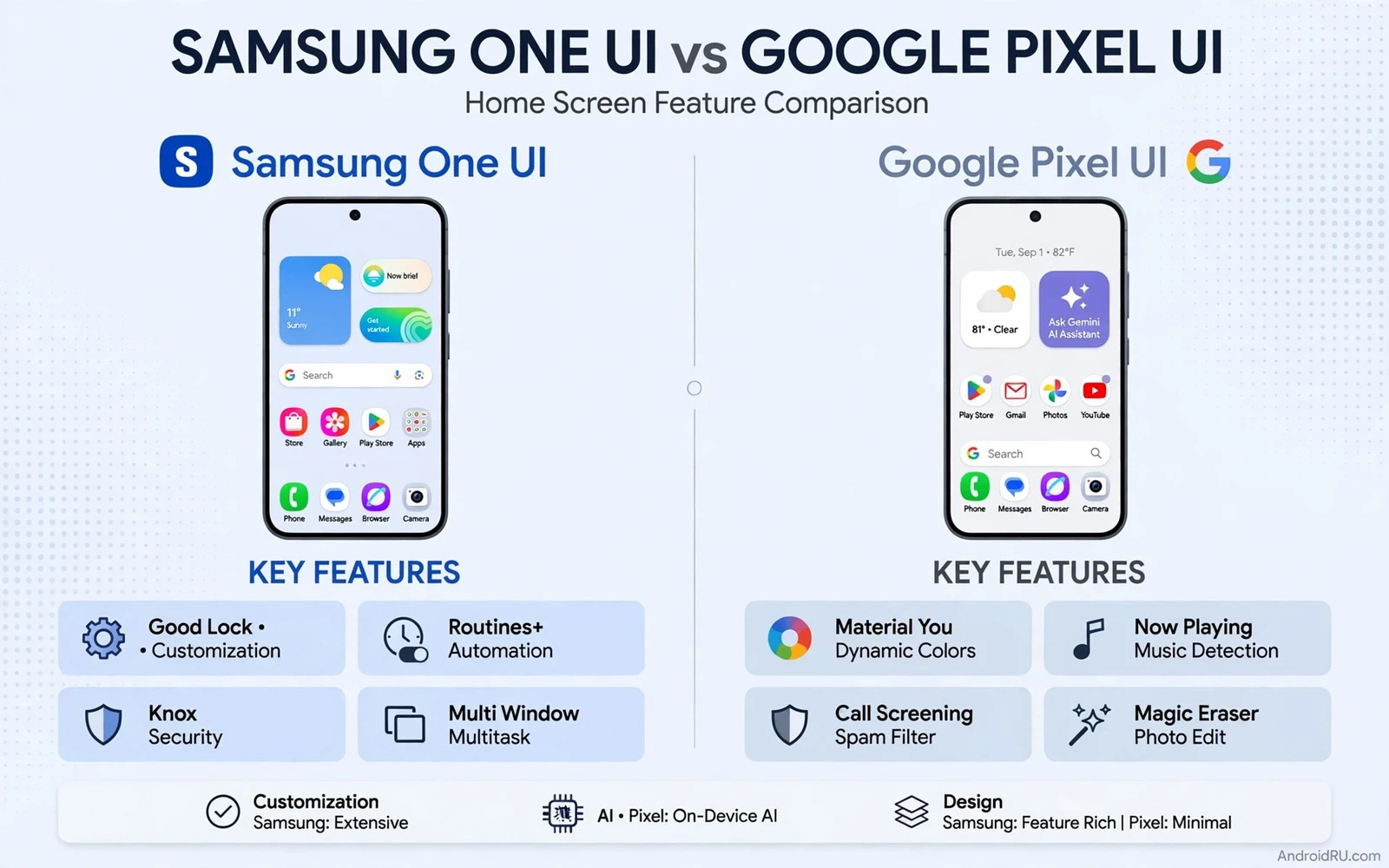
Samsung One UI and Google Pixel UI show two visions of Android. One UI adds many features and deep options. Pixel UI keeps the system clean and fast. Both run the same core Android apps. Both support the same major Google services. The difference lies in polish and pace and control. This comparison looks at real daily use. It covers home screens and settings and updates and cameras and extras.
A phone interface is more than a theme. It shapes how fast you find settings. It shapes how notifications behave. It shapes how multitasking works. It shapes how long the battery lasts. One UI packs tools into every corner. Pixel UI hides complexity and surfaces smart suggestions. Neither approach is best for every user. Your habits decide which style feels natural after a week.
Home Screen And Navigation
One UI offers a rich home screen with many widgets and folders. You can change grid size and icon style. You can add edge panels for quick access. You can split the screen with flexible window tools. Pixel UI offers a cleaner home screen with smart widgets. It suggests apps based on time and habit. It keeps the layout simple and consistent. A user who loves tweaking will enjoy One UI depth. A user who loves calm screens will enjoy Pixel clarity.
Navigation gestures feel similar on both systems at first. One UI adds extra gesture options and one-handed modes. Large Samsung phones benefit from a reachable mode that shrinks the screen. Pixel phones keep gestures close to stock Android. That closeness helps users who switch between Pixel and other stock devices. Both systems support three-button navigation for users who prefer buttons. Try gestures in a store before you decide. Muscle memory forms fast and it is hard to unlearn.
Settings Features And Extras
One UI leads on sheer feature count. It offers secure folders for private files. It offers dual messenger for two accounts in one app. It offers routines that automate settings by time or place. It offers deep theming through its own theme store. Pixel UI leads on smart features that work quietly. It offers call screening that filters spam calls. It offers live transcription and smart replies. It offers photo tools that remove unwanted objects. The contrast is depth against intelligence.
Feature depth can also create clutter. One UI settings menus run long and deep. A new user may struggle to find one toggle. Pixel settings menus stay shorter and clearer. A power user may miss a toggle that One UI provides. A casual user may never notice the missing toggle. Think about how often you open settings. If you tweak weekly then depth matters. If you set and forget then clarity matters more. The best interface is the one you stop noticing.
Updates And Software Life
Pixel phones receive Android updates first. New system versions arrive on day one for supported Pixels. Monthly security fixes also arrive promptly. Samsung has improved its update speed and support length greatly. Flagship Samsung phones now promise many years of updates. Mid-range Samsung phones also get longer support than before. The gap is now about timing rather than total years. Pixel still wins on speed. Samsung now competes well on length.
Update speed affects new features and security fixes. A fast update brings new tools sooner. It also closes security gaps sooner. A slower update may still arrive within a reasonable window. Check the update promise for the exact model you plan to buy. Promises vary by model and region. Do not assume that every Samsung phone shares the flagship promise. Do not assume that every Pixel stays supported for the same span. The model page and the maker promise are the facts to check.
Camera Software And AI Tools
Camera software differs as much as camera hardware. Pixel camera software is famous for computational photography. It produces balanced photos with little effort. It handles night scenes and portraits with smart processing. Samsung camera software offers many modes and manual controls. It offers strong zoom tools on Ultra models. It offers rich video modes for creators. A point-and-shoot user may prefer Pixel simplicity. A creator who tweaks settings may prefer Samsung control.
AI tools now appear across both interfaces. Pixel leans on Google AI for photos and calls and typing. Samsung leans on its own AI suite for notes and translation and editing. Both suites improve each year. Both suites depend on the chip inside the phone. Older models may miss the newest AI features. Check which AI features work on the exact model rather than on the brand in general. Marketing often shows the flagship feature set. The mid-range set can differ in important ways.
Battery Performance And Daily Feel
Battery behavior reflects software tuning as much as battery size. One UI manages many background tasks with aggressive controls. That control can extend standby time. It can also delay a notification from a rarely used app. Pixel UI manages background tasks with adaptive learning. It learns your routine and limits apps you rarely open. Both systems offer battery saver modes. Both systems show per-app usage clearly. Real battery life still depends on screen brightness and signal strength and app mix.
Daily feel comes from small touches across the system. One UI animations feel rich and layered. Pixel animations feel light and quick. Haptics differ between brands and models. Sound design differs too. These details seem minor in a review. They shape comfort over months of use. When you test Xiaomi HyperOS against Motorola Hello UI you see the same lesson in another pair of skins. Software personality matters as much as any single feature list. Spend time with the interface before you commit to a phone.
Which Skin Should You Choose
Choose One UI if you want maximum features and deep control. Choose One UI if you use Samsung tablets or watches or earbuds. The shared ecosystem adds real convenience. Choose Pixel UI if you want the cleanest Android and the fastest updates. Choose Pixel UI if you value smart photography and quiet AI help. Both choices give a strong Android experience. The wrong choice is the one that annoys you daily.
Try to separate brand loyalty from software fit. A Samsung fan may still prefer Pixel simplicity. A Pixel fan may still miss Samsung multitasking tools. A hands-on test in a store helps more than a feature table. Open the settings app on each phone. Change the wallpaper. Set a routine or a widget. Take a photo in dim light. The interface that feels obvious in that test is the right pick. A broader look at Android strengths against iOS limits can also clarify whether Android itself fits you at all. Inside Android the skin is the daily home you will live in.
Final Comparison
One UI wins on features and flexibility and ecosystem breadth. Pixel UI wins on simplicity and update speed and smart photography. Neither skin wins every category. The best skin depends on how you use a phone each day. A feature you never open has no value. A smart tool you use daily has great value. Rank the features by your own use before you rank the phones.
A final tip is to check the exact model and not just the brand. Software features vary by chip and by price tier. A flagship skin experience may differ from a budget skin experience. Read the model page with care. Ask the seller about update length for that model. Then judge the camera with Pixel camera results against Samsung Ultra camera results in real photos rather than in marketing samples. The right phone is the one whose software stays out of your way while giving you the tools you actually use.
Notifications And Multitasking In Practice
Notifications shape daily calm more than any single feature. One UI groups notifications with rich controls and snooze options. Pixel UI groups notifications with a cleaner and quieter style. Both systems let you silence noisy apps. Both systems let you prioritize messages from key contacts. The difference lies in how many taps each task takes. A user with many work apps may prefer One UI grouping depth. A user with few apps may prefer Pixel simplicity.
Multitasking also differs in depth. One UI offers pop-up windows and flexible split screen tools. It suits users who juggle chat and video and notes at once. Pixel UI offers solid split screen with a simpler approach. It suits users who split the screen only on occasion. Test multitasking with your real apps before you decide. Open a video and a chat side by side. Switch between them quickly. The system that keeps both apps stable wins for your workflow.
One-handed use matters on large phones. One UI includes a reachable mode that shrinks the display for thumb access. Pixel UI relies on standard gestures and quick settings access. Both approaches work but they feel different in the hand. Hold a large phone with one hand in a store. Reach the top corner with your thumb. Open notifications with a swipe. Comfort in that test predicts comfort across months of use.
Choosing By Model Tier
Software experience varies by model tier inside each brand. A flagship Samsung phone shows One UI at its fullest. A budget Samsung phone may miss some One UI extras. A flagship Pixel shows Pixel UI with full AI features. A budget Pixel may miss some AI features tied to chip power. Read the exact model page rather than trusting brand marketing. The model determines which features actually ship. The price tier determines chip power and update length too.
Carrier and region variants can also change the software picture. Some features arrive later in certain regions. Some carrier models carry extra apps. Check the variant sold in your market. Ask the seller about update timing for that variant. A global model and a carrier model can differ in small but annoying ways. These details rarely appear in headline reviews. They appear in daily use within the first week.
A final test is to live with the default settings for a day. Defaults reveal what each maker values most. One UI defaults show rich options and Samsung services. Pixel UI defaults show Google services and smart suggestions. Change only the settings that annoy you. The system that needs fewer changes fits you better. Software should adapt to you rather than forcing you to adapt to it.
Setup Tips After You Choose
Set up the new interface slowly over the first week. Change one area at a time rather than everything at once. Start with wallpaper and widgets. Move to notification settings next. Finish with gestures and shortcuts. Gradual setup builds muscle memory without confusion. A rushed setup often leaves useful features undiscovered for months.
Review permissions during the first week on either skin. Open the permission manager and check camera and microphone access. Remove access from apps that do not need it. Check location access for apps that track you in the background. A clean permission list improves privacy and battery life together. Repeat the review every few months for lasting benefit.
Back up the phone before any major system update. Updates usually run smoothly but a backup removes risk. Charge the phone fully before updating. Update over stable Wi-Fi rather than mobile data. After updating check your key apps for changes. A calm update routine keeps the interface feeling fresh rather than stressful.

