

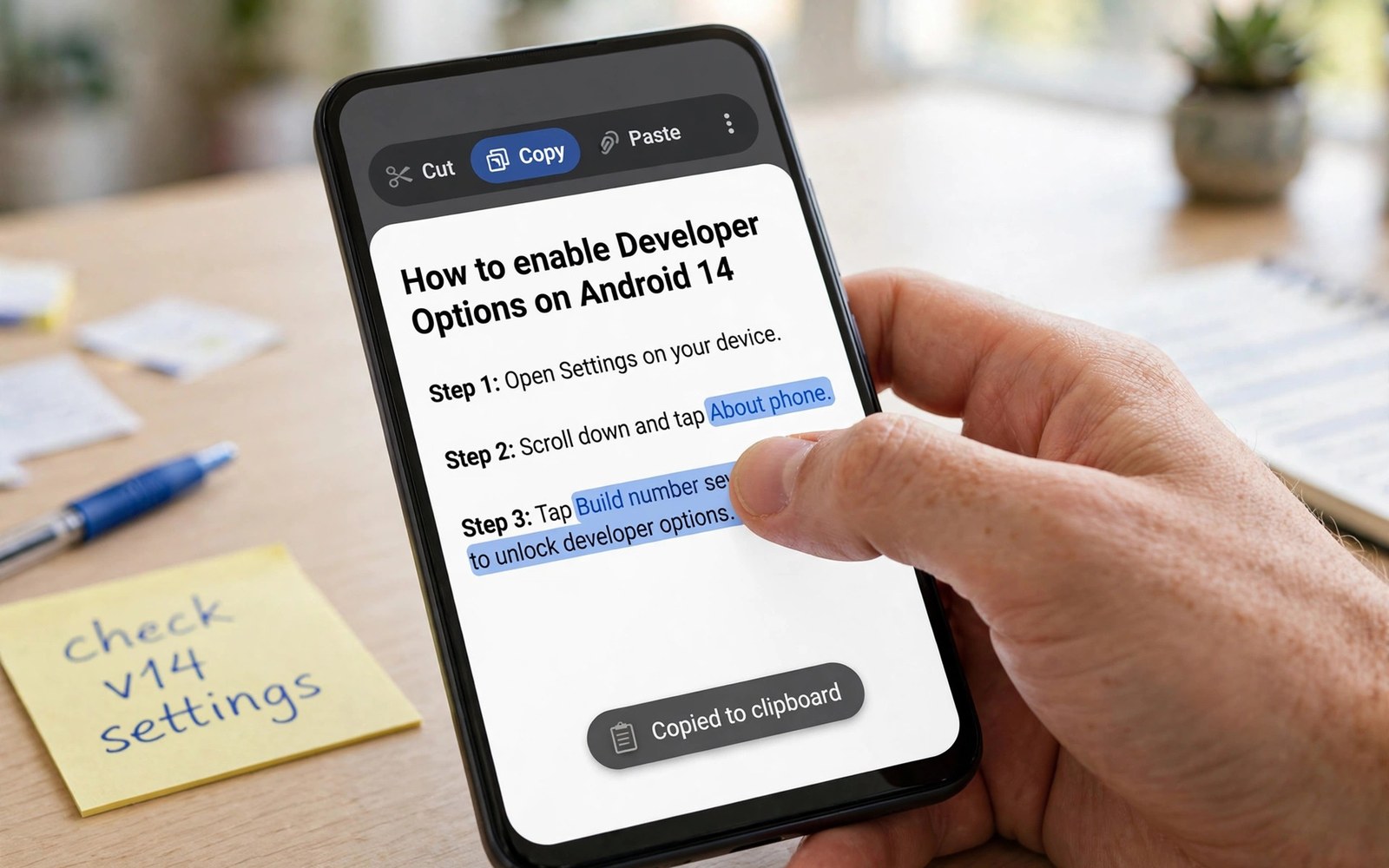
The clipboard is a small tool with a large privacy risk. You copy passwords and bank codes into it. You copy private messages and addresses into it. Any app that reads the clipboard can see that content. Modern Android warns you when that read happens.
The alert appears as a short toast on screen. It names the app that read your clipboard. That warning turns a silent read into a visible event. You can then judge whether the read made sense. A keyboard app reading text may be normal. A game reading text is not normal.
Why Apps Read the Clipboard
Some apps read the clipboard to offer a smart paste. A browser may suggest a copied link. A chat app may offer a copied address. Those features feel helpful in the moment. They still expose whatever you copied last.
Other apps read the clipboard for tracking or fraud. A copied promo code can reveal shopping intent. A copied password can enable account theft. A copied crypto address can enable theft through swap tricks. The risk grows with the sensitivity of the copied text.
Reading the Alert Correctly
The alert shows the app name at the moment of the read. Note the time and the app together. Ask whether you triggered a paste action then. A paste you started explains the read. A read while the app sat idle does not.
Repeated alerts from one app form a pattern. One read may be a feature. Daily reads suggest background scanning. Check the app permission screen for clipboard related access. Some phones group it under special access settings. Revoke or restrict it when the pattern looks wrong.
Protecting Passwords and Codes
Avoid copying passwords when a safer path exists. Use autofill from a password manager instead. Autofill fills the field without touching the clipboard. It keeps the secret out of shared storage. It also defeats clipboard swap attacks.
When you must copy a code, paste it at once. Then copy a harmless word over it. That overwrite clears the sensitive content. The clipboard holds only the latest item. A quick overwrite is a simple and effective habit.
Protect copied secrets
1. Use autofill, not copy, for passwords
2. After pasting, copy a harmless word
3. Clear keyboard clipboard history
Clearing the Clipboard on Your Phone
Most keyboards offer a clipboard history panel. Open it and delete sensitive entries by hand. Some phones clear the clipboard after a set time. Check your keyboard settings for that option. Enable auto-clear when it exists.
Restarting the phone also clears the clipboard on many devices. That step is heavy for daily use. Prefer the overwrite habit for routine protection. Reserve restarts for moments after a serious exposure. Both methods beat leaving a password in place for hours.
Choosing Apps That Respect the Clipboard
Trustworthy apps read the clipboard only after you tap paste. They explain the feature before they use it. They never read in the background without a trigger. They offer a toggle to disable smart paste. Those signs show respect for your data.
Uninstall apps that read the clipboard without any paste feature. Report repeat offenders through the store. Replace them with alternatives that skip the trick. Your copied text deserves the same care as your typed text.
Clipboard Safety Habits
Clipboard History in Keyboards
Many keyboards keep a history of copied items. That history lets you paste older items again later. It also creates a stored record of sensitive copies. A password copied yesterday may sit in history today. A bank code may sit beside it. Anyone holding your unlocked phone can open that history. Review keyboard clipboard settings for history length. Shorten history to a few minutes when possible. Disable history entirely when you copy secrets often. A short history trades convenience for safety. That trade favours safety for most users.
Some keyboards sync clipboard history to the cloud. Cloud sync spreads copied items across your devices. A copy on your phone may appear on your tablet. That spread multiplies exposure from one copy. Disable cloud clipboard sync for sensitive use. Keep clipboard history local to one device. Check sync settings after installing a new keyboard. New keyboards may enable sync by default. A quick settings check prevents silent spreading. Local history stays under your physical control.
Clipboard Attacks and Swap Tricks
Attackers exploit clipboard reads in clever ways. A malicious app may watch for a crypto address copy. It may replace that address with an attacker address. You paste the wrong address without noticing. Funds then go to the attacker instead of the intended recipient. Always verify pasted addresses character by character. Check the first and last characters at minimum. Better still use QR codes or address books instead of copies. Address books avoid the clipboard entirely. Verification habits defeat swap tricks reliably.
Password theft through clipboard reads is simpler and older. A malicious app reads a copied password once. It sends that password to a remote server. The attacker can then try the password elsewhere. Password reuse makes that theft far worse. Unique passwords limit damage to one account. A password manager with autofill avoids the clipboard path. Autofill fills fields directly without shared storage. That design removes the clipboard from the attack chain. Use autofill for every login that supports it.
Clipboard Access in Work Environments
Workplaces often copy sensitive text throughout the day. Employees copy client details and internal links. They copy meeting codes and draft documents. A personal app reading that clipboard leaks work data. Work profiles help by separating clipboards per profile. A work profile clipboard stays inside work apps. A personal clipboard stays inside personal apps. That separation prevents cross profile leaks. Enable work profiles for sensitive roles when available. Treat clipboard separation as seriously as file separation.
Remote work adds screen sharing risks to clipboard use. A shared screen may reveal a copied item preview. A recorded meeting may capture a paste action. Avoid copying secrets during a screen share. Pause sharing before pasting sensitive codes. Clear the clipboard after the meeting ends. Those small habits protect work data during collaboration. They cost seconds and prevent embarrassing leaks. Remote teams should adopt them as standard practice.
Building a Clipboard Safe Routine
A clipboard safe routine starts with autofill for passwords. Add manual overwrite after every sensitive copy. Copy a harmless word right after pasting a code. That overwrite clears the secret from shared storage. Make overwrite a reflex rather than a chore. Pair it with keyboard history cleanup each week. Delete sensitive entries that slipped through. Review clipboard alerts for unfamiliar app names. Revoke access for apps that read without paste actions. Routine beats occasional panic every time.
Teach the routine to family members who copy codes often. Older users may copy passwords from notes apps. Younger users may copy links and codes for games. Both groups benefit from autofill and overwrite habits. Show them the overwrite trick once on their phone. They will repeat it without help after that. Privacy habits spread best through simple demos. A clipboard demo takes less than a minute. Its protection lasts across every app they use.
Clipboard Sync Across Devices
Clipboard sync spreads copied text across phones and computers. A password copied on your phone may appear on your laptop. A code copied on a tablet may appear on your phone. That spread multiplies the attack surface for one copy. An attacker with one device gains clipboard content from all devices. Disable clipboard sync unless you rely on it daily. Keep clipboard history local to the device where you copied. Local history stays under physical control of that device. Sync convenience rarely justifies cross device secret exposure. Turn sync off and copy manually when needed.
Universal clipboard features in device ecosystems sync silently. They often enable themselves during device setup. Users may not realise sync is active at all. Check ecosystem settings for clipboard sharing toggles. Turn them off for work devices especially. Work secrets should never travel to personal devices through sync. Personal secrets should never travel to work devices either. Separation between device groups matters as much as separation between profiles. A sync toggle can undo careful profile separation instantly. Audit sync settings after every new device pairing.
Clipboard Managers and Third Party Tools
Third party clipboard managers extend history beyond system limits. They may store months of copied items in one place. That archive becomes a treasure trove for attackers. A manager with cloud backup spreads the archive further. Review clipboard manager retention settings carefully. Shorten retention to hours rather than months. Exclude password managers from clipboard manager capture when possible. Some managers offer exclusion rules for sensitive apps. Enable those rules before copying secrets. A clipboard manager without exclusions is a liability rather than a tool.
Open source clipboard managers offer better inspection than closed ones. Experts can read their code for hidden uploads. Closed managers may upload history without disclosure. Prefer managers with local only storage and clear policies. Test a manager by copying a unique phrase and watching network traffic. Unexpected traffic after a copy suggests uploading. Uninstall managers that upload without clear consent. Clipboard tools should serve you locally and quietly. Any tool that phones home with copies fails its basic purpose.
- Use password manager autofill instead of copying passwords.
- Paste copied codes at once and then overwrite the clipboard.
- Note the app name in every clipboard alert you see.
- Delete sensitive entries from keyboard clipboard history.
- Uninstall apps that read the clipboard without a paste feature.
Clipboard alerts pair with green camera and microphone indicators and the Privacy Dashboard timeline. Review all sensors with a monthly audit of installed app permissions.
The steps above follow the approach described in the official developer documentation for modern Android privacy controls. That documentation explains each permission group in plain terms. It also describes how the system limits background access. Use it as a general reference when a menu name differs on your phone.

