

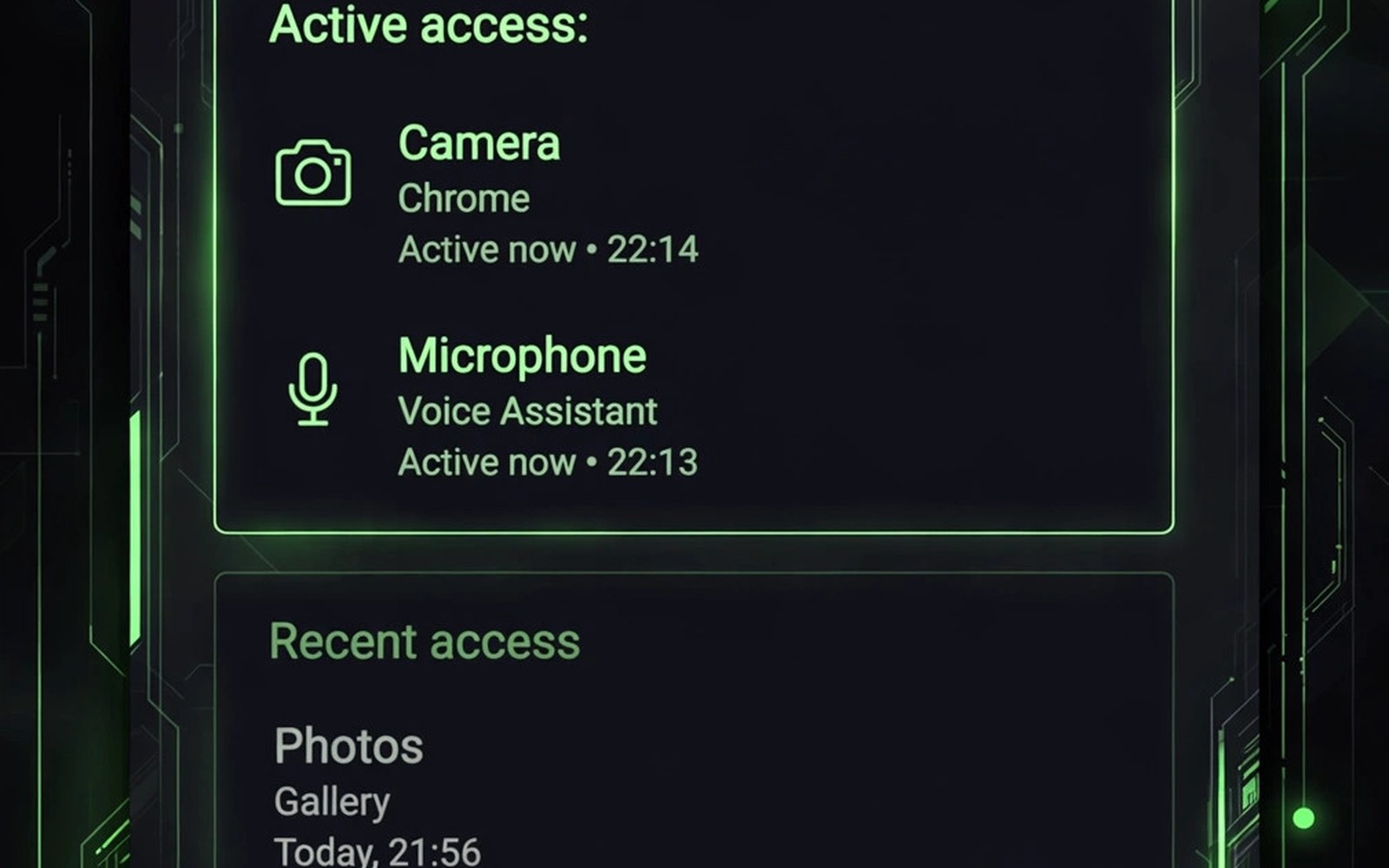
A small green dot can appear near the top of your screen. It means an app is using your camera or microphone right now. The dot is easy to miss at first. Once you notice it you gain a powerful warning tool. It turns invisible recording into something you can see.
Modern Android shows this indicator for every camera and microphone session. It does not matter whether the app is in the foreground. It does not matter whether the app came from a big developer. The system draws the dot above app content. No app can hide it or paint over it.
What the Green Dot Actually Means
The dot appears when a sensor session starts. A camera icon means the camera is active. A microphone icon means the microphone is active. Both icons can appear together during a video call. The dot stays visible for the whole session. It vanishes when the session ends.
The dot does not prove that data leaves your phone. A camera app may process video locally. A call app must send audio to the other person. The dot only proves that a sensor is open. That fact alone is worth knowing. You can then judge whether the session makes sense.
How to Find Which App Triggered It
Swipe down to open quick settings when the dot appears. The system shows a small chip naming the app. Tap that chip to open the app info screen. You can revoke the permission from there at once. You can also force stop the app if it looks wrong.
If the dot vanished before you could check then open the Privacy Dashboard. It keeps a timeline of recent sensor use. Find the time window and read the app name. That history helps you catch brief sessions. It also helps you spot patterns across days.
Normal Times to Expect the Dot
Video calls will always show the dot. Voice recording will show the microphone icon. Photo capture will show the camera icon. Voice assistants show the microphone icon while they listen. Those sessions match an action you started. The dot simply confirms what you already expect.
Background recording should raise a question. A music app does not need your microphone. A wallpaper app does not need your camera. If the dot appears while your phone sits idle then investigate. Close recent apps one by one and watch the dot. The app that clears the dot is your suspect.
Find the triggering app
1. Swipe down for quick settings
2. Tap the green dot chip
3. Read the app name
4. Open App info > Permissions
What to Do When the Dot Looks Wrong
Stay calm and do not panic about one sighting. Open quick settings and identify the app first. Revoke camera and microphone access for that app. Then test whether the app still works for its main job. A torch app works fine without either sensor. A chat app can keep text without voice.
Uninstall the app if it keeps requesting sensor access without reason. Report it through the store listing if the behaviour repeats. Check for a clone or fake version of a known app. Fake apps often mimic real brands to gain trust. A fresh install from a trusted source avoids that trap.
Limits of the Indicator System
The dot covers camera and microphone only. It does not cover location or contacts. It does not cover files or clipboard reads. Other privacy tools cover those areas. Treat the dot as one layer in a wider system. Combine it with permission reviews for full coverage.
The dot also cannot show what an app does with captured data. A legit call app sends audio to a contact. A shady app could send audio elsewhere. Permission control remains your main defence. Deny sensor access for apps that never need it. That choice beats any warning after the fact.
Fast Response Plan for a Strange Green Dot
How the Indicator Looks on Different Phones
The green dot appears on most modern Android phones. Some brands add a small camera or microphone icon beside it. Some brands show the dot in a different corner of the screen. The core meaning stays the same across all brands. A visible dot means a sensor session is active right now. A missing dot means no camera or microphone session runs. Learn the exact look on your own phone model. Open the camera app and watch the dot appear. Open a voice recorder and watch the microphone icon appear. That quick test builds recognition for real alerts later.
Some phones also show a persistent notification during long sessions. That notification names the app using the sensor. It stays in the shade until the session ends. Other phones rely on the dot alone. Both designs serve the same purpose. The dot is the fastest warning available. The notification adds detail when you need it. Do not ignore either signal during a sensitive moment. A dot during a private conversation deserves an immediate check. A dot during a video call is simply expected.
The Indicator During Calls and Meetings
Video calls keep the dot visible for the whole call. Voice calls keep the microphone icon visible throughout. That constant presence can feel distracting at first. It serves as proof that the call app still holds the sensor. If the dot vanishes mid-call then the sensor closed. Audio or video may have dropped for the same reason. A stable dot during a call is a healthy sign. It confirms the app you chose still controls the session. No other app can silently take over that session. The system enforces one active sensor owner at a time.
Group calls add more complexity to the picture. The dot still shows only that a sensor is active. It does not show how many people receive the stream. It does not show whether the call is recorded. Recording indicators come from the call app itself. Check the call app controls for recording status. The system dot and the app recording badge cover different risks. Use both signals together during important meetings. That pair gives a fuller picture of exposure.
False Alarms and Brief Appearances
Brief dots can appear for innocent reasons. A camera app may open the lens to focus before a shot. A voice assistant may listen briefly after a wake word. A barcode scanner may open the camera for a second. Those brief sessions match an action you started. They should not cause alarm when the timing fits. A dot that appears without any action deserves attention. A dot that lingers after you close apps deserves action. Judge each sighting by timing and context rather than fear alone.
System apps can also trigger brief sensor sessions. Face unlock opens the camera for a moment. Voice match checks audio for a wake phrase. Those sessions are short and tied to a feature you enabled. Disable the feature when the sessions bother you. Face unlock off means no camera check at unlock. Wake word off means no background listening. Each convenience carries a sensor cost. Choose the conveniences that earn their cost.
Pairing the Dot with a Sensor Audit
The dot warns you in the moment. A sensor audit protects you over time. Open the Permission Manager and list camera apps. List microphone apps beside them. Remove access for apps with no recording feature. Keep access only for tools you record with weekly. That audit reduces future dots to expected moments. Surprise dots become rare after a good audit. Rare surprises are easier to investigate well.
Repeat the audit after installing new apps. New apps often request camera access by default. A social app may want the camera for stories. A shopping app may want it for barcode scans. Grant camera access only when you use that feature. Deny it when the feature stays unused. The dot will then stay quiet except for real use. A quiet phone is a phone under control.
Indicator Behaviour During Screen Recording
Screen recording creates a special indicator situation on many phones. Recording captures the screen plus optional audio. The system may show a recording indicator alongside sensor dots. A microphone dot during recording means audio capture is active. A missing microphone dot means video only recording. Check both indicators before recording sensitive content. A private call should never run beside a screen recorder. A password entry should never run beside a recorder either. Close recording tools before handling sensitive information. Indicator awareness during recording prevents accidental capture of secrets.
Some apps record the screen without a visible system indicator. Malicious apps may try to hide recording activity. The green dot covers camera and microphone only. It does not cover screen capture directly. Screen capture permissions appear as separate prompts. Review screen capture grants in special access settings. Revoke capture access for apps you do not recognise. A legitimate recorder will ask clearly before starting. A hidden recorder is a serious threat worth uninstalling. Treat screen capture grants with the same care as camera grants.
Indicator Awareness for Children and Guests
Children should learn what the green dot means early. Show them the dot during a video call with family. Explain that the dot means the camera is on. Show them the microphone icon during a voice message. Explain that the icon means the phone is listening. Those two demos build lasting recognition. Children will then notice unexpected dots on their own. They can report strange dots to a parent quickly. Early education turns a technical indicator into a safety habit. That habit protects them across every device they use.
Guests using your phone deserve a dot briefing too. Tell them the dot appears during camera use. Tell them to check the app name when it appears unexpectedly. A guest who notices a strange dot can alert you fast. That alert may catch a misbehaving app early. Briefing takes seconds and builds shared vigilance. Shared vigilance beats solo monitoring on family devices. Everyone who uses the phone becomes a sensor watchdog. The dot works best when every user understands it.
- Swipe down and read the app name shown in the chip.
- Open app info and revoke camera or microphone access.
- Check the Privacy Dashboard timeline for earlier sessions.
- Uninstall the app if the behaviour repeats without reason.
- Review other apps with camera and microphone access.
The indicator works best beside the Privacy Dashboard timeline for recent sensor use and the Permission Manager view of camera access. For a monthly habit, follow the guide to auditing installed app permissions every month.
The steps above follow the approach described in the official developer documentation for modern Android privacy controls. That documentation explains each permission group in plain terms. It also describes how the system limits background access. Use it as a general reference when a menu name differs on your phone.

