

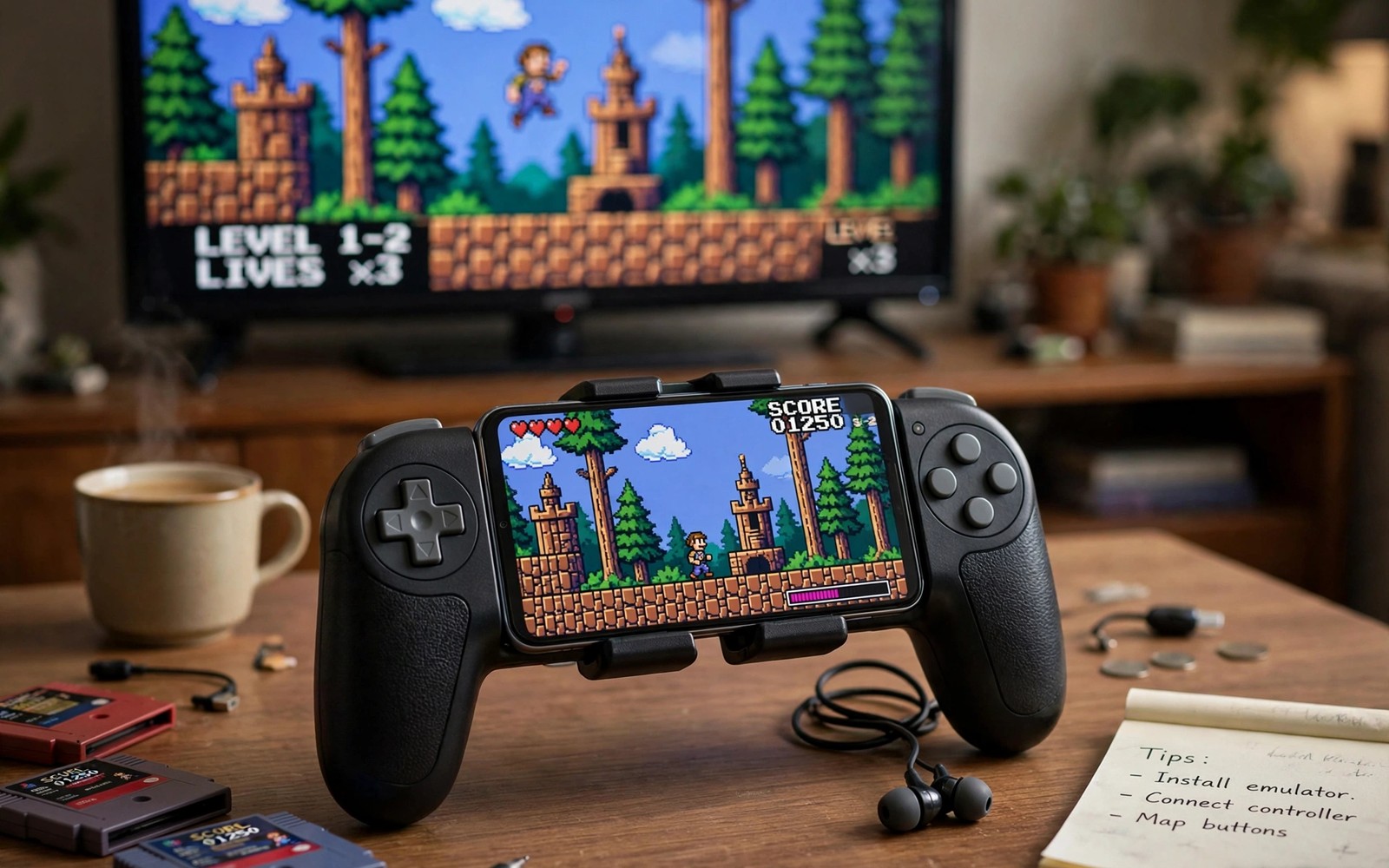
A phone can become the heart of a living room retro setup. You already own the screen and the processor. Add a controller and a television and the picture changes completely. This android retro console plan keeps the build simple and cheap. You do not need rare hardware to start.
The idea is to treat the phone like a small console box. It sits near the television and sends the picture to the big screen. A controller gives you real buttons for play. The result feels like a dedicated console for classic games. Friends can join without learning a complex menu.
Start with the gear you already own. A television with an HDMI input is enough for the first test. A basic Bluetooth controller covers most games. You can improve the setup later once you know what you enjoy. A complete emulation start helps if the emulator side is new to you.
Connect the phone to the television
A wired USB C to HDMI adapter gives the most stable picture. It avoids the lag that wireless casting can add. Lag matters a lot for retro games with tight timing. Plug the adapter in and test a game before you buy more gear. A stable cable beats a fancy wireless box for play.
Wireless casting works when a cable is not handy. It suits slow puzzle games and menu browsing well. Fast action games may feel slightly delayed over wireless. Test a jumping game to judge the delay honestly. Use the method that feels right for the games you play.
Choose a controller and a stand
A controller with a phone clip keeps the screen close when you play handheld. For television play a normal Bluetooth controller works well. Pick a controller with a good D pad for retro titles. The D pad matters more than extra buttons for old games. Test it in a platform game before you settle.
A small stand holds the phone at a readable angle near the television. It also keeps the charging cable tidy. Heat builds up during long sessions so leave space around the phone. A stand with airflow helps more than a closed case. Simple gear often works best here.
Build a simple game library
Keep one folder per system on the phone or on a memory card. Clear folders make scanning fast in every emulator. Name folders by system and not by vague labels. A tidy library also makes backups easy. You will thank yourself when the collection grows.
Add box art only after the games run well. Art looks nice but it does not fix a broken setup. Focus on play first and polish later. A classic arcade title is a great first test for the big screen. Arcade games shine on a television.
Tune the picture for a television
Television screens are larger so small flaws show more clearly. A light shader can soften pixels without blurring the picture. Test shaders at normal viewing distance. A shader that looks harsh up close may look perfect from the couch. Judge the picture from where you actually sit.
Set the phone output to match the television resolution if the adapter allows it. A matched output avoids extra scaling steps. Extra scaling can soften text and sprites. Check the emulator screen settings after you connect the television. The right size setting differs between handheld and television play.
Power and heat during long sessions
Television play often lasts longer than a quick handheld session. Keep the phone charging during long play if the adapter supports it. Charging adds heat so watch the phone temperature. Take a short break if the phone feels very warm. A cooler phone keeps speed steady for the whole evening.
A small fan near the phone can help on hot days. It does not need to be a gaming accessory. Any gentle airflow lowers the temperature a little. Lower temperature means fewer slowdowns later. Comfort and speed both improve with a cooler setup.
Choosing the right television settings
Television settings affect retro games more than many players expect. A game mode on the television reduces input delay sharply. Without game mode many televisions add noticeable lag. Find the game mode in the television picture settings menu. Enable it before you judge any controller or cable. A television in normal mode can hide the quality of a good setup. Game mode is the single most important television setting for play.
Picture sharpness settings on a television can harm pixel art. High sharpness adds halos around sprites and text. Lower sharpness to a neutral level for retro games. Test a platform game with fine sprite detail after the change. Clean sprites show the benefit at once. A neutral picture suits old art better than an aggressive one. Save the retro picture preset if the television allows it. A saved preset makes future sessions start correctly.
Screen size settings also matter for the final picture. Overscan can crop the edges of the game image. Disable overscan or set the screen to show the full picture. A cropped edge hides health bars and score displays. Check all four corners of a game screen after setup. Full visibility matters for games that use corner information. A correct screen fit completes the television side of the setup.
Making game nights easy for guests
Guests enjoy a setup that starts with one button press. Prepare the television input and the controller before guests arrive. Leave the game menu open on a friendly title. A ready setup avoids awkward waiting while hosts fiddle with cables. First impressions decide whether guests want a second night. A smooth start signals a fun evening ahead for everyone.
Pick a first game that teaches itself in the first minute. Simple controls and clear goals suit mixed groups best. Avoid games with long tutorials for a first shared session. A quick fun game warms the room up nicely. Harder games can follow once everyone feels comfortable. The first game sets the tone for the whole evening.
Keep snacks and drinks away from controllers and phones. A spill can end a game night instantly and damage gear. Place drinks on a separate table from the play area. Small care habits protect the setup for future nights. Guests will respect clear and friendly house rules. A tidy play area also looks more inviting to newcomers.
Keeping cables tidy and safe
Cables multiply quickly in a television retro setup. A power cable and a video adapter and a controller charger soon tangle. Tangled cables look messy and trip people in the dark. Use short cables where the layout allows them. Short cables reduce slack and clutter at once. Route cables along the back of furniture when possible. A tidy route keeps cables out of walking paths. Safety and neatness improve together with simple routing.
Label each cable at both ends with small tags. Labels prevent unplugging the wrong cable during troubleshooting. A wrong unplug can interrupt a game or a charge cycle. Tags cost little and save confusion repeatedly. Colour coded tags work well for shared setups. Guests can follow a labelled setup without asking. Clear labels turn a host dependent setup into a guest friendly one. Independence makes game nights smoother for everyone.
Check cables regularly for wear near the connectors. Bent cables near plugs fail sooner than straight ones. Replace a frayed cable before it damages a port. A damaged port costs far more than a replacement cable. Keep spare adapters for the most important connections. A spare adapter rescues a game night from a sudden failure. Spare gear is cheap insurance for a beloved setup. Inspect cables monthly as part of routine care.
Store unused cables coiled loosely in a dedicated box. Tight coils stress wires inside the cable over time. Loose coils preserve cable life for years. A box keeps spares findable when needed urgently. Digging through a drawer wastes game night time. Organisation of spares mirrors organisation of games. Both habits serve the same goal of ready fun. A ready setup starts with ready cables.
Common mistakes
A common mistake is buying expensive gear before the first test. A cheap adapter and a basic controller reveal most problems early. Spend more only after you know what limits your setup. Early spending often buys features you never use. Test first and upgrade with a reason.
Another mistake is judging lag only in menus. Menus respond slowly in a way that hides input delay. Test a fast platform game with jumps and turns. That test shows real lag in a clear way. If jumps feel late then the connection needs work.
Do not forget to charge the phone during television play. A dead battery ends a game night at the worst moment. Keep a charger near the setup at all times. A low battery warning during a boss fight is easy to avoid. Plan power like you plan controls.
A practical example you can try
ls ~/Games/ | sort
# one folder per system keeps scanning fast
# back up the Games folder before big changes
This snippet is an original example written for this article. It shows the idea in a compact form that you can adapt to your own setup and change as you learn what works best on your phone.
Frequently asked questions
Do I need a special dock for this setup?
No. A simple USB C adapter and a stand are enough to start. A dock adds neatness but it is not required for good play. Spend on a dock only after the basic setup works well. The games matter more than the furniture around them.
A dock adds neatness and stable charging to the setup. It is not required for good picture or control quality. A simple adapter and stand deliver the same play experience. Buy a dock after the basic setup proves enjoyable. Spending follows proven fun and not early guesses.
Can friends play together on one phone?
Yes for many games that support two players. Pair a second Bluetooth controller and test the game. Some emulators need a small input setting change for player two. Test the second controller before guests arrive. A quick test avoids an awkward game night.
Two player support depends on the game and the emulator. Many emulators accept a second controller for player two. Test the second controller before guests arrive for the session. A quick test avoids confusion during the game night itself. Some games need a small input setting change for player two.
Will television play drain the battery fast?
Yes if the phone runs the game and drives the display. A charging adapter solves the problem for long sessions. Watch heat while charging and playing at the same time. A tidy launcher library makes it easy to pick the next game during a break.
Charging while playing adds heat to the phone over time. A cool room and a light case help manage that heat. Take a short break if the phone feels very warm. A tidy game menu makes breaks pleasant because the next game waits ready. Breaks protect both the phone and the players.
Conclusion
Your concrete next step is a thirty minute test tonight. Connect your phone to the television with the adapter you have. Play one arcade game with a Bluetooth controller for fifteen minutes. Note any lag or heat problems in plain words. That short test tells you exactly what to improve next.
Plan a regular retro night once the setup works well. A weekly or monthly night gives friends something to look forward to. Rotate who picks the first game each time. Rotation keeps the selection fresh and fair for everyone. A regular night turns a one time project into a lasting social habit.

