

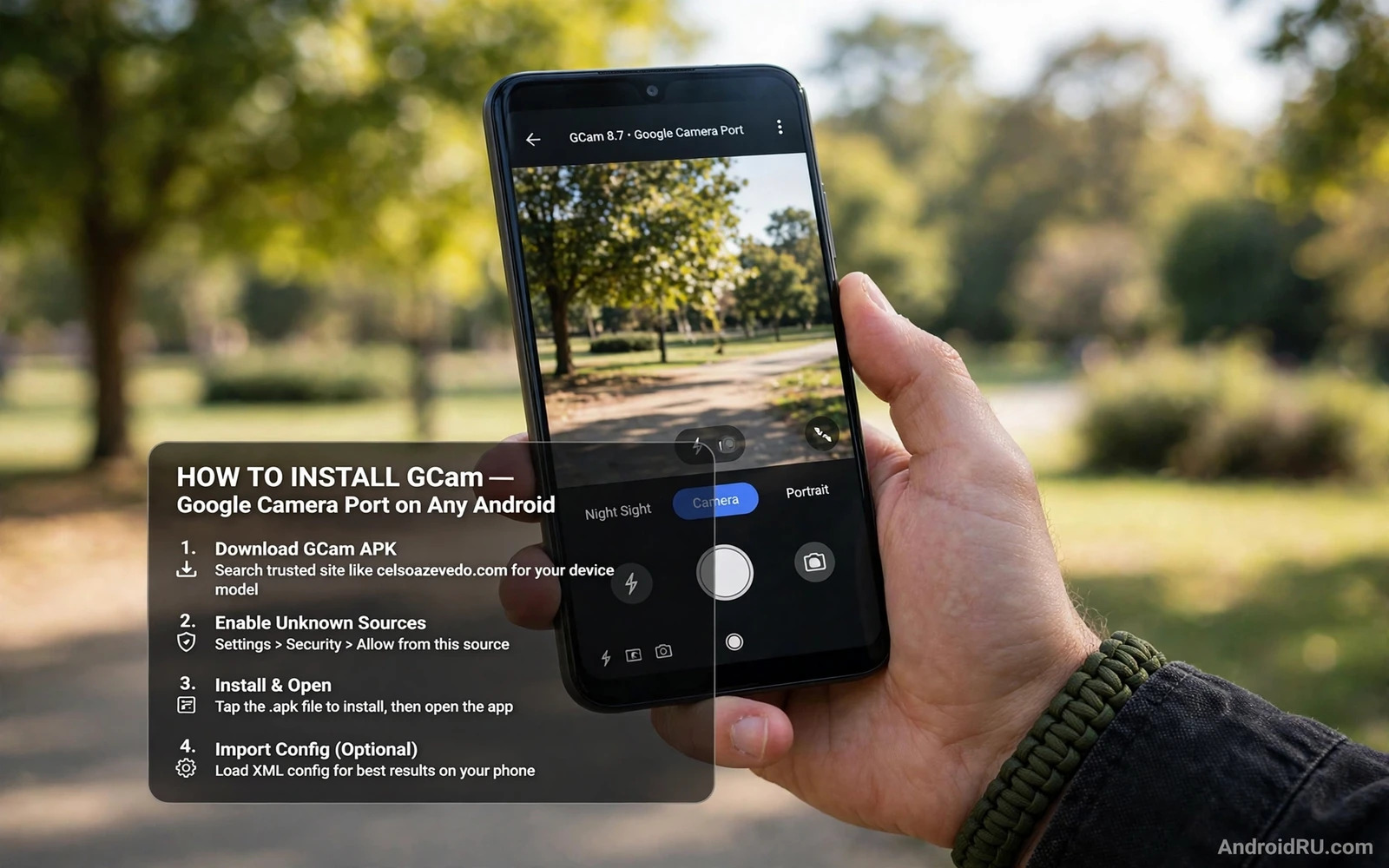
What A GCam Port Is
GCam is the camera app built for Google Pixel phones. A GCam port is a modified version of that camera app made to run on other Android phones. Ports exist because Pixel camera software produces strong results through computational photography. A port brings some of that processing to phones with different camera hardware. A port is not an official Google release for your phone. It is a community build adapted for many models. Results vary by phone and by port version. A port that shines on one model may crash on another model.
GCam processing differs from many stock camera apps. It combines multiple frames into one photo. It improves detail in low light. It improves dynamic range in scenes with bright sky and dark shadows. It can improve portrait edge detection on some phones. These gains depend on camera hardware and on configuration files. A port without the right configuration may look ordinary. A port with a tuned configuration for your exact model can look much better. Configuration matters as much as the port version itself.
Not every phone benefits equally from GCam. Phones with strong stock camera software may gain little. Phones with weak stock processing may gain a lot. Phones with unusual camera hardware may face crashes or missing features. Front camera support varies. Video stabilisation support varies. Slow motion support varies. Night mode support varies. Test a port against your stock camera before you commit to it. A side by side comparison on the same scene tells you more than any claim about a port.
Check Compatibility Before You Install
Check your phone model and Android version before you download any port. Ports target specific Android versions and processor families. A port built for a newer Android version may fail on an older phone. A port built for one processor family may fail on another. Look for a port thread or listing that names your exact model. A listing that names your model family is a good sign. A generic port with no model testing is a gamble. Prefer a port with user reports for your model.
Check Camera2 API support on your phone. GCam needs Camera2 API features to access advanced camera controls. Some phones expose full Camera2 support. Some expose limited support. Limited support can block features such as manual controls or raw capture. You can check Camera2 support with a free probe app from the store. A probe report shows the support level for each camera. Full support predicts a smoother GCam experience. Limited support predicts missing features even with a good port.
Check storage and permissions before install. A camera app needs camera permission and storage permission and microphone permission for video. Grant permissions only after install from a trusted build. Check free storage for photos. GCam photos can be large when high quality processing is on. Keep comfortable free space before a photo session. A full storage warning during a shoot can ruin a moment that cannot be repeated.
Find A Trusted Port Build
Find port builds through well known community listings that track versions by developer and by model. Prefer builds with a clear version history and clear changelogs. Avoid builds from random file hosts with no history. A trusted build lists the base GCam version and the developer name and the supported models. A vague build with no details is a warning sign. Take time to read user comments for your model. Comments reveal crashes and missing features faster than any feature list.
Download only one port version at a time for testing. Installing many ports at once creates confusion about which version works. Test one version fully before you try another. Note the version number that works. Keep that working file as a backup. Future updates may break a feature you rely on. A known working version is a safety net when a new version disappoints. Version discipline saves time across many camera tests.
Verify the file before install. Check file size against the listing. Check the developer name in the file details when available. Scan the file with the phone security tool. Do not disable security tools to force a port install. A security warning is a reason to find a different build not a reason to disable protection. Ports from outside the store carry the same caution as any hand installed package. Trusted source and file checks matter here as much as anywhere.
Install The Port Step By Step
Enable install permission for the app that holds the port file. Open Settings and then Apps and then Special app access and then Install unknown apps. Grant permission to the browser or file manager you used for download. Grant permission only to that trusted app. Install the port package by tapping the file. Follow the install prompts. Open the port after install and grant camera and storage and microphone permissions when asked. Deny location permission when you do not want location saved in photos. Location in photos is optional for most users.
Open the port and take a test photo in good light first. Check that the photo saves and appears in the gallery. Test the front camera next. Test video recording for a short clip. Test night mode in a dim room. Note which features work and which features crash. A feature that crashes consistently should stay off for that version. Forcing a crashing feature wastes photo opportunities. A stable subset of features beats an unstable full feature set for daily use.
Restart the phone after install when the port behaves strangely at first launch. A restart clears a stuck camera service. Test again after restart before you judge the port. Camera services can hold locks from a previous camera app. A restart releases those locks. When the port still crashes after restart the version or configuration is likely wrong for your model. Try a different version rather than repeating the same install.
Load A Configuration File For Your Model
Configuration files tune a port for a specific phone model. A configuration file sets processing values and camera module mappings for that model. Without a configuration the port uses generic values that may underperform. With a tuned configuration the same port can produce much better photos. Find a configuration made for your exact model and for the exact port version you installed. A configuration for a different version may load incorrectly or may cause crashes. Version matching matters for configurations as much as for ports.
Load a configuration through the port settings or through the configuration loading gesture for that port. The loading method varies by port developer. Follow the instructions that accompany the configuration file. Some ports load configurations from a specific folder on internal storage. Create that folder exactly as instructed. Place the configuration file in that folder. Load it inside the port and restart the port. Test photos after loading before you judge the result. A configuration changes processing visibly in many scenes.
Test the configuration across scenes. Shoot a daylight landscape. Shoot a portrait. Shoot a low light indoor scene. Shoot a high contrast scene with bright sky and dark foreground. Compare each result with the stock camera on the same scene. Keep the configuration when it wins across most scenes. Discard the configuration when it wins only in one scene but loses in others. A daily camera needs consistent results across scenes not a single impressive sample.
Compare GCam With Stock Camera Honestly
Compare cameras on the same scene at the same time. Stand in one place. Shoot with stock camera first. Shoot with GCam second without moving. Repeat for several scenes. Compare detail in shadows. Compare highlight handling in bright areas. Compare skin tones in portraits. Compare colour accuracy in daylight. Compare noise in low light. A fair comparison uses identical scenes. A comparison across different days or different light tells you little about either camera.
Note speed differences too. GCam processing can take longer than stock processing. A slow shutter can miss a moving subject. A fast stock camera may win for action even when GCam wins for still scenes. Keep both cameras available when each wins in different situations. Use GCam for stills and low light. Use stock for fast action and for special modes that GCam lacks. Two cameras on one phone is a practical solution. No rule requires using only one camera app for every photo.
Check video differences separately from photo differences. GCam video may lack stabilisation modes that stock offers. Stock video may lack the processing that makes GCam photos strong. Test video stabilisation by walking while recording with each app. Test audio quality in a quiet room. Test focus speed on a moving subject. Video needs differ from photo needs. A port that wins for photos may lose for video. Judge photos and video independently.
Fix Common Port Problems
Crashes on launch often mean a version mismatch. Try a different port version for your model. Clear port app cache from Settings and retry. Clear port app data only when you can reload the configuration afterwards. App data clearing removes settings and configurations. Reload the configuration after a data clear. When crashes persist across versions the phone hardware or Camera2 support may block the port. Accept that limit rather than forcing the port through risky system changes.
Black viewfinder or green tint often means a configuration problem. Load a different configuration for your model. Disable a processing feature that triggers the tint. Test with the configuration removed to see if the base port works cleanly. A clean base port with a bad configuration points to the configuration file. A tinted base port without configuration points to the port version itself. Isolating the layer saves time. Change one layer at a time and test after each change.
Slow processing or overheating during photo bursts points to heavy processing settings. Lower processing quality in port settings. Disable extra frame stacking for everyday shots. Keep high quality processing for special shots only. A phone that heats during bursts needs lighter settings. Heat during bursts is a sign that processing load exceeds comfortable limits. Lighter settings protect both speed and temperature during long shoots.
Install failures for a port follow the same checks as any hand installed package. A damaged file or a signature conflict or a storage limit can block install. The install stage deserves the same methodical order as any other package install. When a port package refuses to install despite a trusted file it helps to work through how to fix an App Not Installed error on Android before trying random port versions. A clean install foundation matters more than trying many versions on a broken install path. Fix install first and then judge camera quality.
Camera Hardware Context
Phone camera hardware sets the ceiling for any port. Sensor size and lens quality and stabilisation hardware limit results. Software processing can improve results within that ceiling. Software cannot create detail that the sensor never captured. A port on a small sensor phone will not match a large sensor phone with the same port. Set expectations by hardware. A mid range phone with a good port can produce excellent social photos. It will not match a flagship sensor in extreme low light no matter how good the processing.
Mid range phones built for camera enthusiasts show how hardware and software interact. Sensor size and lens choices shape the starting image. Processing then refines that image. A comparison of mid range camera phones can help you judge whether a port gain comes from software or from hardware limits. Reading about the best mid range phones for camera enthusiasts gives hardware context for port testing. The hardware context in a guide to best mid-range smartphones for camera enthusiasts helps set fair expectations before you test a port. A port improves processing. It does not replace sensor hardware.
Camera2 API support also shapes port results. Full Camera2 support unlocks manual controls and raw capture and advanced processing paths. Limited support blocks some of those paths even with a perfect port. Enabling Camera2 features on older phones is a separate topic with its own risks and limits. Some older phones gain features through system changes. Some gain nothing because hardware blocks the feature. Research your model before attempting any system level camera change. A port test alone is safer than a system change for most users.
Older unsupported devices sometimes need a Camera2 enable step before a port can work well. That step varies by model and by system version. It can involve system settings or community tools. It carries risk when done incorrectly. Learn the model specific steps fully before you attempt it. When a port works acceptably without that step skip the step entirely. Extra system changes add risk without benefit when the port already performs well.
The broader Camera2 topic explains how API levels affect port features and why two phones with the same port can behave differently. Working through how to enable Camera2 API on older unsupported devices clarifies which features depend on API support and which depend on port configuration. That clarity helps you decide whether a missing feature needs a new port or a new configuration or an API change. A clear cause leads to a clear fix.
Keep The Port Updated Safely
Update a port only when the new version offers a fix or a feature you need. A working port is valuable. An update can break a working configuration. Back up the working port file and the working configuration before any update. Install the update as a separate test when the port allows parallel installs. Compare the new version against the old version on the same scenes. Keep the old version when the new version loses. Update discipline protects a working camera setup from churn.
Remove old port versions that you no longer test. Multiple port versions can confuse configuration loading. Keep one working version and one backup file on a computer. Delete test versions from the phone. A clean phone with one working port is easier to troubleshoot than a phone with five half tested ports. Note the working version number in a note app for future reference. A version note saves a search when you need to reinstall after a reset.
Frequently Asked Questions
Is a GCam port legal to install. Ports are community builds based on a camera app made for Pixel phones. Installing a port for personal use is common practice in the Android community. Ports are not official Google releases for non Pixel phones. Use trusted community listings and respect the developer notes that accompany each build. Do not sell a port as an official product.
Will GCam replace my stock camera completely. Not necessarily. GCam may win for photos and lose for video or special modes. Keep the stock camera for modes GCam lacks. Use each camera where it wins. A two camera setup gives the best results across scenes. No single camera app wins every category on every phone.
Why does GCam crash on my phone but work on a friend phone. Model hardware and Android version and configuration differ between phones. A port tuned for one model may fail on another. Find a port and configuration made for your exact model. Test a different version when crashes persist. Hardware and API differences explain most cross model differences.
Do I need root to install GCam. No. Most ports install as normal apps with install permission. Root is not needed for a standard port install. Root may be needed for some advanced Camera2 changes on older phones. Try a standard port first without root. Root adds risk and is unnecessary for most port testing.
Will a port void my warranty. Installing an app normally does not void warranty. System level changes tied to some Camera2 work may affect warranty depending on maker policy. A standard port install without system changes is a normal app install. Keep system changes separate from port testing when warranty matters to you.

