

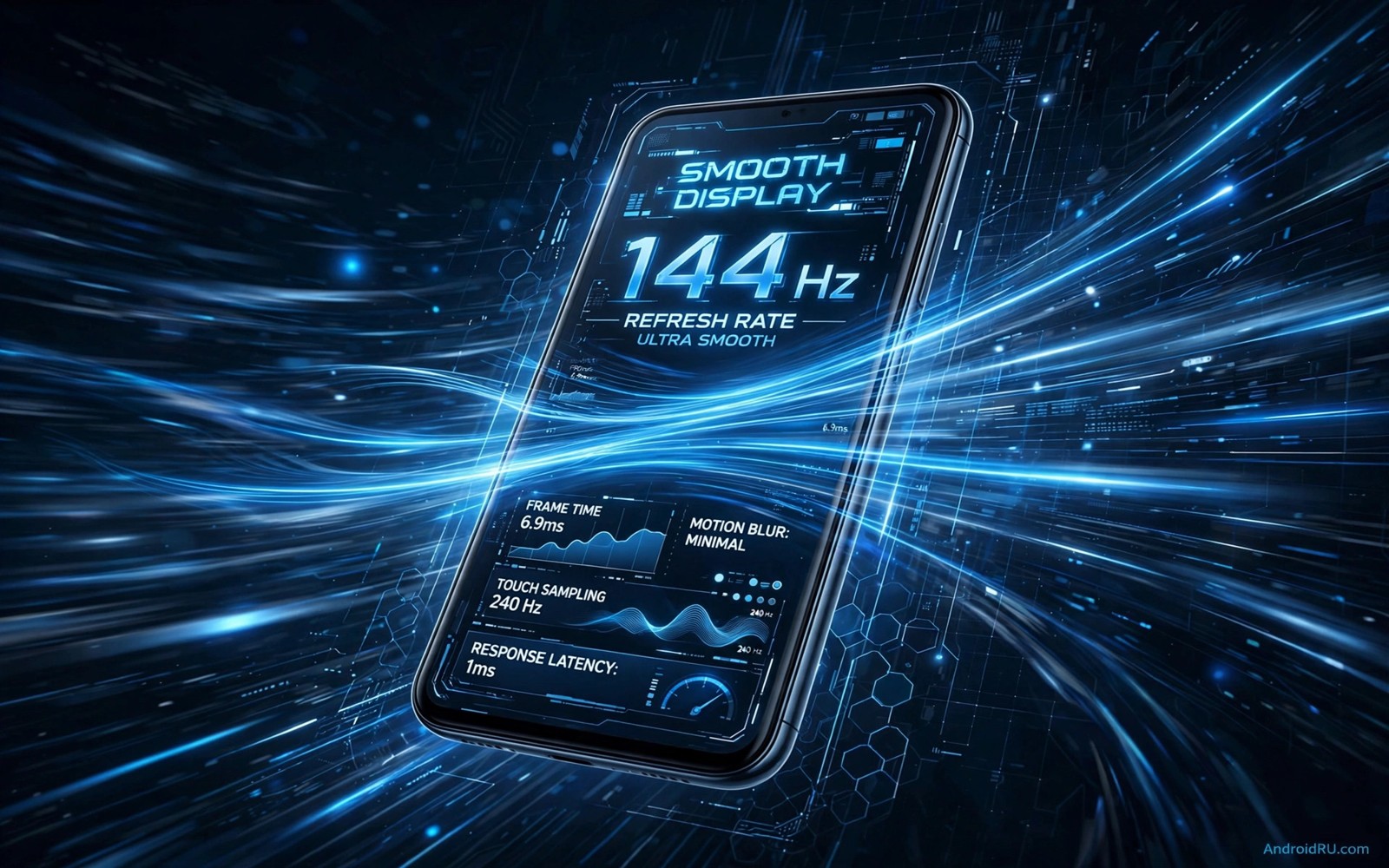
Scrolling should feel like sliding a finger across glass. On a 120Hz phone that feeling often disappears inside certain apps. Some apps lock themselves to a lower rate for battery reasons. Others simply never ask the system for a higher rate. The result is a phone that feels fast in one app and sluggish in the next. This guide shows how to push high refresh rate into more apps safely.
First you must know what your phone can actually do. A 60Hz panel cannot become a 120Hz panel through software. A 90Hz panel cannot reach 120Hz either. Check your phone model and display specification before you change anything. If your panel supports 120Hz then software limits are the real barrier. Those limits are often removable with care.
Start with the official display setting. Many phones offer Smooth Display or a refresh rate menu. Choose the highest rate offered there. Test scrolling in your browser and your messages app. If some apps still feel slow then move to developer options. Only use advanced commands after you understand the battery cost. Smoothness always trades against battery life.
Check your panel and current refresh rate
Open Settings and then Display to see refresh rate choices. Some brands hide the choice under Motion smoothness. Others place it under Screen refresh rate. Pick the highest value that appears. Restart the app you want to test after changing it. A restart forces the app to read the new display mode.
Use a simple scroll test to judge the result. Open a long web page and flick it quickly. Smooth motion looks continuous with little blur. Low rate motion looks choppy with visible steps. Compare the same page in two apps. A clear difference points to an app level limit. No difference points to a system setting that still needs work.
Developer options can show the live refresh rate on screen. Turn on Show refresh rate after enabling developer options. A small number appears in a corner of the display. Watch it while you open each app. The number reveals what rate each app truly uses. This proof beats guessing from feel alone.
Use developer options for a system wide push
Enable developer options by tapping Build number seven times. This action is safe and reversible on stock Android. Open Developer options and search for refresh rate entries. Some phones include a Force peak refresh rate toggle. Turn it on to push apps toward the peak rate. Test your main apps right after enabling it.
Watch battery drain after this change for one full day. High rate mode can shorten screen on time by a clear margin. Heavy scrolling and gaming drain fastest. Reading and messaging drain less. If battery life drops too far then use the toggle only for sessions when smoothness matters. A toggle you control beats a permanent drain.
Some phones lack a peak rate toggle entirely. Brand software varies a great deal across Android. Do not install a random tool that promises to unlock hidden rates. Many such tools need root access or risky permissions. A safer path uses official settings plus per app choices. Root tools can break updates and banking apps.
Speed tuning often goes together with other system tweaks. Readers who enjoy this topic also explore developer options that instantly speed up a phone for animation and background limits. Those options change feel in a different way from refresh rate. Combine them carefully and test one change at a time.
Try per app settings where they exist
Some brands offer per app refresh rate controls. Look under Display settings and then app level options. Game launchers often include a high rate mode for games. Battery settings may include a high performance mode for chosen apps. Add your most used apps to those lists first. Leave rarely used apps at system defaults.
Video apps often cap rate on purpose for smooth playback. A film at a standard frame rate does not need 120Hz. Forcing a higher rate there can cause judder or extra heat. Leave video apps alone unless scrolling inside them feels bad. Focus on browsers and social apps and messaging apps. Those apps benefit most from fluid scrolling.
Games need a different check from normal apps. A game must support high frame rates in its own engine. Forcing display rate cannot create game frames that do not exist. Check the game settings menu for a frame rate option first. Set it to the highest stable value your phone can hold. A stable high frame rate beats a peak that stutters.
Advanced ADB method for supported phones
ADB commands can set display modes on some phones. This method needs a computer and USB debugging. It does not need root on many devices. Connect the phone and confirm the computer prompt on screen. Run a command to list supported display modes. Pick the mode that matches your panel and desired rate.
Write down the original mode before you change anything. A note lets you restore the old behaviour fast. Test the new mode for an hour of normal use. Watch for heat and flicker and touch problems. Revert at once if anything feels wrong. A smooth screen is never worth a damaged display.
ADB changes can reset after a reboot or a system update. That reset is actually a safety feature. It stops a bad mode from locking you out forever. Reapply the command only after a fresh test. Keep a short note of the exact command you used. Do not copy commands from strangers without reading each part.
adb devices
adb shell dumpsys display
adb shell settings put global peak_refresh_rate 120.0
adb shell settings put global min_refresh_rate 60.0
This snippet shows a standard Android developer command pattern for display settings. It lists device checks before any change. It then sets peak and minimum rates in a clear order. Use it only on a phone whose panel supports the stated rate. Restore defaults if scrolling or battery behaviour becomes worse.
After any ADB change test the same apps as before. Open the browser and a social app and a game. Compare scroll feel and battery drain across a day. Keep the change only if the gain is clear. Remove it if the phone runs hot or drains fast. Honest testing protects both smoothness and battery health.
Display tuning pairs well with wider system care. Learning about battery saving toggles hidden deep in settings helps offset the cost of high rate use. Adaptive battery and background limits reduce drain elsewhere. The goal is smooth motion without an empty battery by dinner.
Balance smoothness with battery across a week
High refresh rate feels wonderful during the first hour of use. Battery cost appears later in the day. A week long test reveals the true trade off for your routine. Note battery level at lunch and at bedtime each day. Compare a peak rate week with an adaptive rate week. The comparison gives a personal answer rather than a general claim.
Gaming sessions drain fastest at peak rate. A one hour gaming session can use a large share of battery. Reading sessions drain far less at the same rate. Social scrolling sits between those extremes. Set peak rate for gaming sessions only if battery suffers. Use adaptive rate for mixed days with reading and messaging.
Some phones offer a high rate mode inside game launchers. Use that launcher mode instead of a global peak toggle. The launcher applies high rate only to games. Normal apps stay on adaptive rate. That targeted approach saves battery without losing game smoothness. Check game launcher settings after each major update.
Heat is a warning sign during peak rate use. A phone that feels warm during simple scrolling needs attention. Lower the rate or close heavy apps. Heat plus high rate over months can age a battery faster. A cool phone at adaptive rate often lasts longer overall. Smoothness should never come with constant heat.
Screen protectors and cases do not affect refresh rate. They can affect touch feel during fast scrolling. A thick protector may slow swipe response slightly. Test scrolling with and without a new protector. Choose a protector that preserves touch responsiveness. Smooth display plus responsive touch feels best together.
Fast navigation also depends on gesture fluency. Learning about gestures that make multitasking feel instant helps you switch apps without delay. Gestures plus high rate create a fluid experience. Test both together for a day and note the difference. A fluid phone feels new even without new hardware.
- Log battery at lunch and bedtime during a peak rate week.
- Use game launcher high rate instead of a global toggle.
- Watch for heat during simple scrolling sessions.
- Test touch response after changing a screen protector.
- Compare adaptive and peak weeks before settling on one.
Common mistakes
- Expecting a 60Hz panel to run at 120Hz through software.
- Forcing high rate in video apps where it adds heat without benefit.
- Copying ADB commands without checking panel support first.
- Leaving peak rate on all day and then blaming the battery.
- Installing root tools from unknown sources to unlock rates.
- Judging smoothness by feel alone without checking the live rate.
FAQ
Why do some apps stay at a lower rate?
Some apps request a lower rate to save battery. Others use older code that never asks for high rate. System settings can override many of these limits. A few apps still ignore the override by design.
Does 120Hz damage the screen?
Running at the rated peak rate does not damage a supported panel. Heat and battery drain are the real costs. Stop if the phone becomes hot during normal use. Heat over time matters more than rate alone.
Should I force 120Hz all the time?
Force it only when smoothness matters to you. Use adaptive rate for daily balance when it works well. Switch to peak rate for gaming or long scrolling sessions. Return to adaptive mode afterwards to save power.
Quick check before you finish
Open your browser and scroll a long page slowly. Watch the live refresh number if you enabled it in developer options. Open a social app and repeat the same scroll test. Compare the two numbers side by side. A matching high number means the system push worked. A lower number in one app means that app still limits rate. Keep peak mode only for apps where the gain is clear and battery cost is acceptable.
Conclusion
High refresh rate should feel consistent across your phone. Official display settings fix most cases. Developer options push the rate further on supported models. ADB commands help on some phones with careful testing. Per app choices protect battery where high rate adds little value. Test each step and keep only what truly improves daily use.
Your concrete next step is to enable Show refresh rate in developer options today. Open three apps you use daily and note the live rate in each one. Then turn on the peak rate option if your phone offers it. Compare the numbers again and keep the setting only if the gain is real.

