

What Unlimited Storage Claims Really Mean
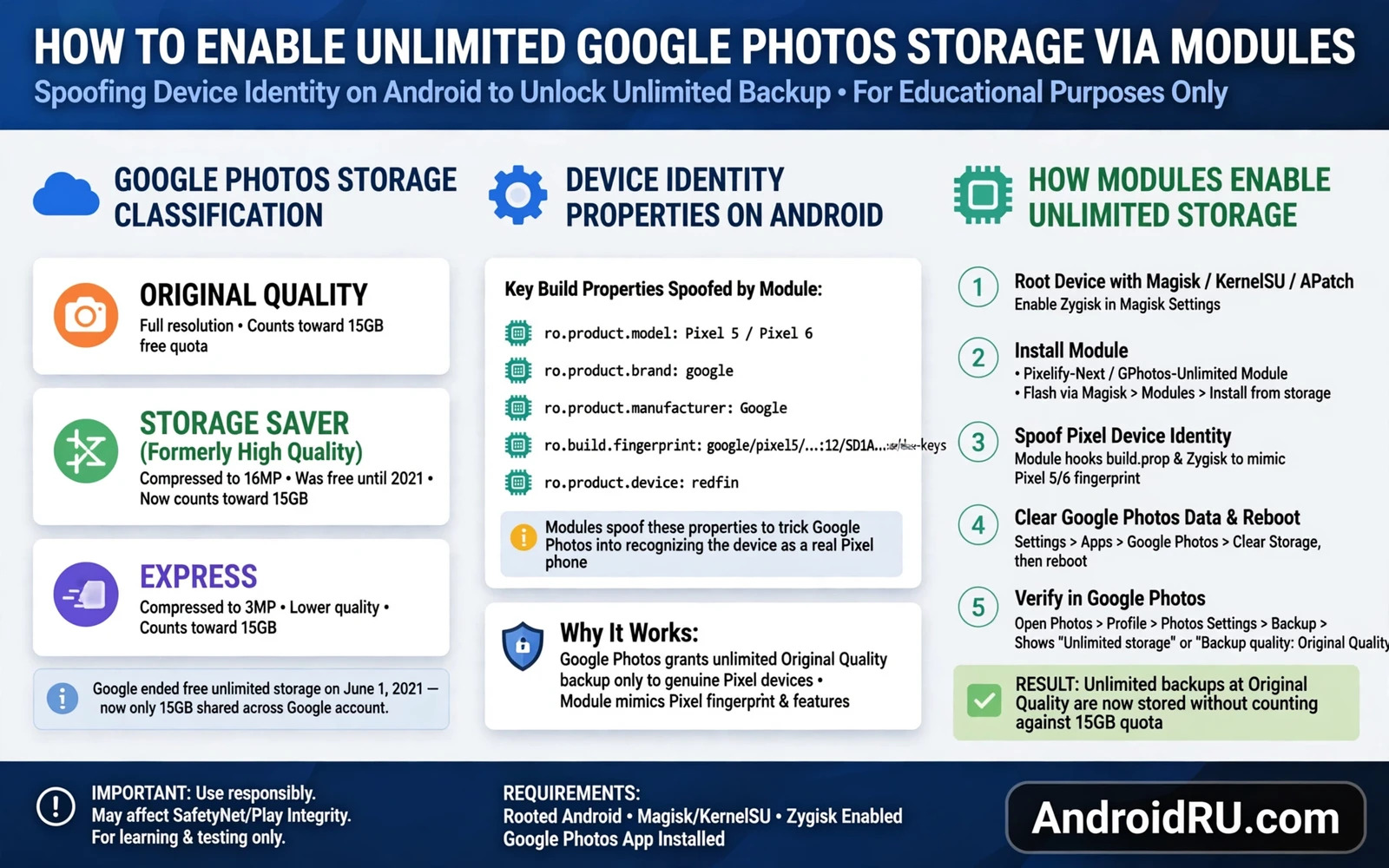
Modules that promise unlimited Google Photos storage usually work by changing device identity properties so that the Photos service treats the phone as a model that historically received a storage benefit. The module does not create storage space on Google servers. It changes how the service classifies the device. That classification trick is the whole mechanism and its limits follow from that fact.
Photos storage benefits tied to specific Pixel models were a promotional offer for those models at the time of sale. The benefit applied to photos uploaded from that device under the terms in force at that time. A module that spoofs the device identity attempts to borrow that classification for a different phone. Whether the service honours the spoofed classification depends on server side checks that the module cannot control.
Owners should treat any unlimited claim as unverified until they test it carefully with non critical photos. Upload a small set of test photos and check the storage accounting in the account dashboard. A module that appears to work for one upload may stop working after a server side change or after a Photos app update. Server side policy can change without warning.
No module can guarantee that uploaded photos will remain free forever. Terms of service for cloud storage can change and accounts can be flagged for policy violations. Owners who rely solely on a spoofed benefit for irreplaceable photos take a serious risk. A local backup remains essential regardless of what any module promises.
Risks Beyond Storage Accounting
Changing device identity properties can affect more than Photos. Other Google services read the same properties to determine device features and compatibility. A spoofed identity can break device specific features or can cause apps to download the wrong configuration. Side effects may appear in unexpected places days after the module is enabled.
Safety and integrity checks may fail on a device with spoofed properties. Banking apps and payment apps and games with integrity checks may refuse to run. Owners who need those apps daily should weigh the storage benefit against the loss of trusted app access. A storage trick that blocks banking is a poor trade for most owners.
Account risk is a separate concern. Using a module to obtain a benefit tied to a different device model may violate the terms of service for the cloud account. Account enforcement varies and is not predictable from community reports alone. Owners should not use a primary Google account for experiments that could trigger a policy review. A secondary account for testing reduces the blast radius.
Module quality varies widely. A module that changes only the properties needed for Photos classification is less risky than a module that changes many identity properties at once. Read the module description and check which properties it changes. A module that hides its changes behind a vague description deserves scepticism.
Testing A Module Without Risking Real Photos
Back up all photos locally before enabling any storage module. Copy the full photo library to external storage or to a computer. Verify that the local copy opens correctly. A backup that has never been tested is only a hope. Test a few files from the backup before proceeding.
Create a separate test account or use a test album with unimportant photos for the first upload test. Check the storage dashboard after the upload and after a delay because accounting can update asynchronously. Note the exact storage change shown. A clear before and after record prevents wishful interpretation of ambiguous dashboard numbers.
Test normal Photos functions after enabling the module. Test backup and sync and sharing and search. Test that existing photos remain accessible. Test that new photos from the camera upload correctly. A module that breaks sync while claiming unlimited storage has made the situation worse rather than better.
Keep the module disabled during the test of other Google services. Re-enable other services one at a time and note any failure. If a banking app or a payment app fails after the module is enabled then decide which service matters more. Most owners will choose banking access over a storage classification trick.
Safer Alternatives For Photo Storage
Local storage plus a personal backup routine is the most reliable alternative. An external drive or a home server under owner control does not depend on a device classification trick. A routine that copies new photos weekly protects against phone loss and against cloud policy changes at the same time.
Storage saver quality settings in Photos reduce the storage used by each photo while keeping it suitable for sharing and for viewing on a phone screen. Owners who mainly view photos on a phone may find storage saver quality perfectly adequate. Original quality matters most for large prints and for professional editing. Choose quality based on real use rather than on a desire for unlimited everything.
Multiple cloud accounts and careful album organisation can also spread storage load without any spoofing. Family sharing and shared albums have their own rules and should be read before relying on them. Organisation does not create unlimited storage but it makes limited storage easier to manage.
Owners who still want to explore modules should first understand the systemless model. The overview that explains understanding systemless root concept and mount points explains how a module can be disabled cleanly. The utilities roundup that covers top Android modding utilities every tweaker needs helps owners choose reputable tools. The startup scripts guide that explains how to run custom scripts on Android system startup shows how persistent changes are applied at boot. Together they give a realistic picture of what a storage module can and cannot promise.
How Storage Accounting Can Mislead
Storage accounting in cloud dashboards updates asynchronously which means that a change may not appear immediately after an upload. Owners who check accounting seconds after an upload may see an old number and conclude that a module failed. Owners who check again after a delay may see a different number. Timing explains many apparent failures. Patience in checking is part of accurate testing.
Storage saver quality and original quality accounting differ because saver quality uploads consume less quota in some account models. A module test that mixes quality settings produces confusing results. Owners should set a single quality setting for the whole test and note it in the test record. Mixed settings create mixed results that cannot be attributed cleanly.
Shared storage across Google services complicates accounting because Photos shares quota with Drive and mail in many account types. A change in Photos storage may be masked by a change in Drive storage during the same period. Owners should check total account storage and per service breakdown together. Total alone hides service shifts. Per service alone hides total pressure.
Deleted photos may remain in trash for a period and may still count against storage until trash is emptied. A test that uploads and then deletes photos may show no storage change until trash is cleared. Owners should empty trash as part of a clean test or should account for trash retention in their interpretation. Trash is a common source of accounting confusion.
Family storage sharing adds another layer because quota may be pooled across accounts. A module test on one account may appear to affect another account through pooling. Owners in a family plan should test with awareness of pooling. Isolated testing requires an account outside the family pool or a clear understanding of how pooling reports usage.
Server side classification changes can retroactively affect accounting. A photo classified as free at upload time may later be reclassified under a policy change. Retroactive reclassification is rare but it illustrates why a module benefit cannot be treated as permanent. Owners should not build a long term storage strategy on a classification trick that the provider can revise.
Local Backup Strategies That Actually Work
A local backup strategy needs a schedule rather than a good intention. Weekly copying of new photos to external storage is a realistic schedule for most owners. Daily copying suits owners who photograph professionally. Monthly copying leaves too much new data exposed to phone loss. Schedule choice should match photo volume and photo value.
Backup verification means opening a sample of backed up files on the backup destination. A copy operation that reports success may still have produced corrupted files if storage media is failing. Opening samples catches media failure early. Verification should include photos from different dates rather than only the most recent photos. Different dates test different parts of the backup history.
Multiple backup destinations protect against single media failure. An external drive plus a home server is a strong pair. An external drive alone is vulnerable to drive failure. A home server alone is vulnerable to network or power failure. Two destinations with different failure modes provide real redundancy. Redundancy should differ in failure mode rather than merely duplicating the same risk.
Encryption of local backups protects photos if backup media is lost or stolen. Unencrypted backup drives contain the full photo library in readable form. Owners should encrypt backup media with a passphrase stored separately from the media. A lost encrypted drive protects privacy. A lost unencrypted drive exposes everything. Encryption is especially important for portable drives.
Backup organisation should preserve original file names and folder structure where possible. Renaming during backup complicates restoration and breaks album organisation. A backup that preserves structure restores cleanly. A backup that renames files restores messily. Structure preservation is a quality criterion for backup tools.
Testing a full restore annually is the strongest backup validation. A restore test on a spare device or a spare folder proves that the backup is usable. Owners who never test a restore may discover too late that their backup tool requires a licence or a specific app version that is no longer available. Annual restore testing catches tool dependency problems while there is still time to fix them.

