

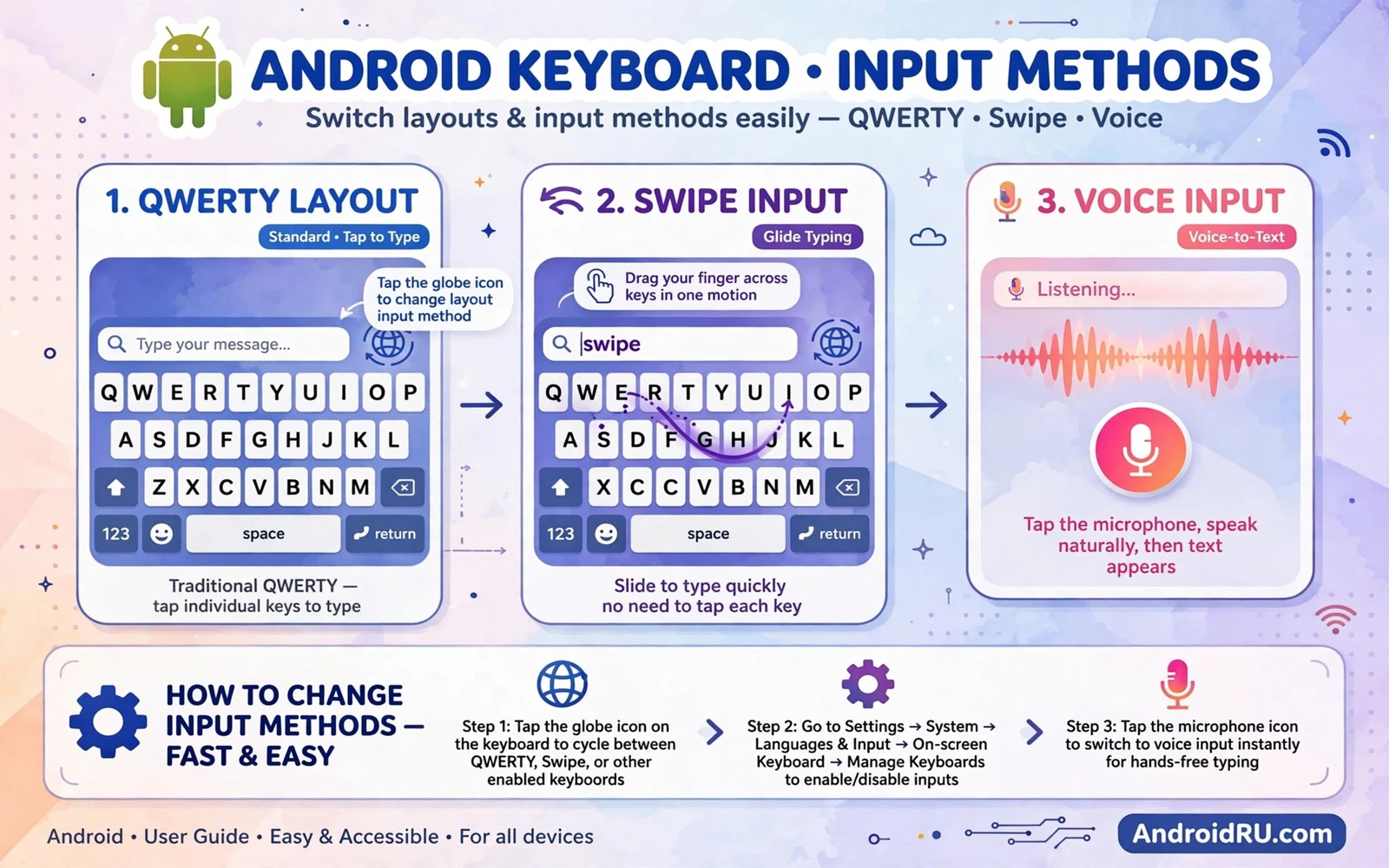
Why Your Keyboard Layout Deserves Attention
Your keyboard is the tool you touch more than any other part of your phone. A layout that matches your hands and your language can cut typing errors and speed up every message you write. A layout that fights you will slow you down and add frustration to simple tasks. Many people accept the default layout for years without realising that a better option sits only a few taps away in Settings. Android lets you change the layout and the input method and the active language without installing anything unusual. The change takes effect across apps so your messages and notes and searches all benefit at once.
Input method is a wider idea than layout alone. It covers the keyboard app itself and voice typing and handwriting and the physical keyboard if you connect one. Each method suits a different moment. A compact layout suits one-handed typing on a large phone. A full layout with a number row suits long documents. Voice input suits hands-free moments when typing is awkward. Learning how to switch between methods gives you control instead of forcing one layout on every situation. This guide walks through the standard path and the common variations across phone brands.
Open The Keyboard Settings The Standard Way
Start by opening Settings and then System and then Languages and input. On some phones the path uses General management instead of System. The exact label changes with the brand but the destination is the same. Look for an entry named On-screen keyboard or Virtual keyboard. That screen lists every keyboard app installed on your phone. Tap the keyboard you want to use and look for Languages or Layouts inside its own settings. Most keyboard apps let you add a language and pick a layout for that language in the same place.
If you cannot find the entry then open any app with a text field and tap the field to show the keyboard. Look for a small keyboard icon in the navigation bar or a globe key on the keyboard itself. Tapping that icon often opens a switcher that lists your active keyboards. From the switcher you can jump straight to keyboard settings. This shortcut is handy when you are already typing and you want a fast change. Keep this shortcut in mind because you will use it often once you have more than one layout active.
Add A Language And Pick Its Layout
Inside your keyboard settings tap Languages and then Add keyboard or Add language. Choose the language you want and the app will show the layout options for that language. Some languages offer several layouts such as QWERTY and AZERTY and QWERTZ and phonetic layouts. Pick the layout that matches the physical or mental model you already know. A familiar layout reduces errors far more than a layout that looks modern but feels strange. Confirm the choice and the new language appears in your active list.
You can add several languages and switch between them with a single key press. The globe key or the space bar swipe is the usual switch gesture. Try the gesture now so you know how it feels before you need it in a real message. If the globe key is missing then check the keyboard preferences for a language switch key option. Some keyboards hide that key until at least two languages are active. Once two languages are active the key appears on its own. Test each language in a notes app so you can see the layout change in action.
Switch The Default Input Method
Android allows several keyboard apps to live on one phone but only one can be the default input method at a time. To change the default open Settings and then System and then Languages and input and then On-screen keyboard. Tap Manage on-screen keyboards and turn on the keyboard you want. Then go back and tap Default keyboard or Current keyboard and select it. The phone will ask you to confirm because a keyboard can see what you type. Only enable keyboards from developers you trust and read the permission prompt with care.
Changing the default keyboard is a safe and reversible step. You can switch back at any time through the same screen. Your personal dictionary and learned words usually stay with each keyboard app rather than moving between apps. That means a new keyboard may feel less smart for a few days while it learns your style. Give it a short trial before you judge it. If you dislike it then switch back and nothing is lost. Your old keyboard keeps its own learned data intact.
Try Voice And Handwriting And Other Methods
Voice typing is built into most Android keyboards. Look for a microphone icon on the keyboard and tap it and speak clearly. Voice input works best in a quiet room and with short sentences. It is not a replacement for typing when privacy matters because spoken words can be heard by people nearby. Handwriting input lets you draw letters with a finger or a stylus. It suits languages with complex scripts and it suits people who dislike small keys. Enable it in the keyboard settings under input methods if your keyboard supports it.
A physical keyboard changes the input method in a different way. Connect a Bluetooth keyboard or a USB keyboard and Android will use it for text fields. The on-screen keyboard may still appear unless you turn it off in the physical keyboard settings. Look for a setting named Show virtual keyboard while physical keyboard is attached. Turning it off keeps the screen clear. Test the layout of the physical keyboard too because it may use a different language map than the screen keyboard. Change its layout under Physical keyboard in Languages and input.
Shape The Layout To Your Hands
Size matters as much as layout. Most keyboards let you resize the keyboard height and switch to one-handed mode. A taller keyboard gives larger keys and fewer slips. A shorter keyboard leaves more screen visible for reading. One-handed mode shrinks the keyboard toward one side so your thumb can reach every key. Try each size for a full day rather than judging it in one minute. A size that feels odd at first often feels natural once your muscle memory adjusts.
Other layout options can help too. A number row keeps digits visible without switching screens. Key borders make each key easier to see. Haptic feedback gives a small vibration on each press and helps you feel that a key registered. Sound on keypress helps some people and annoys others so test it briefly. A theme with strong contrast helps in bright sunlight. These small settings combine into a keyboard that feels built for you rather than borrowed from a default. Readers who enjoy shaping the whole phone can explore changing the default launcher next because the launcher and the keyboard together define the daily feel of the device.
Fix A Layout That Refuses To Change
If the layout does not change then first check that you changed the layout for the active keyboard and not for a different keyboard app. Many phones ship with two keyboards and editing the inactive one changes nothing on screen. Open the keyboard switcher while typing and confirm which keyboard is active. Then open the settings for that exact keyboard and repeat the layout change. Restart the app you are typing in so it reloads the keyboard state. A restart of the phone clears any stuck keyboard process that blocks the change.
If the new language does not appear then check that its download finished. Some languages need a small download before the layout works. Connect to Wi-Fi and wait for the download and try again. If the keyboard app itself misbehaves then clear its cache in Settings and then Apps. Do not clear its data unless you accept losing learned words and personal settings. A cache clear is gentler and fixes most display glitches. If the problem persists then update the keyboard app and test again before trying a different keyboard app.
Keep Your Typing Private And Comfortable
A keyboard sees passwords and messages and search terms so treat keyboard choice as a privacy choice. Stick to well known keyboard apps from the Play Store and avoid keyboards that ask for network access without a clear reason. Review the permissions of any keyboard you install. A keyboard does not need access to your contacts or your files to type letters. If a keyboard demands broad access then look for a simpler option. Your typing comfort should never cost you control over personal data.
Back up your personal dictionary if your keyboard offers that option. A backup saves you from retraining a new phone from scratch. Sync options vary so read what is synced before you turn sync on. Some people prefer a local backup only. Others accept cloud sync for convenience across devices. Either choice is valid as long as it is your choice. A well tuned keyboard plus a thoughtful privacy setup turns typing from a chore into a quiet strength of your phone. For a wider customisation project the guide to one-handed mode on large screens pairs well with a compact keyboard layout.
Keyboard Shortcuts And Text Tools
A good keyboard layout pairs well with text shortcuts that save repeated typing. Most keyboards offer a personal dictionary where you can store short codes that expand into long phrases. A code for your email address or your home address can save dozens of keystrokes a day. Set up two or three codes for phrases you type constantly and test them in a notes app. A code that expands unexpectedly can embarrass you in a formal message so choose codes that you would never type by accident. Short codes with unusual letters work best for this reason.
Clipboard history is another quiet helper. A keyboard that remembers recent copies lets you paste an earlier copy without re-copying it. Open the clipboard panel from the keyboard toolbar and pin items you reuse often. Pinned items survive restarts and stay ready for paste. Clear the clipboard history occasionally because it can hold passwords and sensitive text. A tidy clipboard plus a familiar layout turns typing into a fast and calm task. Readers shaping the whole input experience can also explore lock screen clock styles and widgets because the lock screen and the keyboard are the two surfaces you touch most every day.
Layouts For Different Languages
Switching languages changes more than letters. It changes suggestions and autocorrect and the dictionary behind the keyboard. A keyboard set to the wrong language will fight every word you type. Confirm the active language before a long message in a second language. The language key or the space bar swipe shows the current language briefly. A glance at that indicator prevents a paragraph of wrong corrections.
Some languages need a special layout that has nothing to do with QWERTY order. A phonetic layout maps sounds to familiar keys. A native script layout maps the script directly. Try both for a week each if your language offers both. The layout that feels slower on day one may feel faster on day seven once your fingers learn it. A patient trial beats a quick judgement for any layout change. Pair language testing with a comfortable hand position and the guide to custom vibrate patterns for contacts shows how small personal touches make a phone feel built around its owner.
When To Try A New Keyboard App
Try a new keyboard app when your current keyboard lacks a layout you need or when its suggestions stay poor after weeks of use. Install the new app and enable it through the input method screen and give it a full week. Judge it on accuracy and comfort and privacy together. A keyboard that predicts well but demands broad permissions is a poor trade. A keyboard that respects privacy but mangles words is also a poor trade. The right keyboard balances all three.
Keep your old keyboard installed during the trial so switching back takes seconds. Delete the trial keyboard if it disappoints and return to the familiar one without drama. Keyboard choice is personal and reversible. No choice here is permanent. The best keyboard is the one that disappears into your typing so you think about words rather than keys.

