

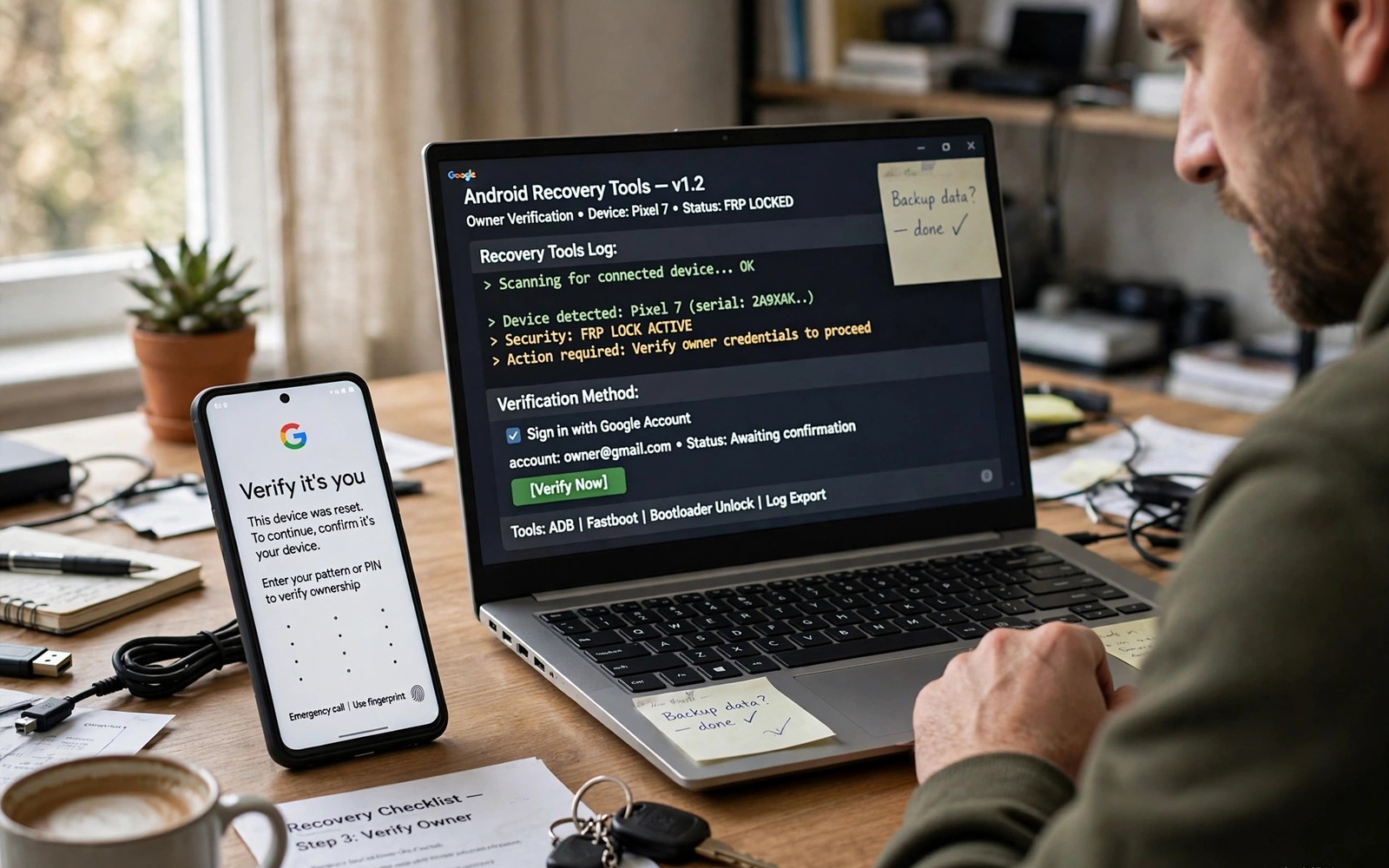
Forgetting a screen passcode on your own phone is stressful. Recovery tools can help in some cases but not in all cases. Modern encryption limits what recovery can do without the passcode. This guide explains realistic options and honest limits. It covers only your own device and lawful access to it.
Never use these techniques on a phone you do not own. Lock screens protect personal data for a good reason. Bypassing someone else lock without permission is wrong and may be unlawful. This guide assumes you can prove ownership and that you accept possible data loss.
Why Modern Locks Are Hard to Bypass
Older Android versions stored lock settings in files that recovery could delete. Removing those files sometimes cleared the lock without touching data. That trick faded as encryption improved. File based encryption now ties data access to credentials. Deleting a lock file no longer decrypts the data behind it.
On encrypted devices recovery often cannot read data at all without the credential. That barrier is intentional and strong. It means some forgotten passcode cases end in a factory reset. Accepting that outcome early saves false hope and wasted effort. Backups made before the lockout become the real rescue path.
Device makers also add factory reset protection after a reset. A reset phone may ask for the previous Google account sign in. Keep account credentials available before resetting any device. A reset without account access can leave the phone unusable for its owner too.
First Steps Before Recovery Tricks
Try every credential you might have used before any technical step. Check password managers and written notes you control. Try biometric unlock if the phone still offers it. Biometrics can open the phone and let you change the passcode in settings. That path preserves all data when it works.
Check whether a maker or carrier service can help with account verification. Some makers offer verified owner recovery through support channels. That route takes longer but it protects your data better. Gather proof of purchase and device identifiers before contacting support. Support teams need that proof to help safely.
- Try biometrics and remembered credentials before technical methods
- Check maker support options for verified owner recovery
- Copy any accessible data before attempting destructive steps
- Keep Google account credentials ready for post reset checks
What Recovery Can Still Do
Recovery can mount storage and inspect files when encryption allows. On older or unencrypted devices lock files may still be removable. Recovery file manager can rename or delete specific lock setting files. A reboot then may present no lock or a fresh lock setup. Success depends heavily on Android version and encryption state.
Recovery can also back up accessible partitions before a reset. That backup preserves system state even when data stays locked. It does not decrypt locked data by itself. Still, a backup before destructive steps keeps options open. Never skip a backup when recovery can create one.
ADB access from recovery helps inspect lock related files on some builds. Commands can list data system files when decryption succeeds. Without decryption those listings show nothing useful. Treat ADB inspection as diagnosis rather than a guaranteed fix. Honest diagnosis prevents risky guesses.
When a Factory Reset Is the Answer
A factory reset erases data and removes the lock in most cases. Recovery offers a data format option for this purpose. Formatting data also removes encryption keys for the old data. The phone then starts fresh with a new setup. This is the reliable fallback when other methods fail.
Before formatting, rescue files through recovery mounting if possible. Connect external storage and copy photos and documents that recovery can read. Encrypted files that recovery cannot decrypt will not copy usefully. Copy what you can and accept the rest as lost. A partial rescue beats no rescue.
Mounting help is available in the guide to mounting storage drives in recovery for emergency file transfer which covers USB and external storage. Rescue files before any format whenever recovery allows it.
Encryption Limits You Must Understand
Encryption is the key limit in almost every modern case. Recovery handling of encrypted storage varies by device and build. You can learn how recovery deals with locked data in how custom recovery handles encrypted internal storage before attempting file tricks. That knowledge sets realistic expectations fast.
If recovery asks for a decryption password then try the forgotten passcode itself. Sometimes the decryption credential matches the lock credential. A correct entry unlocks data for backup and repair. A wrong entry simply fails without harming data. Repeated guessing should stay within sane limits to avoid lockouts.
Some devices add hardware backed key protection that recovery cannot bypass. No file deletion defeats that protection. Claims that a simple trick defeats all modern locks are misleading. Treat such claims with skepticism and protect your data with backups instead.
adb reboot recovery
adb shell ls /data/system/
adb shell ls /data/media/0/
The commands above only list files when recovery can access decrypted storage. They change nothing by themselves. Listing helps you judge whether file level tricks are even possible. Never delete files blindly based on a list from another device model.
After Regaining Access
Set a new passcode you can remember and store it safely. Enable biometric unlock as a secondary method where available. Turn on cloud backup for photos and important files. A future lockout then costs convenience rather than data. Good backup habits are the real bypass for lockouts.
Check that recovery itself is protected after the incident. An unprotected recovery weakens lock screen security on some setups. Consider recovery password options where your build supports them. Balance convenience against the risk of locking yourself out of recovery too. Document recovery credentials separately from the phone lock.
Avoiding Lockouts in Future
Use a password manager for passcodes and account credentials. Keep a secure offline copy for emergencies you control. Test biometric unlock regularly so it stays enrolled and working. Review backup status monthly rather than after a crisis. Prevention is far cheaper than any recovery trick.
If mount or file system errors block rescue attempts, the shell repair guide on fixing mount errors and file system corruption in recovery shell may help restore access to storage. Healthy mounts are a precondition for any file rescue.
Account Recovery Paths Worth Trying First
Maker account recovery often offers a safer path than technical tricks. Some makers let verified owners reset a device remotely. That reset still erases data in most cases. It avoids risky file manipulation in recovery. Remote reset also works when recovery access itself is limited.
Carrier support can help with account verification in some regions. Bring proof of purchase and identification to support channels. Support staff follow verification steps to prevent unauthorized resets. That friction protects owners from impersonation attacks. Patience with verification pays off in account safety.
Cloud backups change the math for reset decisions entirely. Photos and contacts synced to cloud accounts survive a reset. App data with cloud sync restores after sign in. A reset becomes inconvenient rather than catastrophic with good sync. Check sync status on other devices before resetting.
Protecting a Recovered Phone
After regaining access, review lock settings immediately. Choose a passcode that balances security and memorability. Enable biometrics as a secondary unlock method. Biometrics reduce daily friction while keeping a strong fallback. Test biometric unlock after enrollment to confirm it works.
Set up cloud backup for photos and documents at once. Enable account sync for contacts and calendar data. Consider a password manager for passcodes and credentials. A manager reduces future lockout risk dramatically. Store the manager master credential securely outside the phone.
Consider whether recovery protection suits your threat model. Recovery locks add friction for legitimate rescue too. Weigh tampering risk against rescue convenience honestly. A lock that blocks your own future rescue helps no one. Document any recovery credential you choose.
- Try maker account recovery before technical lock tricks
- Check cloud sync status before accepting a reset
- Enable biometrics and cloud backup after recovery
- Store passcodes in a password manager you control
When Professional Help Makes Sense
Professional repair help makes sense when data value exceeds DIY risk. Shops with forensic style tools may recover data that recovery cannot. Their tools still respect encryption limits on modern phones. No legitimate shop can promise decryption without credentials. Honest shops state limits upfront before charging.
Choose repair shops with clear pricing and verifiable reputation. Ask what methods they will use before handing over the phone. Avoid shops promising guaranteed bypasses for any phone. Guarantees around modern encryption signal dishonesty. Reputable help explains options and odds plainly.
Maker authorized service centers offer another professional path. They can replace hardware and restore stock software reliably. They cannot bypass account locks without verification either. Authorized centers suit hardware faults combined with lock issues. Their documentation also supports warranty claims afterward.
Lockout Prevention for Families
Families sharing devices face higher lockout risk than single owners. Children may change passcodes playfully without telling adults. Elderly relatives may forget newly changed credentials quickly. Shared device rules should cover credential changes explicitly. Agree that passcode changes get recorded in a shared secure place. Use biometric unlock for daily access on shared phones. Keep a trusted family member informed about account recovery options. Prevention through shared habits beats technical rescue after a lockout.
The steps above follow the approach described in the official developer documentation for this platform. That documentation explains encryption and credential handling in general terms. It also covers factory reset protection concepts that affect post reset setup. Combine it with maker support guidance for your exact device.

