

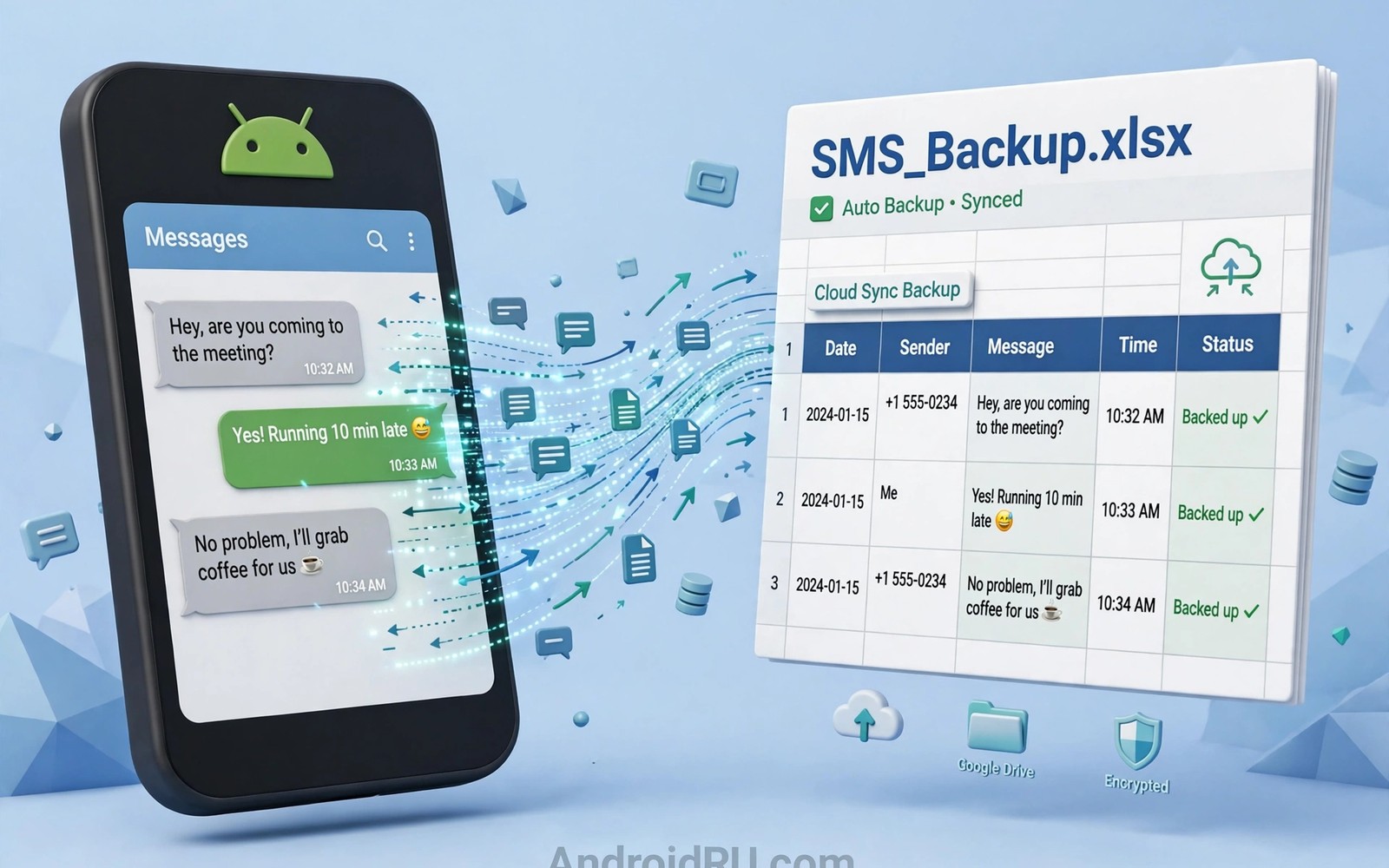
Text messages hold confirmations and codes and addresses that you need later. A booking confirmation lives in a message thread. A delivery code lives in another thread. An address from a friend lives in a third thread. Searching threads one by one wastes time when you need a detail quickly. A spreadsheet backup turns scattered messages into a searchable table. Each message becomes a row with date and sender and text. This guide shows how to auto backup SMS messages to spreadsheets. It keeps a searchable record without manual copying.
A spreadsheet suits message backup because it supports search and filtering. A search for a sender name finds all messages from that person. A filter by date finds messages from a specific week. A sort by sender groups conversations together. A phone messaging app rarely offers that level of search. A spreadsheet also exports easily to other tools. A table format travels well across devices and services. A backup that you can search is a backup that you will actually use.
Automatic backup matters because manual export fails over time. A manual export done once becomes stale within weeks. An automatic backup runs on a schedule and stays current. A weekly automatic run captures new messages without effort. A daily automatic run captures urgent messages sooner. Choose a schedule that matches how often you need old messages. A weekly schedule suits most personal use. A daily schedule suits work use with frequent confirmations.
Choose A Backup Method You Can Audit
Choose a backup tool that shows exactly what it copies. A tool should list the fields it exports such as date and sender and body. A tool that hides its field list may copy more than you expect. A tool that exports to a spreadsheet you own gives you control. A spreadsheet in your own account stays under your control. A backup sent to a third party server needs extra trust. Prefer a direct export to your own spreadsheet whenever possible.
Test the tool with a small set of messages before a full backup. Create a test spreadsheet and export ten messages to it. Check that dates appear correctly and sender names match. Check that long messages are not truncated in the table. A test export reveals formatting problems while the stakes stay low. A full export with a formatting error creates a large cleanup task. A small test protects a large archive.
Decide whether to include all messages or only selected threads. A full backup is simpler and it preserves everything. A selective backup protects privacy for sensitive threads. A full backup of a personal phone usually suits personal use. A selective backup suits a shared spreadsheet or a work archive. Choose the scope that matches who will read the spreadsheet. Scope decisions protect privacy from the start.
Build The Automatic Backup Routine
Connect the backup tool to a spreadsheet with a clear name and a dedicated sheet. A name such as SMS Backup keeps the purpose obvious. A dedicated sheet prevents mixing messages with other data. A new sheet per year keeps the table size manageable. A yearly sheet also makes old years easy to archive. A clear structure helps future searches. Structure at creation time saves reorganisation later.
Set the schedule to weekly for personal use and daily for work use. A weekly run on Sunday evening captures the week messages. A daily run at midnight captures each day messages. A schedule that runs while you sleep avoids interruption. A schedule that runs during work can slow the phone briefly. Night schedules suit most backup tasks. A quiet schedule keeps automation invisible.
Add a verification step after the first automatic run. Open the spreadsheet and count the new rows. Compare the count with the number of new messages since the last run. A matching count confirms the routine works. A mismatched count reveals a filter or permission problem. Verify the first three runs before trusting the routine fully. Three verified runs build confidence in automation.
Backup: SMS to Spreadsheet
Sheet: SMS Backup 2026
Columns: Date, Sender, Message, Type
Schedule: Weekly Sunday 21:00
Mode: Append new messages only
The backup definition above follows standard message export practice for personal Android devices and it is presented here as a practical template for spreadsheet backups rather than as a claim about any single backup app. Each line in that definition stands for a choice you can confirm inside the backup tool you use. Keep the append mode so old rows stay untouched during new runs. An append mode prevents accidental overwrites. A template with append mode protects the archive from a bad run.
Search And Use The Backed Up Messages
Use spreadsheet search to find a confirmation code quickly. Search for the sender name or a keyword from the message. A search across thousands of rows returns results in seconds. A phone thread search across many threads takes far longer. A spreadsheet search also finds messages from deleted threads if the backup ran before deletion. A backup preserves messages that the phone no longer holds. Preservation is the core value of a backup.
Use filters to review messages from a specific period. Filter by date to see all messages from a trip week. Filter by sender to see all messages from a client. Filter by keyword to see all messages about a project. Filters turn a flat table into a focused view. A focused view answers a specific question without scrolling. A spreadsheet without filters is just a long list. Filters make the list useful.
Protect the spreadsheet with the same care as the phone itself. A spreadsheet with years of messages contains personal data. Share it only with people who need it for a specific purpose. Use view only sharing when someone needs to read but not edit. Revoke sharing after the purpose ends. A shared spreadsheet left open indefinitely becomes a privacy risk. Sharing hygiene matters for message archives.
Common Mistakes
One common mistake is backing up to a spreadsheet that you never verify. An unverified backup may miss messages silently for months. A backup routine that fails quietly is worse than no backup. Verify the first three runs and spot check monthly. A verified backup gives real confidence. An unverified backup gives false confidence.
Another mistake is including sensitive messages in a shared spreadsheet. A verification code or a private address should not sit in a shared table. Exclude sensitive threads from a shared backup. Keep sensitive messages in a private backup only. Scope control protects private data in a shared workspace. A shared archive needs a narrower scope than a private archive.
A third mistake is letting the spreadsheet grow without yearly sheets. A single sheet with tens of thousands of rows becomes slow to open. A yearly sheet keeps each table fast. Archive old yearly sheets in a separate folder. A fast current sheet plus archived old sheets balances speed and history. Size management keeps a long term archive usable.
Frequently Asked Questions
Does SMS backup include MMS pictures?
Most SMS backup tools export text and metadata reliably. Picture messages may export as links or may be skipped depending on the tool. Check the tool field list for MMS support before relying on it. A tool that skips pictures should state that clearly. Test with one picture message during the small test export. A test reveals picture handling before a full backup.
Will backup drain battery significantly?
A weekly backup of new messages adds very little battery use. A daily backup of a huge history adds more. Append mode keeps each run small because it copies only new messages. A full re-export every run wastes battery and time. Choose append mode for scheduled runs. A small incremental run stays efficient.
Can I restore messages from a spreadsheet to a phone?
A spreadsheet backup is primarily a searchable archive rather than a restore file. Restoring messages to a phone app usually needs a dedicated restore format. A spreadsheet gives you readable history and search. A dedicated backup file gives you restore capability. Use both formats if restore matters to you. An archive plus a restore file covers both needs.
Archive Old Years Without Losing Search
Move completed yearly sheets into an archive folder at each year end. An archive folder keeps the current sheet fast while it preserves history. A current sheet with only this year messages opens quickly. An archive folder with past years stays searchable when needed. A yearly move takes ten minutes each January. A ten minute annual task prevents a slow growing table problem. Annual archiving is a small habit with a large long term benefit.
Label archive sheets with the year and the backup purpose in the file name. A name such as SMS Backup 2024 tells you the contents instantly. A vague name such as Backup Final forces you to open the file to learn its contents. Clear archive names make old years findable without opening every file. A findable archive is a useful archive. A vague archive is a forgotten archive.
Test one archive sheet each year by opening it and searching for a known message. A tested archive proves that old data remains readable. An untested archive may hide a format problem for years. A yearly test takes five minutes and it protects the whole history. A tested history is a trustworthy history. Trust matters for a record that spans many years.
Keep The Backup Tool Updated Safely
Update the backup tool only after reading what changed in the new version. An update can change export columns or sheet permissions. A changed column order can break a search routine that expects a specific layout. Test an update with ten messages before allowing a full scheduled run. A tested update protects the archive from a format surprise. Update caution matters for a tool that guards years of messages.
Conclusion
Set up a weekly SMS backup today to a dedicated spreadsheet with date and sender and message columns. Export ten messages as a test and verify dates and sender names. Schedule the first automatic run for Sunday evening. Readers who organise other records may also like automatic photo organisation by geolocation for a tidy media library, and easier automation apps for daily routines for building routines faster, plus a master approach to Android power automation for a full system. Your next step is ten test messages in one spreadsheet.

