

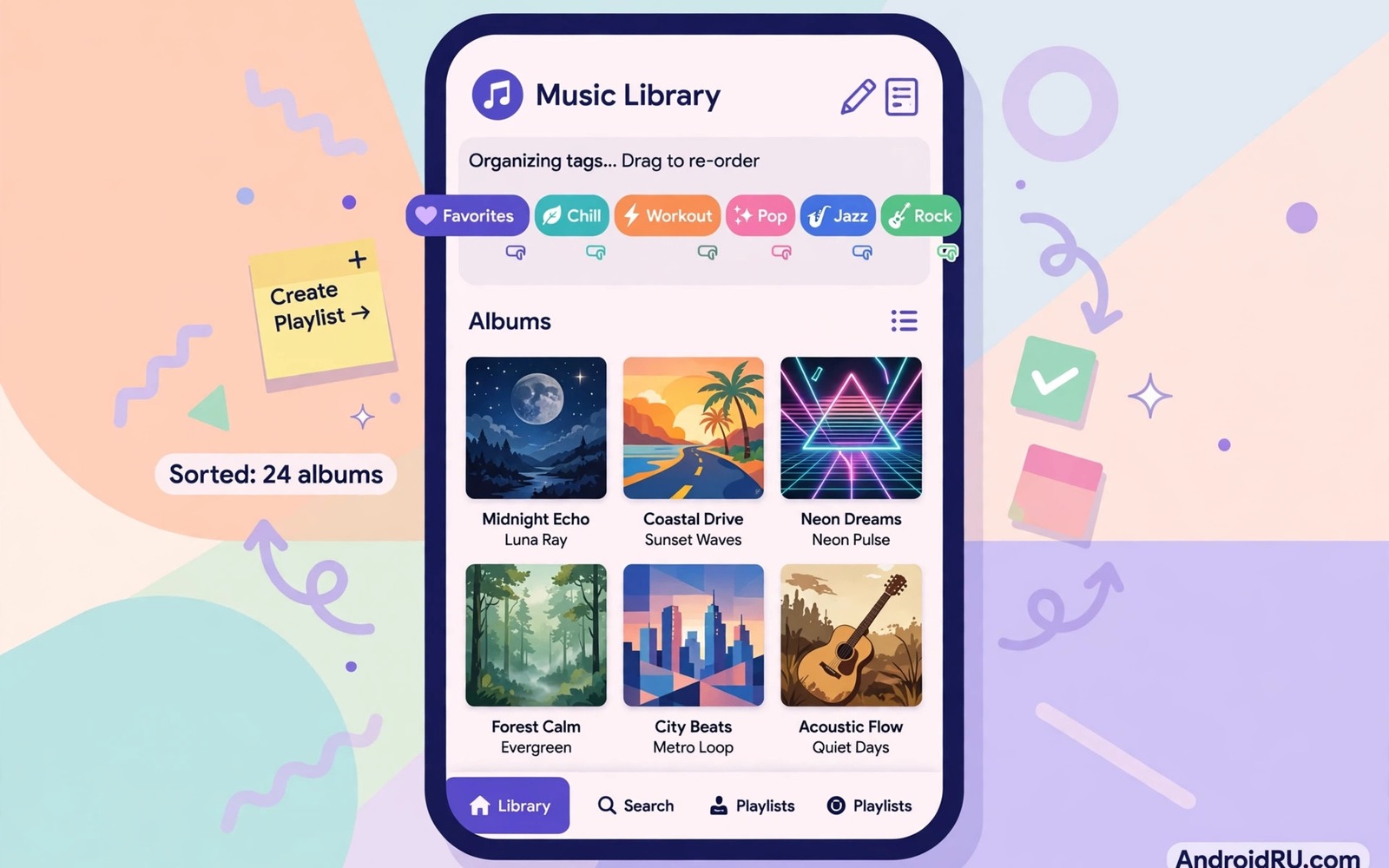
Metadata is the quiet information inside a music file. It holds title and artist and album and track number and year. It also holds genre and cover art and composer details. Players use that information to sort and search and display music. When metadata is missing the player shows unknown artist and blank covers. A large library becomes a confusing pile of files. Editing tags restores order without renaming every file by hand.
Tags get lost in many ordinary ways. A file copied from an old phone may carry incomplete tags. A download may use filename data instead of proper tags. A conversion may strip tags to save space. A sync tool may overwrite tags with its own database. Each loss looks small alone. Together they break playlists and album views. Understanding tag versions helps you prevent repeat loss. ID3v2 tags are the modern standard for MP3 files. Older ID3v1 tags hold less detail and often get ignored.
This guide shows how to edit tags safely on Android. You will learn which fields matter most and how to fix covers. You will learn batch habits for large libraries. You will also learn backup steps that protect your work. Start with a small test folder before you edit a whole library. A careful test prevents a mass mistake.
Understand the fields that players actually use
Title and artist are the two fields that matter most. Players sort by artist and search by title. A misspelled artist splits one singer into two entries. A missing title forces the player to show the filename. Fix those two fields first across your library. Album name comes next because it groups tracks together. Album artist matters for compilations where track artists differ. Set album artist to the main artist or to Various Artists for mixes.
Track number and disc number control playback order. Albums play in the wrong order when those numbers are missing. Set track numbers with leading zeros for large albums. Year helps sort discographies and anniversary playlists. Genre helps mood playlists but keep genre names consistent. Ten genre spellings for rock create ten tiny groups. Choose one spelling and use it everywhere. Composer and comment fields matter less for daily listening. Fill them only when they help your own organisation.
Cover art is stored inside the file for many players. A missing cover shows a grey box in album view. A large cover increases file size but improves browsing. Use square images around 1000 pixels for a good balance. Avoid huge images on thousands of files. They slow library scans and waste storage. Save the original cover separately if you care about archival quality.
Choose a tag editor and test it on copies
Android tag editors vary in power and safety. A good editor shows all key fields on one screen. It should let you edit one file and also batch edit many files. It should write ID3v2 tags by default. It should preview changes before saving. Avoid editors that demand broad network access without reason. A tag editor needs storage access but not contacts or location. Read permissions before you grant them.
Test any new editor on copies in a separate folder. Edit title and artist and cover on five files. Open those files in your main music player. Confirm that the player shows the new data after a library rescan. Some players cache old tags and need a rescan to update. Force a rescan by removing and re-adding the test folder if needed. Only after a clean test should you edit real files.
Keep original files backed up before batch edits. Copy the music folder to a second location or a computer. Batch edits are fast and that speed makes mistakes fast too. A backup turns a bad batch into a restore task. Label the backup with the date so you know which version it holds. Never edit the only copy of a rare recording.
Edit single tracks with care and consistency
Open a track and check every field before you change anything. Note the current artist spelling and album name. Use that exact spelling for other tracks by the same artist. Small differences like an extra space create duplicate artists. Capitalisation also matters for sorting on some players. Pick one style for artist names and stick to it. That discipline pays off across hundreds of files.
Fix the title field to hold only the song title. Remove extra notes like live version from the title when a separate field exists. Put featured artists in the artist field with a clear separator. Avoid stuffing the title with artist names and years. Clean titles search better and look better on lock screens. For classical music decide a consistent pattern for composer and performer. Write the pattern down so future edits match.
Save after each track when you edit manually. Some editors lose unsaved changes when you swipe to the next track. Confirm the save by reopening the file. That extra check feels slow but it catches silent failures. Silent failures are common when storage permissions are incomplete. If a save fails then check storage access before you retry. Do not repeat the same failed edit ten times.
Batch edit albums and fix cover art
Batch editing saves hours on full albums. Select all tracks from one album. Set album name and album artist and year once for the whole group. Set genre once as well. Then set track numbers individually because they differ per track. Batch tools that auto number tracks in file order help here. Confirm file order matches album order before auto numbering. A wrong file order creates a wrong track order.
Cover art batch work needs a clean image source. Use the official album cover when you have it. Avoid low resolution images from random searches. A blurry cover looks worse than no cover on a large screen. Embed the cover into each file rather than relying on a folder image alone. Some players read folder images but others read only embedded art. Embedded art travels with the file when you copy it.
After batch edits rescan the library and check album grouping. Open the album view and confirm track order and cover. Play the first and last track to confirm no file corruption. If an album splits into two entries then check album artist spelling. A single letter difference splits the group. Fix the spelling and rescan again. That split check catches most batch errors fast.
ffmpeg -i song.mp3 -metadata title="Morning News Theme"
ffmpeg -i song.mp3 -metadata artist="City News Band"
ffmpeg -i song.mp3 -c copy song_tagged.mp3
The snippet above is an original example written for this guide. It shows how title and artist metadata can be set while copying audio without re-encoding. It does not replace a visual tag editor for large libraries. Use it for quick command line fixes on a computer. Always test the output file in a player before you replace the original.
Keep playlists working after tag changes
Playlists that use file paths survive tag changes easily. Playlists that use artist or album rules can break after edits. A corrected artist spelling may move tracks out of a smart playlist. Check smart playlists after a batch edit. Update playlist rules to match new spellings. That check takes minutes and prevents missing songs during a workout. Export playlists before large tag edits as a safety net. A backup playlist restores order if rules break.
Streaming libraries need separate care from local files. A local tag edit does not change a streaming service library. Streaming services use their own databases. Do not expect local edits to fix streaming metadata. Keep local and streaming libraries as separate collections. Use local files for archival listening. Use streaming for discovery. That separation avoids confusion when the two libraries disagree.
Common mistakes
The most damaging mistake is editing the only copy without a backup. A wrong batch can rename hundreds of artists in seconds. A backup makes that mistake reversible. Make the backup before the first edit of the day. Keep it until you have checked the edited library fully. Delete old backups only after a successful check.
Another mistake is relying on filenames instead of tags. Filenames break when you move files or share them. Tags travel inside the file. A player that sorts by filename today may sort by tags after an update. Fill tags properly even when filenames look perfect. That work survives moves and app changes.
People also mix tag versions across a library. Some files use old tags and others use new tags. Players then show inconsistent data. Set your editor to write one modern version everywhere. Resave old files in the new version during a cleanup pass. For playback quality after tagging then enabling high resolution streaming settings helps streamed music match your local library. For recording projects then choosing mobile recording tools for podcasters reminds you to set metadata at recording time. For overall sound tuning then the master guide to Android sound engineering covers playback chain choices.
Frequently asked questions
Why do tags revert after I move files?
Some sync tools overwrite tags with their own database values. Some players cache old tags and ignore new ones until rescan. Move files with a tool that preserves file data. Force a library rescan after moves. Check one file in a tag editor to confirm the tag actually changed. That check separates a sync problem from a player cache problem.
Should I embed cover art or use a folder image?
Embed cover art for portability. A folder image helps only in that one folder. Embedded art travels with each file to any device. Use both when storage allows. Keep embedded images at a moderate size to avoid bloating every file. A 1000 pixel square image is a good balance for most libraries.
Can editing tags damage audio quality?
No when the editor only rewrites tag data. Audio quality changes only if the tool re-encodes the sound. Choose editors that preserve audio data during tag edits. Test a file by playing it after editing. A tag edit should never change loudness or clarity. If sound changes then the tool re-encoded the file.
Conclusion
Good metadata turns a pile of files into a library you can browse and trust. Title and artist and album fields do most of the work. Consistent spelling and track numbers keep albums together. Embedded covers make browsing pleasant. Backups make batch work safe.
Your concrete next step is to back up one album folder today and fix its tags fully. Test the album in your player and confirm order and cover. Use that album as your style template for the rest of the library. Work album by album rather than rushing the whole collection at once.

