

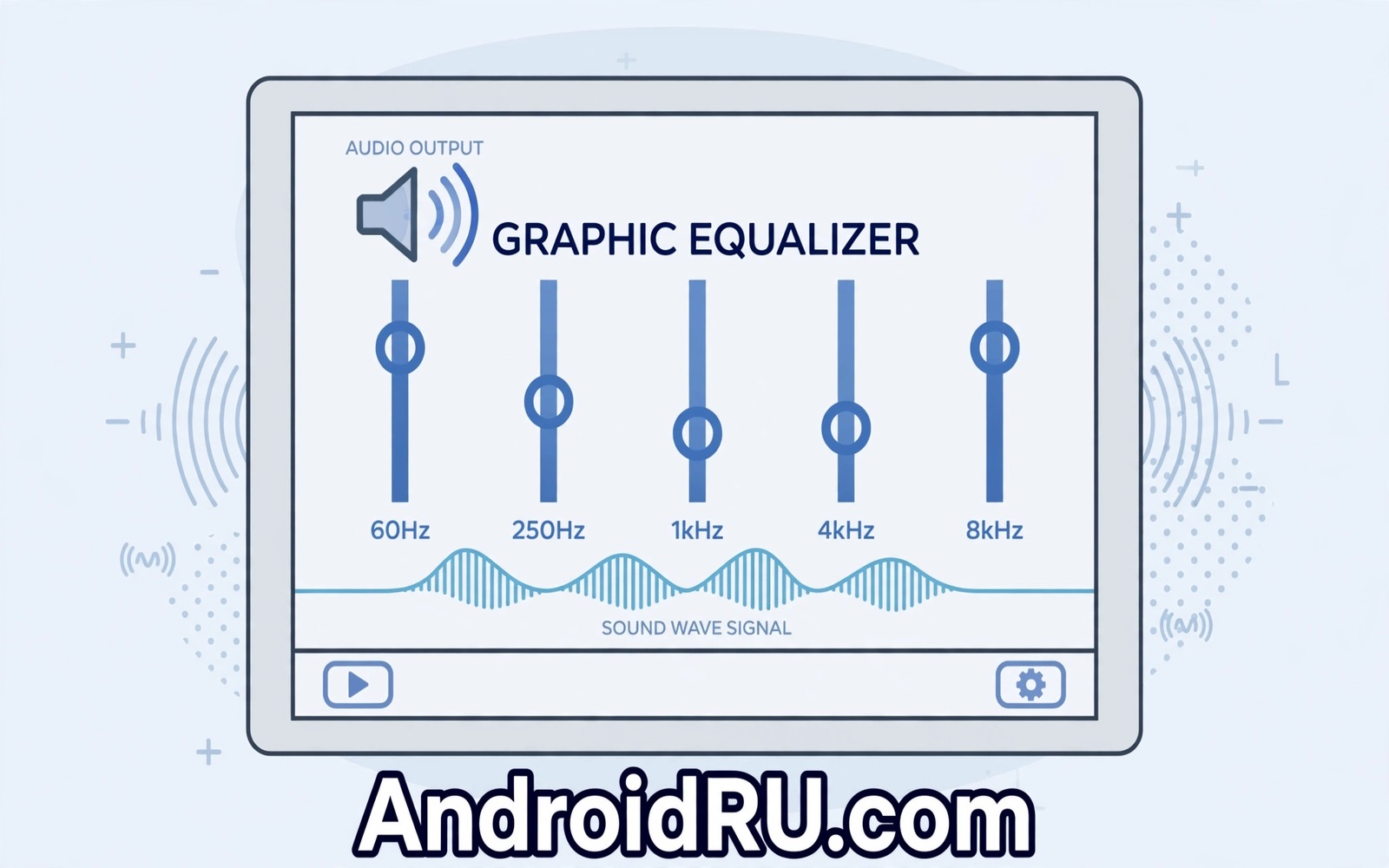
An equalizer that works in only one music app leaves podcasts and videos sounding flat. A systemwide equalizer changes that picture by shaping sound before it reaches your headphones or speaker. Every app benefits from the same tuning because the processing sits at the system audio level. That global control is powerful but it needs careful setup. A bad systemwide setting can make every app sound worse at once. This guide shows how to enable a systemwide equalizer safely and how to tune it without ruining clarity.
The core idea behind an equalizer is simple even though the sliders look technical. Low sliders control bass and middle sliders control voices and high sliders control sparkle and detail. Raising a slider boosts that frequency range while lowering a slider cuts it. Small changes often sound better than dramatic boosts. A dramatic bass boost can push a small speaker into distortion. A modest cut in a muddy middle range can reveal voices that were buried. Think of the equalizer as a gentle correction tool rather than a volume booster.
Choose A Systemwide Equalizer Method
Some phones include a built in system equalizer in sound settings. Open Settings and then open Sound and vibration and look for an equalizer or sound effect entry. If your phone offers one then start there because built in tools are stable and well integrated. Enable the equalizer and choose a preset that matches your headphones or your listening style. Test the preset with music and with speech before you create a custom curve. A preset gives you a safe starting point that you can refine later.
If your phone lacks a built in equalizer then a reputable third party equalizer app can provide systemwide processing. Choose an app with clear privacy practices and a simple interface. Install it and grant the audio permissions it requests. Enable its systemwide mode if the app offers a separate toggle for that mode. Some apps process only media audio while others also process call audio. Read the app description carefully so you know which paths it covers. Test with several apps after enabling it.
Create A Custom Curve Step By Step
Start from a flat curve where all sliders sit at zero. Play a familiar track with acoustic instruments and a clear vocal. Raise the lowest bass slider by a small amount and listen for warmth without boom. Lower a muddy middle slider slightly if voices sound thick or boxed in. Raise the highest slider slightly if cymbals sound dull or distant. Change one slider at a time and listen for at least thirty seconds after each change. That slow method reveals the effect of each slider clearly.
Save your custom curve with a name that describes its purpose such as headphones commute or speaker home. A named preset lets you switch quickly when you change output devices. Headphones and speakers need different curves because their frequency responses differ. A curve that flatters earbuds can sound harsh on a phone speaker. Create separate presets for each output you use regularly. Switching presets takes seconds and it prevents a good headphone curve from ruining speaker sound.
Tune For Headphones And Speakers Separately
Headphones sit close to your ears and they reveal equalizer changes quickly. A small boost can feel large through headphones because nothing else competes with the sound. Keep headphone adjustments modest and favour cuts over boosts. Cutting a harsh high frequency often sounds cleaner than boosting everything else around it. Test headphone curves with a quiet room and a consistent volume. That controlled test makes subtle changes easier to hear.
Phone speakers need a different approach because they cannot reproduce deep bass well. Boosting bass on a phone speaker often adds distortion rather than real low end. Focus on middle frequencies that carry voices and on high frequencies that carry clarity. A gentle middle boost can make a speakerphone call easier to understand. A small high frequency cut can reduce harshness at high volume. For a related topic on speaker clarity explore speakerphone loudness and clarity and how position affects what an equalizer can achieve.
Avoid Common Tuning Traps
The loudness trap is the most common equalizer mistake. Boosting many sliders at once makes sound louder and louder often feels better at first. That louder sound hides distortion and fatigue that appear after longer listening. Keep most sliders near zero and change only a few. If your curve looks like a mountain range then it probably needs simplifying. A flat curve with two gentle adjustments usually beats a dramatic curve with ten extreme adjustments.
The preset trap is another common problem. A preset named bass booster or rock may suit one headphone and ruin another. Presets assume an average headphone that may differ from yours. Use presets as starting points rather than final answers. Adjust the preset after listening with your own gear. Your ears and your headphones matter more than a preset name.
Test Across Apps And Content
A systemwide equalizer affects music and podcasts and videos and games together. Test your curve across all those content types before you settle on it. A curve that flatters music can make podcast voices sound thin. A curve that clarifies voices can make music sound dull. Find a compromise curve for daily use and create a special curve for focused music sessions. Switching curves per activity is better than accepting a poor compromise everywhere.
Test after phone updates because updates can reset equalizer settings. Open the equalizer after a major update and confirm that your custom preset still exists. Recreate it from your written notes if it disappeared. A short note with slider values saves you from rebuilding a curve from memory. Keep that note in a place you can find quickly.
adb shell dumpsys audio
adb shell settings list system | grep -i equalizer
The snippet above shows a standard Android audio setting check and it was adapted for this equalizer guide so you can verify the effect setting safely.
Plan Curves For Different Times Of Day
Listening needs change through the day and one curve rarely fits every situation. Morning podcasts need clear voices while evening music needs warmth and depth. Create a voice curve for spoken content and a music curve for focused listening. Switch curves when your activity changes. A manual switch takes seconds and it prevents a music curve from making voices sound thin. Test each curve with its intended content type before relying on it. That habit keeps equalizer use practical rather than theoretical.
Night listening deserves a special curve with reduced high frequencies. Sharp highs feel harsher at low volume in a quiet house. A gentle high frequency cut can make night listening more comfortable. Keep bass modest at night to avoid disturbing others through walls. A night curve is a kindness to housemates as well as to your ears. Create it once and reuse it every evening.
Keep Tuning Stable After Updates
System updates can reset equalizer settings and delete custom presets. An update that changes audio handling can also change how a curve sounds. Check your equalizer after every major update and confirm that presets still exist. Recreate a missing preset from your written slider notes. That short check prevents a confusing session where familiar music suddenly sounds wrong. Test a familiar track after the update to confirm the curve still behaves as expected.
Write down slider values for each preset you use regularly. Note the preset name and the purpose and the key slider positions. That record lets you rebuild a curve in minutes after a reset. It also helps you compare curves when you buy new headphones. A stable tuning setup deserves a short record because slider positions are easy to forget. Keep the note where you can find it during a tuning session.
Protect Hearing While Tuning
Equalizer tuning can tempt you to raise volume to hear subtle changes. Resist that temptation because long loud listening damages hearing gradually. Tune at the volume you actually use for daily listening. Take breaks during long tuning sessions so your ears stay fresh. Fresh ears judge subtle changes more accurately than tired ears. If a change only appears at maximum volume then it probably does not matter at normal volume. Prioritise hearing health over tiny tuning gains.
Use a volume limit in phone settings if you tune for children or for long commutes. A limit prevents accidental loud bursts when switching presets. Test the limit with each preset because a boosted preset can sound louder than a flat preset at the same volume setting. Match perceived loudness across presets before comparing them. That matching prevents louder presets from winning unfairly in every comparison.
Common Mistakes
The biggest mistake is boosting bass heavily on a small speaker and then blaming the speaker for distortion. A small speaker cannot create deep bass no matter how high you push the slider. Another mistake is running two equalizers at once. A system equalizer plus a music app equalizer can stack and distort sound badly. Use one equalizer path at a time. A third mistake is tuning at maximum volume where distortion hides subtle changes. Tune at a normal listening volume for reliable results.
People also forget to disable the equalizer when troubleshooting other audio problems. A bad curve can mimic a hardware fault. Turn the equalizer off during any audio fault test. For a related codec topic explore LDAC versus aptX HD audio codecs after tuning is complete.
Frequently Asked Questions
Will a systemwide equalizer drain my battery?
Systemwide processing uses some extra power because audio passes through additional processing. The cost is usually modest for modern phones. Disable the equalizer during long days if battery is critical. Re-enable it for focused listening sessions where sound quality matters most.
Can an equalizer damage my headphones?
An equalizer alone rarely damages headphones at normal volumes. Extreme boosts at maximum volume can push drivers harder than intended. Keep boosts modest and avoid maximum volume with heavy bass boost. Those habits protect both headphones and hearing.
Why does my equalizer not affect phone calls?
Many equalizers process media audio only and leave call audio untouched. Call audio follows a separate path with its own processing. Check whether your equalizer app offers a call audio mode. If it does not then call tuning must happen through call settings instead.
Before your next listening session create one named preset for your main headphones. For a related routing topic explore individual app audio to Bluetooth speakers and how separate outputs interact with global tuning.
Conclusion
A systemwide equalizer gives every app the benefit of careful tuning. Start flat and change one slider at a time and save separate presets for headphones and speakers. Your concrete next step is a fifteen minute tuning session today. Pick a familiar track and create a modest custom curve for your main headphones. If that curve makes voices clearer without distortion then systemwide tuning is working for you.

