

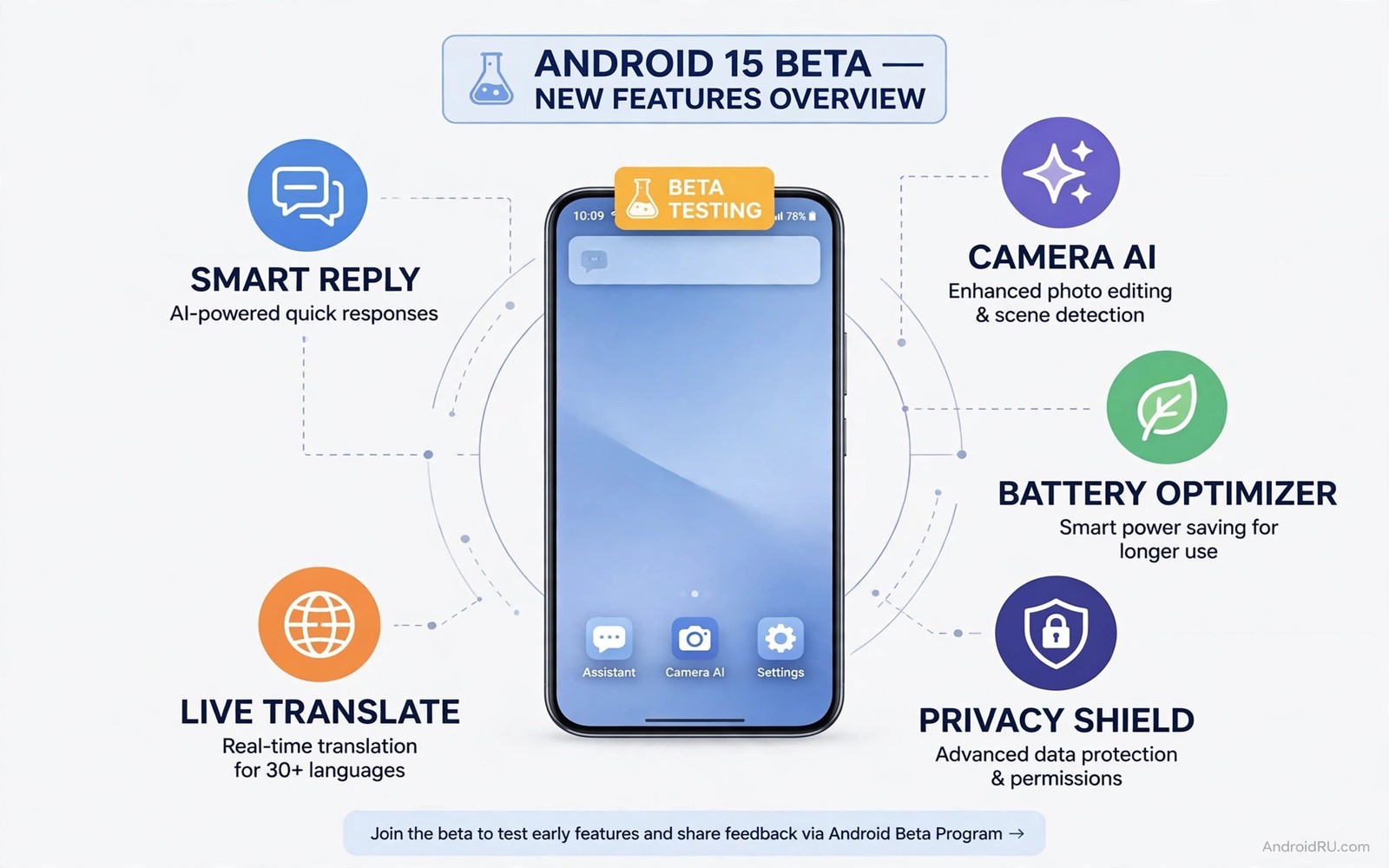
Pixel beta programs let users test new Android features before a wide release. Beta software can be exciting. It can also be unstable. The right approach is to try features that are low risk and easy to reverse. Avoid beta testing on a phone that you depend on for critical work unless you accept the risk.
Beta features change during testing. A feature that appears in one beta build may change or disappear in the next. A feature that works well for one user may crash for another. This guide focuses on types of beta features that are generally safe to explore. It also explains how to enrol and how to leave the program safely.
Before you start back up your data. Beta software can cause app crashes and battery drain. A backup lets you restore if you need to leave the program. Keep a note of the build you install. That note helps support staff if you report a problem.
1. New Notification and Quick Settings Tweaks
Beta builds often test changes to notifications and quick settings. A new layout may group notifications more clearly. A quick settings tile may gain a long press action. These changes are usually low risk. They affect the interface rather than core data.
Try the new layout for a few days in normal use. Note whether important notifications are easier or harder to find. Note whether quick settings actions feel faster. If a change annoys you then give feedback through the beta channel. Interface feedback is valuable because it reflects real daily use.
2. Smarter Call and Spam Screening
Beta builds often test stronger call screening. A new screening mode may answer unknown calls and transcribe the response. It may flag likely spam with clearer warnings. These features can reduce interruptions. They can also misclassify a legitimate call in rare cases.
Test screening with a secondary number if possible. Check the screening transcript for accuracy. Note whether legitimate callers leave clear messages. If screening misses important calls then adjust the setting to a less aggressive mode. Safety matters more than silence.
3. Improved Battery and Charging Controls
Beta builds often test new battery controls. A new charge limit may let you cap charging at eighty percent. A new battery health screen may show capacity trends. These controls are useful for long term ownership. They are also easy to reverse.
Try a charge limit for a week and note your daily battery life. If eighty percent is not enough for your day then raise the limit or disable it on travel days. A battery feature should adapt to your life. It should not force a routine that leaves you anxious about power.
4. Camera and Photo Editing Experiments
Beta camera features often include new editing tools or new capture modes. A new editor may offer better object removal or better low light processing. These features are fun to test. They rarely affect core phone stability.
Test camera features on copies of important photos rather than originals. Compare the beta result with the stable result on the same scene. Note whether the beta tool preserves detail or invents false detail. Photo feedback should mention the scene and lighting. Vague praise helps no one.
5. Accessibility and Interface Personalisation
Beta builds often test accessibility improvements. Larger text options and better contrast and new gesture controls can help many users. Personalisation options for themes and icon shapes also appear in beta builds. These features are usually safe to try.
Try one accessibility change at a time. Note whether it improves readability or navigation. Note whether it breaks any app layout. Accessibility feedback is especially valuable because it affects users who depend on these features daily. This testing mindset also applies to features users want in the next major version where daily friction matters more than novelty.
How to Enrol and Leave Safely
Enrol through the official beta program for your device. Read the program notes for the current build. Back up data before you install. Install the beta when you have time to test and when you do not need the phone urgently. A beta install can take time and may require a restart.
Leaving the program usually requires a factory reset to return to stable software. That is why a backup matters. Do not enrol on a work phone without a plan for that reset. If you need stability then wait for the stable release instead. Beta testing is a choice rather than a requirement.
Step 1: Back up photos and documents
Step 2: Read beta program notes for current build
Step 3: Enrol through official beta program only
Step 4: Install when phone is charged and idle
Step 5: Test one feature at a time and note results
The steps above are an original example written for this guide. They are not copied from a vendor document and they do not require a special app or a paid tool. Use them as a safe routine for any beta test.
Common mistakes
One mistake is to enrol in beta on a primary phone before a trip. Beta bugs can affect maps and calls and payments at the worst moment. Test beta software at home first. Keep a stable backup device for travel if possible.
Another mistake is to enable every beta feature at once. If something breaks then you cannot tell which feature caused it. Enable features one at a time. Note the change and the result. That discipline makes feedback useful.
A third mistake is to report a bug without details. A report that says an app crashes is hard to fix. A report with device model and build number and steps to reproduce is far more useful. Good reports speed up fixes for everyone.
A final mistake is to assume that beta features are final. A feature may change or disappear before stable release. Do not buy accessories or change workflows based only on a beta feature. Wait for the stable announcement before you commit.
Frequently Asked Questions
Is beta software safe for daily use?
It can be usable but it is not guaranteed stable. Expect occasional crashes and battery issues. Keep backups and avoid beta on a phone that handles critical work without a fallback.
Can I leave the beta program easily?
You can unenrol but returning to stable software usually requires a reset. Back up before you enrol. Plan time for a restore if you decide to leave.
Will beta testing void my warranty?
Official beta programs generally do not void warranty. Unofficial builds and modifications are different. Use only the official program for your device to stay safe.
Giving Useful Beta Feedback
Beta feedback works best when it describes a task rather than a feeling. A report that says notifications are worse helps no one. A report that says a work message notification arrived without sound on a specific build helps a team reproduce the problem. Include the build number and the app version and the steps you took.
Screenshots and screen recordings also help. A short recording that shows a layout problem is clearer than a long description. A screenshot that shows a missing button is clearer than a complaint about design. Attach evidence whenever the beta channel allows it.
Feedback should also note what works well. Teams need to know which changes to keep. A short note that a new quick setting saved time each day is useful. Positive feedback prevents a good change from being removed due to a few negative reports. Balanced feedback builds a better stable release.
Finally respect the beta timeline. A bug reported on day one may already be known. Check the known issues list before you report a duplicate. A duplicate report wastes time that could fix a new problem. A well timed and detailed report is the most valuable contribution a beta tester can make.
Beta Testing on a Secondary Phone
Beta testing is far safer on a secondary phone than on a primary phone. A secondary phone can crash without affecting work or travel. It can run a beta build for weeks while the primary phone stays stable. A tester can compare the beta phone with the stable phone side by side. That comparison reveals changes more clearly than memory alone.
A secondary phone also allows riskier tests. A tester can try a new camera feature on a secondary phone without risking important photos. A tester can try a new call screening mode without risking a work call. A tester can reset the secondary phone without losing primary data. Freedom to experiment improves feedback quality.
If you do not own a secondary phone then consider waiting for stable release. Beta testing on a primary phone requires a backup device for emergencies. Without a backup device a beta bug at the wrong moment can cause real harm. Stable software exists for users who need reliability above novelty.
What to Do After Leaving Beta
After leaving beta restore your backup carefully. Check that photos and documents and app data returned correctly. Test your key apps before you rely on the phone for work. A restore that looks complete may still miss an app setting.
Reconfigure any setting that changed during beta. A beta build may have changed a notification setting or a battery setting. Review those settings after you return to stable software. A quick settings review prevents a surprise later.
Note what you learned from beta testing. Which feature worked well and which feature caused trouble. That note helps you decide whether to join a future beta. It also helps you explain beta risks to a friend who asks about joining.
Finally share a short summary of your beta experience through the official feedback channel. A summary after leaving beta is valuable because it reflects a full testing period. Mention the build range you tested and the main problems you found. That summary helps the stable release improve.
If you plan to test again then wait for the next beta cycle. A break between cycles lets you enjoy stable software. It also gives the team time to fix issues you reported. Returning refreshed makes the next test more useful.
Conclusion
Early beta features on Pixel devices offer a preview of Android direction. Notification tweaks and call screening and battery controls and camera tools and accessibility options are the most rewarding areas to test. They are also among the safest when tested one at a time with a backup.
Your concrete next step is to back up your phone today and read the current beta program notes before you enrol. If the notes list a feature you need daily then test it at home for three days. If it works well then keep it and send feedback. If it causes trouble then leave the program and restore your backup. For more beta context read about hidden code references in latest beta builds and how seamless updates keep devices safe to compare beta reality with user wishes.

