

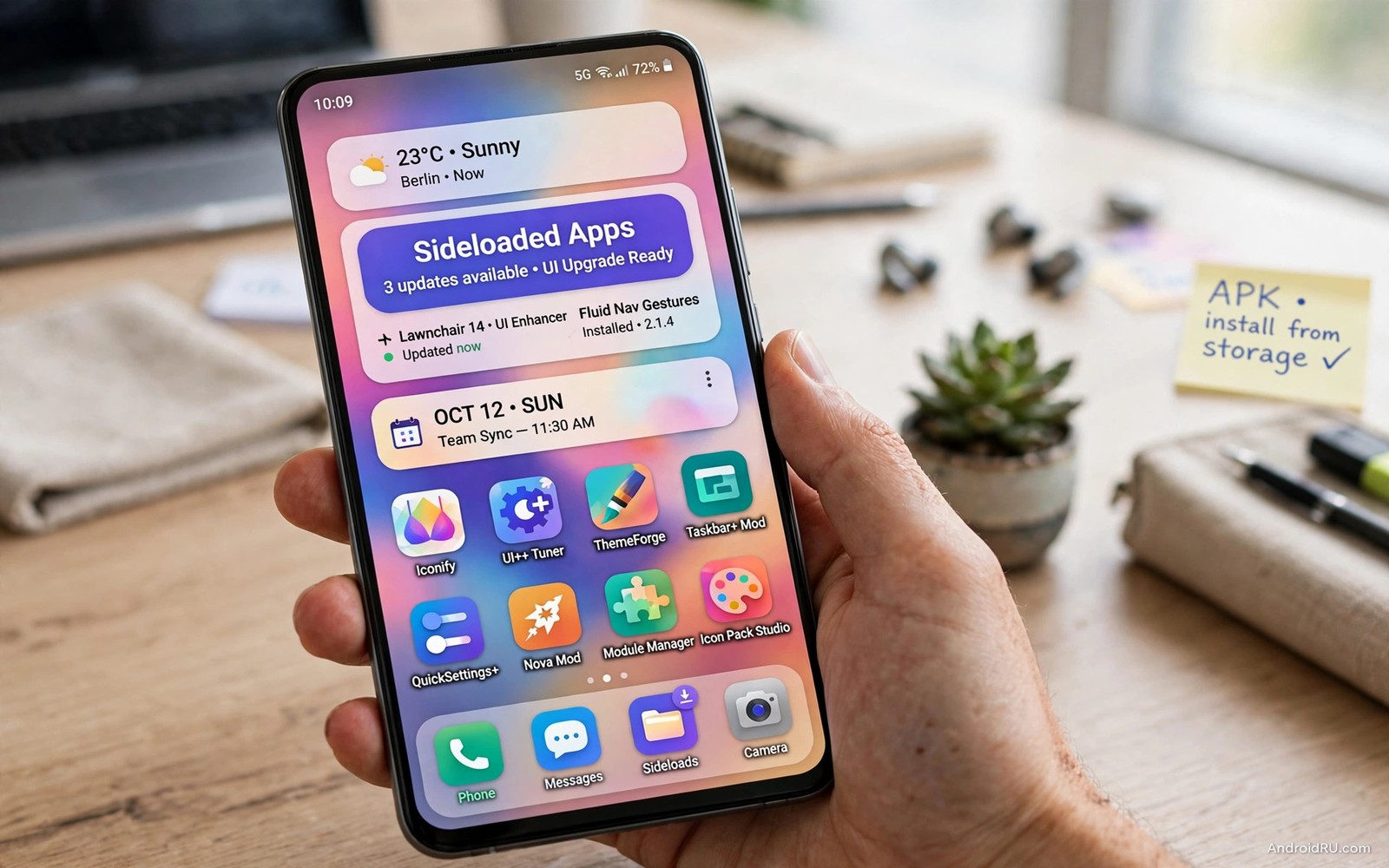
7 Sideloaded Apps That Upgrade Android UI Beyond Play Store Limits
The home screen that ships with your phone is a compromise. It has to please millions of people, pass strict store policies, and run on hardware from budget phones to flagships. That compromise shows up the moment you want something specific: a denser grid, a gesture that opens your notes with one swipe, a widget that shows your calendar and your tasks in one panel, or colours that match your wallpaper instead of the default palette. The official store carries plenty of launchers and widgets, but its rules quietly fence off the deepest tricks. Apps that draw over other apps, read accessibility events, or recolour system elements face extra review, extra limits, or outright rejection.
That fence is exactly why sideloading exists. Installing an app from the developer’s own site, a GitHub release page, or F-Droid puts the full build on your phone, including the features the store version had to leave out. I have run sideloaded launchers, gesture tools, and theme engines on my daily phones for years, and the difference is real: the phone stops feeling like a rented flat and starts feeling like a room you arranged yourself. The trade-off is responsibility. A user interface app runs all day, sees what you open, and sits between you and everything else. Picking one deserves more care than picking a flashlight app.
This guide names seven sideloaded apps that genuinely change how Android looks and behaves, with honest pros, cons, and a verdict for each. Every pick is actively maintained, comes from a transparent developer, and can be removed cleanly if you change your mind. Before you install any of them, read the short safety routine near the end, and if you are new to installing apps outside the store, start with sideloading safely so the habit is solid from day one.
Why the Play Store Holds Back Android UI Upgrades
Google’s store rules are written to protect the average user, and interface apps are where those rules bite hardest. A launcher that wants to replace the recent-apps screen, a gesture tool that watches swipes across every app, or a theme engine that recolours system menus all need permissions that look alarming on a permission screen: draw over other apps, accessibility service access, or a local ADB session. The store treats those as high-risk capabilities, so developers either strip the feature from the store build, ship a separate build elsewhere, or skip the store entirely. The result is a split world: the store build is the safe, limited one, and the full build lives on GitHub or the developer’s site.
Sideloading is simply installing that full build yourself. You fetch the APK file from the developer, open it, and confirm the install. Android still scans the file with Play Protect, and you can still check the signature, the version, and the permission list before anything runs. What changes is who decides which features are allowed: you do, not a store review team. That freedom is worth having only if you pair it with a short verification habit, which is why the safety section of this guide comes before the conclusion rather than as an afterthought.
What “beyond Play Store limits” really means in practice
The limits are concrete, not abstract. A store launcher cannot easily offer deep system search that reaches inside your apps, because that needs a companion service the store may flag. A gesture app cannot hide the navigation bar on every phone without an ADB command or a helper, because the store build cannot run that command for you. A theme engine cannot recolour quick settings tiles and volume panels from inside the store, because those surfaces belong to the system. Sideloaded builds work around those walls with open code, optional root helpers, or a Shizuku session that you approve once. None of that makes them magic. It makes them fuller versions of the same idea, with the sharp edges still attached.
That said, not every sideloaded UI app is worth your home screen. Some are abandoned projects with pretty screenshots and no updates for two years. Some ask for contacts, messages, and location for no reason a launcher could ever justify. The seven below survived a simple filter: maintained in the last year, published by a named developer or team, honest about permissions, and reversible in under a minute. If an app fails any of those tests, skip it, no matter how good the screenshots look.
The ground rules I used to pick these seven sideloaded UI apps
First, the app has to solve a daily friction, not just add decoration. A prettier icon is nice for a day; a search box that finds any app in two keystrokes saves time every day. Second, it has to run on a normal, unrooted phone unless stated otherwise, because most readers will not root a daily driver for a new launcher. Third, it has to respect the battery. A launcher that wakes the phone every few minutes to refresh a widget is a bad deal at any price. Fourth, it has to let you leave. A good UI app exports its layout, so you can try it for a week and walk away with your old setup intact.
Sideloaded Launchers That Replace Your Home Screen
A launcher is the biggest single change you can make, because it controls the home screen, the app drawer, the search box, and most gestures. Change the launcher and the whole phone changes at once. That is also why you should test one launcher at a time, for a full week, before you customise it heavily. A week of real use reveals whether its search, folders, and gestures suit your habits. Heavy customisation before that test wastes an evening when the core behaviour turns out to be wrong for you. Back up your current layout first, then try one of these three.
1. Lawnchair 14 — the Pixel look without a Pixel phone
Lawnchair is an open-source launcher published as APK releases on GitHub, and it is the closest thing to a Pixel home screen you can put on any phone. It brings the At a Glance widget, Material You colours that follow your wallpaper, themed icons, app drawer categories, and a clean, fast search box. Version 14 tracks modern Android closely, with support for the themed icon pipeline and the large-screen layouts that newer phones expect. On my test phone it felt lighter than the stock launcher it replaced, and the drawer categories quietly fixed the mess of a 200-app drawer without me building a single folder.
Lawnchair suits people who like the Pixel style but own a Samsung, Xiaomi, or OnePlus phone, and people who want open code they can inspect. It also suits anyone who is tired of launchers that push news feeds and ads onto the home screen, because Lawnchair ships none of that. The optional extras, such as the QuickSwitch helper for the recents screen, are clearly marked and genuinely optional, so the base install stays simple.
Pros: open source with public releases; Pixel-style At a Glance and themed icons; fast search and drawer categories; no ads or bundled feeds; layout backup and restore built in.
Cons: some Pixel-only features, such as the full recents integration, need an extra helper step; themed icon coverage depends on the icon pack you choose; new Android versions can take a few weeks to get a matching Lawnchair release.
Verdict: the best starting point in this list. If you only try one sideloaded launcher, make it Lawnchair, and give it a full week before you judge it. Lawnchair also sits well alongside open source utility replacements for the stock apps you rarely open, so the whole phone starts to feel like yours rather than the manufacturer’s.
2. Nova Launcher — the deep customisation veteran
Nova Launcher has been the reference point for Android customisation for over a decade, and its public beta builds are still distributed as APKs from the developer’s own channels. What sets Nova apart is control at a level no stock launcher offers: grid size down to 12 columns, subgrid positioning that lets a widget sit between grid lines, custom swipe actions on every icon, and gestures for double-tap, two-finger swipe, and pinch. The home screen grid is the feature I keep coming back to, because a 7 by 5 grid with small icons fits my daily apps on one screen without a single folder.
Nova suits people who know exactly how they want their phone arranged and are willing to spend an evening setting it up. It pairs with the Sesame companion for deep search that reaches inside apps, contacts, and shortcuts, and with almost any icon pack on the market. Night mode, custom drawer tabs, and unread badges round out a package that rewards patience. The learning curve is real, though: the settings screen is deep, and a new user can spend an hour tuning things that a simpler launcher handles with one toggle.
Pros: unmatched grid, gesture, and icon control; excellent icon pack support; reliable layout backup; deep search with the Sesame companion; stable across Android versions.
Cons: the settings are deep enough to overwhelm a first-time user; some advanced features sit behind the Prime unlock; beta builds can carry small bugs that the stable channel does not.
Verdict: pick Nova when you want total control and you enjoy tuning. Pick Lawnchair when you want a clean Pixel feel with less setup. Nova also pairs well with dual account setup tools if you keep a work profile or a second account of the same app, because its drawer tabs keep the two copies tidy instead of mixed together.
3. Niagara Launcher — one clean list instead of pages
Niagara Launcher throws the page-of-icons idea away and replaces it with a single alphabetical list, plus a handful of favourite apps at the top. The developer distributes direct APK builds from its own site alongside the store version, which is how the newest features reach users first. The design sounds sparse until you use it: scrolling a list with your thumb is faster than paging through three screens of icons, and the embedded widgets, such as a calendar strip or a media player tucked under the list, keep information visible without clutter. After three days with Niagara, I stopped hunting for apps entirely, because the list is always in the same order and the search is one tap away.
Niagara suits people who find traditional home screens noisy, people who use one hand a lot, and anyone who wants a calm phone. It is also a strong pick for older relatives or for a second phone, because there is almost nothing to learn: the list is the interface. The trade-off is that it asks you to give up the dense grid many Android users are used to, and widget lovers will find fewer placement options than Nova or Lawnchair offer.
Pros: the fastest way to find any app by name; calm, one-handed design; embedded widgets without clutter; direct APK builds from the developer; very light on battery.
Cons: no dense icon grid for people who like one; widget placement is limited by design; a few convenience features need the paid Niagara Pro upgrade.
Verdict: the best launcher in this list for people who want less, not more. If your home screen feels like a crowded shelf, Niagara is the clean-up. Give it three days; the first hour feels strange, and the second day feels obvious.
Sideloaded Widget and Gesture Apps for a Faster Home Screen
Launchers change the frame. Widgets and gestures change what you do inside it. A widget that shows your next meeting, your tasks, and your music controls in one panel can replace three app opens a day. A gesture that opens search from any screen can replace the walk to the home screen entirely. These two apps are the strongest sideloaded picks in their categories, and both work alongside whichever launcher you chose above, so you can add them without rebuilding your layout.
4. KWGT Kustom Widget Maker — build the exact widget you need
KWGT is a widget engine: instead of accepting the widget your calendar app ships, you build the one you actually want. Pick a preset from the community, or start blank and stack text, shapes, progress rings, and touch actions into a panel that shows your next appointment, your step count, your battery level, and a play button for your podcast app. The companion app KLWP does the same thing for live wallpapers. KWGT’s full builds and the Kustom community presets circulate widely outside the store, which is how most long-time users install and update it.
KWGT suits people who check the same three facts all day and are tired of opening three apps to see them. A commuter who wants the next train, the weather, and a music control in one glance is the ideal user. The cost is time: a good custom widget takes twenty minutes to build, and the editor has a learning curve. Start with a community preset, change the colours and the data sources, and only build from scratch once you know which elements you actually look at.
Pros: any widget you can imagine, built from real data on your phone; huge community preset library; touch actions that open apps or toggle settings; works with any launcher.
Cons: the editor takes time to learn; a widget that refreshes every minute will cost battery, so set refresh intervals honestly; complex widgets can look broken after a launcher switch until you resize them.
Verdict: the most powerful widget tool on Android, and the only one in this list that can replace three widgets with one. Budget an evening to learn it, and keep your first widget simple.
5. Fluid Navigation Gestures — replace the button bar with swipes
Fluid Navigation Gestures, distributed through F-Droid and the developer’s own channels, turns the edges of your screen into controls. Swipe up from the bottom edge to go home, swipe in from the left edge to go back, swipe and hold for recent apps, and add a long-swipe for the notification shade or the flashlight. The app uses an accessibility service plus an optional ADB command to hide the stock navigation bar, which is the part the store build cannot do smoothly on every phone. Once set up, it frees a strip of screen and makes a large phone usable with one thumb.
Fluid suits people with large phones who are tired of stretching for the back button, and people who like the gesture feel of newer phones on an older device. Gesture navigation lives or dies on tuning: set the trigger zones narrow enough to avoid accidental swipes while typing, and wide enough to hit without aiming. Test with your case on, because a thick case changes edge sensitivity, and re-tune after you change cases.
Pros: full control over swipe zones, triggers, and actions; frees screen space by hiding the button bar; works on unrooted phones with a one-time ADB step; vibration feedback you can tune per gesture.
Cons: hiding the navigation bar needs an ADB command or a helper on many phones; a badly tuned zone triggers while you scroll; apps with their own edge swipes, such as some games, can conflict.
Verdict: the best gesture upgrade for large phones, with one condition: spend ten minutes tuning the zones. Untuned, it annoys. Tuned, you will forget the button bar ever existed.
Sideloaded Theme Engines That Recolour the Whole System
Icons and wallpapers are surface changes. Theme engines go deeper: they recolour quick settings tiles, volume panels, notification backgrounds, and app accents so the whole system matches. The store limits how far an app can reach into those surfaces, which is why the two strongest theme tools live outside it. Both need a little setup, and both reward it with a phone that looks designed rather than assembled.
6. Repainter — Material You colours on phones that never got them
Repainter, published on GitHub, brings Google’s Material You dynamic colour to phones whose makers never shipped it, and gives Pixel owners far more control than the stock colour picker. It generates colour palettes from your wallpaper, or lets you build a palette by hand, and applies it across the system interface. It works through Shizuku, a helper that grants it a safe, limited system session you approve yourself, with no root needed on most phones. The first time I applied a deep green palette drawn from a forest wallpaper, the quick settings, the volume panel, and the settings app all shifted together, and the phone looked like a different device.
Repainter suits people who care about colour and coherence, and people on phones from makers that ship a heavy skin with fixed accent colours. It is a theming tool, not a launcher, so it pairs with any of the launchers above. The catch is the setup: Shizuku needs a one-time wireless debugging session after each reboot on some phones, which takes about a minute once you know the steps. If that sounds like too much friction, the stock wallpaper colour picker is the simpler path.
Pros: true dynamic colour on phones that lack it; palettes from any wallpaper or built by hand; works without root through Shizuku; system-wide effect across quick settings and menus.
Cons: Shizuku setup takes a few minutes and repeats after some reboots; a few maker skins ignore parts of the palette; very saturated palettes can hurt readability in bright sunlight.
Verdict: the single biggest visual upgrade in this list for the least money. If colour matters to you, install Repainter before you buy another icon pack.
7. Good Lock and Hex Installer — Samsung’s official UI lab outside the Play Store
Good Lock is Samsung’s own customisation suite, and it is distributed through the Galaxy Store rather than the Play Store, which is why many owners never find it. Its modules read like a wish list: Home Up rebuilds the home screen and share sheet, Theme Park builds full themes from a wallpaper, NavStar redesigns the navigation bar, QuickStar rearranges quick settings, and LockStar redesigns the lock screen. In regions where Good Lock is not listed, owners install it through the Fine Lock companion, which opens the same modules. Hex Installer, from the same community, builds themes that reach into third-party apps as well, for a consistent look across the phone.
Good Lock suits Samsung owners who want deep customisation without leaving Samsung’s own software. Because the modules come from Samsung, they integrate cleanly with One UI and survive system updates better than unofficial workarounds. The limits are clear: it only runs on Samsung phones, some modules are region-locked, and a major One UI update can leave a module waiting for an update of its own. Check that your phone’s One UI version supports the module you want before you build a setup around it.
Pros: official Samsung modules with clean One UI integration; Theme Park builds a full theme from one wallpaper; per-module install, so you take only what you need; survives updates better than unofficial tools.
Cons: Samsung phones only; some modules are unavailable in some regions; a big One UI update can pause a module until Samsung updates it.
Verdict: if you own a Samsung phone, install Good Lock before any third-party theme tool. It is the deepest customisation Samsung officially allows, and it costs nothing to try.
How to Sideload Android UI Apps Safely
Interface apps deserve a stricter routine than other sideloaded apps, because they run constantly and they can see your home screen activity. The routine below takes about five minutes per app, and it is the same routine I use before any UI tool takes over my home screen. If you want the full version of this routine, the guide to safe sideloading methods walks through each check in detail.
Verify the APK before you install it
Fetch the file only from the developer’s own site, the project’s GitHub releases page, or F-Droid. A random file mirror with the same app name is the classic trap: the icon matches, the version number matches, and the file is not the developer’s build. Check the developer’s history while you are there. A real project page shows a changelog, recent releases, and a way to report bugs. A fake page shows a single download button and vague promises.
Check the SHA-256 hash when the developer publishes one
Many developers publish a SHA-256 checksum next to each release. On your phone, a file manager or a checksum app can compute the hash of the APK you fetched; on a computer, the certutil or shasum command does the same. If the two strings match, the file is the developer’s file. If the developer publishes no checksum, compare the version number, the file size, and the signing information with the release page instead, and skip the app if anything disagrees.
Confirm the package name and version in Settings after install
After installing, open Settings, then Apps, then the app name, and check the version at the bottom of the screen. It should match the release you fetched. This thirty-second check catches the common case where a lookalike app with a similar name got installed by mistake. While you are there, read the permission list once, before you grant anything.
Set the default launcher and grant only the permissions each tool needs
Switch launchers in Settings, then Apps, then Default apps, then Home app. Your old launcher stays installed, so switching back is one tap. For permissions, use the minimum each tool needs: a launcher needs to draw over other apps only if it shows badges or pop-ups; a gesture tool needs the accessibility service; a theme engine needs its Shizuku session. A launcher does not need your contacts or your messages for its core job. Deny unrelated permissions and watch whether the tool still works. A tool that refuses to work without unrelated data is not worth its appearance.
Battery, Performance and Accessibility Checks After Installing UI Apps
Install one layer, live with it for three days, then judge it with numbers instead of feelings. Open Settings, then Battery, then Battery usage, and look for the new app near the top of the list. A launcher should sit near the bottom. A widget engine that refreshes every minute will climb the list, and that is your cue to lengthen its refresh interval. Watch for stutter too: open your heaviest app, scroll a long list, and switch tasks. If lag appears right after a UI change, remove the most recent addition first. That isolation method finds the culprit in minutes.
What to measure in the first three days
Check three things: battery usage in Settings, frame smoothness while scrolling, and whether the phone still feels fast with one hand. Also test the setup in bright sunlight, because a beautiful dark theme can wash out outdoors, and a gesture that works while you sit still can fail while you walk. Real use across real conditions is the only test that matters. A setup that only works at your desk is a desk setup, not a phone setup.
Keep one fallback layout for bad days
Build a simple fallback layout before you need it: a plain launcher page with large icons for phone, messages, contacts, and maps. Export it from your launcher’s backup menu and keep the file somewhere you can find it. When you are stressed, tired, or lending the phone to someone, switch to that layout in seconds. A fallback layout is a practical safety feature, not a cosmetic extra, and it costs five minutes to build.
Common Mistakes When Sideloading UI Apps
The most common mistake is installing many UI tools at once and losing track of which tool controls what. Overlapping launchers, gesture tools, and widget engines conflict in confusing ways: a swipe does two things, a widget refreshes twice, a theme fights the launcher. Change one layer at a time and test it before adding the next. The second mistake is granting every permission at install time. Deny first, then grant only the permission that a missing feature asks for. The third mistake is copying a complex setup from a video without adapting it to your habits. A setup built for another person’s workflow may slow you down, so use other setups as inspiration and adapt every element to your own daily tasks. The fourth mistake is skipping the layout backup. Export the layout before every major change, and store the backup file where a new phone can reach it. The fifth mistake is forgetting that sideloaded apps do not update themselves: check the developer’s releases page or F-Droid every month, because a launcher that never updates will slowly fall behind new Android versions.
- Installing three UI tools at once, then guessing which one broke a gesture.
- Granting contacts, messages, and location to a launcher that never needed them.
- Copying a video setup exactly instead of adapting it to your own routine.
- Skipping the layout backup, then rebuilding the home screen from memory.
- Never checking for updates, because sideloaded apps do not update on their own.
Frequently Asked Questions About Sideloaded Android UI Apps
Will a sideloaded launcher drain my battery faster?
Most launchers use very little battery when configured simply, because they mostly wait for you to open something. The battery cost comes from what you add on top: widgets that refresh every minute, live wallpapers, and animated icons. Keep widgets few, set refresh intervals to hourly where you can, and use a static wallpaper on older phones. If a launcher climbs to the top of the battery list in Settings, the culprit is almost always a widget or a live wallpaper, not the launcher itself.
Can I go back to my original launcher without losing anything?
Yes. Open Settings, then Apps, then Default apps, then Home app, and pick your original launcher. Your original layout usually stays exactly as you left it, because switching the default does not delete the old launcher’s data. Back up the custom layout before you switch away from it, so you can return to the experiment later if you change your mind. The whole round trip takes under a minute.
Do sideloaded UI apps break banking apps or work profiles?
Interface apps that draw over other apps can interfere with banking screens in rare cases, because banking apps often block overlays while you type a password. If a banking app misbehaves, turn off the overlay permission for the UI tool while you bank, or keep banking apps on a clean, plain layout. Work profiles are separate: a launcher installed in your personal profile does not reach into the work profile, and most launchers show work apps with a small badge so you can tell them apart.
Will these apps keep working after an Android update?
Usually yes, with a short delay. A major Android update can change how launchers, gestures, or theming work, and the developer then ships a matching release. That is why you should check the project’s releases page after every system update, and why sideloaded apps need a monthly update check instead of the automatic updates the store provides. If an app goes a full year without a release, treat it as frozen and start looking for a maintained replacement.
Your Next Step: Back Up, Then Test One Launcher for a Week
Sideloaded UI upgrades change Android most when they solve a real friction and respect your permissions, your battery, and your time. Start with the launcher that fits your habits: Lawnchair for a clean Pixel feel, Nova for total control, or Niagara for a calm list. Add widgets and gestures one layer at a time, and let a theme engine recolour the system only after the layout feels right. Your concrete next step is to back up your current launcher layout today, install one launcher from this list, and live with it for seven real days. Keep it only when daily tasks feel faster after the test week, and if they do not, switch back in one tap and try the next name on the list. That week of honest testing is worth more than any number of screenshots.

