

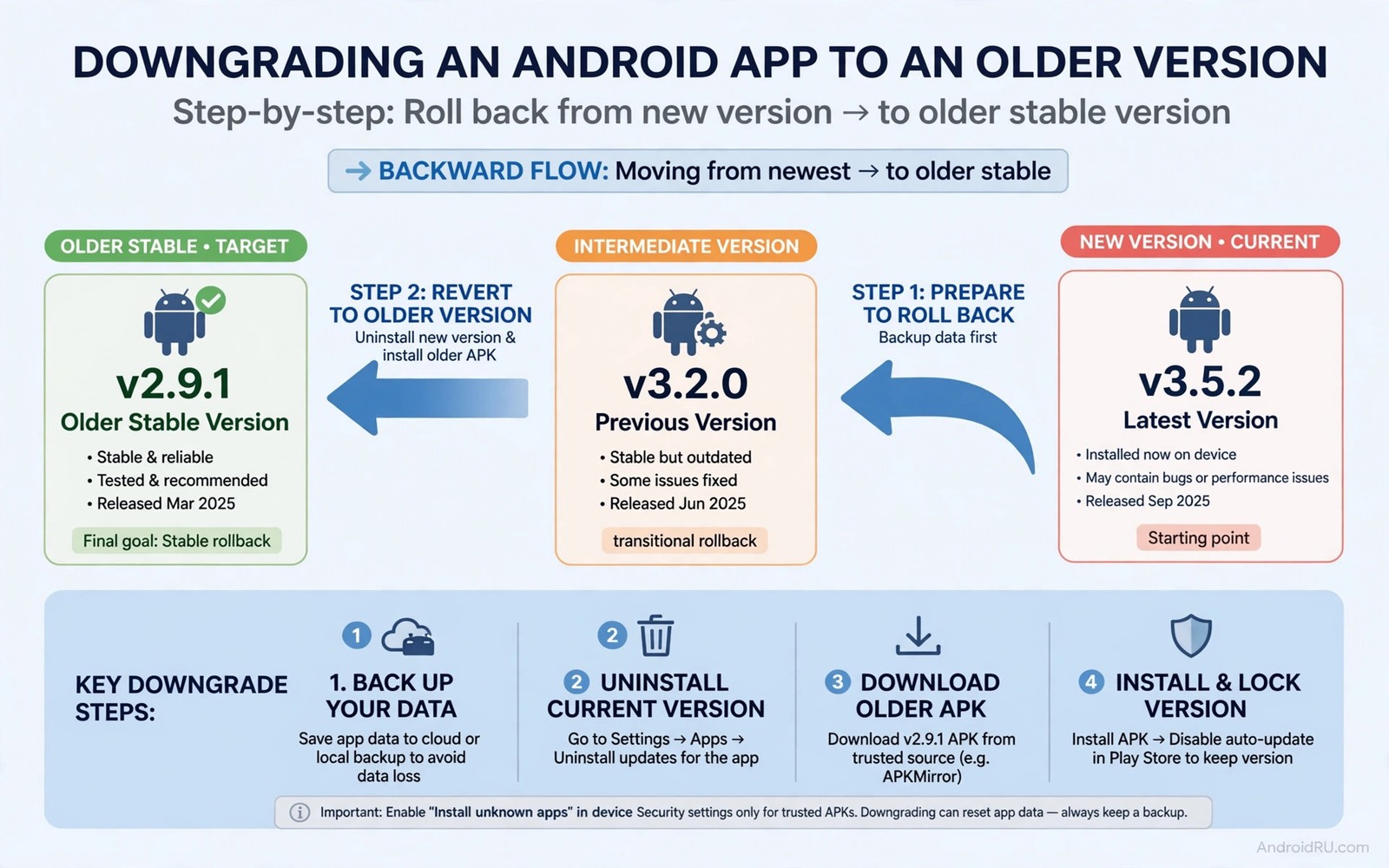
Downgrading an app means replacing a newer version with an older version that worked better for you. Users downgrade when an update removes a feature or breaks performance or changes an interface they relied on. Android does not offer a simple downgrade button in most stores. You can still downgrade safely when you follow a careful routine with backups and a verified older file.
Downgrading carries risks that upgrading does not. Older versions may contain security flaws fixed in newer releases. Data formats may have changed between versions so an older app may fail to read newer data. Signatures must match or Android will refuse the install. Understanding those risks before you start prevents a downgrade that creates a bigger problem than the update it fixes.
This guide explains when downgrading makes sense and how to do it without losing data. It covers backup and source choice and install steps and update control. A safe downgrade also depends on verifying APK checksum hashes because older files circulate widely through mirrors of varying quality.
Decide whether downgrading is the right fix
Start by identifying the exact problem the update caused. A removed feature is a strong reason to downgrade temporarily. A performance regression on an older phone is another strong reason. A cosmetic change that you simply dislike is a weaker reason because security fixes in the new version may outweigh the visual preference. Weigh the tradeoff honestly before you roll back.
Check whether the developer offers a setting to restore the old behaviour. Many updates move a feature rather than removing it. Search settings and release notes before you assume the feature is gone. A hidden setting can save you from a risky downgrade entirely. Community forums often document where a moved feature now lives.
Consider waiting for a fix instead of downgrading at once. Developers often release a patch within days for serious regressions. A short wait may restore the feature in a secure version. Downgrade when the problem blocks daily work and no patch is in sight. Use downgrading as a bridge rather than as a permanent solution when possible.
Back up data before any downgrade
Export data from the current version before you uninstall it. Use built in export when available and copy local files to a safe folder. Note your settings in a short text file when export does not cover them. That record lets you rebuild the setup in the older version quickly. Skipping backup is the most costly downgrade mistake because data loss cannot be undone by reinstalling.
Test the backup by opening exported files on another device or in another app. An export that looks complete but fails to open is not a backup. Confirm readability before you proceed. That check takes minutes and it protects years of notes or messages or project files in some cases.
Keep a copy of the current version file as well when you can. If the downgrade fails or the older version proves worse you can return to the current version quickly. A clean return path reduces pressure during testing. You can experiment with the older version knowing that recovery is simple.
Find a verified older version
Choose an older version from a trusted source with a clear version history. The source should show the version code and release date and file size. Avoid sources that list only a version name without details. Detailed listings let you confirm that you downloaded the exact version you intended. Vague listings invite mistakes.
Verify the hash when the source publishes one. Compare the full fingerprint character by character. A mismatch means the file differs from the published original. Do not install a mismatched file even when the app name looks right. Modified older files are common because attackers know users seek old versions outside official stores.
Pick a version close to the current one rather than jumping far back. A version one or two releases behind is more likely to read current data correctly. A version from years ago may fail on modern Android or may lack security fixes for serious flaws. Minimal rollback reduces both compatibility risk and security risk.
Install the older version cleanly
Uninstall the current version only after backup is verified. Android usually requires uninstall before installing an older version with the same signature because it treats downgrades as a conflict. That uninstall deletes app data unless you backed it up. Confirm backup success one more time before you tap uninstall.
Install the older file through your trusted installer and allow install permission only for that installer. Read the permission screen and confirm the version shown matches the version you downloaded. Open the app and check that core features work before you restore data. A clean launch test reveals install problems before data complicates diagnosis.
Restore data gradually rather than all at once. Import the most important data first and test the app for a day. Add remaining data after the core restore proves stable. Gradual restore isolates problems when an older version struggles with newer data formats. It also lets you stop early if compatibility fails.
adb uninstall example.app
adb install -r -d older-app.apk
adb shell dumpsys package example.app | grep version
The code block above uses the standard Android Debug Bridge command pattern to remove a current package and install an older build with downgrade permission. It is included so you can remove the current package and install an older build with downgrade permission on a connected device.
Stop automatic updates from undoing the downgrade
Stores will try to update a downgraded app back to the newest version automatically. Disable automatic updates for that specific app in the store settings. Keep automatic updates on for other apps so security fixes still flow normally. Per app control is the right tool here because a global update block would leave every app outdated.
Check update settings in every store that might manage the app. An app installed from one store may still appear in another store update list. Disable updates in each relevant store. A single missed setting can undo your downgrade overnight without any warning.
Review the downgrade decision monthly. Newer versions may restore the missing feature or fix the regression. When a new version solves the original problem you should upgrade again for security. A downgrade that lasts forever accumulates security debt. Monthly review keeps the tradeoff conscious rather than forgotten.
Handle data format problems
Data format changes cause the subtlest downgrade failures. An older app may open but show missing fields or fail to save new entries. Test every data type you use after restore. Check notes and attachments and settings and history. A partial restore that looks complete at first glance can hide missing pieces.
If the older app cannot read newer data then you face a choice. You can keep the newer version and accept the regression. You can use the older version with data from before the update. You can export newer data to a standard format and import what the older version supports. Each option loses something. Choose based on which data matters most to you.
Document the compatibility result for future reference. Note which versions read which data successfully. That note helps you avoid repeating a failed downgrade later. It also helps you decide quickly when the next problematic update arrives.
Test the older version before restoring everything
Install the older version and use it with sample data for a day before you restore your full backup. Sample testing reveals crashes and interface changes without risking real content. Create a test note or a test file inside the older app and confirm saving works. Check that the app opens quickly and that core screens render correctly. A day of sample use is cheap insurance against a restore that fails halfway.
During sample testing check battery and performance as well. An older version may run better on your phone or it may run worse due to missing optimisations. Performance data from a day of sample use helps you decide whether the downgrade truly improves daily experience. A version that restores a feature but drains battery heavily may not be worth keeping. Judge the whole experience rather than a single feature.
Common mistakes
The most common mistake is downgrading without a verified backup. Users uninstall the current version and discover too late that export failed. Backup verification must happen before uninstall without exception. No feature is worth risking irreplaceable data.
Another mistake is downloading an old version from the first mirror that appears. Old version mirrors vary widely in quality. A modified old file can carry malware that the original version never had. Verify source and hash for old versions even more carefully than for current versions.
A third mistake is forgetting to disable automatic updates. The phone quietly updates the app overnight and the original problem returns. Users then blame the downgrade method rather than the update setting. Per app update control prevents that cycle.
Frequently asked questions
Is downgrading safe for banking apps?
Downgrading banking apps is risky because older versions may lack security fixes. Avoid downgrading financial apps unless the developer supports an older version explicitly. Use the current version and contact support about regressions instead.
Can I downgrade without uninstalling first?
Android usually blocks downgrades over an existing install to protect data. A computer tool with downgrade permission can sometimes install over the existing app. That method still risks data format problems and should only follow a verified backup.
Will downgrading delete my account?
Downgrading does not delete a server account. It may delete local data when you uninstall. Server data usually returns after you sign in again. Local only data depends entirely on your backup.
Keep a downgrade diary
A downgrade diary records why you rolled back and which version you chose. Write the app name and the old version and the new version and the problem that prompted the change. Add the date and the backup location for that app. That diary prevents repeated downgrades for forgotten reasons. It also helps you decide quickly when a future update causes the same problem. A diary entry takes a minute and it saves repeated investigation later.
Conclusion
Downgrading works when you back up first and verify the older file and control updates afterwards. It fails when any of those steps is skipped. Your concrete next step is to export data from one app you consider downgrading and verify that export opens correctly before you change anything. Only after that verification should you download an older version. Related skills include extracting apps as backup APKs and freezing app builds against updates and installing split APK files.

