

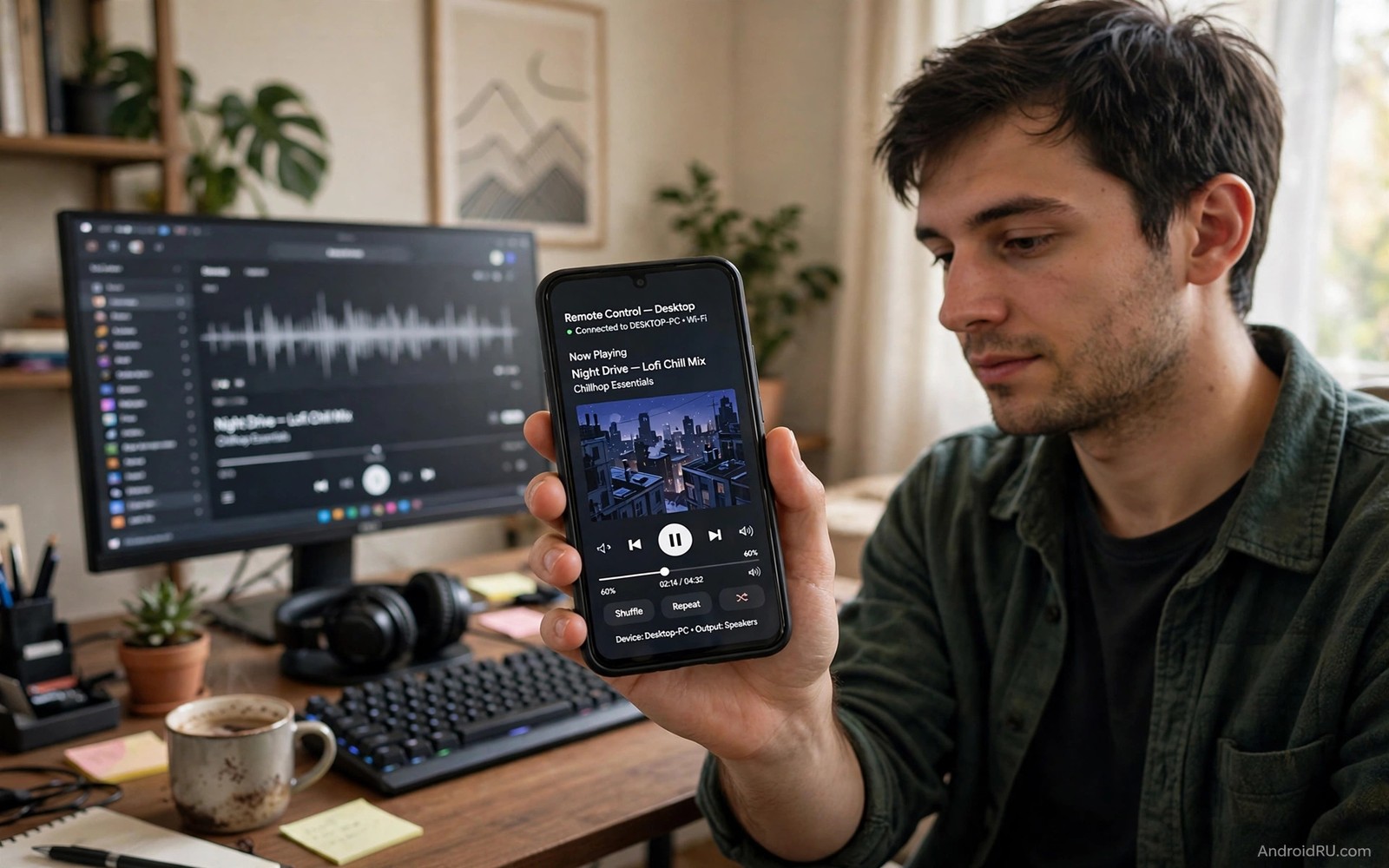
A workstation often plays music while its owner moves around a room. Walking back to the desk for every pause or skip breaks focus and wastes time. A smartphone in your pocket can act as a remote for that same playback. It can pause and skip and change volume without touching the keyboard. That freedom suits cooking and cleaning and presenting and relaxing alike.
Remote control works through a local network link between phone and computer. A companion app on the computer listens for commands from the phone app. Both devices must share the same network and the same account when the app requires one. Once paired the phone sends simple commands that the computer treats like local key presses. The media player itself does not need to know that a phone sent the command.
This guide covers five practical hacks that go beyond basic play and pause. You will learn how to control volume per app and how to queue tracks from the couch. You will also learn how to wake a sleeping display without leaving your seat. For a related control idea see using a phone as a wireless TV remote because the same remote mindset applies to a television. Start with one hack and add others as they prove useful.
Remote media control also helps a presenter who plays background music before a meeting starts. The presenter can start music from the door while greeting guests. Volume can rise and fall without walking to the desk. That smooth control sets a professional tone before anyone sits down. A phone remote turns a workstation into a presentation tool.
Pair Phone And PC On The Same Network
Install the companion app on the computer first and the remote app on the phone second. Open both apps and confirm they show the same network name. Approve the pairing prompt on the computer and give the phone a clear name such as Living Room Phone. Test the link with a pause command while standing near the computer. If the command works nearby then test it from the farthest room you use.
A wired computer connection gives the most stable remote link in a busy home. Wireless computers work well when the signal stays strong in the room where you listen. Avoid a guest network for pairing because guest networks often block device to device traffic. Use the main home network for both devices and keep the computer firewall rule for the companion app enabled. A blocked firewall is the most common reason a paired remote suddenly stops working.
Control Volume And Tracks Without The Desk
Most remote apps offer play and pause and next and previous as large buttons. Look beyond those buttons for a volume slider and a queue view. A volume slider lets you lower music during a call without muting the whole system. A queue view lets you skip ahead to a chosen track rather than stepping through every song. Those two controls turn a basic remote into a real media controller.
# PC media remote pairing checklist
network = same_home_network
companion_app = installed_on_pc
remote_app = installed_on_phone
firewall_rule = allowed
test_command = pause_from_farthest_room
The snippet above is an original example written for this guide. It shows generic settings that you can adapt to your own device. It does not copy code from any outside source.
Create a habit of checking the now playing screen before you press skip. The queue view shows what comes next and it prevents skipping a song you actually wanted. Use a long press on some apps to reveal extra actions such as like or add to playlist. Those actions help you curate music from the couch instead of waiting until you return to the desk. A remote that supports queue editing saves the most time over a week.
Use Keyboard Shortcuts Through The Phone
Some remote apps can send keyboard shortcuts to the computer as if you pressed them yourself. That ability opens control for players that lack a dedicated remote app. Map a phone button to the space bar for play and pause in a browser player. Map other buttons to arrow keys for seeking forward and back in a video. Test each mapping with the player focused on screen before you rely on it from another room.
Keep shortcut mappings simple and consistent across players. Use the same button for play and pause everywhere so muscle memory builds fast. Avoid complex multi key shortcuts that can trigger other system actions by mistake. Write down your mappings in a note on the phone until they feel natural. A small set of reliable shortcuts beats a large set that you cannot remember.
Wake Display And Manage Playback Sessions
A sleeping display can block remote control if the computer locks completely. Set the computer to keep media playing while the display sleeps. Use a phone button or a mouse wake action to light the display when you need to see the queue. Avoid letting the computer enter full sleep during a listening session because waking it takes longer. A display sleep setting with continued playback gives the best balance.
End each listening session cleanly by pausing playback before you close the remote app. That habit prevents music from restarting unexpectedly when the phone reconnects. Disconnect the remote session when you leave home so a stray tap does not start playback. Check the computer once a week for companion app updates because updates often fix pairing bugs. A tidy session habit keeps remote control feeling effortless rather than chaotic.
Control Media During Calls And Meetings
A phone remote helps during a video call when music from the workstation competes with speech. Pause playback with one tap before you unmute. Lower volume instead of pausing when background music should continue softly. That quick control prevents awkward fumbling at the desk during a live call. Practice the pause gesture before an important meeting.
Set a do not disturb routine for the media player during scheduled meetings. The routine can pause playback at the meeting start time automatically. That automation removes the risk of forgetting to pause. Test the routine with a short fake meeting first. A tested routine protects professionalism without daily effort.
Use the remote to queue a closing track for the end of a presentation. A well chosen closing track leaves a strong final impression. Queue it before the meeting starts so a single tap plays it at the right moment. That preparation shows care for the audience experience. Small media details shape how a presentation feels.
Secure Remote Access On A Shared Network
A workstation remote on a shared office network needs stronger care than a home setup. Use a strong account password and limit pairing to your own phone. Remove pairings for old phones that you no longer use. A shared network increases the chance that another device discovers the workstation. Limited pairing keeps control in your hands.
Voice commands for television control share a similar pairing discipline. The guide for voice commands for Android TV control shows how a household limits voice access to trusted members. Apply the same idea to workstation remotes by keeping the trusted device list short. A short trusted list is easier to audit.
Log out of the remote app on a borrowed phone at once after use. A borrowed phone that stays paired can control media later without your knowledge. Check the paired device list weekly on a shared network. That weekly check takes a minute and it prevents lingering access. Security habits matter most where networks are shared.
Common Mistakes
The most common mistake is pairing on a guest network that blocks device traffic and then blaming the app. Use the main home network for both devices. Another mistake is forgetting a firewall prompt on the computer which silently blocks the remote link. Approve the companion app in the firewall during setup. A third mistake is mapping too many shortcuts at once which leads to wrong commands during a presentation. Remote playback control pairs naturally with mirroring a tablet display to a desktop monitor for a larger work view.
People also leave the computer in full sleep mode and wonder why the remote cannot wake playback. Adjust power settings so media continues while the display sleeps. Do not share remote access with every device in the home because a stray phone can pause music at the wrong moment. Limit pairing to devices you control and remove old pairings once a month. That cleanup keeps control in the right hands.
Owners also leave the remote app running on a phone that children use for games. A child can pause or skip media during work without meaning harm. Lock the remote app behind a phone lock screen or close it after use. That simple habit separates work control from play. A closed remote app cannot cause an accidental interruption.
Frequently Asked Questions
Can I control PC playback when the computer screen is off?
You can control playback when only the display sleeps and the computer stays awake. Full sleep stops the media player and the remote link together. Change power settings so the display sleeps but the system stays awake during music. Wake the display with a remote button when you need to see the queue.
Does remote control work over mobile data away from home?
Most local remote apps work only on the same home network. Some cloud remote tools work over the internet but they need an account and a secure setup. Local control is faster and simpler for home listening. Use a cloud tool only if you truly need control from outside the home.
Why does my phone remote disconnect randomly?
Random disconnects often come from battery optimisation on the phone or a firewall change on the computer. Exempt the remote app from aggressive battery saving on Android. Check that the companion app still has firewall permission after a system update. Re-pair the devices if the link fails after both checks.
Conclusion
Install a companion remote app on your PC and its phone app today. Pair both devices on your main home network and test pause from the farthest room you use. If that test works then map volume and queue controls next. That setup gives you full media control without returning to the desk for every song.
After a week of phone remote use check which controls you actually tapped most. Keep those controls on the first screen of the remote app and hide the rest in a second screen. A remote shaped by real use feels faster than a remote with every button visible. Remove pairings for phones you no longer use. A tidy remote list keeps control in the right hands.

