

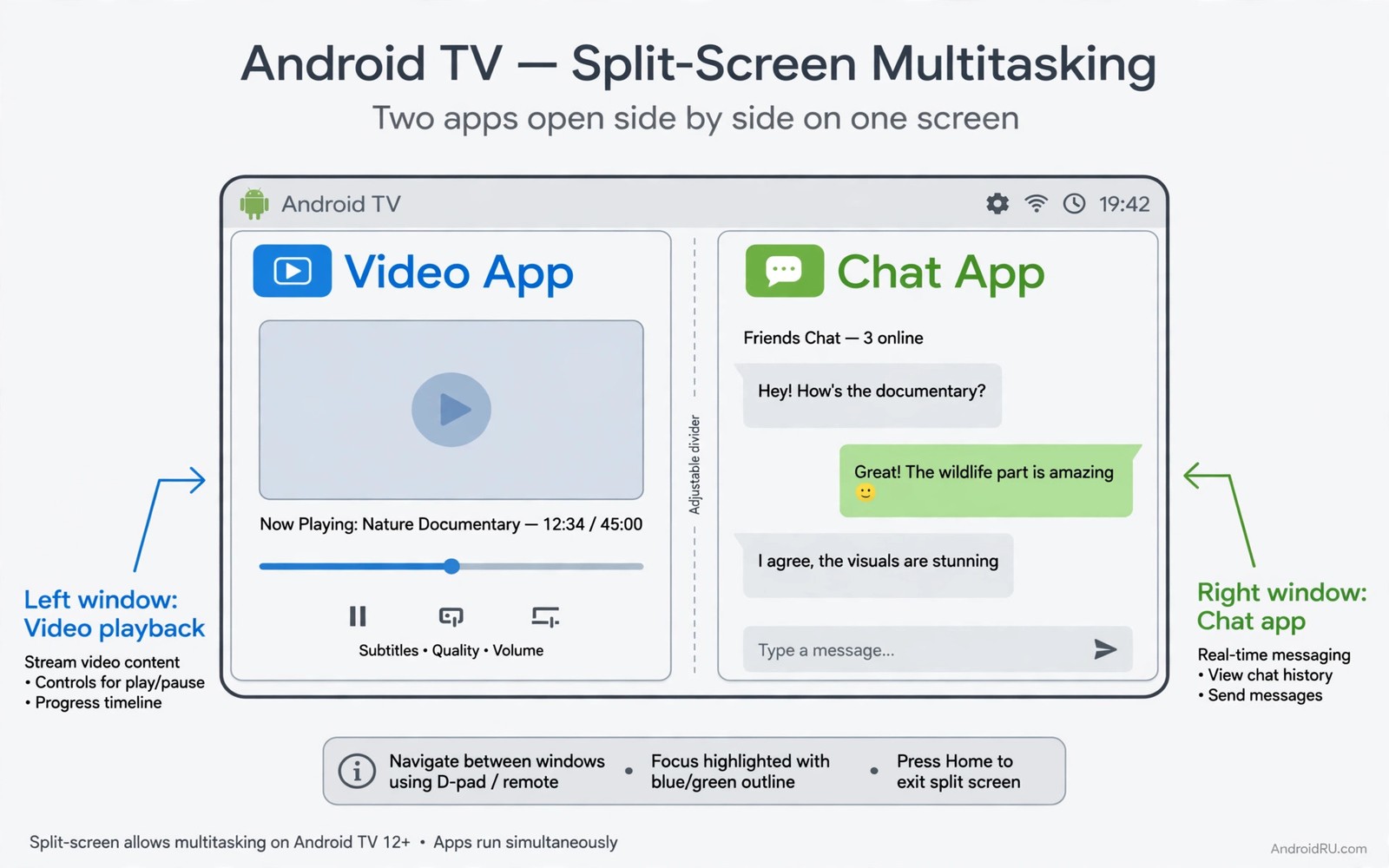
A television screen is large enough for two apps at once yet most TV systems hide that option. A viewer may want a match on one side and live chat on the other side. A parent may want a film for a child and a recipe on the same screen. A sports fan may want scores beside a live stream without reaching for a phone. Split screen answers those needs when the system allows it and when the apps cooperate.
Android TV was not designed for phone style multitasking out of the box. Many apps claim the full screen and refuse to share it. Some launchers and tools can still force a split view on certain boxes. The result depends on the box model and the Android version and the apps involved. This guide explains what works in practice and what to avoid so you do not waste an evening chasing a feature your box cannot support.
Start with realistic expectations and a simple test pair. Choose a video app that supports picture modes and a light second app such as a browser or a notes app. Test that pair before you build a routine around split screen. Readers who prefer voice control for TV tasks can also try voice commands for Android TV control as a companion method for switching apps quickly. A calm test beats a hopeful guess every time.
Split screen also helps a viewer who follows a live event while chatting with friends about it. A phone chat forces eyes away from the television every few seconds. A television chat window keeps the conversation beside the action. That layout feels natural during a match or a live show. It turns passive viewing into a shared experience without a second screen.
Check Whether Your Box Supports Split View
Open the recent apps view on your box and look for a split option on an app card. Some boxes show that option only for apps that declare split support in their manifest. If no option appears then your launcher may hide it even though the system supports it. Try a third party launcher that exposes split view or check developer options for a forced resizable setting. Note the Android version because newer versions handle window resizing better than older ones.
Test support with two light apps before you try video plus chat. Open a settings app and a file browser side by side and check that both respond to the remote. If both windows stay active then the system handles split view well. If one window freezes when the other gains focus then your box may pause background apps aggressively. That behaviour limits split screen to reading tasks rather than live video plus live chat.
Pick App Pairs That Actually Work Together
Video apps vary widely in how they behave when they lose full screen focus. Some keep playing audio and video in a smaller window without complaint. Others pause at once or switch to audio only when they lose focus. Test your favourite video app with a simple second app and note whether video keeps playing. A pair that keeps playing through a ten minute test is a pair you can trust for a full match.
# Split screen test pair
main_app = video_app
second_app = scores_app
layout = main_large_second_small
second_app_audio = muted
stability_test_minutes = 10
The snippet above is an original example written for this guide. It shows generic settings that you can adapt to your own device. It does not copy code from any outside source.
Light second apps work best because a television box has limited memory for two heavy apps. A chat app or a scores app or a simple browser tab uses far less memory than a second video stream. Avoid pairing two video apps unless your box has generous memory and a strong chip. If the system starts closing apps in the background then reduce the load by closing other apps first. A stable pair beats an ambitious pair that crashes at halftime.
Arrange Windows And Control Focus Safely
Use the remote to move focus between windows with directional keys and confirm each move with a glance at the highlight border. The active window shows a clear border or a brighter edge on most launchers. Move slowly at first because a fast press can send a command to the wrong app. Keep the video window larger than the second window when video matters most. A seventy to thirty split gives video room to stay readable while the second app stays useful.
Adjust the divider by selecting it and dragging with directional keys or a mouse if your box supports one. A mouse makes divider control far easier than a remote alone. Save a layout habit rather than a layout setting because most TV systems do not remember split pairs after a reboot. Reopen the pair in the same order each time so muscle memory builds quickly. If the divider jumps or the windows swap then restart the pair rather than fighting the layout.
Fix Freezing And Audio Conflicts
Two apps can fight over audio when both try to play sound at once. Mute the second app first and keep audio only on the video app. Check each app for its own volume or mute control before you change system volume. If audio still clashes then pause the second app entirely and use it only for reading scores or messages. A silent second window still adds value without ruining the main sound.
Freezing often comes from memory pressure rather than a broken split feature. Close background apps and clear recent apps before you start a split session. Lower video quality one step if the picture stutters in split mode but plays fine alone. That trade keeps both windows alive and the story clear. Readers who need smoother TV motion can also check speeding up a laggy TV interface for animation settings that help the whole system feel faster. Restart the box if a split session leaves windows stuck after you exit.
Use A Mouse For Precise Split Control
A mouse transforms split screen control on a television box because it offers precise pointing that a remote lacks. Connect a small wireless mouse through the powered hub or through Bluetooth. Use the mouse to drag the divider and to click small buttons in the second app. That precision makes split screen practical for apps with dense controls. Keep the mouse on a side table during split sessions.
A keyboard can also help split screen work when the second app needs text input. A compact wireless keyboard lets you type chat messages without an on screen keyboard covering the video. Pair the keyboard once and keep its receiver in the hub. Test typing in the second app while video plays to confirm focus stays correct. A keyboard plus mouse pair turns a television into a light workstation for split tasks.
Store the mouse and keyboard where they are easy to reach but not in the way of normal viewing. A small tray beside the sofa works well. Charge or replace batteries before a long split session so a dead mouse does not interrupt a live event. A prepared accessory set makes split screen feel effortless rather than fiddly. That preparation matters more than any single setting.
Pair Split Screen With Better Input Habits
Typing on a television remains painful with a directional remote even in a good split layout. A compact keyboard and mouse set solves that pain and connecting a mouse and keyboard easily covers the pairing steps in detail. Use the keyboard for search and chat while the remote handles playback. That division of labour suits each input to its strength.
Create a short checklist for split sessions so setup stays fast. List the two apps in order and the layout ratio you prefer and the audio setting for the second app. Follow the same checklist each time and setup drops under a minute. A checklist also helps another family member start a split session without asking you. Consistency turns a clever trick into a household habit.
End split sessions cleanly by closing the second app before you return to full screen viewing. A lingering second app can keep using memory and network in the background. Check that video returns to full screen smoothly after closing the second window. If full screen stutters then restart the video app once. A clean exit keeps the next normal session smooth.
Common Mistakes
The biggest mistake is forcing split screen on a box with little memory and expecting two video streams to run smoothly. Memory limits will close one app and the user blames the feature instead of the hardware. Another mistake is pairing two apps that both demand audio because the clash ruins both experiences. Mute one app from the start and the session stays pleasant. A third mistake is using a launcher that promises split screen for every app without testing it because many apps still refuse to resize. A phone remote helps when split windows need quick focus changes and using a phone as a wireless TV remote covers that setup.
People also forget that split screen settings rarely survive a reboot on television systems. They rebuild the pair from scratch each time and feel frustrated by the extra steps. Accept the rebuild as part of the routine and keep the pair simple so setup takes under a minute. Do not install a risky system mod just to force split screen on an old box because a bad mod can break updates. A safe launcher method or a newer box is a better long term answer.
Owners also try split screen with a remote only and then judge the feature as too fiddly. A mouse changes the experience completely for divider control and small buttons. Test split screen with a mouse before you decide it does not work for you. That single accessory test often reverses a negative first impression. Input choice matters as much as software support.
Frequently Asked Questions
Does every Android TV box support split screen?
No support varies by box model and launcher and Android version. Some boxes expose split view in the recent apps menu while others hide it entirely. A third party launcher can expose it on some boxes but app support still matters. Test your box with two light apps before you assume split screen will work for video.
Why does video pause when I switch focus?
Many video apps pause when they lose focus because they assume the viewer left the app. That behaviour is built into the app rather than a fault in split screen itself. Some apps keep playing in a smaller window while others do not. Test each video app separately and keep the ones that keep playing for split sessions.
Can I save a split screen pair for later?
Most television systems do not save split pairs across reboots. You will need to reopen both apps and arrange them again each time. Keep the pair simple and open them in the same order to make setup fast. A launcher with recent app shortcuts can shorten the process but it cannot guarantee a saved layout.
Conclusion
Test split screen tonight with one video app and one light scores app. Open both apps and arrange video on the larger side and mute the second app. If video plays smoothly for ten minutes then you have a working pair for match nights. If it pauses then try a different video app tomorrow before you change anything else.
After a week of split sessions review which app pair you actually used most. Keep that pair as your standard and drop pairs that felt awkward. A standard pair makes setup fast and it builds muscle memory for focus moves. If a pair never survived a full match then replace its second app with a lighter one. A short list of proven pairs beats a long list of hopeful pairs.

