

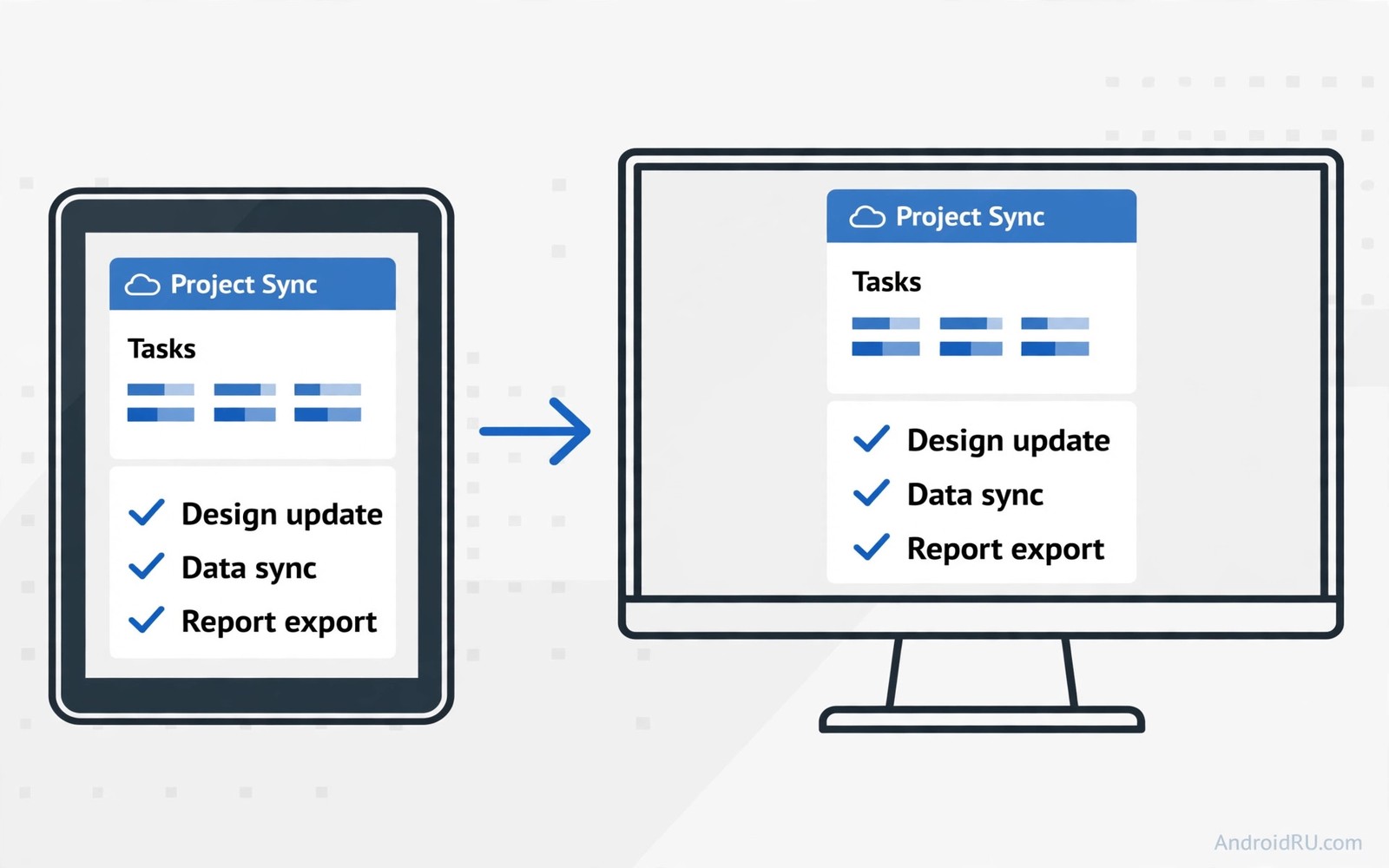
Mirroring a tablet to a desktop monitor turns a small portable screen into a large workspace. Notes become readable from a chair and drawings gain room to breathe and presentations reach a whole room. The tablet still runs the apps while the monitor shows them larger. That division suits work because the tablet stays portable and the monitor stays comfortable. The challenge is choosing a mirroring method that stays smooth and keeps touch input useful.
Start by deciding whether you need a cable or a wireless link. A cable gives the most stable picture and the lowest delay. A wireless link gives freedom to move the tablet around the desk. Cable mirroring suits gaming and drawing where delay matters. Wireless mirroring suits presentations and video where a small delay goes unnoticed. Pick the method that matches the task rather than the method that looks most modern. The casting ideas in how to cast a phone screen to a TV without a router share the same trade off between stability and freedom.
Mirror with a USB cable
USB mirroring needs a cable that supports video or a mirroring app that uses USB data. Connect the tablet to the PC with a good quality cable. Open the mirroring app on both devices and accept the connection prompt on the tablet. The PC should show the tablet screen in a window or full screen. A wired link keeps the picture steady even when Wi-Fi gets crowded.
Enable USB debugging only when the mirroring tool requires it. Debugging opens a deeper connection between tablet and PC. Turn it off after the session when the tool allows it. A debugging connection left on permanently adds risk without benefit for casual mirroring. Use it as a tool for a session and not as a permanent state.
Keep the tablet charging during a long wired session when the cable supports it. Mirroring drains battery faster than normal use because the screen and the connection both work hard. A charging cable prevents a mid presentation shutdown. Test the full setup for the length of your longest session before an important meeting.
Mirror over Wi-Fi
Wireless mirroring uses your local network to send the tablet screen to the PC. Install a receiver app on the PC and a sender option on the tablet. Both devices must share the same Wi-Fi network. Open the receiver first and then start casting from the tablet. The PC shows the tablet screen within seconds when the network is healthy.
Network quality shapes wireless mirroring more than any setting. A crowded 2.4 gigahertz network stutters often. A 5 gigahertz network near the router stays smoother. Move closer to the router for important sessions. A strong signal gives a smooth picture and a weak signal gives a choppy one.
Close bandwidth heavy apps on the PC during wireless mirroring. Downloads and video calls compete for the same network. A download running in the background can turn a smooth mirror into a slideshow. Pause downloads for the session and the mirror will thank you.
Use the monitor as a second workspace
Mirroring shows the same screen on both devices. Extending the workspace differs because the monitor shows different content from the tablet. Some tablets support a desktop mode that turns the monitor into a separate workspace. Desktop mode suits office work because you can open documents on the monitor while the tablet shows notes. Check whether your tablet supports desktop mode before you plan around it.
Keyboard and mouse input transform a mirrored tablet into a real workstation. Connect a Bluetooth keyboard and mouse to the tablet. Type on the keyboard while watching the monitor. That setup feels like a desktop computer with a tablet brain. It suits writing and spreadsheets far better than touch typing on a small screen.
Adjust monitor scaling when text looks too small or too large. Tablet interfaces scale for small screens. A monitor needs larger text for comfortable reading from a desk chair. Increase font size on the tablet for mirrored sessions. A comfortable scale prevents eye strain during long work sessions.
Fix lag and quality problems
Lower the mirroring resolution when lag appears. A lower resolution needs less network bandwidth and less processing. The picture stays usable for documents and presentations at a modest resolution. Games and detailed drawings need higher resolution but they also need a cable. Match resolution to the task and lag will drop.
Turn off tablet animations during mirroring sessions. Animations add frames that the connection must send. A still screen sends far less data than an animated transition. Disabling animations makes the mirror feel faster without changing hardware. Re-enable animations after the session when you prefer them for normal use.
Restart both devices when mirroring suddenly degrades. A fresh start clears stuck network buffers and stale app states. Restarting takes two minutes and it fixes a surprising share of mirroring problems. Try a restart before you buy new hardware or new software.
adb connect 192.168.1.60:5555
scrcpy --max-size 1920 --video-bit-rate 8M
The snippet above was written for this article to show how advanced users mirror an Android device screen to a computer through a local connection. It connects to a device address and it starts a screen mirror tool with a resolution cap and a bitrate setting. Replace the example address with your own device address. The everyday path for most readers uses a mirroring app on the tablet and PC.
Present from the tablet with confidence
Presentations from a tablet gain polish when the mirror setup is rehearsed. Open the presentation app before the audience arrives and mirror it to the monitor. Check slide readability from the back of the room. Small text that looks fine on a tablet may vanish on a monitor viewed from afar. Increase font sizes in the presentation when needed. A rehearsed setup prevents fumbling in front of an audience.
Turn off notifications on the tablet during presentations. A personal message banner on a shared monitor embarrasses the presenter and distracts the audience. Enable do not disturb on the tablet for the session. That single toggle protects privacy and focus. Remember to turn it off after the session so important messages return.
Keep a backup plan for mirroring failure during important talks. A cable in the bag saves a presentation when Wi-Fi fails. A PDF copy of slides on a USB drive saves it when the mirroring app fails. Backups feel unnecessary until the one moment they save the day. Prepare them quietly and present with confidence.
Practice advancing slides with the chosen input method. A Bluetooth remote clicker feels different from a tablet tap. A mouse click feels different again. Practice with the exact input you will use live. Familiar input prevents awkward pauses between slides. Smooth transitions keep the audience focused on content rather than technology.
Secure mirroring sessions on shared networks
Mirroring on a shared network can expose your tablet screen to other devices. A presentation with private data should never mirror on a public network. Use a private home network or a direct cable for sensitive content. A private link keeps the mirrored screen between your devices only. Public mirroring risks unintended viewers.
Turn off mirroring discovery after each session. A tablet left discoverable invites accidental connections later. Disabling discovery closes that door. Re-enable it only for the next session. That habit keeps mirroring intentional rather than always open.
Check the receiver app permissions on the PC regularly. A mirroring receiver with broad permissions could access more than the screen. Grant only the permissions it truly needs for mirroring. Minimal permissions reduce risk without hurting mirroring quality. A careful permission habit protects both devices.
Record mirrored sessions for review
Recording a mirrored presentation lets you review delivery afterwards. A screen recording on the PC captures slides and timing together. Reviewing the recording reveals pacing problems and unclear slides. Self review improves future presentations more than any other practice. Record rehearsals even when the live session will not be recorded.
Store recordings privately and delete them after review when they contain sensitive content. A recording of a work presentation may include confidential slides. Private storage protects that content. A short retention habit prevents old recordings from accumulating risk. Review and delete promptly after learning from them.
Common mistakes
The biggest mistake is mirroring over a weak Wi-Fi link and blaming the tablet. Network strength decides wireless quality. Move closer to the router or switch to a cable before you judge the tablet. A strong link reveals the true capability of the device.
Another mistake is leaving USB debugging on forever after one session. Debugging is a powerful connection that should stay off for daily use. Turn it on for a mirroring session and turn it off after. That habit keeps the tablet safer without losing mirroring ability.
A third mistake is expecting touch input to feel perfect on a mirrored monitor. Touch works on the tablet screen itself. The monitor only displays the result. Use a mouse for precise monitor work and use touch for direct tablet interaction. Each input suits a different screen.
Frequently asked questions
Can I mirror a tablet to a PC without internet?
Yes. Local mirroring needs a local network or a cable but not internet access. A home router creates a local network even when internet service is down. USB mirroring needs no network at all.
Why does wireless mirroring lag during games?
Wireless encoding adds delay that fast games reveal. A cable link cuts that delay sharply. Use a cable for games and use wireless for presentations and video where delay matters less.
Does mirroring drain tablet battery quickly?
Yes. Mirroring keeps the screen and the network radio active together. Keep the tablet charging during long sessions. A charging setup prevents shutdowns during meetings and classes.
Conclusion
Mirroring a tablet to a PC monitor works best when you match the method to the task. Use a cable for low delay work and use Wi-Fi for flexible presentations and use desktop mode when the tablet supports it. Your concrete next step is to try one wireless mirror tonight with a simple document open on the tablet. If the picture stays smooth for ten minutes then the setup is ready for real work. If it stutters then move closer to the router or switch to a cable. The television casting guide in how to cast a phone screen to a TV without a router and the phone remote ideas in how to use a phone as a wireless remote for Google TV share techniques that make any large screen setup smoother. As a related next step, explore syncing Windows PC notifications to your Android smart TV to extend what you set up here.

