

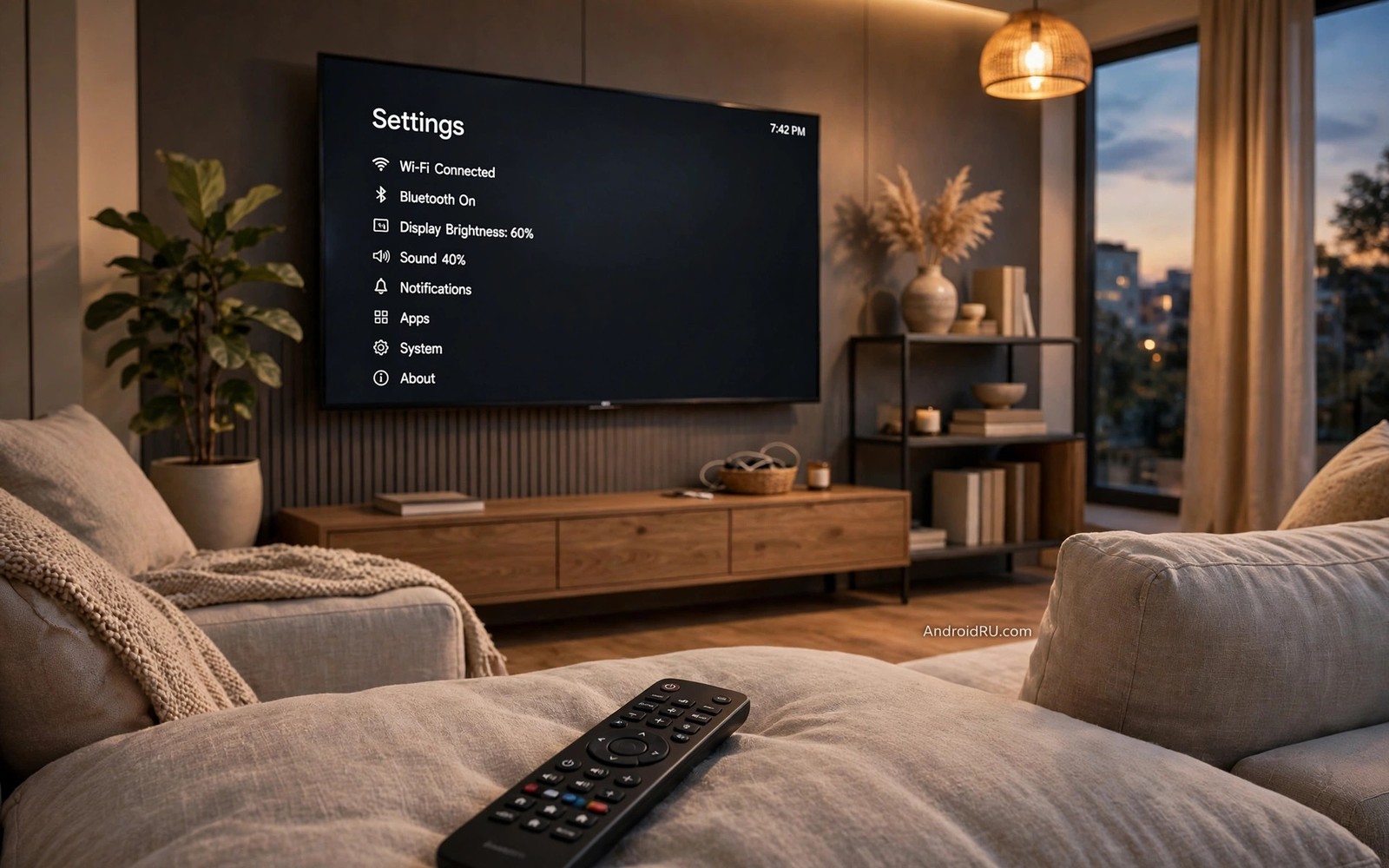
Android TV hides useful settings behind menus that many owners never open. The default setup works but it is not tuned for your room or your viewing habits. A few changes can improve picture quality and sound clarity and privacy. This guide covers ten hidden Android TV settings that you should enable right away. Each setting is easy to change and easy to reverse if you dislike the result.
Start with the display settings because they affect every show you watch. Many TVs ship with motion smoothing turned on by default. That smoothing can make films look like video and it can create artefacts around fast motion. Turning it off often restores a natural film look. Check the picture mode as well. A vivid mode may look bright in a shop but it can oversaturate colours at home. A cinema or movie mode usually gives more accurate colours for evening viewing.
Sound settings matter just as much as picture settings. A TV speaker setup may default to a mode that boosts bass too much for dialogue. A dialogue or clear voice mode can make speech easier to follow. If you use a soundbar then check that the TV outputs the correct audio format. A mismatch can cause silence or stereo only sound when surround sound is available. A quick check of the audio output menu solves many sound complaints.
Picture Settings That Make A Real Difference
Match content frame rate is a setting that many owners miss. When it is on the TV switches its refresh rate to match the source video. A film shot at twenty four frames per second then plays at its native rate. That matching reduces judder during slow camera pans. Without it the TV must convert the frame rate and motion can look uneven. Enable this setting if your TV and your apps support it and test it with a film that has slow pans.
Colour space and dynamic range settings also affect picture quality. A TV may default to a limited colour range that washes out blacks. A full range setting can improve contrast on some inputs. High dynamic range content needs the correct HDR mode for the source. Check that HDR is enabled for the HDMI input that you use most. A wrong HDR setting can make a bright scene look dull or a dark scene look grey. Test with a known HDR title after changing the setting.
Screen size and overscan settings can crop the edges of a picture. Older TVs may cut off a small border around the image. A just scan or screen fit mode shows the full picture without cropping. That mode is important for apps that place controls near the screen edge. If a menu button looks cut off then overscan is likely the cause. Switch to a fit mode and the full interface should appear.
Privacy Network And Power Settings
Privacy settings on Android TV control data collection and personalised ads. Open the privacy menu and review the options for usage data and ad personalisation. Turning off personalised ads does not remove ads entirely. It does reduce tracking based on viewing habits. That trade off is worth it for many households. Also review which apps have permission to access location or microphone. A streaming app rarely needs location access to play video.
Network settings affect streaming quality more than many owners realise. A TV on a crowded Wi-Fi channel may buffer during peak hours. If possible connect the TV with an ethernet cable for stable streaming. If Wi-Fi is the only option then use the five gigahertz band when the TV is close to the router. That band offers faster speeds over short distances. Check the network speed in the TV settings after changing bands. A stable connection matters more than a peak speed number.
Power settings control standby behaviour and energy use. A quick start mode keeps the TV ready to turn on instantly but it uses more standby power. A full standby mode saves energy but takes longer to start. Choose based on your priorities. If you watch TV daily then quick start may be worth the extra power. If you watch rarely then full standby saves energy over months. Also check the screen saver timeout. A short timeout protects an OLED screen from burn in during pauses.
Accessibility And Interface Settings
Accessibility settings help every viewer in a household. Large text mode makes menus easier to read from a sofa. High contrast text improves menu readability for older viewers. Audio descriptions can help viewers who want narration of visual action. Captions can be customised for size and colour and background. A caption style that is easy to read in a bright room may be different from one that works in a dark room. Test caption settings with a show that you watch regularly.
Interface settings control the home screen layout and recommendations. A cluttered home screen with many recommendation rows can slow navigation. You can hide rows that you never use and reorder apps by frequency. Pin your most used apps to the top row for fast access. That small organisation step saves time every day. It also makes the TV easier for guests and children to use without confusion.
Developer style options such as animation scale can speed up the interface. Reducing animation duration makes menus feel snappier. That change is available through developer options on many Android TV devices. Enable developer options carefully and change only the animation settings. Changing other developer settings without understanding them can cause instability. Keep a note of the original values so you can restore them if needed.
Code That Checks TV Settings From A Computer
The code below shows a command pattern for checking basic Android TV settings over a local connection. It is useful for advanced users who manage a TV from a computer on the same network. Adapt the device address to your own TV. Use it only on a TV that you own and on a network that you trust.
adb connect 192.168.1.50:5555
adb shell settings get system screen_brightness
adb shell settings get secure accessibility_captioning_enabled
adb shell dumpsys power | grep -i "mWakefulness"
The snippet above is an original example written for this guide. It shows a generic settings check pattern that you can adapt to your own television. It does not copy code from any outside source.
Adapt the snippet by replacing the example address with the address shown in your TV network settings. Do not enable remote debugging permanently on a TV that guests can access. Turn debugging off after you finish checking settings. That precaution prevents unauthorised access to your TV over the local network. A short debugging session is safer than a permanent open connection.
Settings That Improve Everyday Viewing
Automatic updates for apps and system software keep the TV secure. Enable automatic updates but check for updates manually after a major release. A major update can change a setting that you tuned earlier. A quick review after an update catches those changes. Also check storage after updates. A TV with little storage may slow down when apps cache large amounts of data. Clear cache for apps that you no longer use.
Parental controls and profiles help households with children. A restricted profile can limit apps and content by age rating. Set a PIN for settings changes so a child cannot undo the profile limits. Test the profile by switching to it and trying to open a restricted app. If the restriction fails then check the profile setup again. A profile that looks correct but does not block content gives a false sense of security.
Remote control shortcuts can speed up common tasks. Many remotes support long press actions or programmable buttons. Assign a button to your most used app or to the input that you use most. That shortcut saves several navigation steps each time you turn on the TV. Teach other household members the shortcut as well. A shortcut that only one person knows does not help the whole household.
Common Mistakes
One common mistake is to change many picture settings at once. A picture that looks worse after several changes is hard to diagnose. Change one setting at a time and watch a familiar scene after each change. That method reveals which setting helped and which setting hurt. Keep a note of the original values before you start. That note makes it easy to return to a known good setup.
Another mistake is to ignore the room lighting when tuning picture settings. A setting that looks perfect in a dark room may look washed out in daylight. Tune the main picture mode for your usual viewing time. If you watch in both bright and dark conditions then save two picture modes if your TV supports them. Switch modes based on the time of day rather than accepting a compromise that suits neither condition. Readers who explore sideloading any Android app onto a smart TV will see a similar need to test a change in real conditions rather than trusting a default.
A third mistake is to leave every app with full permissions. A weather app on a TV does not need microphone access. A game does not need location access. Review permissions after installing a new app. Revoke permissions that do not match the app function. That review takes a few minutes and it improves privacy for the whole household. The same habit helps when blocking annoying ads across Android TV because both tasks require checking what each app is allowed to do.
A further mistake is to disable updates to avoid a change in the interface. Updates often include security fixes and app compatibility improvements. Disabling them leaves the TV exposed to known flaws. Accept interface changes as part of staying secure. After an update spend ten minutes rechecking your key settings. That routine keeps the TV both secure and tuned to your preferences.
Frequently Asked Questions
Which picture mode is best for films?
A cinema or movie mode usually gives the most accurate colours for films. It reduces oversaturation and it often disables motion smoothing. Test that mode in your room lighting. If the picture looks too dark then raise brightness slightly rather than switching to a vivid mode. A small brightness adjustment preserves colour accuracy better than a vivid preset.
Should I use Wi-Fi or ethernet for Android TV?
Ethernet gives a more stable connection for streaming when a cable is practical. Wi-Fi on the five gigahertz band works well when the TV is close to the router. Test both options if you can. A stable connection with slightly lower peak speed usually streams better than a fast but unstable Wi-Fi link that drops during peak hours.
Do hidden settings void my TV warranty?
Normal menu settings do not void a warranty. Developer options and system modifications carry more risk. Changing animation scale through developer options is low risk. Changing system files or unlocking a bootloader is a different matter. Stay within normal menus for everyday tuning and research any advanced change before applying it.
Conclusion
Start today by opening picture settings and turning off motion smoothing and by choosing a cinema mode for evening viewing. Then review privacy permissions and network connection and power mode in one short session. Write down the settings that you changed so you can restore them after an update. That single tuning session will improve every show you watch. It will also prepare you to speed up a slow interface by studying the secret trick to speed up laggy Android TV animations because a tuned TV responds better to further optimisation.

