

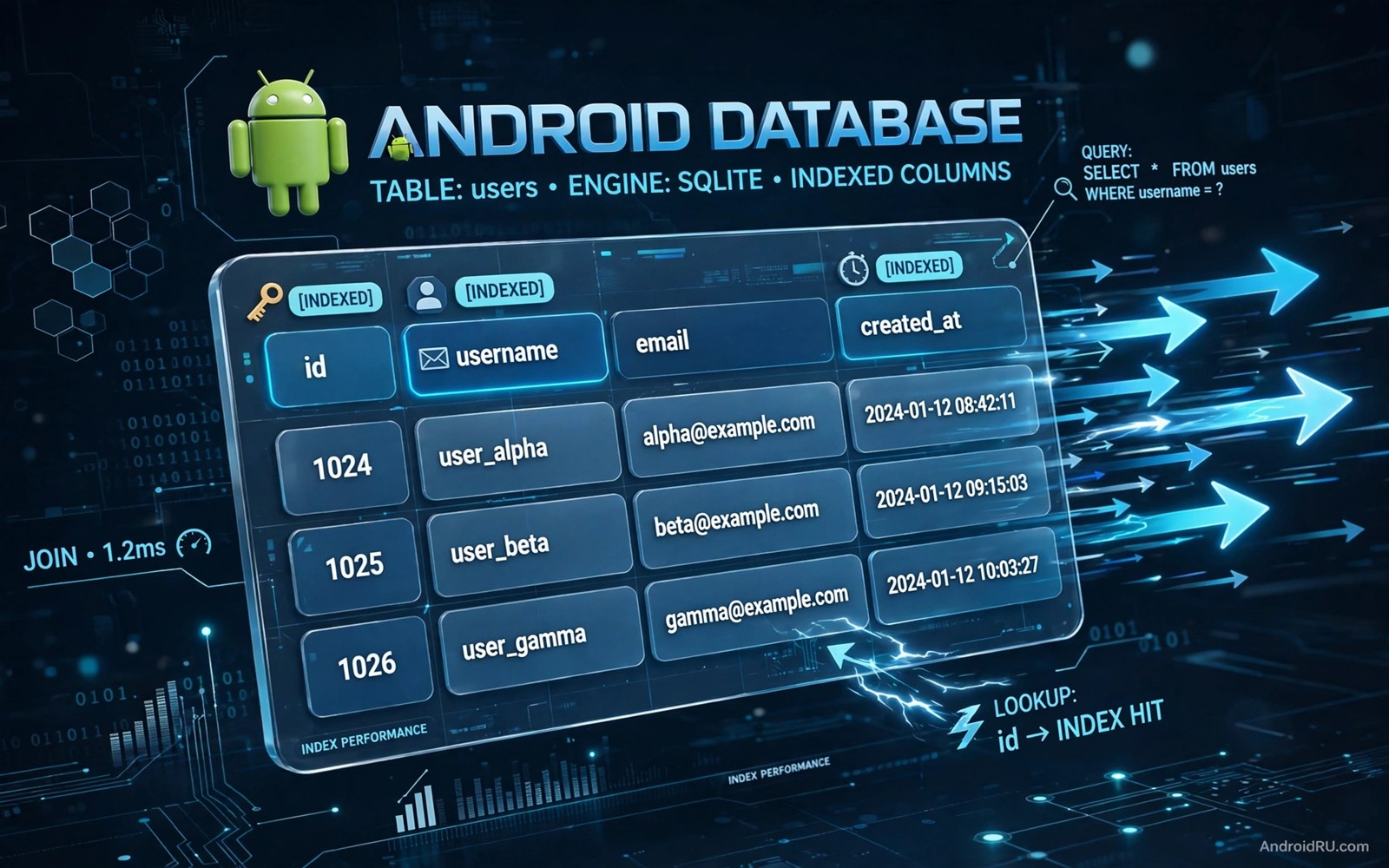
Stop Slow Database Reads: Room Database Indexing Optimization
Room is the most popular way to store data locally in an Android app. It turns database tables into Kotlin objects, checks your queries at compile time, and removes most of the boilerplate that used to come with raw SQLite. That convenience can hide a performance problem. A query that feels instant with a hundred rows can take seconds with ten thousand rows, and the cause is usually a missing index rather than a flaw in your app logic.
I hit this exact problem in a messaging app where the conversation list loaded fine during development and then stalled on real user devices. The database had grown to forty thousand messages, and the query that fetched the latest message per conversation scanned the entire table every time the screen opened. One index cut the load time from over two seconds to under fifty milliseconds. Nothing else in the code changed.
This guide shows how to find slow Room queries, how to choose the right index, how to add it safely with a migration, and how to measure the result so you know the fix actually worked. The examples use typical Android apps such as notes, messages, and orders, and they assume realistic data volumes rather than empty test databases.
How Room turns a query into a table scan
Room generates code from your @Query annotation, and that code runs a SQL query against a SQLite database on the device. SQLite plans the query by choosing how to find matching rows. Without a useful index the plan is a full table scan: SQLite reads every row and checks the condition for each row. That work grows linearly with table size, so doubling the rows doubles the time.
A query with a WHERE clause on an unindexed column is the classic slow case. A query that sorts by an unindexed column is another. A join between two tables without indexes on the join columns is a third. Each case looks innocent in code, and each becomes expensive only when the tables grow past a few thousand rows. That is why the problem hides during development, when your test database is small, and appears in production, when real users have real data.
Reading the query plan with EXPLAIN QUERY PLAN
The fastest way to see the problem is EXPLAIN QUERY PLAN, a SQLite command that shows how the database intends to execute a query. Run it in Android Studio’s Database Inspector or in any SQLite client against a copy of your app database. Look for the words SCAN next to a table name: that means a full table scan. Look for SEARCH with an index name: that means SQLite found an index and will jump straight to matching rows.
Run the plan for the queries that run often and for the queries that run on large tables. A scan on a rare query for a small table may be acceptable, and chasing it wastes your time. A scan on a frequent query for a large table is a priority fix, because every user pays that cost every time the screen opens.
When a full table scan is actually fine
Small lookup tables with a few dozen rows do not need indexes, and neither do queries that genuinely need every row, such as an export or a full sync. The scan itself is not evil. The problem is a scan on a hot path with a growing table. Judge each query by how often it runs and how large its table can become, not by whether the word SCAN appears in the plan.
Choosing the right index for your query
An index is a data structure that lets the database find rows fast without scanning the whole table. Think of it as the index at the back of a book: instead of reading every page to find a topic, you look up the page number and jump there. The database keeps the index sorted, so finding a value costs a logarithmic search instead of a linear scan. The trade-off is that every index costs storage and slows down inserts and updates, because the database must update each index when a row changes.
An index on a single column helps queries that filter by that column. An index on several columns helps queries that filter by those columns together. Order matters in a multi-column index, so put the column with the most selective filter first. A selective filter narrows the result to a small set of rows, while a weak filter leaves a large set and gives less benefit. A query that filters by user ID and then by date should index user ID first, because user ID narrows the result far more than date does.
Single-column versus multi-column indexes
Start with the simplest index that serves your slowest query. If one query filters by conversation_id and another filters by created_at, two single-column indexes may serve both. If a single query filters by both columns together, one composite index on (conversation_id, created_at) serves it better than two separate indexes, because SQLite can use both conditions in one pass. The repository layer is where these queries live, and the choice between MVVM vs MVI architecture patterns affects how often those queries run, since each pattern triggers data loads at different moments in the UI lifecycle.
Do not create an index for every column. Each index costs storage, and it slows down inserts and updates because the database must update every index when a row changes. An app that writes often and reads rarely needs fewer indexes. An app that reads often and writes rarely can afford more indexes. Balance the cost against the read benefit for your actual workload, not for a workload you imagine.
Covering indexes for read-heavy queries
A covering index contains all the columns a query needs, so SQLite can answer the query from the index alone without reading the table row at all. That shortcut saves time for frequent queries that return few columns, such as a list screen that shows only a title and a timestamp. It also costs more storage because the index stores extra columns, so use it for queries that run very often and return few columns. A covering index on a query that runs once a day is wasted storage.
Column order in a composite index
Column order decides which queries a composite index can serve. An index on (user_id, created_at) helps queries that filter by user_id alone and queries that filter by both columns, but it does not help a query that filters by created_at alone. The leftmost column is the key: SQLite can only use the index from the left. Put the equality filter first, then the range or sort column, and test the plan after every change.
Adding an index in Room the right way
Room lets you declare an index in the @Entity annotation. List the column names the index should cover and give the index a clear name that describes its purpose. A clear name makes future maintenance easier. A vague name such as index1 tells the next developer nothing about why the index exists, and that developer may delete it during a cleanup.
Adding an index changes the database schema, so Room needs a migration when the schema version changes. Write a migration that creates the index and test it on a database that already has user data. A migration that works on an empty database can still fail on a real database with existing rows, for example when the index build runs out of time on a large table or when duplicate values block a unique index.
Declaring the index in the Entity annotation
The declaration looks like this: @Entity(tableName = "messages", indices = [Index(value = ["conversation_id", "created_at"], name = "index_messages_conversation_created")]). Room generates the CREATE INDEX statement from that declaration for fresh installs, and your migration runs the same statement for existing installs. Keep the declaration and the migration in sync, or Room’s schema check will fail at runtime and the app will crash on start.
Writing a migration that creates the index
Write a Migration subclass that executes CREATE INDEX IF NOT EXISTS index_messages_conversation_created ON messages (conversation_id, created_at) in its migrate method, then bump the database version and register the migration in the database builder. Use IF NOT EXISTS so a retry does not crash on a duplicate index. Test the migration on a database copied from a real device, with the row counts your users actually have. If you want to automate mobile app UI tests as well, the same CI job can run the migration test and the UI suite together, so a schema mistake gets caught before release instead of after.
Testing migrations on real user data
Build a test database with realistic volume: ten thousand messages across a few hundred conversations, not ten messages in one conversation. Run the migration, then run the app and open the screens that use the indexed query. Watch for crashes, for missing data, and for slow first loads while the index builds. A large index build can take a few seconds on an old phone, so consider showing a one-time progress state if your largest table needs a heavy migration.
Measuring the effect: before and after benchmarks
Measure the slow query before the change and after the change with the same data, on the same device, and repeat the test several times. Record the time for each run. A real improvement should show up consistently across runs. A single fast run may be a cache effect rather than a true improvement, because SQLite caches pages in memory and the second run of any query is usually faster than the first.
Use System.nanoTime() around the query in a debug build, or use the Database Inspector’s timing display, and test with a database that matches production volume. A fix that helps a table with fifty thousand rows may not matter for a table with fifty rows, and that distinction keeps optimisation focused on the queries users actually feel. Slow builds waste the same kind of time during development, so if you also want to optimize Gradle build speeds, fix the build while you fix the queries and measure both.
A repeatable measurement routine
Keep a small benchmark routine in your debug builds: seed the database with a fixed data set, run each hot query five times, discard the fastest and slowest results, and log the median. Run that routine before every release that touches the database layer. A routine you can repeat beats a one-off test you cannot reproduce, because it catches regressions the moment they appear instead of months later when users complain.
Common indexing mistakes that make things worse
The most common mistake is indexing every column. Each index slows down writes, so a table with eight indexes can turn a fast insert into a slow one, and a chat app that inserts messages constantly will feel that cost on every send. Another common mistake is creating a unique index on a column that can legitimately hold duplicates, which makes inserts fail with a constraint error on real user data that your test data never contained.
A third mistake is forgetting that Room validates the schema at runtime. If the index in your @Entity annotation does not match the index your migration created, Room throws an IllegalStateException on startup and the app crashes before the user sees anything. Keep the annotation and the migration identical, and let Room’s schema export file catch drift during code review.
Indexing every column in the table
Resist the urge to index everything. Start from the slow queries you actually measured, add one index per query, and re-measure. If two queries share a filter column, one index may serve both. The goal is the smallest set of indexes that removes the scans on your hot paths, not the largest set you can think of.
Forgetting the cost on writes
Every index is a second write for every insert and every update. On a write-heavy table such as an event log, that cost can outweigh the read benefit, and the right answer may be no index at all, or a partial index that covers only recent rows. Measure write performance too, especially on low-end devices where storage is slower.
When the index is not the problem
Sometimes the query plan shows an index in use and the screen is still slow. The next suspect is the N+1 query pattern: loading a list of conversations, then running one extra query per conversation to fetch its latest message. A hundred conversations means a hundred extra queries, and no index fixes that. Rewrite the load as a single query with a join or a subquery, and the screen will speed up far more than any index could achieve.
Another suspect is the result set itself. Returning ten thousand rows to display twenty is wasteful no matter how fast the query is. Add pagination with LIMIT and OFFSET, or better, use Room’s Paging 3 integration, so the database only returns the rows the user can see. A fast query that returns too much data is still a slow screen.
N+1 queries and lazy loading in Room
Room’s @Relation annotation can hide N+1 behaviour, because it runs a separate query for each parent row. That is fine for a detail screen with one parent, and it is a problem for a list screen with a hundred parents. For lists, prefer a single query that returns a flat result or a database view, and map it in code. The extra mapping code is worth the saved queries.
Large result sets and pagination
Pagination is not optional for large tables. A contacts app with twenty thousand entries should never load all of them to show the first screen. Use Paging 3 with Room, set a page size around twenty to fifty rows, and let the library load more as the user scrolls. The database stays fast, memory stays low, and the user never notices the difference.
Frequently asked questions
How do I know if my Room query needs an index?
Run EXPLAIN QUERY PLAN on the query against a realistic database. If the plan shows a full table scan on a table with thousands of rows and the query runs on a hot path, add an index on the filtered or sorted columns. If the plan shows an index search, or the table is tiny, leave it alone and look elsewhere for the slowdown.
Do indexes slow down inserts in Room?
Yes, every index adds work to each insert, update, and delete, because the database must update the index as well as the table. The cost is usually small for one or two indexes, and it grows with each additional index. Measure write performance on your largest table if you add many indexes, and remove any index that does not serve a measured slow query.
Can I add an index without a migration?
No. Adding an index changes the schema, so Room requires a version bump and a migration, or a destructive fallback that deletes user data. Never use destructive migration in production. Write the migration, test it on a database with real user data, and ship it like any other schema change.
What is the fastest way to test a slow query?
Copy a production-sized database from a test device, open it in Android Studio’s Database Inspector, and run the query with EXPLAIN QUERY PLAN. That shows the plan in seconds. Then add the index, re-run the plan, and compare the timings with the same data. That loop is faster than rebuilding the app for every guess.
Putting it together: an indexing checklist
Start with measurement, not with indexes. Find the slow queries with the query plan, add one index per slow query, write the migration, test it on realistic data, and measure again. Remove any index that does not earn its keep. Keep the annotation and the migration in sync, and keep a benchmark routine that catches regressions before your users do.
Your next step is simple: open the Database Inspector today, pick the three queries your app runs most often, and check their plans. If any of them scans a large table, you now know exactly what to do, and the fix will probably take less than an hour. That hour is the best return on investment in Android performance work.

