

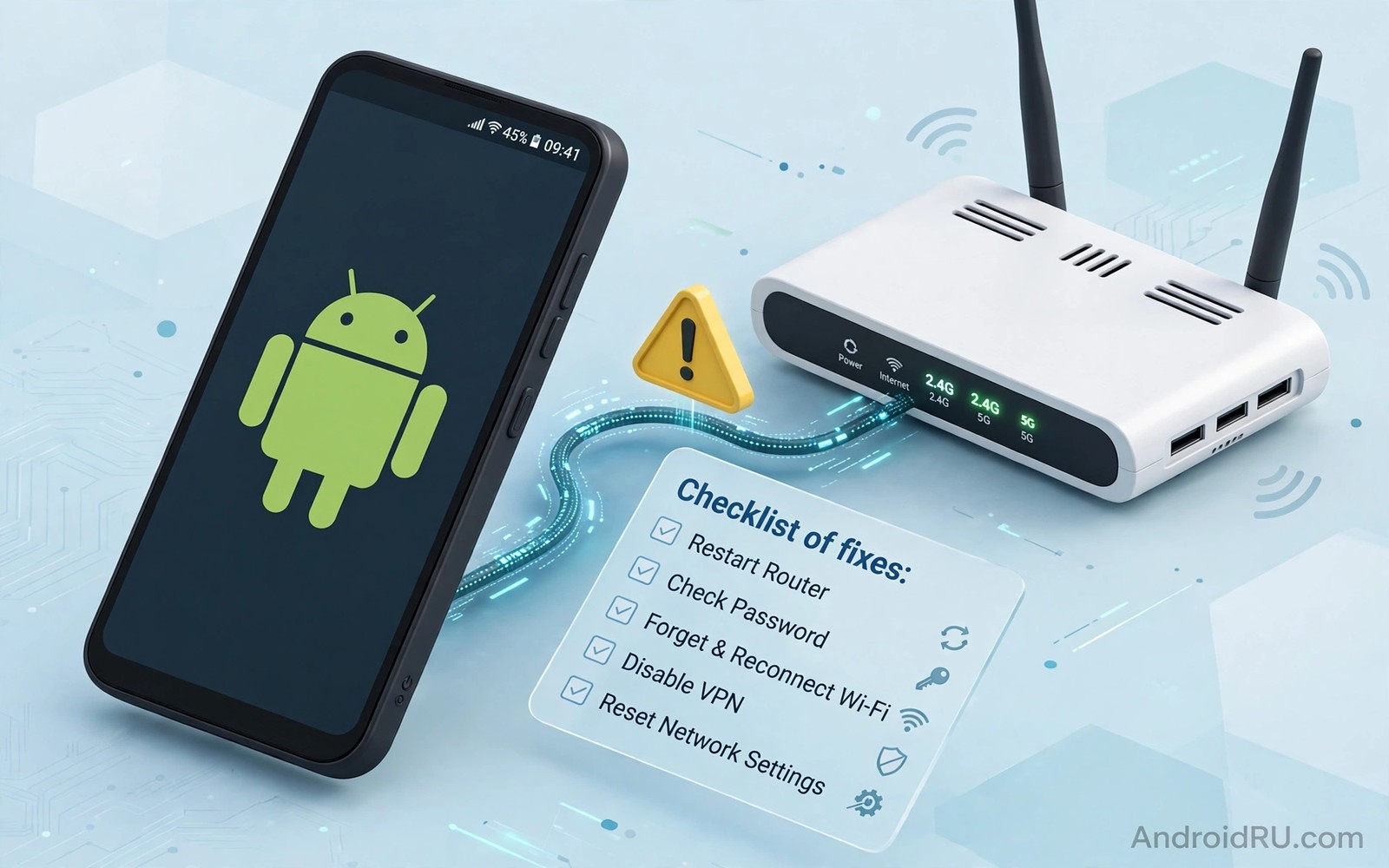
Your phone shows full Wi-Fi bars yet no web page will load. That contradiction frustrates people because the icon suggests a healthy connection. The icon only proves that your phone talks to the router. It does not prove that the router talks to the internet. The break can sit in the router or in the phone settings or in the network service itself. A calm ordered check will find it faster than random restarts.
Start by asking whether other devices share the problem. If every device fails then the router or the internet service is the likely cause. If only your phone fails then the phone settings deserve the focus. That one question splits the problem in half. It also stops you from resetting a phone that was never at fault.
This guide gives seven fixes in the order that solves the most cases first. Each fix includes a quick test so that you know whether it worked. Move to the next fix only after the test fails. That discipline keeps you from undoing a good setting while chasing a different cause.
Fix one: restart the router and the phone in order
Unplug the router for thirty seconds and plug it back in. Wait for the router lights to settle into a normal pattern before you test again. A router restart clears stale sessions and it renews the link to your provider. Many no internet errors vanish at this step alone. Do not press a factory reset button on the router. A simple power restart is enough and it keeps your Wi-Fi name and password intact.
Restart your phone after the router settles if the problem stays. A phone restart clears a stuck Wi-Fi service and it forces a fresh address request. Test one web page after the restart. If the page loads then the fault was a temporary state in one of the two devices. If it still fails then move to the next fix with a clear mind. You have now ruled out the simplest cause.
Fix two: forget the network and join again
Open Wi-Fi settings and forget the network that shows no internet. A saved network can keep a bad address or a bad security setting after a router change. Forgetting removes that stale profile completely. Join the network again and enter the password carefully. A fresh profile often restores internet at once.
Watch for a sign in prompt after you rejoin. Some networks need a captive portal login before they allow internet access. A hotel or a campus network may show connected status while it waits for that login. Open a browser and try a plain web page if no prompt appears. The portal page should appear and let you accept terms or enter a code. A faster link also helps diagnosis and the guide to doubling Wi-Fi speed on Android shows how a band change can reveal a router problem.
Fix three: check date and time and DNS settings
Open Settings and check that date and time are set to automatic. A wrong clock can break secure website checks and it can make pages fail even when the connection works. A phone clock set months in the past will reject many site certificates. Automatic time fixes that hidden cause in seconds. Test a page again after the clock corrects itself.
Try a public DNS setting if the clock is correct and pages still fail. Open the network details and change the DNS option to a well known public resolver if your phone allows it. A broken provider DNS can make every site name fail while direct IP traffic still works. A public DNS bypasses that fault for a test. If pages load with the new DNS then the provider DNS was the cause. Keep the public DNS only if it stays reliable for a full day.
Fix four: check IP settings and proxy settings
Open the network details and look at the IP settings. Most home networks need DHCP so that the router assigns an address automatically. A static IP left from another network can clash with your home network. Switch the setting back to DHCP and reconnect. A fresh address from the router often restores internet at once.
Check the proxy setting on the same screen. A proxy left from a work or school network can block all traffic on a home network. Set the proxy to None for normal home use. A forgotten proxy is a classic cause of connected but no internet errors. It hides in plain sight because the Wi-Fi icon still looks healthy. Public networks can add their own traps and the steps for public Wi-Fi landing page failures will help when a portal blocks the first page.
Fix five: test mobile data and safe mode
Turn off Wi-Fi and test mobile data for one minute. If mobile data works then the phone radio and the apps are fine and the fault sits in the Wi-Fi path. If mobile data also fails then the problem may sit in an app or in a system setting that affects all networks. That comparison narrows the search quickly.
Restart in safe mode if you suspect an app. Safe mode disables third party apps for a test. If Wi-Fi works in safe mode then a third party app such as a VPN or a firewall is blocking traffic. Remove or disable recent network apps one by one until normal mode works again. Do not factory reset the phone before this test. A factory reset is a last resort and it rarely beats a careful app check.
Use this ordered test routine
Work through the fixes in order and test one page after each fix. A single test page keeps the result clear. Use the same page each time so that a cached page cannot fool you. A fresh page or a new search term proves real internet access.
Step one: restart router then restart phone
Step two: forget network and join again
Step three: check automatic date and time
Step four: set IP to DHCP and proxy to None
Step five: test mobile data and safe mode
Result: note the first step that restores pages
This routine is an original example written for this guide. It uses only standard Android screens and it needs no extra app. The routine matters because it stops random setting changes. Each step rules out one cause before you move on. The note about the winning step also helps support staff if you need help later.
Test one more network before you give up
Join a different Wi-Fi network if one is available. A neighbour hotspot with permission or a phone hotspot can serve as a test network. If your phone works on the second network then your home router or provider deserves the focus. If it fails on both networks then the phone settings deserve the focus. That comparison can save hours of router troubleshooting.
Check the router admin page from another device if the phone fails only at home. A provider outage or a disabled internet link will show there. A quick call to the provider can confirm an area outage. Do not replace the router before you confirm that the service itself is live. A new router cannot fix a provider outage.
Check the router lights and cables
Look at the router lights before you change phone settings. A missing internet light or a red globe icon points to a provider or cable fault. A loose cable can cause the same symptom as a phone fault. Push each cable firmly into its socket and check for damage. A damaged cable deserves replacement before any phone troubleshooting.
Try a wired device if one is available in the home. A laptop with a cable can test the internet link without Wi-Fi at all. If the wired device also fails then the router or provider is at fault. If the wired device works then the Wi-Fi radio or the phone settings deserve the focus. That comparison can save a long and fruitless phone reset.
Move closer to the router for a test. A weak Wi-Fi signal can show connected status while pages time out. A test beside the router rules out distance and walls. If pages load beside the router then placement or interference is the cause. A better router position or a different band can fix a distance problem without any phone change.
Keep a record of what you changed
Write down each setting before you change it. A note about the original DNS or IP setting lets you restore it later. A change without a note can create a new fault that you cannot undo. A simple note in a phone app is enough. The note also helps a support technician if you need help later.
Test after every single change rather than after a batch of changes. A batch hides the winning fix and it can hide a harmful change. A patient sequence takes a few minutes longer but it gives a clear answer. That patience matters most when the fault returns weeks later. You will know exactly which fix worked last time.
Restart the router on a regular schedule if your provider suggests it. A weekly restart can clear stale sessions before they cause a no internet error. Do not restart during an important download. Choose a quiet time and let the router settle before you test. A routine restart is maintenance rather than troubleshooting.
Common mistakes
A common mistake is to factory reset the phone at the first sign of no internet. A reset wipes data and it rarely fixes a router or DNS fault. Another mistake is to change five settings at once. That approach hides the real cause and it can create new faults. Change one setting and test one page.
Do not ignore the sign in prompt on a public network. A connected icon without a portal login means no internet by design. Do not blame the phone for a network that waits for terms acceptance. Open a browser and complete the portal step before you change phone settings. If auto join keeps pulling you back to a bad network then the advice to stop auto-connecting to slow Wi-Fi will keep your phone on the better network.
Frequently Asked Questions
Why does Wi-Fi show connected but no page loads?
The icon only proves a link to the router. It does not prove a link from the router to the internet. A provider fault or a DNS fault or a portal login can all block pages while the icon stays full.
Should I reset network settings first?
No because a network reset wipes all saved networks and Bluetooth pairings. Try a router restart and a forget and rejoin first. Use a network reset only after the ordered fixes fail.
Can a VPN cause no internet on Wi-Fi?
Yes because a VPN can block traffic when its server fails or its kill switch stays active. Turn the VPN off for a test. If pages load without it then the VPN or its server is the cause.
Document the fix for next time
Write a short note about the fix that restored internet on your phone. A note such as forget network plus DHCP restored pages gives you a fast repeat fix. A note also helps another household member with the same error. A shared note can save a long troubleshooting session for the whole house. Keep the note in a phone app that works offline.
Update the note if a different fix works next time. A note that grows with experience becomes a personal troubleshooting guide. A guide built from real fixes beats a generic list from memory. A few lines after each fault turn a frustrating error into a lasting skill.
Conclusion
Today start with the other devices test and then restart the router and your phone in order. If pages still fail then forget the network and join again and check automatic time and DHCP and proxy settings. Note the first step that restores a page. That note turns a confusing error into a clear cause and it gives you a fast fix the next time the same error appears.

