

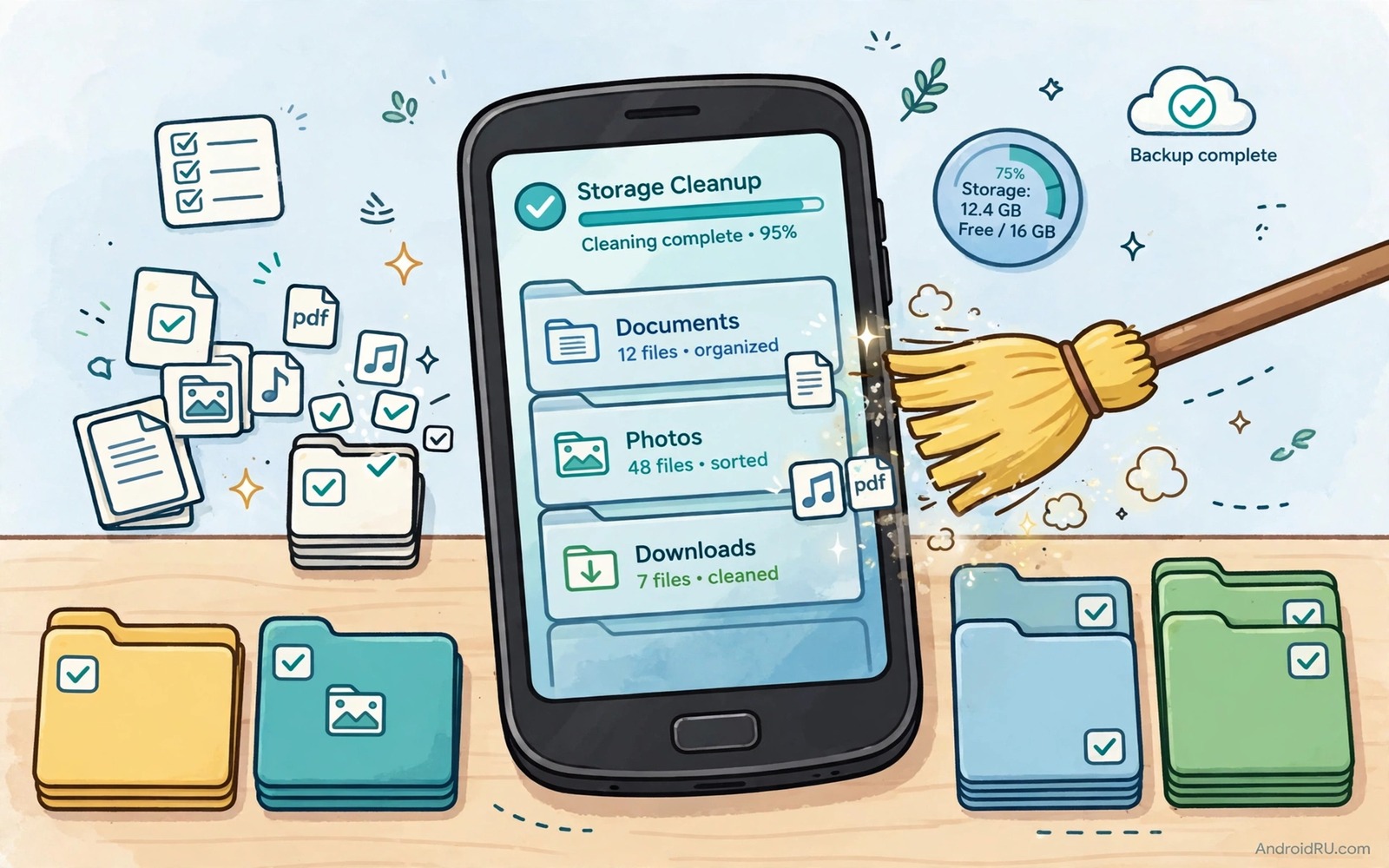
Old phones slow down for many reasons and storage fragmentation contributes quietly. Years of installs and updates and deletions leave files scattered across storage. The system spends extra effort locating scattered pieces. That effort shows as slow launches and laggy scrolling and delayed saves.
Android storage differs from old hard drives because flash memory handles fragmentation differently. Flash storage does not suffer mechanical seek delays. Fragmentation still matters through file system clutter and nearly full storage and bloated caches. Cleaning those factors restores responsiveness without risky defragmentation tools.
Free space first to ease storage strain
Keep at least twenty percent of storage free on an old phone. A nearly full drive forces the system to squeeze new writes into scattered gaps. That squeezing slows every save. Delete large videos and clear large caches to restore the margin. A lean drive writes faster than a full drive on the same hardware.
Move photos and videos to a computer or to cloud storage during the cleanup. Old phones often hold years of media that no longer need local access. A media move alone can restore the free margin in one session. Keep only recent media local for daily sharing.
Clear caches and stale app data carefully
Clear caches for large social and video apps that accumulate temporary files. A targeted cache clear removes stale data without deleting accounts. Test each app after clearing and confirm that it loads normally. A clean cache often improves launch speed on an old phone.
Avoid clearing all app data at once. App data holds settings and saves that rebuild slowly. Clear data only for apps that misbehave and only after a backup. Readers who clean broadly can explore cleaning the Android other storage category instantly for a safe category approach.
On an old phone fragmented storage often hides inside apps that store offline content for months without a clear expiry date. Open the storage view for one heavy app at a time and check its cache size and its user data size before you clear anything. Offline maps and downloaded episodes and saved videos can survive a normal cache clear because the app treats them as user data rather than temporary files. Delete those downloads inside the app itself so the app can update its own index and leave no orphaned file behind. Work through your three largest apps first and record the free space after each clear so you can see which app caused the worst scatter. A phone that gains steady free space after this pass will write new files in larger blocks and will feel less fragmented during daily use.
Uninstall and reinstall bloated apps
Some apps bloat over years through updates and caches that resist simple clearing. Uninstalling and reinstalling such an app gives it a clean file layout. Back up accounts and data before reinstalling. A fresh install often launches faster than a years-old install on the same phone.
Reinstall only apps that you actually use. A reinstall session offers a natural chance to drop forgotten apps. Each dropped app frees space and reduces background load. An old phone benefits doubly from fewer apps and cleaner installs.
Restart and update for file system health
Restart the phone after a large cleanup. A restart clears temporary files and lets the system rebuild caches cleanly. Check storage after the restart to confirm the cleanup held. A stable storage total after restart signals a successful session.
Install system updates when the maker still offers them. Updates include file system improvements and storage optimisations. A major update can improve performance on an old phone. Back up before a major update because updates carry a small risk on ageing hardware.
A small check for storage leaders
List user folders by size to find the folders that strain an old phone most. A single media folder can dominate the whole device. Sorting by size focuses cleanup where it pays most. Work through the ranking from the top and stop when free space passes twenty percent.
du -sh /sdcard/* 2>/dev/null | sort -rh | head -20
The snippet above was written for this article to show one safe way to list user folders by size. It reads folder sizes and it changes nothing on the phone. Use the output to guide cleanup on an ageing device.
Reduce background apps on old phones
Background apps consume memory and storage resources on old phones in ways that feel like storage problems. An app that syncs constantly writes caches and logs that fill storage over time. Restricting background activity for non-essential apps reduces both memory pressure and storage growth. Open battery and background settings and restrict apps that do not need constant updates. A restricted app still works when opened yet it stops wasting resources in the background.
Review background permissions quarterly because app updates can re-enable background activity. A quarterly review catches apps that quietly resumed background work after an update. Restricting them again restores the benefit. A routine background check complements storage cleanup perfectly on ageing hardware.
Simplify the home screen and widgets
Home screen widgets update constantly and store data for their displays. A weather widget and a news widget and a calendar widget together consume memory and storage over time. Keep only widgets that provide daily value on an old phone. Removing a widget frees resources immediately and it simplifies the home screen visually. A simpler home screen feels faster even before any storage cleanup.
Live wallpapers consume similar resources through constant animation and updates. Replace a live wallpaper with a static image on an old phone. A static image uses negligible resources while a live wallpaper runs continuously. That single change can improve responsiveness noticeably on hardware with limited memory.
Update apps selectively on old phones
App updates on old phones sometimes add features that demand more resources than the hardware can spare. Updating every app automatically can degrade performance over time. Review update notes for large apps and delay updates that add heavy features. Security updates deserve immediate installation while feature updates deserve a performance check first. Selective updating protects an old phone from feature bloat.
Test a major app update for a day before keeping it on an old phone. A major update that slows the app significantly may justify staying on the previous version where the store allows it. A test day reveals performance changes that update notes rarely mention. Patient updating preserves the usability of ageing devices.
Know when hardware limits outweigh cleanup
Cleanup has limits and recognising those limits saves frustration. An old phone with very little memory and a slow processor will still feel slow after a perfect cleanup. Storage cleanup removes one bottleneck yet it cannot add memory or processing power. Users who understand that limit can set realistic expectations and can plan a replacement timeline honestly.
Plan a replacement when cleanup no longer restores acceptable performance for essential tasks. Essential tasks include calling and messaging and browsing and navigation. A phone that struggles with essentials despite cleanup deserves replacement. A phone that handles essentials well after cleanup can serve for another year with regular maintenance.
Simplify app permissions on old phones
App permissions on old phones affect performance because apps with broad permissions run more background services. Review permissions for apps that you rarely use and revoke permissions that they do not need. A revoked permission can stop background work that consumes memory and storage. Permission simplification therefore improves both privacy and performance on ageing hardware. A permission review takes only a few minutes per app.
Test each app after revoking a permission to confirm that core functions still work. A permission that breaks a core function deserves restoration. A permission that causes no change deserves permanent revocation. Systematic permission testing balances privacy and usability without breaking essential features.
Replace ageing batteries alongside storage cleanup
Ageing batteries affect old phone performance as much as storage clutter does because a weak battery can throttle performance to protect itself. A phone that slows down despite thorough storage cleanup may suffer from battery degradation rather than storage problems. Check battery health in Settings where available and consider replacement when health drops significantly. A new battery can restore performance that storage cleanup alone cannot achieve. Combining battery replacement with storage cleanup gives an old phone the best possible second life. Users should evaluate both factors together rather than blaming storage for every slowdown on an ageing device.
Common mistakes
One common mistake is running a defragmentation app designed for hard drives. Flash storage does not need mechanical defragmentation. Such apps waste writes and can shorten flash life. Another mistake is filling the phone again right after cleanup. Keep the free margin for lasting benefit.
People also blame fragmentation for hardware limits. An old processor and limited memory also slow a phone. Storage cleanup helps yet it cannot turn an old phone into a flagship. Readers who manage old devices can explore extending battery life on older outdated Android devices for a broader old phone plan.
Frequently asked questions
Do Android phones need defragmentation?
No in the traditional hard drive sense. Flash storage handles scattered data differently. Cleanup and free space matter more than defragmentation tools. Avoid apps that promise hard drive style defragmentation.
Will a factory reset fix fragmentation?
A factory reset gives a clean file layout yet it erases everything. Back up fully before considering a reset. Try cleanup and reinstall steps first because they often achieve most of the benefit.
How much free space should an old phone keep?
Aim for twenty percent free space as a minimum. More free space helps further up to a point. A phone with thirty percent free usually runs smoothly for daily tasks.
Conclusion
Fragmented storage on old phones responds best to free space and cache cleanup and clean reinstalls. Flash storage needs no mechanical defragmentation. A lean and tidy storage system restores much of the speed that clutter stole.
Your concrete next step is to free storage to twenty percent today by moving old photos to a computer. Restart the phone and test your slowest app afterwards. Readers who want a full old phone routine can next explore keeping Android internal storage under seventy percent capacity and freeing up twenty gigabytes of storage quickly as follow-ups.

